The High-Efficiency Image Coding (HEIC) format, also known as High-Efficiency Image Format (HEIF), has become increasingly prevalent, particularly with the adoption by Apple devices running iOS 11 and macOS High Sierra and above. Introduced in 2017, HEIC offers a significant advantage over its predecessor, JPEG, by providing comparable image quality in substantially smaller file sizes, often up to half the size of equivalent JPEGs. This efficiency is achieved through advanced compression techniques, allowing users to store more photos on their devices without sacrificing visual fidelity. HEIC also supports a wider color depth (16 bits per channel) compared to JPEG (8 bits per channel), leading to richer and more nuanced image reproduction. Furthermore, HEIC's ability to store sequences of images makes it ideal for features like Live Photos.
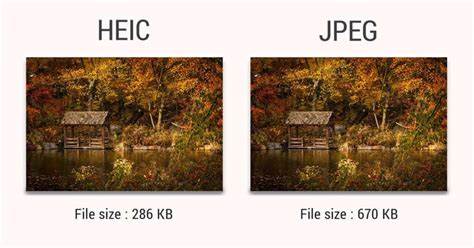
Despite its advantages, the proprietary nature of HEIC means it's not universally compatible. Users may encounter difficulties opening HEIC files on operating systems or applications that do not natively support the format. This has led to a growing need for methods to view and convert these files. Fortunately, several solutions exist to overcome these compatibility hurdles, making HEIC files accessible across different platforms.
The Advantages of HEIC
The primary benefit of the HEIC format lies in its exceptional efficiency. By employing advanced compression algorithms, HEIC files achieve a remarkable reduction in size while preserving high image quality. This means users can store nearly twice as many photos on their devices, alleviating concerns about running out of storage space.
Beyond mere file size reduction, HEIC offers enhanced visual capabilities. It supports a color depth of up to 16 bits per channel, which is double that of JPEG. This increased color information allows for smoother gradients, more vibrant colors, and finer detail in images, especially in challenging lighting conditions.
Another notable feature of HEIC is its support for storing image sequences within a single file. This capability is particularly useful for capturing dynamic content, such as Live Photos on Apple devices, where a short burst of motion is embedded with a still image. This functionality adds a new dimension to digital photography, allowing for more engaging visual storytelling.
The smaller file sizes also translate to faster transfer times. Downloading and uploading HEIC images is quicker due to their reduced data footprint, which can be a significant advantage in environments with limited bandwidth or for users who frequently share images online.
While JPEG has been the dominant image format for decades, the advancements offered by HEIC suggest a potential future where it could supplant JPEG as the standard, supported by a wider array of devices and operating systems as technology continues to evolve.
Overcoming HEIC Compatibility Issues
The main challenge with HEIC is its limited native support across various operating systems and applications. While Apple devices have embraced it, users on Windows PCs or Android devices might find it difficult to open or edit these files without additional tools.
Converting HEIC to More Compatible Formats
The most common and straightforward solution to HEIC compatibility issues is to convert the files into a more widely supported format, such as JPEG (JPG) or PNG. Numerous tools, both online and as downloadable applications, facilitate this conversion process.
Online Converters: These web-based services allow users to upload HEIC files and convert them to JPG or other desired formats directly through a web browser. This method is convenient for occasional conversions and does not require any software installation. A prime example is the Apowersoft Free HEIC Converter, a web-based application that quickly transforms HEIC files into JPGs. It is free to use, and importantly, it automatically deletes uploaded images after conversion to ensure user privacy. The process typically involves uploading the HEIC image, selecting JPG as the output format, and then downloading the converted file.
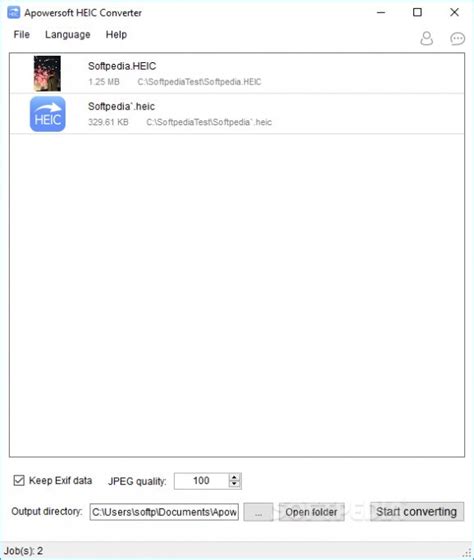
The online version of Apowersoft HEIC Converter is user-friendly and efficient for single or small batch conversions. However, for users who frequently need to convert large numbers of HEIC files, a desktop application might offer a more streamlined experience.
Desktop Converter Applications: For more intensive conversion needs, desktop applications provide a robust solution. Apowersoft HEIC Converter also offers a desktop version that boasts faster conversion speeds, especially when handling multiple files simultaneously. This application allows users to add HEIC files directly and initiate the conversion process with a simple click, eliminating the need to repeatedly access a web page.
Another notable desktop solution is Aiseesoft HEIC Converter. This software is recognized for its ultra-fast conversion speeds, even on less powerful computers, thanks to hardware acceleration. It supports converting HEIC files to both JPG and PNG formats without any loss in quality, and it can process an unlimited number of files without delay.
For users seeking alternatives, MobiKin HEIC to JPG Converter is often cited as a strong contender. It not only converts HEIC photos to JPG but also supports conversion to PNG format, maintaining the original quality. The process involves downloading and installing the software, adding the HEIC files, selecting the desired output format, and initiating the conversion.
When choosing a converter, factors such as batch processing capabilities, conversion speed, output format options, and privacy policies are important considerations.
Viewing HEIC Files Natively
In some cases, instead of converting, users might prefer to view HEIC files directly on their preferred operating system.
Windows: While Windows 10 did not initially have native support for HEIC, Microsoft has since introduced compatibility through the "HEIF Image Extensions" package, available from the Microsoft Store. However, for a more integrated experience, applications like Apowersoft Photo Viewer offer a direct solution. This program was one of the first to allow direct viewing of HEIC files on Windows PCs without requiring any plugins. It supports various image formats, including HEIC, JPG, PNG, GIF, and BMP. The interface is simple, allowing users to open and view HEIC images, and even convert them to other formats if needed. It also offers viewing options such as zooming, rotation, and slideshow mode. A key advantage is that it does not require an internet connection once installed, and it occupies minimal disk space.
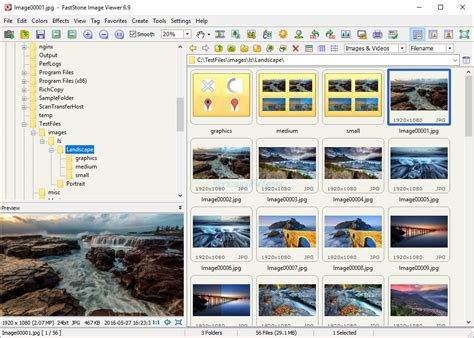
Another option for Windows users is the CopyTrans HEIC plugin, which enables native support for HEIC files within the built-in Windows Photo Viewer. After installation, HEIC images can be opened by simply double-clicking them in File Explorer.
Android: Opening HEIC files on Android devices can be more challenging. While there is an app called Luma: HEIF (*.heic) Viewer and Converter on the Google Play Store, user feedback suggests it can be prone to crashing and has limitations in file management. A more reliable approach for Android users involves utilizing cloud storage services like Dropbox or OneDrive. By uploading HEIC files to these services from an Apple device and then accessing them through their respective Android apps, users can often preview the images directly. The apps might automatically rotate vertically taken photos.
How to Open HEIC Files in Android
Configuring Apple Devices to Produce Compatible Formats
For users who primarily use Apple devices but need to share photos with others who may not have HEIC support, it's possible to configure these devices to save photos in a more compatible format by default.
By navigating to Settings > Camera > Formats and selecting "Most Compatible" instead of "High Efficiency," Apple devices will then use the JPEG format for all new photos taken. This setting ensures that all captured images are in a format that is widely supported across different operating systems and applications, eliminating the need for conversion for everyday sharing.
Printing HEIC Photos
The ability to print HEIC photos can be another point of concern for users. While direct printing might be limited depending on the software or operating system, converting HEIC files to JPG or PNG first makes them readily printable.
On Windows, once a HEIC file is converted to JPG, it can be opened with the default image viewer. From there, users can typically print the image by accessing the print options through a menu or by using the keyboard shortcut Ctrl + P.
For Mac users, converted HEIC files (now in JPG or PNG format) can be opened with the default image viewer. Printing can be initiated using the keyboard shortcut Command + P or through the "File" menu, selecting "Print."
For those who wish to print directly without conversion, specialized software that supports HEIC printing, such as certain advanced photo editing suites or dedicated printing utilities, might be necessary. However, conversion remains the most universally accessible method.
Conclusion
The HEIC format represents a significant advancement in image compression technology, offering smaller file sizes without compromising on quality. While its adoption by Apple has made it a standard for many users, compatibility issues can arise when sharing or viewing these files on non-Apple platforms. Fortunately, a range of solutions, from online converters and desktop applications like Apowersoft HEIC Converter and Photo Viewer, to cloud storage services and built-in operating system features, effectively bridge this gap. By understanding the advantages of HEIC and utilizing the available tools, users can seamlessly manage, view, and share their high-efficiency images across all their devices.
tags: #apowersoft #heic #converter