Subtitles significantly expand a video's reach, making content accessible to a wider audience, including those with hearing impairments and individuals who prefer to watch with sound off. It's a well-established fact that a considerable portion of online viewers opt for subtitles; for instance, 41% of Americans prefer them when watching content online. Therefore, learning how to add them to your projects in DaVinci Resolve is a valuable skill. This guide will walk you through the intricacies of adding subtitles in DaVinci Resolve, covering both manual and automatic methods, with a particular focus on the auto-subtitling features available in the Studio version and efficient workflows for all users.
The Importance of Subtitles in Modern Video Content
In today's digital landscape, subtitles are no longer an afterthought but a crucial element of video production. They enhance viewer engagement, improve SEO by making content searchable, and ensure inclusivity. For content creators aiming to maximize their audience and impact, understanding how to implement subtitles effectively within their chosen editing software is paramount. DaVinci Resolve, a powerful and widely-used video editing suite, offers robust solutions for this very purpose, catering to both beginners and seasoned professionals.
Navigating Subtitling in DaVinci Resolve: Manual vs. Automatic
DaVinci Resolve offers two primary approaches to subtitling: a manual method that provides granular control and an automatic method, primarily available in the Studio version, that leverages AI for speed and efficiency.
How to Add Subtitles Manually in DaVinci Resolve
The manual process of adding subtitles in DaVinci Resolve, while potentially time-consuming, offers complete control over the timing, style, and content of your captions. This method is an excellent starting point for those new to video editing or when absolute precision is required.
Navigate to the Edit Workspace: Begin by opening your project and switching to the Edit workspace. This is where you'll primarily arrange and edit your video clips.
Add a Subtitle Track: In the Edit workspace, locate the "Effects" tab. Within the Effects window, select "Titles" and scroll down to find "Subtitle." Click and drag the "Subtitle" element onto the timeline, positioning it on a track just above your video clips. Alternatively, you can right-click directly above your timeline and select "Add Subtitle Track." To add a specific subtitle event, move your playhead to the desired start point, right-click on the subtitle track, and select "Add Track."
Add Your Subtitle Text: With the subtitle track in place, select the subtitle event on your timeline. Navigate to the "Inspector" tab, which is typically located in the upper right corner of the interface. Under the "Caption" section, you will find a text field where you can type the dialogue that corresponds to the current frame of your video.
Adjust the Length of Your Subtitle Track: Precision in timing is key. To ensure your subtitles sync perfectly with the audio, you need to adjust the duration of each subtitle clip. Click and drag the right-hand edge of the subtitle clip on the timeline until it accurately aligns with the start and end of the spoken dialogue or sound cue.
Repeat for the Rest of Your Subtitles: Continue this process for every piece of dialogue or sound you wish to caption. In the Inspector window, you can select "Add New" to create the next subtitle clip where the previous one ends. Repeat steps 3 and 4 until your entire video is subtitled.
Stylize Your Subtitles: Once your subtitles are in place, you can customize their appearance to enhance legibility and match your video's aesthetic. With a subtitle clip selected, go to the "Track" tab within the Inspector. Here, you have extensive options to change the font, size, color, add outlines (strokes), and adjust the position of your subtitles. You can also add effects like background colors or drop shadows to make your subtitles stand out more prominently against the video content.
While manual subtitling offers control, it can be time-consuming. For those seeking efficiency, DaVinci Resolve offers automated solutions, particularly in its Studio version.
How to Create Subtitles from Audio Automatically (DaVinci Resolve Studio Exclusive)
DaVinci Resolve Studio, the paid version of the software, introduces powerful auto-subtitling features powered by advanced speech-to-text technology. This significantly streamlines the subtitling process, transforming audio directly into text-based captions.
Create Your Subtitles: With your video clip on the timeline, navigate to the "Timeline" menu at the top of the screen. From the dropdown, select "AI Tools" and then "Create Subtitles from Audio." A pop-up window will appear, offering several crucial settings. You can choose the language of your audio (or let DaVinci auto-detect it), select a "Caption Preset" which offers various stylistic templates, and adjust the "maximum number of characters that appear per line." The default of 18 characters per line is a good starting point for readability. Once your settings are configured, press "Create." DaVinci Resolve will then analyze your video's audio and automatically generate subtitle blocks directly onto your timeline. This process can take anywhere from a few seconds to several minutes, depending on your system's processing power and the length of your video.
Stylize Your Subtitles: After the automatic generation, it's common to make some tweaks for accuracy and visual appeal. Select your generated subtitle track. Open the "Inspector" panel. Here, you can modify the text for precision, correcting any misheard words or transcription errors. The 'Track' tab is where you ensure your subtitles are easy on the eyes. You can change the DaVinci subtitle font styles, sizes, and colors. In the track tab, we can change the appearance of the subtitles. Experiment with outlines, shadows, and positioning until you achieve the desired look.
Animate Your Subtitles (Optional): For an added touch of polish and to keep your audience engaged, you can apply subtle animations to your subtitles. In the "Effects" library, search for "Word Highlight" and drag this effect onto your subtitle track. This effect can highlight the word that is currently being spoken on screen, creating a dynamic and engaging viewing experience. You can play around with the background color and other parameters of the Word Highlight effect to find the perfect option for your video.
The DaVinci Resolve Studio's auto-subtitle feature, leveraging its audio-to-text capability, revolutionizes the subtitling process by offering a blend of efficiency and precision. Once the DaVinci auto captions are generated, it's common to now make some tweaks for accuracy and visual appeal.
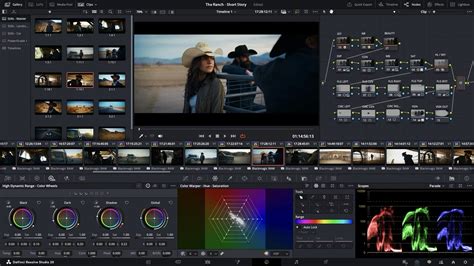
Enhancing Your Subtitling Workflow: Tips and Tricks
Regardless of whether you're using the manual or automatic method, several features and techniques within DaVinci Resolve can significantly speed up and improve your subtitling workflow.
Key Shortcuts Mastery
Getting familiar with specific shortcuts for subtitle functions can dramatically increase your editing speed. While the free version might have limited direct shortcuts for subtitle editing, you can often assign custom shortcuts. Try adding a new subtitle track (often mapped to Shift+Cmd+L on Mac, or its equivalent on Windows) or navigating between subtitles (Cmd+Arrow keys or equivalent). Efficient timeline navigation is also crucial; use the ‘G’ key to snap to the beginning of subtitle clips and ‘H’ to jump to the end.
Inspector Panel for Batch Edits
The Inspector panel is not just for individual clip adjustments. You can select multiple subtitle clips on your timeline simultaneously and use the Inspector Panel for batch edits. This allows for simultaneous alterations to many subtitle clips, such as changing the font, size, or color across all selected captions at once, saving considerable time.
Save Track Styles as Presets
After you've fine-tuned the appearance of your subtitles to perfection, saving that style as a preset is a highly efficient practice. In the Inspector panel, look for options to save your current track settings as a preset. This means that for future projects, you can quickly apply your preferred subtitle look without having to reconfigure all the settings from scratch.
Cinema Mode for Focus
Engage 'Cinema Mode' (often found in the viewer settings) to drop the clutter and focus solely on the subtitles' timing and accuracy. This distraction-free environment helps you concentrate on the critical aspects of your captions.
Export and Search Functionality
Post-transcription, the text generated by DaVinci Resolve's audio-to-text feature is exportable. The search function within the subtitle editor is particularly useful for finding specific phrases or words in long videos, aiding in quick edits or content review. When we do this, DaVinci Resolve will analyze the audio of our clip. Once it finishes, we will see the entire inscription of our video audio in text.
Third-Party Options for Auto-Captions and Subtitles
For users of the free version of DaVinci Resolve, or for those seeking alternative powerful AI transcription services, third-party options can be invaluable.
Auto-Subs Plugin (Free for DaVinci Resolve)
A popular free solution for generating automatic subtitles in DaVinci Resolve is the Auto-Subs plugin. This tool leverages AI, often using models like OpenAI's Whisper, to transcribe your audio.
Set Up the Auto-Subs Plugin: Download and install the Auto-Subs plugin. Once installed, launch DaVinci Resolve and open your project. From the top menu, navigate to "Workspace" > "Scripts" and select "AutoSubs."
Generate Captions: Within the Auto-Subs interface, choose your audio track, select a transcription model (the default Whisper model is generally excellent), and initiate the process. The AI will analyze your audio and create a subtitle file, typically in .SRT format.
Import and Review: Back in DaVinci Resolve, go to "File" > "Import" > "Subtitle" and select the generated SRT file. The subtitles will appear as a track on your timeline, ready for review and minor adjustments. You can then customize their appearance using the Inspector panel as described earlier.
Other Third-Party Software and Services
You can also use standalone third-party software or online services to generate subtitle files (like SRT or VTT) from your video's audio. Many of these services offer varying degrees of accuracy and features, some even providing speaker identification. Once you have your subtitle file, you can import it directly into DaVinci Resolve via the "File" > "Import" > "Subtitle" option and then drag it onto your timeline.
How to Make Word by Word Subtitles in DaVinci Resolve
Importing Existing Subtitle and Transcription Files
DaVinci Resolve is flexible and supports the import of various subtitle and transcription file formats, making it easy to integrate pre-made captions into your projects.
Prepare Your Subtitle File: Ensure your subtitle file is in a compatible format, such as SRT, VTT, or TXT. If not, use a subtitle conversion tool to reformat it.
Import Subtitles: Open your project and navigate to the "Media Pool." Right-click within the Media Pool and select "Import Subtitles." Locate your subtitle file on your computer and click "Open." The file will be added as a new timeline element.
Add to Timeline and Customize: Drag the imported subtitle file from the Media Pool onto your timeline, placing it above your video track. DaVinci Resolve will automatically align the subtitles based on the timing information within the file. You can then customize their appearance and timing in the Inspector panel, similar to manually created subtitles.
Review and Export: Carefully review the imported subtitles for accuracy and sync. Make any necessary adjustments by dragging the subtitle blocks on the timeline. Finally, proceed to the "Deliver" tab to export your video, choosing whether to burn the subtitles into the video or export them as a separate file.
Conclusion: Empowering Your Video Content with DaVinci Resolve Subtitles
Whether you're aiming for meticulous manual control or the rapid efficiency of automatic generation, DaVinci Resolve provides comprehensive tools for adding subtitles to your videos. The Studio version's AI-powered auto-captioning offers a significant leap in speed, while the manual method remains a reliable option for precision. By mastering these techniques, utilizing keyboard shortcuts, and exploring third-party integrations, you can dramatically enhance the accessibility, reach, and overall professional polish of your video content. With DaVinci Resolve's robust features, your videos will not only be heard but also understood and remembered by a much broader audience.