Adobe InDesign, a powerful tool for page layout and design, introduced a feature known as "Background Tasks" around the release of CS5. This functionality allows users to perform certain operations, most notably exporting files to PDF or IDML, in the background, enabling continued work on the main InDesign document in the foreground. While this feature offers a significant productivity boost, especially for smaller projects, it can also present challenges, particularly with large or complex files. This article delves into the intricacies of the InDesign Background Tasks panel, its functionality, common issues, and troubleshooting methods.
Understanding the InDesign Background Tasks Feature
The core purpose of InDesign's background tasks is to streamline the workflow by offloading time-consuming processes. When you initiate an export to PDF (Print) or IDML, InDesign can begin this process discreetly in the background. This means you are not locked out of your document; you can continue to edit text, adjust layouts, and make other modifications while the export is underway.
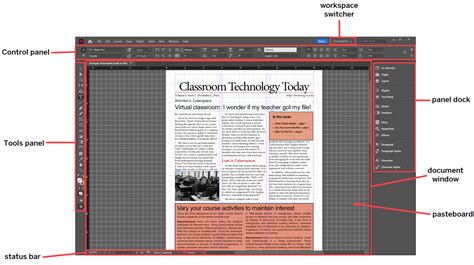
The primary interface for monitoring these operations is the Background Task panel. Within this panel, users can observe the progress of current background tasks. A crucial function of this panel is the ability to cancel ongoing tasks by clicking the 'x' icon associated with each task. However, beyond displaying progress and offering cancellation, the panel itself provides limited direct information or advanced control. It serves as a status indicator rather than a comprehensive management tool.
The introduction of this feature around CS5 aimed to enhance user experience by preventing the application from becoming unresponsive during exports. The idea was to maintain a fluid interaction with the software, even when demanding operations were being executed.
The Promise and the Pitfalls: When Background Tasks Go Awry
For smaller files, such as business cards or short brochures, the background export feature typically performs flawlessly. It operates as intended, allowing for a seamless transition between editing and exporting. However, users often encounter difficulties when dealing with larger, more complex documents, such as those exceeding 100 pages.
In these scenarios, the progress bar for the background task might appear to move, giving the impression that the export is progressing, but it can inexplicably hang indefinitely. Users might find themselves waiting for extended periods, only to realize that the export is not completing. This can be particularly frustrating when the document needs to be exported promptly for a deadline.
A common and vexing problem arises when these background tasks refuse to cancel. The 'x' button in the panel may become unresponsive, or the cancellation process itself might stall, leaving the user in a state where the task is perpetually "cancelling." This can lead to a situation where InDesign itself becomes unresponsive, preventing the user from closing the application, saving their work, or starting new tasks.
Troubleshooting Stubborn Background Tasks
When faced with a stalled or un-cancellable background task, several approaches can be taken to resolve the issue.
Force Quitting InDesign
The most immediate solution to an unresponsive InDesign application due to stuck background tasks is to force quit the program.
On a Mac:
- Click on the desktop to ensure the Finder is active.
- Use the keyboard command Option-Command-Esc.
- This action will bring up the "Force Quit Applications" window.
- Locate "InDesign" in the list of applications.
- Select InDesign and click the "Force Quit" button.
- Confirm the action if prompted.
On a PC (Windows):
- Press Ctrl-Shift-Esc simultaneously.
- This will directly open the Task Manager.
- Navigate to the "Applications" tab.
- Find "InDesign" in the list. Its status will likely indicate "Not Responding."
- Select InDesign and click the "End Task" button.
- A new dialog window may appear; click "End Task" again to confirm.
After force quitting, when you relaunch InDesign, you will typically be presented with an option to recover the document. If you had previously saved your work before the issue occurred, it is often advisable to decline the recovery option to avoid potentially reintroducing the problem.
Disabling Background Exports via a Script
For users who wish to avoid the background export feature altogether or temporarily disable it to circumvent persistent issues, a clever workaround involving a startup script has been developed. This script, created by Marijan Tompa, adds a new menu item to InDesign's File menu, allowing users to toggle background task processing on and off.
When this script is activated to disable background tasks, it operates by creating an empty text file named DisableAsyncExports.txt. The location where this file is placed is critical for its function.
- On Windows (PC): The file should be created in the same directory as the Adobe InDesign executable. For InDesign CS5, this is typically:
C:Program Files/Adobe/Adobe InDesign CS5/(The exact path may vary slightly depending on the version and installation location). - On Mac: The file needs to be placed within the application's package contents. For InDesign CS5.5, this would be:
/Applications/Adobe InDesign CS5.5/Adobe InDesign CS5.5.app/Contents/MacOS/(Again, paths may differ based on InDesign version and installation).
The presence of this DisableAsyncExports.txt file in the specified location is recognized by InDesign, and it effectively prevents background exports from initiating. This provides a persistent solution for users who consistently face problems with the feature or prefer not to use it.
Alternative Workarounds and Version Management
Some users have reported success by manually managing their linked files and ensuring compatibility across different InDesign versions. For instance, if working with files that are linked from external artboards (e.g., .ai files), ensuring these source files are saved in a compatible format can be important. Remaking linked files in an older version (like CS5.1) and saving them as legacy versions might retain the desired file structure, preventing unexpected issues when imported into a newer InDesign document.
Version control systems, such as Soxy, can also be employed to manage InDesign Document (.indd) files and their associated assets, helping to track changes and revert to stable versions if problems arise.
When experiencing issues with opening .idml files, it is essential to verify the InDesign version used to create the .idml. An .idml file is essentially an InDesign Markup Language file, designed for interchangeability and recovery. If an .idml file cannot be opened, it might indicate a corruption issue or an incompatibility with the InDesign version attempting to open it. Recreating the .idml from a stable .indd backup or trying to open it with a different InDesign version might be necessary.
The Background Task Alert
In some versions of InDesign, a "Background Task Alert" feature is available. This alert is designed to notify the user whenever there is an issue specifically with an export or save operation being performed in the background. While this alert can be helpful in flagging problems early, it doesn't inherently solve the underlying issues that cause tasks to fail or hang. If the alert appears and indicates an issue, consulting the troubleshooting documentation on Adobe.com is recommended.
Considerations for File Linking and XML
The user's experience highlights potential complexities arising from extensive file linking and the presence of XML elements within an InDesign document. A document with dozens of links, particularly to artboards from external applications like Adobe Illustrator (.ai files), can become intricate. When these linked files are updated or their versions change, InDesign needs to re-establish these connections. If these links become broken or if there are issues with how InDesign interprets the linked artboards (e.g., version compatibility between Illustrator and InDesign), it can contribute to background task failures.
The mention of "XML links that only exist in Structure" suggests that the document might have been subjected to XML workflows or data-driven publishing processes. These XML elements, even if not visually apparent in the layout, can influence how InDesign processes and exports the document. If these XML structures are not correctly formatted or if there are orphaned XML tags, it could potentially interfere with background operations like PDF or IDML exports. Removing or cleaning up these extraneous XML elements, if they are not essential to the document's intended use, might be a beneficial troubleshooting step.
Top 5 InDesign Mistakes 5. Exporting Incorrectly
Conclusion
The InDesign Background Tasks panel is a feature designed to enhance productivity by allowing parallel processing of certain operations. While beneficial for routine tasks and smaller documents, it can become a source of frustration when dealing with large files or specific system configurations. Understanding how to monitor, cancel, and, if necessary, disable these background tasks through force quitting or startup scripts is essential for maintaining a smooth workflow. Furthermore, paying attention to the integrity of linked files and the management of document structure, including XML elements, can prevent many of the issues associated with InDesign's background processing capabilities.
tags: #background #tasks #panel #indesign