Ever found yourself staring at a photograph that, despite being technically sound, feels like it’s missing that certain je ne sais quoi? Many creative professionals, and even casual users of Adobe Photoshop, tend to overlook the extensive library of built-in filters that the software offers. This hesitation often stems from a perception that these filters are merely dated gimmicks, reminiscent of the often-uninspired effects from the 1990s - think of those overly simplistic faux watercolor or generic retro photocopy styles. However, this view fails to acknowledge the profound creative potential that lies within these often-underestimated tools when used strategically and in combination.
The true power of Photoshop's filters is unlocked not by applying them in isolation, but by understanding the concept of "stacking" multiple filters. This approach, often showcased in tutorials by digital artists like Chris Spooner of Spoon Graphics, involves layering various filter effects and carefully adjusting their parameters to achieve unique and sophisticated results. A prime example is the distressed halftone engraved effect, a look that can be meticulously crafted by combining several built-in filters. The key lies in the thoughtful ordering of these filter layers and the advantageous use of Smart Filters. Smart Filters are indispensable as they allow for non-destructive editing, meaning you can revisit and modify filter settings at any point in your workflow without degrading the original image quality. While a specific halftone effect might not appeal to every creative vision, the principle of filter stacking is universally applicable, offering a vast landscape of possibilities for artistic expression and commercial projects alike.
Deconstructing Photoshop's Filter Categories: A Deep Dive
Photoshop's filters can be broadly categorized, each offering a distinct set of creative tools. Understanding these categories is the first step towards mastering their application.
Artistic Filters: Emulating Traditional Media
The Artistic filter gallery is designed to mimic the look and feel of traditional art techniques. These filters can transform digital images into something that appears to be created with physical media, offering a painterly or illustrative quality.
- Colored Pencil: This filter simulates the appearance of an image drawn with colored pencils on a solid background. It introduces a textured, slightly grainy quality, ideal for creating a handcrafted feel.
- Cutout: The Cutout filter simplifies an image by reducing the number of colors and posterizing it, creating distinct areas of flat color. It's particularly useful for creating collages, graphic typography, or a stylized, almost stencil-like aesthetic.
- Dry Brush: Mimicking a dry brush technique, this filter creates an effect that lies somewhere between oil and watercolor painting. It applies textured strokes, giving the image a painterly, slightly rough appearance.
- Fresco: This filter gives an image a fresco-like appearance, as if it were painted on wet plaster. It simplifies details and blends colors in a way that resembles traditional fresco art.
- Neon Glow: This filter adds a glowing outline to the edges of an image, simulating the effect of neon lights. It works by detecting edges and applying a luminous effect.
- Paint Daubs: This filter applies strokes that resemble daubs of paint, allowing for adjustments in brush size and type, ranging from 1 to 50, to achieve a painterly effect.
- Palette Knife: Simulating the effect of a palette knife, this filter smooths out the image and creates textured strokes, giving it a thick, impasto-like appearance.
- Posterize: The Posterize filter reduces the number of tonal levels in each color channel, resulting in a poster-like effect with flat areas of color and distinct color transitions.
- Rough Pastels: This filter emulates the effect of drawing with pastel chalk on a textured background, creating a soft, smudged look with visible texture.
- Smudge Stick: The Smudge Stick filter simulates the effect of smudging with a charcoal or pastel stick, blending colors and creating soft, blended transitions.
- Sponge: This filter creates a textured, sponge-like effect by applying a wetness and softness to the image, blending colors and simplifying details.
- Underpainting: This filter creates an effect that resembles an underpainting, often seen in oil or acrylic art, with visible brush strokes and a textured base.
- Watercolor: The Watercolor filter simplifies details and blends colors to mimic the appearance of a watercolor painting, with soft edges and translucent color washes.
Brush Stroke Filters: Enhancing Texture and Detail
The Brush Stroke gallery offers filters that add various brush-like textures and effects to an image, allowing for creative manipulation of detail and appearance.
- Accented Edges: This filter detects the edges of an image and draws black lines on them, emphasizing contours and creating a sketch-like appearance.
- Angled Strokes: This filter simulates the effect of applying paint with angled brush strokes, creating directional textures and a stylized look.
- Crosshatch: The Crosshatch filter creates a series of intersecting lines, similar to hatching techniques used in drawing and engraving, to create tonal and shaded areas.
- Ink Outlines: This filter converts the image to grayscale and then outlines the edges with black lines, creating an effect similar to an ink drawing.
- Chalk & Charcoal: Simulates the effect of using chalk and charcoal, creating a textured, sketch-like appearance with blended tones.
- Graphic Pen: This filter renders the image using graphic pen strokes, creating a stylized, illustrative look with defined lines.
- Palette Knife: (Also found in Artistic) This filter can be used to create textured brush strokes, giving the image a painterly feel.
- Watercolor: (Also found in Artistic) This filter can also be seen as a brush stroke effect, simplifying details and creating soft washes of color.
Distort Filters: Warping and Reshaping Images
The Distort gallery provides tools for warping, twisting, and reshaping images in creative ways, leading to abstract and surreal effects.
- Diffuse Glow: This filter adds a soft glow to an image, as if illuminated by a diffused light source, softening its overall look.
- Displace: The Displace filter warps an image based on a displacement map (another image file), allowing for complex distortions.
- Glass: The Glass filter creates a glass-like effect, distorting the image as if viewed through a piece of textured or frosted glass. It uses a texture file to determine how to distort the selection.
- Lens Distortion: This filter simulates the distortion effects of camera lenses, such as barrel or pincushion distortion.
- Ocean Ripple: Creates a wavy, water-like distortion effect across the image, simulating ripples on the surface of water. For greater control, the Wave filter can be used.
- Pinch: The Pinch filter squeezes a selection towards its center or away from it, creating a pinched or inflated effect.
- Polar Coordinates: This filter converts a selection from Cartesian to polar coordinates, or vice versa, creating radial or cylindrical distortions.
- Ripple: The Ripple filter creates a wave-like distortion by moving pixels from the center outwards, with adjustable size and amount.
- Shear: The Shear filter distorts the image along a curve, allowing for custom warping effects. You can adjust any point along the curve and reset it to a straight line. It also controls how undistorted areas are treated.
- Spherize: This filter distorts a selection radially, making it appear to bulge or recede like a sphere, based on the radius of the pixels. The Ridges option sets the number of direction reversals of the zigzag from the center of the selection to its edge.
- Twirl: The Twirl filter rotates a selection around a central point, creating a swirling effect. It rotates a selection more sharply in the center than at the edges.
- Wave: The Wave filter creates a ripple effect with more control than Ocean Ripple, allowing for the creation of various wave patterns.
- ZigZag: This filter makes the selection appear to be under water or to be rippled, offering options for its amount, style (Pond Rough, Pond Calm, Pond Tiny), and direction.
Noise Filters: Adding or Reducing Grain
Noise filters are crucial for either introducing realistic grain to an image or for cleaning up unwanted digital noise.
- Add Noise: This filter adds monochromatic or colored noise to an image, simulating film grain or creating a textured effect. It includes Uniform and Gaussian distribution options.
- Despeckle: Despeckle is used to reduce noise in an image while attempting to preserve edges. It blurs the image, focusing on smoothing out areas of noise.
- Dust & Scratches: This filter is specifically designed to remove or reduce the appearance of dust, scratches, and other imperfections from an image, often used for restoring old photographs.
- Reduce Noise: This filter reduces digital noise by changing dissimilar pixels, aiming to smooth out grainy areas while retaining detail. To achieve a balance between sharpening the image and hiding defects, try various combinations of Radius and Threshold settings. Or apply the filter to selected areas in the image.
Pixelate Filters: Creating Blocky or Mosaic Effects
The Pixelate gallery transforms images by grouping pixels into larger blocks, creating distinct visual styles.
- Color Halftone: This filter simulates the effect of using an enlarged halftone screen on each channel of the image. For each channel, the filter divides the image into rectangles and replaces each rectangle with a circle. The circle size is proportional to the brightness of the rectangle.
- Crystallize: The Crystallize filter creates a mosaic-like effect by grouping pixels into larger, irregular polygons.
- Mezzotint: This filter simulates the effect of mezzotint engraving, producing a grainy texture with random dots, useful for creating a vintage or artistic look.
- Pointillize: This filter converts an image into a series of dots, similar to pointillist paintings, where colors are represented by small dots of ink.
- Mosaic: The Mosaic filter divides the image into a grid of cells and fills each cell with the average color of the pixels within that cell, creating a mosaic effect.
- Stained Glass: This filter creates the effect of stained glass by outlining each cell with dark lines and filling it with a solid color.
Render Filters: Generating Clouds, Lighting, and Textures
The Render gallery allows for the creation of abstract patterns, lighting effects, and textures directly within Photoshop.
- Clouds: The Clouds filter generates a cloud-like pattern using the foreground and background colors. If the colors are inverted, the clouds appear as dark shapes against a lighter background.
- Difference Clouds: This filter generates clouds, but inverts the colors where the clouds appear, creating a more dramatic and textured cloud effect.
- Lighting Effects: This filter allows you to add and manipulate various lighting effects to an image, simulating different light sources, styles, and intensities.
- G fibers: Creates the look of woven fibers using the foreground and background colors. You use the Variance slider to control how the colors vary (a low value produces long streaks of color, and a high value results in very short fibers with more varied distribution of color). The Strength slider controls how each fiber looks. A low setting produces a loose weave, and a high setting produces short, stringy fibers. Click the Randomize button to change how the pattern looks; you can click the button a number of times until you find a pattern you like.
- Lens Flare: This filter simulates the effect of light flaring within a camera lens, adding bright spots and streaks of light.
- Texture Fill: This filter allows you to apply a selected or created texture to an image, giving it a surface quality.
Sharpen Filters: Enhancing Detail and Clarity
Sharpen filters are essential for bringing out detail and improving the perceived sharpness of an image.
- Adaptive Wide Angle: This filter corrects geometric distortion caused by wide-angle lenses, useful for architectural photography.
- Camera Lens Blur: This filter simulates the shallow depth-of-field effect of a camera lens, blurring the background while keeping the subject in focus.
- Field Blur: Allows you to create a blur effect with control over the blur applied to different areas of the image.
- Iris Blur: This filter allows you to create a blur effect within an elliptical area, simulating the effect of an adjustable aperture.
- Lens Correction: This filter automatically corrects lens distortions, chromatic aberration, and vignetting.
- Miniature: Creates a tilt-shift effect, making a scene appear like a miniature model.
- Offset: The Offset filter shifts the image by a specified number of pixels horizontally and vertically, often used to create seamless patterns or to wrap images around a cylinder.
- Radial Blur: This filter creates a blurring effect that radiates outwards from a central point or spins around it, simulating motion.
- Sharpen: A basic sharpen filter that enhances edge contrast.
- Sharpen Edges: This filter sharpens only the edges of an image, preserving smooth areas.
- Sharpen More: A more aggressive version of the Sharpen filter.
- Smart Sharpen: The enhanced Smart Sharpen filter empowers you to produce high-quality results through adaptive sharpening technology that minimizes noise and halo effects. The streamlined UI design for this filter offers optimized controls for targeted sharpening. Smart sharpening in Photoshop supports CMYK. Additionally, you can sharpen arbitrary channels. Decrease the Radius until the halo effect disappears. Adjust the Reduce Noise slider, such that the noise in the image looks similar to how it was before you began sharpening the image. Too much noise reduction can result in a plasticy look.
- Unsharp Mask: A classic sharpening filter that allows control over the Radius, Amount, and Threshold to precisely adjust the sharpening effect.
Stylize Filters: Applying Unique Visual Treatments
The Stylize gallery offers a range of filters that apply unique, often artistic, visual treatments to images.
- Bumps: This filter displaces pixels to create a bumpy, textured surface, simulating materials like stone or wood.
- Chrome: The Chrome filter gives an image a polished, metallic, or chrome-like surface by simulating highlights and shadows as if they were on a reflective surface.
- Crystallize: (Also found in Pixelate) Creates a mosaic effect by grouping pixels into larger, irregular polygons.
- Emboss: This filter creates the appearance of an embossed relief by highlighting edges and creating a raised effect.
- Extrude: The Extrude filter creates 3D-like extrusions from the image, adding depth and dimension.
- Find Edges: This filter detects and highlights the edges in an image, often converting it to a line-art or sketch-like appearance.
- Glass: (Also found in Distort) Creates a glass-like effect, distorting the image as if viewed through textured glass.
- Halftone Pattern: Similar to Color Halftone, but creates a pattern of dots or lines.
- Ink Outlines: (Also found in Brush Strokes) Converts the image to grayscale and outlines edges with black lines.
- Lens Flare: (Also found in Render) Simulates light flaring within a camera lens.
- Motion Blur: (Also found in Blur) Creates a blur effect that simulates motion, with adjustable angle and distance.
- Oil Paint: This filter gives an image the appearance of an oil painting, with visible brush strokes and texture.
- Paint Daubs: (Also found in Artistic) Applies textured paint strokes.
- Pointillize: (Also found in Pixelate) Converts the image into a series of dots.
- Ripple: (Also found in Distort) Creates a wave-like distortion.
- Shear: (Also found in Distort) Distorts the image along a curve.
- Spherize: (Also found in Distort) Creates a spherical bulge or indentation.
- Stained Glass: (Also found in Pixelate) Creates a stained-glass window effect.
- Tiles: The Tiles filter breaks the image into square tiles, adding grout lines between them, creating a tiled mosaic appearance.
- Trace Contour: This filter finds the transitions of major brightness areas and thinly outlines them for each color channel, creating an effect similar to contour lines on a map.
- Twirl: (Also found in Distort) Creates a swirling effect.
- Wave: (Also found in Distort) Creates wave-like distortions.
- Wind: The Wind filter creates a windblown effect by streaking pixels, giving the image a sense of motion or a distressed look.
- ZigZag: (Also found in Distort) Creates a zigzag or rippling distortion.
Texture Filters: Adding Surface Qualities
Texture filters are used to apply surface qualities to an image, making it appear as if it were made of a different material or had a specific surface characteristic.
- Brick: The Brick filter creates a brick-like pattern, useful for backgrounds or textured effects.
- Burlap: Simulates the texture of burlap fabric, adding a rough, woven surface.
- Canvas: This filter gives an image the texture of canvas, often used to make digital art look like a traditional painting.
- Cracked Screen: Creates the effect of a cracked screen, such as a broken phone or monitor display.
- Grout: Adds grout lines between the tiles created by the Mosaic filter.
- Grain: The Grain filter adds a film grain effect to an image, enhancing its texture and retro feel. It offers various grain types like Uniform, Gaussian, and Sprinkle.
- Mosaic: (Also found in Pixelate) Creates a mosaic effect.
- Patchwork: The Patchwork filter breaks the image into square or rectangular patches, giving it a quilted or patchwork appearance.
- Texturizer: This filter applies a chosen texture (like Canvas, Sandstone, or Weave) to an image, adding depth and surface realism.
- Weave: Creates the appearance of woven fibers, similar to fabric.
Video Filters: Enhancing or Correcting Video Footage
While Photoshop is primarily an image editor, its Video filter submenu offers tools for basic video processing.
- De-Interlace: This filter removes interlacing artifacts from video footage, smoothing out the image.
- NTSC Colors: This filter adjusts colors to conform to the NTSC broadcast standard, ensuring proper color representation for video output.
Other Notable Filters and Concepts
Beyond these main categories, several other filters and concepts are vital for advanced filter usage:
- Blur Gallery: This offers a more advanced and interactive approach to blurring, with specific controls for Field Blur, Iris Blur, and Tilt-Shift effects.
- Liquify: While not strictly a filter, the Liquify tool allows for extensive distortion and reshaping of image elements, often used for retouching or creating artistic effects.
- Extrude: This filter creates 3D-like extrusions from the image, adding depth and dimension.
- Custom Filter: The Custom filter allows users to create their own unique filter effects by defining a mathematical operation (convolution kernel) that is applied to each pixel based on its surrounding pixels. You can save these custom filters for later use.
- Maximum and Minimum Filters: These filters, particularly useful for modifying masks, have distinct effects. The Maximum filter expands white areas and shrinks black areas (dilation), while the Minimum filter shrinks white areas and expands black areas (erosion).
- Digimarc Watermarking: Digimarc plug-ins allow for embedding invisible watermarks into images for copyright protection.
Advanced Filter Techniques and Best Practices
Simply applying filters is one thing; using them effectively to achieve professional results is another. Several advanced techniques and considerations elevate filter usage from basic to masterful.
The Power of Stacking and Smart Filters
As mentioned earlier, the concept of stacking multiple filters is fundamental to creating complex and nuanced effects. Applying filters sequentially allows for a build-up of textures, distortions, and stylistic elements. For instance, one might apply a noise filter to add grain, followed by a blur filter to soften it, and then a sharpen filter to bring back definition in specific areas.
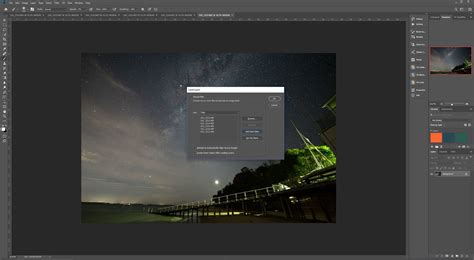
Smart Filters are the cornerstone of this non-destructive workflow. When a filter is applied to a Smart Object, it becomes a Smart Filter. This means the filter's settings can be re-edited at any time, the filter's blending mode and opacity can be adjusted, and multiple Smart Filters can be applied and reordered. This flexibility is invaluable for experimentation and refinement.
Understanding Filter Interactions and Edge Behavior
It's crucial to understand how filters interact with image edges and selections. Some filters, like Gaussian Blur, Box Blur, and Motion Blur, can produce visually unexpected results near the edges of a selection. This occurs because these filters use image data from outside the selected area to calculate the blurred pixels inside the selection. This can lead to "contamination," where colors from adjacent areas bleed into the blurred selection, resulting in a fuzzy or muddy outline. To mitigate this, careful selection or working on duplicate layers can be beneficial.
Creative Applications of Specific Filters
- Distressed Halftone Engraved Effect: Combining filters like "Find Edges," "Mosaic," and "Halftone Pattern" can create this gritty, vintage print look. Layering these with adjustments like "Posterize" and "Cutout" can further enhance the effect.
- Collage and Typography: The "Cutout" filter is excellent for creating distinct, flat-color shapes suitable for collage work or for making text elements stand out with a graphic style.
- Natural and Traditional Media Emulation: Filters like "Dry Brush," "Watercolor," "Colored Pencil," and "Pastel" are invaluable for giving digital images the authentic feel of traditional art forms.
- Special Effects and Retouching: Filters like "Dust & Scratches" are essential for restoring old photographs. "Despeckle" and "Reduce Noise" help clean up digital grain. "Smart Sharpen" offers precise control for enhancing detail without introducing artifacts.
- Abstract and Surreal Art: Filters in the "Distort" and "Render" galleries, such as "Wave," "Twirl," "Glass," and "Difference Clouds," can be used to create abstract backgrounds, surreal landscapes, or otherworldly effects.
Third-Party Plugins and Extensions
While Photoshop's built-in filters are powerful, the ecosystem of third-party plugins offers even more specialized and advanced capabilities. Companies like Topaz Labs, Nik Collection, and Luminar provide suites of filters and AI-powered tools that can achieve remarkable results.
Larry, a Dallas-based portrait artist and photographic educator, highlights Topaz Labs as a favorite. He appreciates their easy-to-use presets combined with deep fine-tuning options. Topaz Adjust is praised for adding "snap and impact" to images, while Topaz BW Effects 2 specializes in black and white conversions with various stylized options. Larry even offers a discount code ("larryphoto15") for 15% off, underscoring the value these tools can bring.
Leveraging Photoshop Actions for Efficiency
Photoshop Actions are a powerful feature that allows users to record a series of editing steps and play them back on other images. This is incredibly useful for applying consistent looks, automating repetitive tasks, and exploring creative styles quickly.
Record Your Own Actions | Photoshop
What are Photoshop Actions?
An action is essentially a saved sequence of commands and edits. When you perform edits on an image, you can record these steps as an action. Later, you can apply this recorded action to another image (or multiple images) with a single click. This streamlines workflows, saving significant time and effort, especially for batch processing or applying complex effects consistently.
Installing and Using Actions
Installing Photoshop actions is straightforward. Typically, actions are downloaded as .ATN files within zip folders. After extracting the .ATN file, you open Photoshop, go to the Window menu, and select "Actions." In the Actions panel, click the menu icon in the top right corner, choose "Load Actions," navigate to your saved .ATN file, and load it. Once loaded, the action will appear in the Actions panel, ready to be played by selecting it and clicking the "Play" button.
Free and Premium Action Resources
Numerous websites offer free and premium Photoshop actions. These can range from simple retouching actions to complex artistic filters and stylistic presets.
Free Action Examples:
- Coffeeshop Actions: Soften photos, add romance or innocence, and enhance lighting.
- Cross Process: Recreate the look of deliberately cross-processed film for increased contrast and saturation.
- Winter Blues: Add wintry magic and cool hues to landscapes.
- Nightmare: Give photos a dark, haunting vibe.
- Pastel Effect: Provide light enhancement and beautiful color toning.
- Mystical Light: Infuse landscapes with magical light and ethereal haze.
- Hazy Afternoon: Add a soft gradient color layer, perfect for outdoor shots.
- Bella: Create a romantic, nostalgic feel with a pink cast.
- Creamy Vintage: Add a charming retro feel with soft tones.
- Ultra Faded: Recreate a faded film effect with optional light leaks.
- 2-Strip Technicolour: Simulate the look of early Technicolor film.
- Polanoid Generator: Instantly turn any image into a Polaroid.
- The Mini Collection: A taster of retro actions, light leaks, and brushes.
- Set 14: A collection of assorted vintage actions.
- Bold B&W HDR: Give photos a bold, black and white, HDR-style look.
- Infrared Photography: Add an eerie, cool infrared chill to pictures.
- High Key: Convert regular photographs into high-key portraits.
- Lithprint: Create lithograph-style images.
- Old and Dirty: Apply a black and white conversion with a vintage/retro feel.
- Reduce Motion Blue: Remove motion blur from images.
- Sharpen: Enhance clarity and bring out details.
- 5 Skin Retouching Actions: Heal, mattify, and airbrush skin, brighten eyes.
- Soft Skin Tones: Smooth skin while retaining textures and coloring.
- Remove White Background: Automatically remove white backgrounds.
- BlackNull's Modern Artist Action Set: Turn photographs into vibrant graphic art.
- Powder Explosion: Replicate the effect of powder explosions.
- Dispersion Effect: Create effects that make objects appear to be exploding or disintegrating.
Premium Action Resources: Marketplaces like Envato Elements offer extensive libraries of premium Photoshop actions, presets, and other creative assets for a subscription fee. These often provide more sophisticated and editable effects.
Actions for Specific Effects
The provided information lists actions categorized by their intended use:
- Photo Filters: Coffeeshop, Cross Process, Winter Blues, Nightmare, Pastel Effect, Mystical Light, Hazy Afternoon, Bella.
- Vintage Photo Filters: Creamy Vintage, Ultra Faded, 2-Strip Technicolour, Polanoid Generator, The Mini Collection, Set 14.
- Monochrome Photo Filters: Bold B&W HDR, Infrared Photography, High Key, Lithprint, Old and Dirty.
- Touch-up Techniques: Reduce Motion Blue, Sharpen, 5 Skin Retouching Actions, Soft Skin Tones, Remove White Background.
- Special Effects: BlackNull's Modern Artist Action Set, Powder Explosion, Dispersion Effect.
These actions, whether free or premium, represent a vast toolkit for photographers and designers looking to enhance their images, experiment with different styles, and streamline their editing processes. The key is to explore, experiment, and understand how these tools can be combined and customized to achieve unique and compelling results.