For creative professionals and enthusiasts alike, Adobe Photoshop remains the industry standard for image manipulation and digital art. However, the traditional desktop setup isn't always practical. This has led to a surge in demand for tablets that can offer a comparable, or at least a highly functional, Photoshop experience. Whether you're a photographer seeking precise retouching, an illustrator looking for a portable digital canvas, or a designer needing to tweak layouts on the go, the right tablet can be a game-changer. The question then becomes: which tablet is the best for Photoshop? This comprehensive guide delves into the various options, from full Windows workstations to specialized pen displays and even mobile solutions, to help you find the perfect tool for your workflow.
Understanding Your Photoshop Needs: Desktop vs. Mobile Apps
Before diving into specific hardware, it's crucial to understand the distinction between full desktop Photoshop and its mobile counterparts. If your work absolutely requires the complete feature set of desktop Photoshop and Illustrator - the kind of tools professionals use daily - then a Windows tablet or a pen display that connects to a computer is your primary consideration.
While the iPad and Android platforms now offer Adobe mobile apps, these applications, though capable for light edits, sketching, and seamless handoff to a computer, do not replicate the full power and depth of the desktop versions. For advanced techniques, complex layer management, or extensive plugin usage, the desktop experience remains paramount.
Windows Tablets: The Power of Full Desktop Photoshop
For those who demand the full desktop Photoshop experience on a portable device, Windows tablets offer the most direct solution. These devices run the complete Windows operating system, meaning they can install and run the desktop versions of Adobe's Creative Cloud applications without compromise.
Surface Pro and its Successors: The Gold Standard
Microsoft's Surface Pro line has long been a leader in the 2-in-1 tablet space, and for good reason. These devices offer a full Windows experience in a pen-first design, coupled with wide accessory support.
- Surface Pro 9 (Intel, i7/16-32 GB RAM): This model is a top pick for those needing "full Photoshop + Illustrator" on a tablet. Its advantage lies in its full Windows compatibility, a mature pen stack, and the absence of emulation caveats, ensuring all features and plugins work as expected. The Intel-powered Surface Pro 9 provides a robust platform for demanding creative tasks.
- Surface Pro (11th Edition, Snapdragon X): This represents a significant leap forward with Windows on ARM, bringing native Photoshop support. The new Snapdragon X systems allow Photoshop to run natively, offering excellent performance and power efficiency. While Illustrator currently runs via emulation or in beta on these devices, this is a rapidly evolving area. For workflows primarily focused on Photoshop and appreciating long battery life, the Snapdragon X Surface Pro is a compelling option, but it's wise to "test Illustrator needs first" before committing if complex Illustrator work is a daily necessity.
These devices are premium 2-in-1 laptops with excellent pen support, often featuring fast Intel or ARM chips, good battery life, reliable hinges, and color-rich displays. Their detachable designs, often paired with styluses like the XPS Stylus, make them lighter and more portable than many rivals, ideal for vector sketching, layout tweaks, and travel retouching.
Key Specifications for Windows Tablets:
When choosing a Windows tablet for Photoshop, several specifications are critical:
- RAM: A minimum of 16 GB of RAM is highly recommended. For complex projects, 32 GB offers a smoother experience and better performance, especially when juggling multiple large files or running other demanding applications simultaneously.
- GPU: A DirectX 12 capable GPU is essential for hardware-accelerated features within Photoshop, contributing to smoother brush strokes, faster filter applications, and overall responsiveness.
- Storage: A fast NVMe SSD is crucial for quick application loading times, rapid file saving, and efficient scratch disk performance. Aim for at least 512 GB, with 1 TB or more being ideal for extensive photo libraries and project files.
Surface Laptop Studio 2: Powerhouse with a Unique Design
The Surface Laptop Studio 2 stands out with its strong CPU/GPU capabilities and a unique "stage" mode that transforms it into a powerful pen canvas. It's an excellent choice for those who need desktop-level power in a flexible form factor, making it a "studio-class portable" option.
Pen Displays: The Professional's Extended Monitor
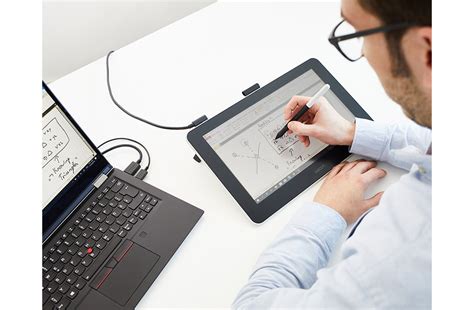
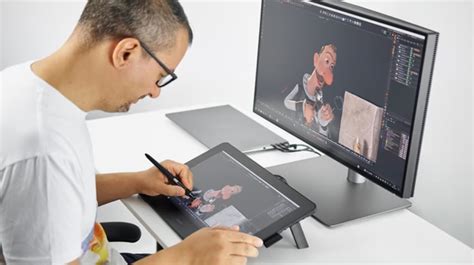
Pen displays are not standalone tablets; instead, they are external monitors designed to be drawn upon. They plug into your existing computer (Windows or macOS) and essentially act as a digital drawing surface that mirrors or extends your computer's display. This setup provides the full power of your desktop computer with the intuitive control of a stylus.
Wacom: The Industry Leader
Wacom has long been the benchmark in professional pen display technology, known for its reliability, precision, and exceptional pen feel.
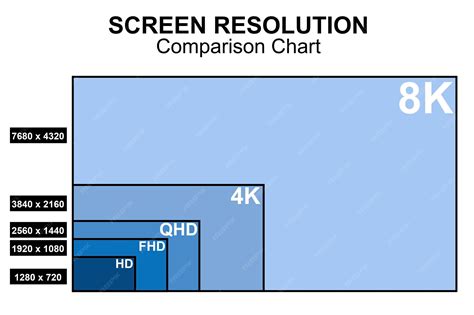
- Wacom Cintiq Pro 17: This is a top-tier option for a compact pen display. It boasts a 4K resolution, up to 120 Hz refresh rate, and an excellent pen feel thanks to its Pro Pen 3. The multi-touch capability further enhances its usability for certain workflows.
- Wacom Intuos Pro (Medium): While not a pen display, the Intuos Pro is a highly regarded drawing tablet (without a screen) that offers a "proven, customizable, and reliable" experience. It's a popular choice for photo editing due to its pressure sensitivity and customizable express keys. It provides a "very good overall drawing experience" and is a solid option if you don't require a screen directly on your input device.
Xencelabs: A Strong Contender
Xencelabs has emerged as a significant competitor, offering premium features and well-designed accessories.
- Xencelabs Pen Tablet Medium Bundle: This bundle is lauded as the "best value pen tablet bundle," coming with two pens and Quick Keys in the box. It offers an "ergonomic design" and "user-friendly features" at a competitive price point.
- Xencelabs Pen Display 16: This 16-inch pen display offers a "vibrant 4K OLED screen" and a "great overall drawing experience." It's positioned as a portable yet powerful option with excellent color accuracy (98% Adobe RGB, 98% P3-D65, 99% sRGB). The optional Quick Keys remote is considered essential by many for streamlining workflows.
- Xencelabs Pen Display 24+: For those seeking a "studio-class portable" experience with maximum screen real estate, the Pen Display 24+ is a standout. It features a "huge 4K screen" with "great color accuracy" and comes with all necessary accessories. At the time of writing, it's the only Calman Ready pen display on the market, offering Hollywood-grade color calibration capabilities, though this requires additional software and hardware.
Huion and XP-Pen: Affordable and Capable Options
Huion and XP-Pen provide excellent value, offering professional-level features at more accessible price points.
- Huion Kamvas Pro 16 (2.5K): This pen display offers a crisp QHD resolution with a laminated display and tilt support. It's an "affordable" and "responsive" option with "wide OS support," making it a great choice for budget-conscious creatives.
- XP-Pen Deco Pro Gen2: This is an "affordable, responsive" pen tablet with "wide OS support," making it a versatile choice for various users.
- XPPen Artist Ultra 16: This 16-inch pen display offers a "4K OLED display" and "Calman Verified status," providing excellent image quality and color accuracy. It strikes a "fantastic middle-ground size" between portability and usable screen real estate. It also features touch and pen input, with 16,384 pen-pressure levels.
- XPPen Artist Pro 24 (Gen 2) 4K: This large 24-inch pen display offers "great image quality" and a "robust built-in stand." While it doesn't quite match the premium feel of some higher-end models, its "Calman Verified status" and factory calibration make it a strong contender for photographers seeking reliable color accuracy at a more accessible price than some rivals. It boasts 99% sRGB, 99% Adobe RGB, and 98% Display P3 coverage.
- XPPen Artist 16 (2nd Gen): This is an "affordable cost" pen display with a "good built-in display." It offers a "sensitive stylus" with 8,192 levels of pressure sensitivity and a portable design, making it a good option for editing on the go.
Drawing Tablets (Graphics Tablets): Precision Input for Any Screen
Drawing tablets, also known as graphics tablets, are input devices that connect to your computer and allow you to draw or paint using a stylus. They don't have their own screen; instead, you draw on the tablet surface while looking at your computer monitor. This method can take some getting used to but offers incredible precision and control.
- Wacom Intuos Pro Medium: As mentioned earlier, this is a top choice for a non-screen drawing tablet. Its "very customizable" nature, "pressure sensitive" pen, and wireless capabilities make it a favorite for photographers and illustrators. The "long battery life" is also a significant advantage.
- Xencelabs Pen Tablet Medium Bundle: This bundle provides an "ergonomic design" and "user-friendly features," making it a strong alternative to Wacom. The inclusion of two pens and Quick Keys adds significant value.
- One by Wacom (Small/Medium): This is a "simple, petite tablet for light, spontaneous editing." It's a "robust feel" option that is "convenient and portable" and ready for Chromebooks. While the pen might feel less premium than on higher-end Wacom models, its ease of use and affordability make it a good entry point.
- XP-Pen Deco Pro Gen2: This tablet offers "affordability, responsiveness, and wide OS support," making it a strong contender for those on a budget who still need reliable performance.
iPads and Android Tablets: The Mobile Editing Ecosystem
For users who prefer a more integrated, tablet-first experience and are comfortable with mobile apps, iPads and Android tablets offer compelling options. While they don't host the full desktop versions of Photoshop and Illustrator, their respective Adobe mobile apps and third-party alternatives are increasingly powerful.
- iPad: The iPad, particularly the iPad Pro with Apple Pencil, offers a fantastic platform for creative work. Photoshop and Illustrator do exist on iPad, but as noted, they "don’t match the desktop feature set." However, for artists who primarily use Procreate (a powerful iPad-exclusive app) and then need to make final touches in Photoshop, or for those who focus on lighter edits and sketching, the iPad is an excellent choice. The "Procreate artists" often find iPads to be their go-to for digital art creation.
- Android Tablets: Android also has Adobe mobile apps, with Photoshop currently in beta on mobile. These devices are "handy for beginners" or for creating social assets on the go. The integration of powerful hardware like the Snapdragon X in some new Windows tablets also blurs the lines, offering a glimpse into the future of mobile computing.
Wait, are Android tablets actually BETTER than iPads????
Specific Use Cases and Recommendations
To further refine your choice, consider these specific scenarios:
Best for "Full Photoshop + Illustrator" Tablet:
- Surface Pro 9 (Intel, i7/16-32 GB): Offers the most complete desktop experience without emulation, making it ideal for users who rely heavily on both Photoshop and Illustrator.
- Surface Laptop Studio 2: Provides desktop-level power and a unique flexible design, suitable for demanding creative professionals.
Best for Photoshop-First on the Road:
- Surface Pro (11th Edition, Snapdragon X): Native Photoshop support and long battery life make this a compelling choice for mobile Photoshop users. Test Illustrator needs first.
Best Pen Displays:
- Compact: Wacom Cintiq Pro 17 (4K, up to 120 Hz, excellent pen feel).
- Large: Xencelabs Pen Display 24+ (4K, wide color gamut, strong ergonomics).
- Budget: Huion Kamvas Pro 16 (2.5K, QHD, laminated, tilt).
Best Pen Tablets (No Screen):
- Proven: Wacom Intuos Pro Medium.
- Value Bundle: Xencelabs Pen Tablet Medium Bundle (Two pens + Quick Keys).
For Vector-Heavy Workflows:
If your work involves complex artboards, intricate vector effects, and extensive use of Illustrator alongside Photoshop, prioritize a device with a:
- Fast CPU
- 16-32 GB RAM
- A pen with reliable tilt and pressure sensitivity.Windows tablets like the Surface Pro 9 (Intel) or Surface Laptop Studio 2 are strong candidates here.
For Mobile Teaching and Demos:
Portability is key. The Surface Pro (Intel) or Surface Pro (11th Edition) are excellent for their lightweight design and ease of use in presenting or teaching.
For Color-Critical Illustration:
Pen displays offer the most direct and color-accurate experience, as they are essentially high-quality monitors. Models like the Xencelabs Pen Display 24+ or the XPPen Artist Ultra 16 are excellent choices.
The Importance of Pen Sensitivity and Ergonomics
Regardless of the platform, the pen experience is paramount for Photoshop work. Drawing tablets and pen displays utilize styluses with high levels of pressure sensitivity (often 8,192 levels or more). This allows for natural variation in line thickness and opacity, mimicking traditional art tools like brushes and pencils.
- Precision: The ability to control line weight and opacity with subtle pen pressure is crucial for tasks like retouching skin tones, masking complex selections, or creating delicate brush strokes. A mouse or touchpad simply cannot replicate this level of nuanced control.
- Ergonomics: Extended editing sessions can be demanding. Ergonomically designed tablets and pens reduce strain and fatigue. Features like comfortable grip, balanced weight, and customizable buttons on the pen or tablet (express keys) can significantly improve workflow efficiency and comfort.
- Tilt Support: Many professional pens offer tilt support, allowing the brush to react to the angle at which you hold the pen, further enhancing natural drawing and shading capabilities.
Beyond Photoshop: Compatibility and Workflow Integration
While Photoshop is the primary focus, consider how your chosen tablet integrates with other essential creative software. Most professional drawing tablets and pen displays are compatible with a wide range of applications, including:
- Adobe Illustrator
- Adobe Lightroom
- Affinity Photo
- Corel Painter
- Clip Studio Paint
- And many more…
The ability to seamlessly switch between applications using customizable express keys or pen functions can dramatically speed up your workflow. For instance, the Xencelabs Pen Tablet Medium Bundle includes Quick Keys, a programmable remote that can be assigned shortcuts for specific functions within Photoshop or other applications.
Black Friday and Holiday Deals
Keep an eye out for special offers, especially around major sales events like Black Friday. "Black Friday Drawing Tablet Deals" often feature exclusive discounts on brands like Wacom, Huion, XP-Pen, as well as special offers for Samsung tablets and iPads. These can be excellent opportunities to acquire high-end hardware at a more accessible price.
Conclusion: Finding Your Perfect Photoshop Partner
The "best" tablet for Photoshop is not a one-size-fits-all answer. It depends entirely on your specific needs, budget, and workflow.
- For the fullest desktop experience, a Windows tablet like the Surface Pro 9 or Surface Laptop Studio 2 is the way to go.
- For precision drawing and editing that complements your existing computer, a pen display like the Wacom Cintiq Pro 17 or Xencelabs Pen Display 16 offers an immersive experience.
- For versatile input without a dedicated screen, a drawing tablet such as the Wacom Intuos Pro or Xencelabs Pen Tablet Medium Bundle provides excellent control.
- For mobile creativity and lighter edits, an iPad or Android tablet with their respective Adobe mobile apps can be highly effective.
By carefully considering the power requirements of Photoshop, the importance of pen accuracy, and your personal workflow preferences, you can select a tablet that will not only meet but exceed your creative expectations, transforming how you work with images.