Adobe tools are powerful allies for creative professionals, and when paired with Blurb's professional print platform, they unlock a world of possibilities for bringing your vision to life. Designed with the needs of those creating books, portfolios, and editorial projects in mind, the Blurb plugin for Adobe InDesign integrates directly into your existing workflow, streamlining the entire process from design to print. This tutorial will guide you through leveraging this powerful tool to achieve flawless, pro-quality results for your print projects.
Understanding the Blurb Plugin for Adobe InDesign
The Blurb plugin for Adobe InDesign is an essential tool for anyone looking to produce high-quality printed materials. It is specifically designed to work with Adobe InDesign CC 2023 and newer versions, ensuring compatibility with the latest features and advancements in design software. The primary function of the plugin is to create blank templates that adhere to Blurb's precise print specifications, including exact trim, bleed, and spine measurements. This eliminates the guesswork and potential errors associated with manual setup, allowing you to focus on your creative content.
Getting Started: Download and Installation
To begin, you'll need to download the Blurb Plugin for Adobe InDesign. Navigate to Blurb's website and locate the "Create" tab, then select "Creation and Layout Tools." You will find the Adobe InDesign plugin prominently featured. Click on the download button, and you'll be prompted to choose your version of Adobe InDesign. Once downloaded, you will receive instructions on how to install it. Typically, this involves double-clicking the downloaded file, selecting your InDesign version (e.g., Creative Cloud), and then double-clicking the "Blurb Book Creator" package file to initiate the installation. After installation, the Blurb Book Creator tool will be accessible within your Adobe InDesign program.
Initializing Your Project with the Plugin
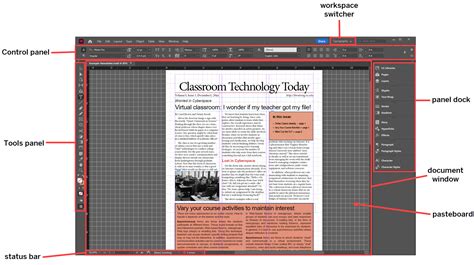
Upon opening Adobe InDesign after installation, you will find the Blurb Book Creator tool. This is where the seamless integration begins. The plugin allows you to start a new project by selecting your desired book specifications. This includes choosing the book's trim size, paper type, and cover option. You can also enter an estimated page count, which is crucial for accurately generating the cover template later.
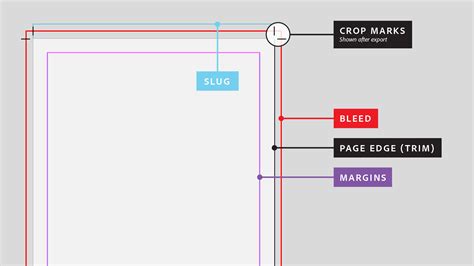
When creating a new project, the plugin generates a document with specific layers. The "Your Design Goes Here" layer is where you will place all your content, including images and text. Importantly, there is also an "Instruction Layer" which provides helpful guides for safety, trim, and bleed lines. This layer is purely for assistance and will not be exported to your final print-ready file.
Key Considerations for Template Creation
A critical aspect of using the Blurb plugin is understanding and adhering to its template structure. The plugin creates blank templates in the exact size and specifications required by Blurb. It is imperative that you do not modify your document size or document setup once a template has been generated. The size specifications within the document setup are already correct for Blurb's printing process. Attempting to add your own printer marks of any kind is strongly discouraged, as Blurb will add any necessary marks on their end. If you add your own, they will appear in your printed book, leading to undesirable results.
If you have an existing InDesign file that was not initially designed using Blurb's templates, do not attempt to re-size it. Instead, it is recommended to create a new project using the plugin and then import your existing content into the new template.
Designing Your Book with Precision
With your template set up, you can now dive into the creative process. The Blurb plugin for Adobe InDesign is built to empower designers to maintain full creative control while ensuring print-readiness.
Understanding Bleed and Trim Lines
For content to print all the way to the edge of the page or cover without any unwanted white borders, you must design to the red bleed line, not just the black trim line. The trim line indicates where the page will be cut. The bleed area extends beyond this trim line. Any design elements that you want to extend to the edge of the finished product should extend into this bleed area. If you observe unwanted white edges in your exported PDF, it typically signifies that your content has not been extended sufficiently to the bleed line.
Color Management and Spot Colors
Color management is paramount for achieving accurate and consistent print results. Black text, in particular, should almost always be set to K only (0,0,0,100) to ensure rich, true black.
Blurb does not support spot colors. While some spot colors can be converted to a mix of CMYK at the press, the conversion may not always be accurate, especially with complex designs involving elements like drop shadows. Using CMYK colors for your design will yield more predictable and faithful results.
Handling Complex Vector Art
Overly complex vector art, especially when embedded in PDF files (such as intricate architectural drawings), can cause significant strain on print devices and potentially lead to print failure. A single page with such content might contain thousands of paths that are not easily discernible during a visual PDF review and cannot be caught by standard pre-press checks.
You can identify overly complex vector art by exporting your InDesign document containing the artwork using the Blurb PDF Export preset and then viewing the resulting PDF in Adobe Acrobat/Reader. If the artwork begins to display slowly, giving it an animated appearance, this is a strong indicator of complex vector art. In such cases, it is recommended to rasterize these images in Photoshop before embedding them into your InDesign document.
Designing Your Cover Template
It is essential to create your cover template after you have finalized the design of your inside pages and know the exact page count of your book. The cover document size will change based on the paper type and the total number of pages. Different paper types have varying thicknesses, and a book with more pages will naturally have a wider spine. The plugin will automatically generate a correctly sized cover template once you input the necessary details.
Avoiding the Registration Color Swatch
A common pitfall to avoid is the use of the default registration color swatch in your design. Although it might still be present in the swatch menu, this color should never be used with Blurb books. It results in an excessive amount of ink being printed and can lead to your submission being rejected by Blurb's print devices.
Preparing and Uploading Your Project
Once your design is complete, the next steps involve preparing your file for printing and uploading it to Blurb.
Reviewing Your Work
Before uploading, it is crucial to meticulously review your work within InDesign. Pay close attention to the safety, trim, and bleed lines indicated on the Instruction Layer. Ensure that all important text and design elements are placed within the safety area to prevent them from being trimmed or appearing too close to the edge.
The Upload Process
When you are ready to upload your book, do not manually export a PDF. Instead, utilize the plugin's built-in functionality. Look for the "Upload Book" button within the plugin. Clicking this button will automatically export a PDF of your project and open it for your review.
Final PDF Review
After the plugin automatically exports the PDF, open it in Acrobat or Adobe Reader. Ensure that you have the following settings enabled in your PDF viewer's preferences for an accurate preview:
- "Show transparency flattener presets" should be checked.
- "Use local fonts" should be checked.
- "Print production" settings should be configured to accurately display things like overprints.
Carefully examine the exported PDF. If everything appears as expected, you can proceed with the upload directly through the plugin. The plugin offers specific preflight and correction features that are only available when uploading through this integrated method, ensuring a smoother and more accurate print submission.
How to use InDesign to create a Book in Blurb
Ordering a Proof Copy
For important projects or when ordering more than one copy, Blurb highly recommends ordering and reviewing a single proof copy of your book first. This allows you to physically inspect the print quality, color accuracy, and overall layout before committing to a larger print run. This step is invaluable for catching any unforeseen issues and ensuring your final product meets your expectations.
Beyond Books: Blurb's Adobe Integration
While the Blurb plugin for Adobe InDesign is a cornerstone for book creation, Blurb offers further integration with other Adobe tools to support a wider range of creative projects.
Blurb Presets for Adobe Lightroom Classic
Photographers can leverage Blurb Presets for Adobe Lightroom Classic, which provides an all-in-one bookmaking solution directly within Lightroom. This allows you to work with your existing photo library and over 100 pre-designed layouts. Each photo will print true to your final edit, ensuring no compromise on your artistic vision.
Blurb Wall Art Plugin for Adobe Photoshop
For those who create visually stunning wall art, the Blurb Wall Art Plugin for Adobe Photoshop is an invaluable asset. This plugin enables you to design and order high-resolution wall art, including canvas, acrylic, or metal prints in six different sizes, without ever leaving Photoshop. The easy-to-use templates and seamless upload process make ordering gallery-quality art straightforward.
Frequently Asked Questions About Blurb's Adobe Plugins
The integration of Blurb's services with Adobe tools is designed to be as user-friendly as possible. However, some common questions arise:
Q: If I've designed a book in Adobe Illustrator or Adobe Express, can I print it with Blurb?A: While the dedicated plugins are for InDesign, Lightroom, and Photoshop, Blurb does accept PDF uploads from other design applications like Illustrator and Adobe Express. However, for the most seamless experience and to utilize all specific preflight features, using the dedicated plugins is recommended. Ensure your files adhere to Blurb's print specifications when uploading PDFs directly.
Q: Do I need an Adobe Creative Cloud subscription to use Blurb's Adobe plugins?A: Yes, the Blurb plugins for Adobe InDesign, Photoshop, and Lightroom Classic require you to have the respective Adobe software installed, which is typically accessed through an Adobe Creative Cloud subscription. The InDesign plugin specifically works with InDesign CC 2023 and newer.
Q: What version of Adobe software do I need?A: The Blurb plugin for Adobe InDesign is compatible with InDesign CC 2023 and newer versions. For the Lightroom Classic presets, you will need a compatible version of Lightroom Classic. For the Photoshop plugin, you will need a compatible version of Adobe Photoshop.
Q: How do I install and access the plugin for Adobe InDesign?A: As detailed in the installation section, you download the plugin from Blurb's website, run the installer, and then access the "Blurb Book Creator" tool from within Adobe InDesign.
Q: Can I use an existing InDesign file with the Blurb plugin for Adobe InDesign?A: While you can import content from an existing InDesign file into a new template created by the plugin, you should not attempt to re-size an existing file to fit the plugin's specifications. It is best practice to create a new project with the plugin and then place your old content within the new template.
Q: Where can I find best practice tips and guidance on using the Adobe InDesign plugin?A: Beyond this article, Blurb's website offers extensive resources, including tutorials, FAQs, and support documentation. Additionally, the "Instruction Layer" within the plugin's templates provides on-screen guidance.
By leveraging the Blurb plugin for Adobe InDesign, you can transform your creative vision into beautifully printed books with confidence and ease. This powerful integration ensures that your design process is efficient, accurate, and ultimately leads to professional-quality printed products.