The typewriter effect, a classic cinematic trope, evokes a sense of nostalgia and deliberate storytelling. Imagine an aerial shot of an unknown location at night, with text elegantly appearing on screen, accompanied by the distinct, rhythmic clatter of a mechanical typewriter. This guide will walk you through creating such an effect in DaVinci Resolve, from simple built-in tools to advanced template-based solutions, ensuring your titles have that perfect retro flair.
Creating a Basic Typewriter Effect with Text+
DaVinci Resolve's built-in tools offer a straightforward method to achieve a basic typewriter animation. This approach is ideal for beginners or when a quick, effective title is needed without relying on external assets.
In the Edit tab, the first step involves locating the Text+ title within the Effects Library. Once found, drag this element onto your timeline. It should be positioned above your primary footage, precisely where you envision your title manifesting on screen.
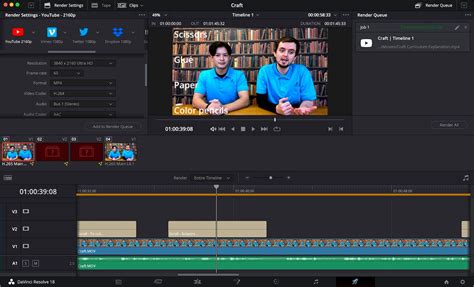
With the Text+ title selected, your attention shifts to the Inspector panel. Here, you have the creative freedom to customize the appearance of your text. This includes altering the font to match the desired aesthetic - perhaps a classic serif for a vintage feel, or a monospace font for a more programmatic look. Adjust the size to ensure legibility and impact, and select a color that complements your video's overall palette. Further refinements can be made to other settings available in the Inspector, allowing you to fine-tune the visual attributes until you achieve the exact look you desire.
The positioning of your title is also managed within the Inspector, specifically under the Settings tab. Here, you can precisely place the text on the screen, whether it's centered, aligned to a corner, or placed in a specific area to enhance the narrative flow.
To initiate the typewriter animation, navigate to the very beginning of your Text+ title on the timeline. Ensure that this text element remains selected. Within the Inspector, scroll down until you encounter the Write On effect slider. To activate keyframing for this effect, press the small diamond-shaped button situated next to the slider. This action will cause the button to turn red, signifying that a keyframe has been successfully created at the current point in time.
With the initial keyframe set, the next step is to animate the writing process. Slide the right handle of the Write On slider towards the left. As you manipulate this handle, the text will appear to be "typed" onto the screen, mimicking the action of a typewriter. The extent to which you slide this handle will determine the duration of the typing animation.
Advanced Typewriter Effects with Macros and Templates
For a more polished and sophisticated typewriter effect, or to achieve a specific retro style reminiscent of early computers and games, leveraging pre-made macro or template titles is highly recommended. These assets can significantly reduce production time and offer a professional finish.
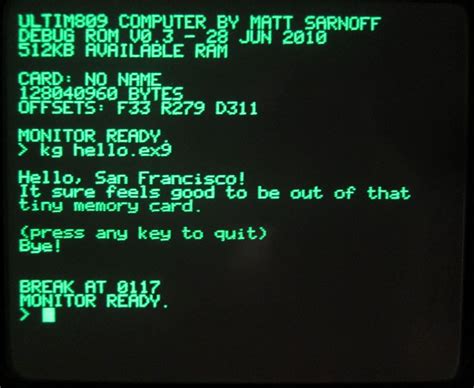
This amazing title sequence template could make a great intro for your next short film or YouTube video. Depending on how you would like to use the typewriter effects, you would choose the macro or template versions. The templates are great for a complete project, e.g., an intro. You only have to change the placeholder items and update the music for a dynamic result. Macros, on the other hand, function much like the built-in Fusion titles that come with DaVinci Resolve, offering more granular control within the Fusion page.
Installing and Using Macro Title Packs
To begin using these advanced effects, you'll need to download a chosen macro title pack. A popular and effective option is the Type On Titles macro.
The installation process is crucial for the titles to appear correctly in DaVinci Resolve. Follow the specific instructions provided with the downloaded files to place them in the correct folders. It is also essential to ensure that any accompanying fonts are installed on your system. Often, these packs will include links to the necessary fonts.
Once the installation is complete, open your DaVinci Resolve project. If DaVinci Resolve was already running during the installation, it's necessary to restart the application for the new titles to be recognized.
After restarting, navigate back to the Edit tab. In the Effects Library, you should now find your newly installed titles under the Title section. These particular titles are often labeled with names like Typewriter 01, Typewriter 02, and so on, indicating their specific style or variation.
Drag your chosen typewriter title from the Effects Library onto the timeline, positioning it above your footage where you intend it to appear.
How To Master Text Animation In Davinci Resolve (Under 1 Minute)
With your selected title on the timeline, ensure it is active. Proceed to the Inspector panel. Here, you can easily modify the placeholder text to your own content. Beyond just changing the words, you can also adjust other settings to match your project's requirements, much like you would with the basic Text+ title.
Enhancing the Typewriter Effect with Sound Design
No title with a typewriter effect is truly complete without the right sound effect. The auditory element is critical in reinforcing the visual illusion and immersing the viewer in the intended atmosphere. Fortunately, there are numerous resources available to find the perfect typing sounds.
Consider these options for exceptional sound effects:
- A great pack of 5 clean old-fashioned mechanical typewriter sound effects at different speeds. These offer a versatile collection for various typing paces.
- A remarkable sound effects pack filled with 3 different classic typewriter typing sounds with a ding at the end! This pack provides distinct variations and a satisfying concluding sound.
- Ambient sound effects from a person typing and working with a typewriter. For a more realistic and immersive experience, ambient sounds can add a layer of authenticity.
- A more modern typing effect that is well suited to ambient sounds for typography intros, cartoons and animations. This option caters to scenarios where a contemporary twist on the typing sound is desired.
To integrate these sounds, you would typically place the audio file on a separate audio track on your timeline, aligning the start of the sound effect with the beginning of the typing animation on screen. Adjusting the volume and timing of the sound effect is crucial to ensure it perfectly syncs with the visual text appearance, creating a cohesive and impactful title sequence.
To make the typewriter effect even better, you can add a typewriter sound effect from one of the many available sound effect packs. DaVinci Resolve is a powerful video editing tool that allows you to create any title effect you could imagine, including the popular typewriter effect.
Advanced Customization within Fusion
For users seeking the utmost control and the ability to create highly customized and complex typewriter animations, DaVinci Resolve's Fusion page is the ultimate tool. Fusion is a powerful visual effects (VFX) and motion graphics environment integrated directly into DaVinci Resolve.
Within Fusion, you can build your typewriter effect from the ground up using nodes. This allows for intricate control over every aspect of the animation, including:
- Character-by-Character Animation: Instead of a global "Write On" effect, you can animate each letter appearing individually, precisely controlling the timing, spacing, and even subtle variations in the typing speed.
- Customizable Easing: Fine-tune the acceleration and deceleration of the typing effect to create more organic or stylized animations.
- Adding Realistic Imperfections: Introduce slight jitters, random pauses, or variations in character spacing to enhance the realism of a mechanical typewriter.
- Integration with Other VFX: Combine the typewriter effect with other visual elements, such as background animations, glitches, or particle effects, for truly unique title sequences.
- Procedural Text Generation: Leverage Fusion's procedural capabilities to create text that appears based on specific algorithms or data, offering dynamic and responsive titles.
If you need an advanced typewriter effect, then Fusion in DaVinci Resolve is a powerful VFX tool. Mastering Fusion requires a deeper dive into its node-based workflow, but the creative possibilities for typewriter animations (and indeed, all visual effects) are virtually limitless. It's the ideal environment for pushing the boundaries of what's possible with text animation in DaVinci Resolve.