The art of bringing static images to life has captivated audiences for generations. With the advent of digital tools, the process of animation has become more accessible and powerful than ever before. Clip Studio Paint, a program renowned for its robust drawing engine and artist-centric design, offers a compelling environment for both aspiring and seasoned animators. This guide delves into how to animate on Clip Studio Paint, exploring its features, workflows, and the philosophy behind its animation capabilities, aiming to equip users with the knowledge to create their own animated masterpieces.
The Foundation of Digital Animation
Digital animation, at its core, involves using computer software to create moving images. This field has evolved significantly from its traditional roots, such as cel animation, with new techniques emerging constantly. Understanding the different genres of digital animation provides a crucial context for appreciating Clip Studio Paint's role.
- Traditional Hand-Drawn Animation (Cel Animation): This classic method creates movement through a sequence of 2D images, blending hand-drawn techniques with computer software. Clip Studio Paint excels here, allowing artists to draw every stroke exactly as they imagine with its powerful brush engine, mimicking the feel of traditional media.
- 3D Animation: This genre involves manipulating 3D models of characters and objects within dedicated software. While Clip Studio Paint is primarily a 2D animation tool, its 3D model capabilities serve as invaluable references for character posing and scene composition, bridging the gap between 2D and 3D workflows.
- Stop Motion Animation: This technique involves physically manipulating objects and capturing them frame by frame. While not directly supported by Clip Studio Paint's software features, the program can be used to create the individual assets that are later assembled in stop motion projects.
- Cutout Animation: This method involves animating flat images or cutouts. Clip Studio Paint's layer management and manipulation tools are well-suited for creating and animating such assets.
- Motion Graphics: This involves animating text, static images, and abstract elements, often for informational or branding purposes. Clip Studio Paint's flexibility allows for the creation of dynamic motion graphics sequences.
- Motion Capture Animation: This advanced technique records the movements of actors or props to enhance the realism of 3D animations. While Clip Studio Paint doesn't directly perform motion capture, it can be used to refine and color animate captured data.
Getting Started with Clip Studio Paint for Animation
To embark on your animation journey with Clip Studio Paint, you'll need the software itself and a suitable drawing tool. Pressure-sensitive tablets, such as iPads or Android tablets, can serve as excellent starting points, eliminating the immediate need for a high-spec dedicated drawing tablet. For those already familiar with illustration, transitioning to an animation app with integrated animation features, like Clip Studio Paint, feels natural due to the familiarity of the tools.
Software Versions and Animation Capabilities
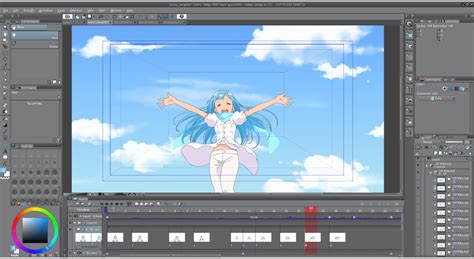
Clip Studio Paint is available in different versions, each with varying animation capabilities. In Clip Studio Paint PRO or Debut, you can create animations of up to 24 frames. It's important to note that you cannot create animation projects from the New dialog in Debut. For more extensive animation projects, Clip Studio Paint EX is the recommended version, offering significantly more frames and advanced features. The core animation workflow, however, remains consistent across versions, focusing on the timeline and frame-by-frame drawing.
The Animation Workflow in Clip Studio Paint
Clip Studio Paint's design philosophy centers on combining the artistic and expressive values of traditional techniques with the efficiency and speed of digital tools. This is evident in its animation features, which prioritize a smooth drawing experience and intuitive control over the animation process.
Setting Up Your Animation Project
When you initiate a new animation project, you'll typically see the canvas and the timeline appear at the bottom of the screen. The timeline is the central hub for managing your animation cels, frames, and overall timing.
Drawing and Frame Management
The essence of frame-by-frame animation lies in drawing individual frames that, when played in sequence, create the illusion of movement. Clip Studio Paint makes this process remarkably fluid.
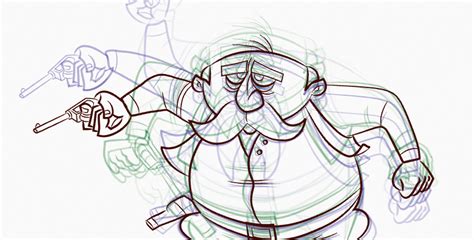
- Drawing on Animation Layers: You draw your animation on dedicated animation layers. When a new frame is added, the previous illustration on the timeline will appear in a translucent color, a feature known as "onion skinning."
- Onion Skinning: This crucial tool allows you to see the previous and next frames simultaneously on the screen in a different color. This is invaluable for ensuring smooth transitions and consistent motion. You can toggle onion skin mode on or off and check the number of frames per second (frame rate) via a menu button. By checking the onion skin and drawing between the lines on the frames on each side, you can add intermediate stages of movement, refining the animation's fluidity.
- Editing and Adjusting Frames: You can easily rearrange or adjust the speed of animation cels directly within the timeline palette. This granular control allows for precise timing adjustments and the refinement of motion. Pressing the Stop button returns you to editing mode, enabling continuous refinement.
Keyframes and Object/Camera Movement
Beyond frame-by-frame drawing, Clip Studio Paint offers sophisticated tools for animating objects and cameras.
- Keyframe Options: The software provides keyframe options for objects and camera movement. This allows you to define specific points in time where an object's position, scale, or rotation changes, with Clip Studio Paint automatically interpolating the movement between these keyframes. This is particularly useful for adding dynamic camera zooms, pans, or tilts to your scenes.
- Dynamic Scenes: Create dynamic scenes by combining frame-by-frame animation with camera effects. This includes zooms, angle tilts, and movement along smooth curves, adding a cinematic quality to your animations.
The Power of the Brush Engine and Vector Layers
A core strength of Clip Studio Paint lies in its powerful brush engine, which is designed to replicate the feel of traditional drawing tools.
- Natural Drawing Experience: Coming from a legacy of animation software, the emphasis is on a smooth drawing experience that lets you draw exactly how you want. Clip Studio Paint's brush engine allows for precise control over every stroke, mirroring the nuance of traditional pens and brushes. Setting up pen pressure with a few test strokes helps to recreate the natural, high-quality lines of pen and paper.
- Stabilization and Correction: Drawing clean lines can be challenging. Clip Studio Paint offers stabilization and correction features to reduce shaky and wavering lines, and automatically taper the beginning and end of brushstrokes, making lines feel almost organic.
- Vector Layers: For ultimate flexibility, you can draw your animation and storyboards on vector layers. This means you can resize and edit your linework without losing line quality, ensuring a perfect finish regardless of scaling. Drawing vector lines in Clip Studio Paint is designed to feel as natural as drawing on paper.
Clean Line Art! Clip Studio Paint Inking Tips for Beginners | Saturday Wars
Utilizing Assets and References
Clip Studio Paint provides a rich ecosystem of assets and reference tools to streamline the animation process.
- Abundant Assets: The program boasts an abundant collection of assets, which can include pre-made elements, textures, and backgrounds that can be incorporated into your animations.
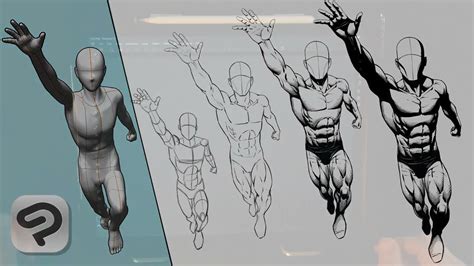
- 3D References: For accurate compositions, especially in complex scenes, you can utilize 3D references. Create complex scenes with multiple 3D figures and objects, and change the camera angle to get different reference views. When placing a 3D material, you can view it from four angles simultaneously. You can also change the position of the camera and the focal point on the 3D layer. Posing 3D drawing figures in detail, from the head and face to the fingertips and toes, provides precise references for your artwork.
Color and Painting Tools
Beyond linework, Clip Studio Paint offers sophisticated tools for coloring and painting your animations.
- Color Palettes and History: Quickly select, test, compare, and apply the perfect color with approximate and intermediate color palettes, as well as a color history.
- Smarter Painting Tools: Speed up your painting process with smarter tools designed to enhance efficiency and creative control.
- Repeating Textures: Draw repeating textures such as chains, accessories, textile patterns, and flowers with a single stroke. Multiple images can be applied to a single brush and randomized for a natural result, saving significant time on repetitive tasks.
Animation Workflow Integration and Customization
Clip Studio Paint is designed to be a comprehensive animation studio, allowing you to carry out every stage of production within a single application.
- Audio Integration: Import your music, sound effects, or dialogue to bring your animation to life with sound.
- Customizable Workspaces: Register multiple workplace layouts to instantly switch between different palette arrangements, tailoring the interface to your specific needs for different tasks. Save your paper settings as a template to use over and over again.
- Auto Actions: Instantly carry out repetitive actions, like erasing drafts or adjusting colors, in one click with Auto Actions. This feature is invaluable for automating routine tasks and boosting productivity.
- Tabmate Integration: Use the Clip Studio Tabmate to operate the app with a push of a button, allowing you to keep your pen on the drawing surface and maintain your creative flow.
- Cloud Saving: Save your work and settings directly to the cloud, ensuring your progress is backed up and accessible across devices.
Advanced Animation Techniques and Considerations
As you become more proficient, you can explore advanced techniques and leverage Clip Studio Paint's full potential.
Managing Layers for Clarity
In animation projects, managing your layer folders is essential to ensure frames display correctly and to keep your project organized. Clip Studio Paint offers features like "layer color" settings, which make anything you draw on a layer appear in that specific color. This helps keep each element of the animation separate and prevents accidentally drawing on the wrong layer or folder, a common pitfall in complex projects.
Exporting Your Animation
Once your animation is complete, Clip Studio Paint offers flexible export options.
- Image Sequence Export: You can export frames of the entire animation as a flattened image sequence, providing complete control over scale and framerate. Each track can be exported as an individual image sequence. The export range can be set to specific borders as well.
- MP4 Export: The exported animation can be saved as an MP4 file, a widely compatible video format, complete with sound if it was imported into the project.
Learning and Community
Clip Studio Paint is not just a tool; it's part of a supportive ecosystem.
- Customer Support: Whether you're stuck on a new feature or need technical help, you can rely on free customer support.
- Online Services and Community: Connect with creators from around the world through online services available in seven languages. This community aspect provides opportunities for learning, sharing, and collaboration.
- Tutorials and Resources: Online courses and tutorial videos can help you learn digital animation from other artists. Starting with basic projects like short GIFs or loop animations is recommended. Beyond technical step-by-steps, take time to learn about animation theory, such as Disneyâs 12 principles of animation, to strengthen your projects. These fundamental elements, including principles like squash and stretch, anticipation, and follow-through, are necessary for creating impactful and charming animations.
Embracing the Artistic and Expressive Potential
Clip Studio Paint stands out in the animation software landscape because it embraces the core of what makes animation an art form. It acknowledges that while digital tools offer efficiency, the soul of animation lies in the drawing. Its philosophy of combining traditional artistic values with digital speed is evident in every feature, from the responsive brush engine to the intuitive timeline.
Whether you are creating a simple flipbook-style animation or a complex, multi-layered scene with camera effects and sound, Clip Studio Paint provides a powerful yet accessible platform. It meets the requirements of professional animators while remaining welcoming to beginners. By offering a familiar drawing environment, robust animation tools, and a supportive community, Clip Studio Paint empowers artists to unleash their creativity and bring their animated visions to life with unparalleled ease and expressiveness. The ability to work on high-resolution files with a significant number of layers, coupled with the freedom to ink, color, and shade using favorite brushes, ensures that Clip Studio Paint is a top-notch program for anyone looking to animate.