Images are powerful tools for conveying information swiftly and effectively. The visual impact of your chosen imagery directly influences how that information is absorbed. A key principle in effective visual communication is the use of a focal point, which captures a reader's attention by avoiding an overwhelming amount of detail. By strategically removing a busy background from a photograph, the impact of the main subject is significantly amplified. This technique allows the viewer's eye to be drawn precisely where the creator intended, enhancing the overall message and aesthetic.
Beyond simply decluttering an image, removing a background can be a deliberate choice to communicate a specific message that the original setting might not convey. Consider the context of a resume, for instance. If you are applying for a position within a traditional corporate environment, a casual snapshot of yourself with your pet might not be the most appropriate illustration of the professional behind the listed roles and responsibilities. In such scenarios, opting for a transparent background for your photograph, leaving the edges clean and free from distracting elements, is a wise decision. This presents a polished and focused image, aligning better with a formal professional setting.
Conversely, if your career aspirations lie in the design or creative fields, a certain level of personal flair might be desirable to shine through. In this situation, you could choose to keep your pet in the picture, or perhaps make yourself the undeniable main feature by removing the background entirely. This could be achieved using tools like Canva's Magic Eraser, or by replacing the original background with a vibrant and eye-catching element, such as a sunshine yellow hue. The ability to tailor your personal images for any given project is an invaluable skill in today's visually driven world.
The Magic of Canva's Background Remover
Canva Pro has introduced a feature that simplifies background removal to just a few clicks, eliminating the need for complex layering techniques or advanced design software. This powerful tool is designed to speed up the editing process by instinctively detecting the foreground subject in your photo, allowing you to concentrate on what truly matters: your message and your design.
Understanding the Tool's Capabilities and Limitations
When utilizing Canva's Background Remover, it's essential to be aware of its current operational parameters. For images, you can remove the backgrounds of up to 500 images within a 24-hour period. Currently, the Background Remover tool is optimized for images under 9MB in size. Furthermore, any uploaded image with a resolution exceeding 10MP will be automatically downscaled to 10MP after its background has been removed. This ensures efficient processing and management of image data within the platform. You can also remove backgrounds from images stored in your 'Projects' folders. However, it's important to note that the Erase and Restore brushes are not available for use directly from these folders. For more in-depth information on image editing within Canva, resources are available on the Canva image editor.
For videos, the Background Remover currently functions on videos with an original length of less than 90 seconds. If you need to use the feature on a video that has been trimmed within Canva, you will need to download and re-upload the trimmed version. For mobile users, it's also crucial to upload videos via the Uploads tab, rather than directly from your Camera Roll or Gallery, to ensure the feature is accessible.

Step-by-Step Guide: Removing Image Backgrounds
On Desktop
Removing a background from an image on a desktop computer within the Canva Editor is a straightforward process:
- Upload or Select Image: Begin by uploading your own image or selecting one from Canva's extensive image library.
- Access Editing Tools: Click on the 'Edit Image' button, which is prominently located on the top toolbar.
- Locate Background Remover: In the left-hand side panel that appears, select the 'Background Remover' option.
- Initiate Removal: Click on 'Erase' to initiate the background removal process.
- Observe the Magic: As if by magic, the background of your image will disappear.
- Finalize Changes: Once you are satisfied with the appearance of your photo without its background, select 'Apply' to save the modifications. If you wish to undo any changes, you can select 'Restore.'
On Mobile
For users on mobile devices, the process is equally intuitive:
- Tap the Image: Tap on the image you intend to edit.
- Access Effects: On the toolbar situated below the editor, tap on ‘Effects.’
- Select Background Remover: Tap on ‘Background Remover.’
- Wait for Processing: Allow the tool a moment to process the background removal.
Step-by-Step Guide: Removing Video Backgrounds
On Desktop
To remove the background from a video on your desktop computer:
- Select the Video: Click on the video you wish to edit.
- Access Video Editing: On the toolbar situated above the editor, click ‘Edit video.’
- Choose Background Remover: From the side panel that appears, click ‘Background Remover.’
- Wait for Processing: Allow the tool time to process the video and remove the background.
On Mobile
For mobile video editing:
- Tap the Video: Tap on the video you intend to edit.
- Access Effects: On the toolbar below the editor, tap ‘Effects.’
- Select Background Remover: Tap ‘Background Remover.’
- Wait for Processing: The tool will then process the video to remove the background.
Fine-Tuning with Erase and Restore Brushes
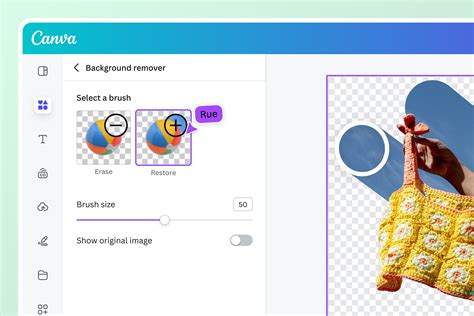
The Erase and Restore brushes offer a granular level of control for refining the results of the Background Remover tool. These brushes are currently exclusively available on canva.com and the desktop application.
- Access Brushes: After clicking ‘Background Remover,’ you will have the option to click on either the ‘Erase’ or ‘Restore’ brush.
- Manual Editing: Drag the selected brush over the specific areas of the image that you wish to erase or restore.
- Adjust Brush Size: The ‘Brush size’ slider allows you to precisely control the diameter of your brush, dragging it to the left to make it smaller or to the right to increase its size.
- View Original: To compare your edits with the original image, select ‘Show original image.’
- Confirm Edits: Once you are satisfied with your manual adjustments, click ‘Done’ on the toolbar above the editor.
- Apply Changes: To finalize and save your refined edits, click ‘Apply’ on the bottom of the side panel.
HOW TO REMOVE BACKGROUND IN CANVA | How I use the Canva background remover
Common Issues and Troubleshooting the Background Remover
While Canva's Background Remover is a powerful and generally reliable tool, users can occasionally encounter issues. Understanding these potential problems and their solutions can save valuable time and frustration.
The "Not Working" Scenario: What to Check
You're in the zone, crafting that perfect social media graphic or presentation slide in Canva. You upload your image, ready to work your magic with the background remover, and… nothing. It's a frustrating moment, isn't it? That little tool, usually so slick and efficient, suddenly seems to be on strike. It's easy to assume the worst, but often, the culprit is something much simpler. Think of it like a conversation - sometimes, a little static or a bad connection can make it hard to hear.
Connectivity and Browser Issues
- Internet Connection: More often than not, a flaky internet connection is the main reason your background remover might be acting up. If your connection is unstable, Canva might struggle to process the image data needed for the removal. Ensure you have a strong and stable internet connection.
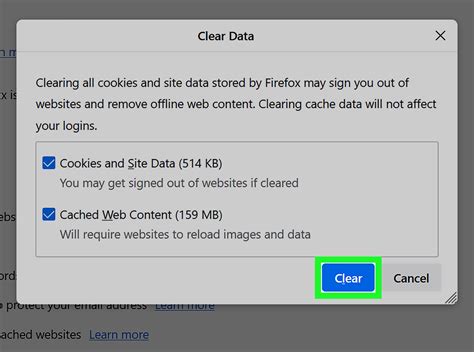
- Browser Cache and Cookies: Another common troublemaker is your browser's cache and cookies. Over time, these can get cluttered or corrupted, leading to all sorts of odd behavior in web applications. Clearing them out is like giving your browser a fresh start. For Chrome users, it's a few clicks in Settings under Privacy and Security. Firefox users will find similar options in their Privacy & Security settings.
- VPN Interference: Are you a fan of VPNs? While they're great for privacy, sometimes they can interfere with how web services communicate. If you're using a VPN, try disabling it temporarily to see if that makes a difference.
- Browser Extensions: Similarly, browser extensions, those handy little add-ons that enhance your browsing experience, can sometimes clash with Canva's functionality. It's worth trying to disable your extensions one by one. If the background remover starts working after you disable a particular extension, you've found your culprit.
Account and Feature Access
- Canva Pro Requirement: Now, let's talk about a key detail: the background remover in Canva is actually a feature of Canva Pro. If you're on the free plan, you won't have access to this tool. It's a common point of confusion, and it's important to know that to unlock this powerful feature, an upgrade to Canva Pro is necessary.
- Sign Out and Sign In: Sometimes, the simplest solutions are the most effective. If you've tried the above and are still facing issues, a quick sign-out and sign-in to your Canva account can sometimes reset things and get the background remover back on track.
Image Specifics
- File Format Compatibility: One common issue that users may encounter is an incompatible file format. Canva supports a wide range of image file formats such as JPEG, PNG, and GIF. However, certain file formats like TIFF or BMP may not be compatible with the background remover tool. To ensure that the background remover works smoothly, it is recommended to use one of the supported file formats.
- Image Complexity: Images with intricate details or complex backgrounds may pose a challenge for any background remover tool. In such cases, it's important to take into consideration that automatic tools may not always yield perfect results. Manual adjustments using the Erase and Restore brushes, or even more advanced photo editing software, might be necessary to achieve the desired outcome.
- Image Size and Resolution: As mentioned earlier, the Background Remover currently works for photos under 9MB in size and is not available for Vector images. Additionally, uploaded photos with a resolution exceeding 10MP will be downscaled to 10MP after background removal. If your image exceeds these parameters, it might not process correctly.
- Multiple Effects: In some cases, if you've applied multiple effects or filters to an image in Canva before attempting to remove its background, it could interfere with the functionality of the background remover tool. It might be beneficial to try removing the background on a fresh, unaltered image first.
Mobile Specifics
- App Permissions: If you're using Canva's background remover on a mobile device, it's worth checking if you have granted Canva the necessary access to your device's photo library. Insufficient permissions can prevent the tool from accessing and processing your images.
When to Seek Further Assistance
If you've exhausted these troubleshooting steps and are still experiencing persistent issues with the Background Remover, it might be beneficial to consult Canva's Help Center. They offer detailed guides and support articles that can provide further solutions. For users who find the new background remover isn't loading as expected, there's an option to switch to the old editor. Select 'Edit' from the floating toolbar, click on the 'Effects' tab, scroll to the bottom, and click on the banner link to access the older version of the tool.
Advanced Editing with Erase and Restore Brushes
After the initial background removal, the Erase and Restore brushes provide a powerful way to achieve a perfectly refined result. These tools allow for precise manual adjustments, ensuring that even the most complex images can be cleaned up to your exact specifications.
When you are in the brush editing mode, it's important to note that zooming and undoing or redoing brush strokes might not function as expected in all instances. For the best results, it is highly recommended to zoom in closely on the image and carefully navigate around the areas you are editing. Understanding mouse and trackpad gestures for brush tools can also significantly enhance your editing efficiency.
Utilizing the Brushes Effectively
- Re-select Background Remover: After the initial background removal, re-select the 'BG Remover' option from the editor.
- Choose Brush Type: Select either the 'Erase' or 'Restore' brush, depending on whether you need to remove unwanted elements or bring back parts of the original image.
- Adjust Brush Size: Use the 'Brush size' slider to fine-tune the diameter of your brush. Drag it left for a smaller, more precise brush, or right for a larger area of effect.
- Reference the Original: The 'Show original image' option is invaluable for comparing your manual edits against the untouched version of the photo, ensuring accuracy.
- Undo/Redo Functionality: The 'Undo' or 'Redo' icons are available to correct any brush strokes you make, offering a safety net during the refinement process.
- Zoom and Navigate: For intricate details, zoom in on the image. This allows for meticulous editing of edges and fine lines. Moving around the image while zoomed in is crucial for comprehensive touch-ups.
Canva AI and Background Removal
Canva is continuously integrating AI to enhance user experience, and background removal is no exception. For paid plan users, Canva AI offers an alternative method for removing backgrounds.
Using Canva AI in the Homepage
- Access Canva AI: From the main homepage, locate and select the 'Canva AI' option.
- Attach Photo: You can attach a photo by selecting 'Upload' to choose a file from your device or 'Import' to select an image from your connected cloud storage applications.
- Enter Prompt: In the prompt bar, type a clear instruction such as "Remove background" or "Delete the background."
- Send Prompt: Press Enter (on Windows), return (on Mac), or click the arrow icon in the chat to send your request.
- Review Results: Canva AI will reply with the processed image. You can then choose to 'Use Canva editor' to open it in a design for further edits, including using the erase and restore brushes. Alternatively, you can select the download icon to save the processed photo directly to your device. You can also access a menu icon to copy, rate, or report the result.
- Important Note: Canva AI currently does not support video background removal. This functionality remains available within the editor.
Using "Ask Canva" in the Editor
While in the Canva editor, you can also prompt "Ask Canva" to remove the background of a selected image directly from the quick actions toolbar. This provides a streamlined workflow for immediate background removal within your design project.
Transforming Images for Any Purpose
Canva's Background Remover is versatile, working effectively on a wide range of images, including those featuring people, animals, and various objects. You can upload images in JPG, PNG, HEIC, or HEIF formats, or you can select a stock photo directly from Canva's extensive library. This capability empowers users, even those with no prior design experience, to create stunning product shots for e-commerce websites or assemble visually appealing collages. Trying the Background Remover once is free, offering a taste of its power. To unlock unlimited design possibilities and access advanced features like the Video Background Remover, consider upgrading to Canva Pro.
Beyond Simple Removal: Creating New Backdrops
Once you've successfully removed the existing background of an image, you can immediately replace it with a new backdrop. Canva's extensive media library offers a vast selection of stock images, including patterns, lines, and shapes. You can also upload your own custom backgrounds. Simply click on your chosen image or pattern and adjust its position on the canvas. The seamless user experience of Canva makes the design process so engaging that you might find yourself immersed for hours. It's a platform that fosters creativity and efficiency, making it addictive and incredibly useful for a wide array of design needs.

Conclusion: Empowering Your Visual Storytelling
Canva's Background Remover is an indispensable tool for anyone looking to enhance their visual content. Whether you need a clean headshot for a professional document, a striking image for a presentation, or simply want to isolate an object for creative purposes, this feature streamlines the process. By understanding its capabilities, limitations, and troubleshooting common issues, users can harness the full power of this tool to create more impactful and polished designs. The ability to transform images with just a few clicks empowers both novice and experienced designers to elevate their visual storytelling.
tags: #canva #background #remover #not #working