Migrating your meticulously organized Lightroom catalog and its associated photos to a new computer can seem like a daunting task, but with a clear understanding of the process and the right approach, it becomes a straightforward and efficient operation. This guide will walk you through the essential steps, from preparing your files to integrating your catalog into a new environment, ensuring that your precious photographic work remains accessible and intact.
Understanding the Lightroom Catalog
At its core, the Lightroom Classic catalog is a sophisticated database. It acts as a central hub, meticulously tracking the location of all your imported photos and storing a wealth of information about them. Every edit you make, every star rating you assign, every keyword you add, and every collection you create is not directly embedded into the image files themselves but is instead recorded within this catalog file. This design allows for non-destructive editing, meaning your original image data remains untouched, and all modifications are applied dynamically when you view or export your photos.
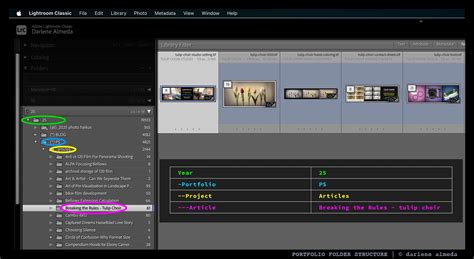
The catalog file, typically with a .lrcat extension, is accompanied by a .lrcat-data file. This latter file stores crucial additional information, particularly for AI-driven edits. If the .lrcat-data file goes missing or is misplaced, any AI edits applied to your images within Lightroom Classic could be permanently lost. Therefore, it is paramount to ensure both the .lrcat and .lrcat-data files are kept together and migrated as a unit.
When you install a newer version of Lightroom Classic, especially a major version update, you will often be prompted to upgrade your catalog. This is a standard procedure designed to accommodate any database structure changes or new features introduced in the updated software. It's a necessary step to ensure full compatibility with the latest version and to unlock its enhanced capabilities and performance improvements. Lightroom Classic will automatically create a copy of your old catalog during this upgrade process, providing a safety net should any issues arise.
Preparing for the Transfer
Before embarking on the transfer, a crucial first step is to ensure your photos and catalog are organized in a way that facilitates easy movement. If you're working with an external drive, a common and highly effective strategy is to store both your Lightroom catalog and your image files on this drive. This keeps everything related to your photography in one portable location, simplifying the process of moving it to a new machine.
When copying images from an SD card, it's good practice to create a folder structure that aligns with your existing organization on your home computer. This often involves naming folders with a date followed by a short description, ensuring consistency. For instance, a folder might be named "2023-10-27Tripto_Mountains."

When importing photos into Lightroom on a laptop, particularly for travel, it's advisable to "Add" the photos to your catalog rather than "Copy" them, unless you specifically intend to create an additional duplicate copy. This ensures that Lightroom is merely referencing the existing files on your external drive without creating unnecessary duplicates on your laptop's internal storage.
The Transfer Process: Merging Catalogs
The core of transferring your Lightroom catalog involves importing your existing catalog into a new catalog on your destination computer. If you've been working with a catalog on a laptop while traveling, you'll want to merge this "road" catalog into your main "home" catalog.
The process for merging is straightforward within Lightroom Classic. Navigate to File > Import From Another Catalog. This action will open a dialog box where you can select the catalog file you wish to import. Simply choose the catalog from your external drive that contains the photos and edits you want to integrate.
A particularly useful feature is the ability to consolidate your photos during this import process. In the "File Handling" section of the import dialog, you can select the option to "Copy new photos to a new location and import." This allows you to specify a destination folder on your new computer where Lightroom will copy the underlying image files. This is incredibly convenient as it not only brings your catalog data over but also moves your actual photos to their intended location on the new machine, often placing them neatly within your existing folder hierarchy. Notice how Lightroom can maintain your preferred organizational structure, such as saving by date with a description.
Post-Transfer Management and Troubleshooting
Once the catalog has been imported, there might be a few cleanup steps. If you opted not to have Lightroom move your photos during the import, you can do so manually. Simply select the folders containing your images from your external hard drive and drag them to their desired location on your new computer's hard drive.
Moving Your Lightroom Photos To Another Hard Drive (without losing track of any of them)
It's crucial to understand that when you move your image files outside of Lightroom Classic, for instance, by using Finder on macOS or Explorer on Windows, your catalog can lose track of their location. This can lead to the dreaded "missing photos" error. To prevent this, it is always recommended to move or rename your image files from within Lightroom Classic whenever possible. This ensures the catalog is updated in real-time. If you do encounter missing photos, the "Lightroom Classic can't find my catalog" or "My photos are missing in the catalog" messages will guide you through relinking them.
Catalog Upgrades and Compatibility
As mentioned, newer versions of Lightroom Classic may require catalog upgrades. This is a normal process. If you encounter issues during an upgrade, a reliable workaround is to open your old catalog in its previous version of Lightroom Classic and then export it as a new catalog. This newly exported catalog can then be imported into the newer version.
It's also worth noting that Lightroom Classic catalogs are not backward compatible. A catalog created in a newer version cannot be opened in an older version. However, starting with certain releases, renaming a catalog has become more streamlined. You can now select File > Rename Catalog and provide a new name for the currently open catalog. When renaming from within the application, you generally don't need to manually rename the associated .lrcat-data, preview, or smart preview files, as Lightroom handles this automatically.
Storing Catalogs and Cloud Services
When considering where to store your Lightroom catalog, especially on a laptop that might sync with cloud services like Microsoft OneDrive or Apple iCloud Drive, be mindful of potential issues. It is generally recommended not to store your Lightroom catalog file or your image files within folders that are actively being synced by these cloud services. This can lead to unintended usage of your online storage space and, in some cases, catalog corruption or synchronization conflicts.
Using Catalogs on Multiple Computers
For users who wish to utilize their Lightroom Classic catalog on more than one computer, such as a desktop and a laptop, the most straightforward approach is to keep both the catalog and the associated photos together on an external drive. This allows you to plug the drive into either computer and access your entire library.
Moving Catalogs Between Operating Systems
If you're transitioning between operating systems, such as from Windows to Mac or vice versa, the process involves copying your catalog, its .lrcat-data file, preview files, and image files from the original computer onto an external drive. Once transferred to the new computer, you may need to guide Lightroom Classic to the new location of the catalog.
Exporting Folders as Catalogs
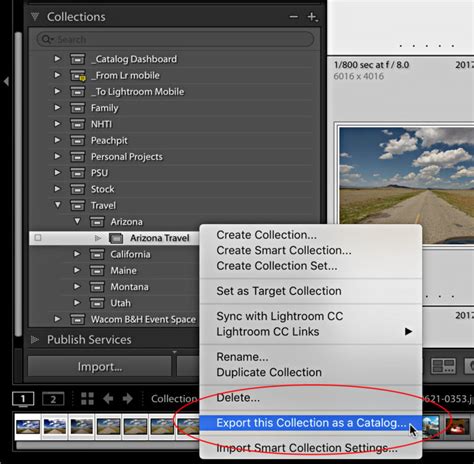
In scenarios where you might want to isolate a specific project or a set of photos into a separate catalog, Lightroom Classic allows you to export folders as new catalogs. Within the Library module's Folders panel, you can right-click (or Control-click on macOS) on the desired folder and select an option to export it as a catalog.
It is a common misconception that backing up your catalog file also backs up your photos. This is not the case. The catalog only contains information about your photos, not the photos themselves. Therefore, regular backups of your actual image files are essential, in addition to backing up your catalog.
While Lightroom Classic catalogs themselves are not directly synced across the cloud ecosystem, you can sync smart previews of your photos from Lightroom Classic to the broader Lightroom ecosystem, which can be useful for accessing and editing on different devices.
The .lrcat-data File: A Critical Component
The .lrcat-data file deserves special attention. This file is stored in the same folder as your main catalog file and contains vital information, particularly for AI-powered edits. If this file is missing, any AI edits applied to your images within Lightroom Classic will be permanently lost. When you move your catalog, always ensure this accompanying file is moved with it. If you are prompted about the .lrcat-data file upon opening Lightroom Classic after a move, and you do have the corresponding file, quit Lightroom Classic and ensure the file is in the correct location. If you don't have the file, you'll need to choose to "Continue," but be aware of the potential permanent loss of AI edits.
By following these guidelines, you can confidently transfer your Lightroom catalog and all your valuable photographic work to a new computer, ensuring a smooth transition and uninterrupted creative workflow.