Adding visual flair and impact to your written content is crucial in today's design landscape. Text effects, such as shadows, outlines, and curves, play a pivotal role in making your text more engaging and ensuring that vital information stands out within your designs. Canva, a widely accessible online graphic design tool, has made incorporating these effects, particularly the highly sought-after curved text, remarkably straightforward. This guide delves into the intricacies of Canva's text effects, with a special focus on its powerful curved text generator, empowering users of all skill levels to elevate their designs.
Understanding Canva's Text Effects Categories
Canva offers a robust suite of text effects designed to enhance visual appeal and communicate messages more effectively. These effects can be broadly categorized to help users understand their functionalities and application.
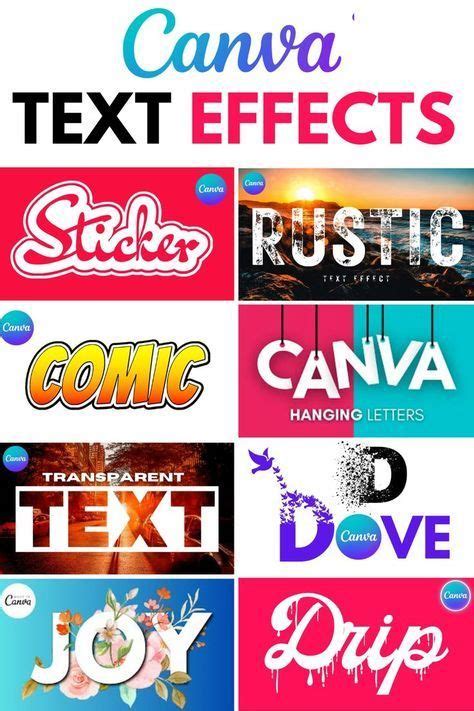
Style Effects: These are foundational effects that alter the fundamental appearance of the text.
- Shadow: Adds depth and dimension by simulating a light source.
- Lift: Creates a subtle raised effect, giving text a three-dimensional feel.
- Glow: Imparts an ethereal luminescence to the text.
- Echo: Replicates the text, creating a layered or trailing effect.
- Color: Allows for direct manipulation of the text's fill color.
- Hollow: Renders the text with an outline only, leaving the interior empty.
- Splice: Creates a fragmented or cut-out appearance within the text.
- Outline: Adds a distinct border around each character.
- Glitch: Mimics digital distortion for a modern, edgy look.
- Neon: Produces a vibrant, illuminated effect akin to neon signs.
- Background: Places a colored background behind the text.
- Shape: Applies a shape to the text, often for decorative purposes.
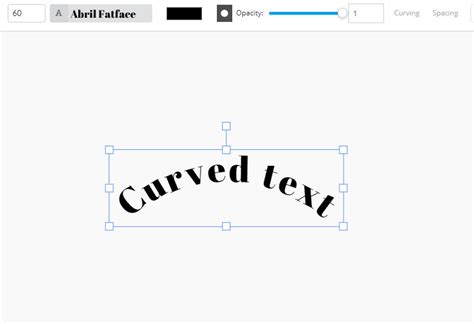
- Curve: The transformative effect that bends text into various arcs and circles.
Integrating Text Effects with Gradients
The synergy between text effects and gradients can lead to exceptionally dynamic and eye-catching designs. However, understanding compatibility is key to achieving the desired results.
Full Gradient Compatibility: Certain text effects integrate seamlessly with gradients, allowing the full spectrum of the gradient to be displayed within the text. These include:
- Shadow
- Lift
- Curve
- Echo
Limited Compatibility: Some effects may only display the first color of a gradient, or their interaction might be less predictable. These include:
- Neon
- Hollow
- Glitch
- Splice
It's also important to note that some effects might entirely override the gradient, rendering it invisible. For optimal results when using both effects and gradients, it is often best to apply the effect first, and then introduce the gradient. When exporting designs that incorporate both text effects and gradients, opting for PNG or JPG formats is recommended to ensure accurate display. PDF and SVG exports may not render gradients as intended.
Troubleshooting Gradient and Effect Incompatibility
If you encounter issues where your text effect doesn't display correctly with a gradient, several workarounds can be employed:
- Apply Effect Before Gradient: As mentioned, reordering the application of effects and gradients can resolve display discrepancies.
- Use Solid Colors for Complex Effects: For intricate effects like Neon or Glitch, utilizing solid colors instead of gradients might yield more predictable and visually appealing outcomes.
- Export as PNG or JPG: These raster image formats generally offer better fidelity for designs with complex effects and gradients compared to vector formats.
Leveraging Canva Apps for Advanced Text Styling
For users seeking even more sophisticated text manipulation, Canva offers a selection of integrated apps accessible through the Text tab. These apps, often part of paid plans, provide advanced styling options that go beyond the built-in effects.
- TypeStudio: Enables the creation of pro-style, custom lettering with ease.
- TypeCraft: Allows for creative warping and distortion of text, offering granular control over its shape.
- TypeExtrude: Adds depth and dimension, giving text a truly three-dimensional appearance.
- TypeCutOut: Transforms text by incorporating background images within its form.
- TypeLettering: Provides a range of customizable text effects for captivating designs.
- TypeGradient: Offers specialized tools for applying and manipulating gradients within text.
While these apps enhance design possibilities, it's worth noting that they may not be available for all design types. In such instances, Canva's native text effects remain a powerful alternative.
The Revolution of the Curved Text Feature
Prior to November 2020, achieving a curved text effect in Canva often involved cumbersome workarounds, requiring significant time and effort. The introduction of the dedicated "Curve" text effect marked a significant advancement, democratizing this popular design element. This feature is available to all Canva users, whether on the free or Pro plan, eliminating the need for external software like Photoshop.
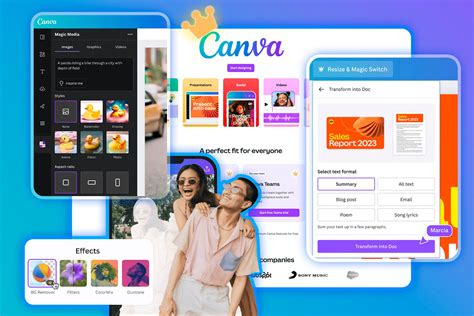
Step-by-Step Guide to Creating Curved Text in Canva
The process of curving text in Canva is remarkably intuitive:
- Create Your Design: Begin by initiating a new design from your Canva homepage. Selecting a standard size like "Instagram Post" (1080x1080px) is a good starting point for logos or social graphics.
- Add a Text Box: Simply press the "T" key on your keyboard to insert a text box. Type the message you wish to curve. For logo designs, it's common to use two text layers: one for the main name at the top and another for a slogan at the bottom, both curved into a circular shape.
- Apply the 'Curved Text' Feature: With your text box selected, navigate to the "Effects" option in the toolbar. Within the Effects panel, locate and click on the "Curve" option. Your text will immediately transform into a curved form.
- Adjust the Curve Angle: Once the "Curve" effect is applied, a slider will appear. This slider allows you to precisely control the degree of curvature. Dragging the slider to the right typically curves the text outwards, forming the top arc of a circle. Dragging it to the left curves the text inwards, creating the bottom arc. Experiment with the slider until you achieve the desired arc or circular shape.
- Refine and Reformat: After applying the curve, you can further adjust your text. This includes changing fonts, altering colors, modifying letter spacing, and resizing the text box to fit your design aesthetic.
- Export Your Design: When you are satisfied with your curved text design, click the "Download" or "Publish" button in the top right corner. For logo exports with a transparent background, Canva Pro is required. Ensure any background color or image is removed or set to white before exporting if transparency is desired.
Tips for Optimal Curved Text Results
- Font Choice: Curved text generally looks best with serif or sans-serif fonts. These fonts provide clear legibility even when the text is manipulated.
- Emphasis: Use curved text strategically to emphasize key words or short, impactful sentences.
- Adjustments for Clarity: If letters appear distorted or illegible, consider adjusting the text size, experimenting with different fonts, or fine-tuning the letter spacing.
- Resizing for Shape: Resizing the text box or the text itself can significantly impact the perceived curve and the size of the resulting circle.
Creative Applications of Curved Text
The versatility of Canva's curved text generator extends to a wide array of design applications, allowing users to inject personality and visual interest into their projects.
Stylized Logos and Badges
Curving text is an ideal method for creating professional-looking logos and badges. The ability to form perfect circles or arcs makes it exceptionally well-suited for brand identities that utilize circular motifs. Both the desktop and mobile versions of Canva support this feature, making design creation seamless across devices.
Text Art and Patterns
Beyond simple arcs, curved text can be combined to form intricate patterns, waves, and swirls. This opens up possibilities for creating unique wallpaper designs, social media story backgrounds, and abstract art pieces. Experimenting with different curve directions, angles, color schemes, and layouts can yield a vast range of artistic expressions.
Enhancing Data Visualization
In presentations or reports, curved text can be used to design circular elements that make data more visually engaging. This technique is particularly effective for infographics or Instagram carousels where information needs to be presented in an easily digestible and aesthetically pleasing manner.
Personalizing Quotes and Graphics
Adding text quotes to shapes, emojis, or hashtags following curved, bent, or spiral patterns can significantly enhance their visual appeal. This is a fantastic way to showcase personality and style in graphics for social media, profile pictures, or even custom stickers and badges.
How to Wrap Text Around A circle with Canva
Beyond the Curve: Exploring Other Text Effects
While the curved text feature is a standout, it's essential to remember the breadth of other text effects available in Canva.
Gradients and Effects Interaction
The interaction between gradients and effects like Neon, Hollow, Glitch, and Splice can be nuanced. These effects might exclusively display the first color of a gradient, or in some cases, completely obscure it. The "Tip" provided â "For best results, apply the effect first, then add the gradient" â is a critical piece of advice for users aiming to combine these elements.
Utilizing Advanced Text Effects Apps
For those who require highly specific or unique text manipulations, the Canva apps like TypeCraft (for warping and distorting) and TypeExtrude (for adding depth) offer advanced functionalities. These tools allow for bespoke text styling that can transform ordinary text into extraordinary design elements.
Canva's Role in Streamlining Design Workflows
Canva's fundamental appeal lies in its user-friendliness and accessibility, making graphic design achievable for individuals without prior professional training. The drag-and-drop interface, coupled with a vast library of templates and design assets, significantly reduces the time and complexity often associated with creating visual content.
The Value of Canva Templates
For businesses and individuals who need to produce marketing collateral efficiently, Canva's extensive library of templates offers a substantial time-saving solution. Templates that incorporate features like curved text can be easily customized to match brand aesthetics, allowing users to create professional-looking graphics in a fraction of the time it would take to design from scratch. This is particularly beneficial for those who lack the time or expertise for complex software like Photoshop.
A Seamless Design Experience
Canva is designed to be an intuitive and enjoyable platform. The seamless integration of features like the curved text generator means that users can focus on their creative vision rather than struggling with technical intricacies. This ease of use fosters experimentation and empowers users to produce high-quality designs consistently.
Frequently Asked Questions About Curved Text in Canva
What is a curved text generator?A curved text generator is a tool, like Canva's built-in feature, that allows users to create text that follows the contour of a curve or shape. This effect adds a unique visual element, making logos, quote posters, and social media posts more engaging.
Can I create curved text for free?Yes, Canva's curved text feature is available on the free version of the platform, making it accessible to everyone.
How do I curve text on the Canva mobile app?The process is very similar on the mobile app. You can access the text effects, including the curve option, through the editing tools available for text elements. You can bend, twist, and warp text to create striking designs directly from your mobile device.
What if my curved text looks strange?If your text appears distorted when using the curve effect, try adjusting the text size, choosing a different font, modifying letter spacing, or resizing the text box. Experimenting with the curve slider is also crucial to find the optimal setting.
Can I combine curved text with other elements?Absolutely. Canva encourages the combination of curved text with graphics, shapes, and other design elements to create dynamic and layered compositions. Searching Canva's template library for "curved text" can provide inspiration and starting points for complex designs.
In conclusion, Canva's curved text generator, alongside its comprehensive suite of text effects and an intuitive interface, empowers users to add a significant visual impact to their designs. Whether creating logos, social media graphics, or data visualizations, the ability to easily manipulate text into curved forms unlocks a new level of creative expression and design sophistication.