Creating a realistic chalkboard effect in Photoshop can transform your designs, adding a touch of vintage charm or a playful, hand-drawn feel. Whether you're aiming for a "back to school" sign, a wedding announcement, or simply a unique text effect, Photoshop offers a versatile toolkit. This guide will walk you through various techniques, from building the effect from scratch using filters and adjustment layers to leveraging specialized brushes and pre-made kits.
Crafting a Chalkboard Texture from Scratch
To begin, let's establish a foundational chalkboard texture. This involves setting up your document and then applying specific adjustments to simulate the rough, matte surface of a chalkboard.
- Document Setup: Start by creating a new document. A canvas size of 1000 x 1000 pixels is a good starting point for this tutorial.
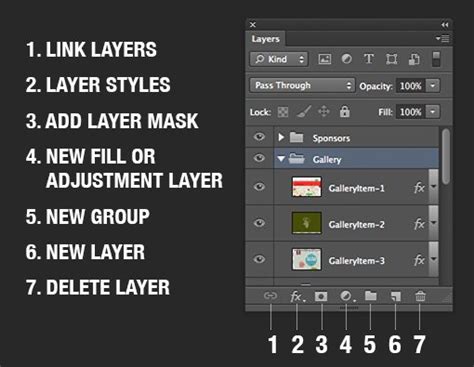
- Chalkboard Texture Layer: Create a new layer and name it "Chalkboard Texture." This layer will be the base for our chalkboard surface.
- Applying Texture and Levels: Select the "Chalkboard Texture" layer. Apply a Levels adjustment to this layer. To make this adjustment a permanent part of the layer, right-click on the layer and choose "Merge Layers." This step helps to define the initial tonal range of your chalkboard.
Simulating Chalk Text with Layer Styles and Filters
Once you have a basic chalkboard texture, the next crucial step is to create the chalk text effect. This can be achieved through a combination of duplicating shapes, applying layer styles, and utilizing texture layers for added realism.
- Duplicating a Shape: If you have a base shape, such as a speech bubble, duplicate its layer. Press
Control-Jto duplicate the "Speech Bubble Shape" layer and rename the new layer to "Chalkboard." This provides a defined area for your text. - Creating a New Layer for Text: For the actual text elements, create a new layer by pressing
Shift-Control-N. This ensures your text is on its own editable layer. - Color Overlay and Blend Mode: To give your text a chalk-like color, apply a "Color Overlay" layer style. Set the blend mode to "Normal" with an opacity of 100%. Choose a color that resembles chalk - typically a soft off-white or a very light pastel shade.
- Converting to Smart Object: For non-destructive editing and to easily reapply effects or make future adjustments, right-click on your text layer (e.g., "Back to School" text layer) and choose "Convert to Smart Object." This allows you to edit the text content and its associated styles at any time.
- Adding Chalk Text Texture: To enhance the realism of the chalk effect, make a "Chalkboard Text Texture" layer visible. This layer should contain a texture that mimics the grainy, slightly uneven application of chalk.
- Vibrancy Adjustment: To make the colors of your chalk text more vibrant and appealing, add a "Levels" adjustment layer. This allows you to fine-tune the contrast and brightness of your text.
How to Create a Stylized Chalk Text Effect in Adobe Photoshop
Leveraging Pre-made Resources for Efficiency
While creating a chalk effect from scratch offers maximum control, there are numerous resources available that can significantly speed up the process and provide professional-looking results. Envato Elements, for instance, is a subscription-based marketplace offering a vast library of design assets, including specialized kits for chalkboard signs and chalk effects.
- "First Day of School" Chalkboard Sign Kits: If you need to create a "first day of school" chalkboard sign quickly, look for kits that offer 28 single effects, including chalk fills and outlines, as well as complex chalk effects. These kits often allow for a "few clicks" creation process.
- Wedding Chalkboard Sign Kits: For wedding-related designs, specific kits can be invaluable. These often include actions, layer patterns, chalk brushes, and background textures, making it easier to craft elegant wedding chalkboard signs.
- Text-Specific Chalk Effect Kits: Some Photoshop kits are specifically designed for text effects. If you're looking to create a unique welcome chalkboard sign, these kits can provide the precise tools and styles needed.
- Chalk Brushes for Freehand Drawing: If your creative process involves more free-hand drawing and illustration, a pack of dedicated chalk brushes can be a significant asset. These brushes are designed to mimic the natural stroke and texture of chalk.
- Realistic Chalkboard Sign Kits: For those who aim for a highly realistic chalkboard sign look, comprehensive kits often combine various elements like textures, brushes, and pre-made templates to achieve the desired aesthetic.
Integrating Hand-Drawn Elements and PNGs
Beyond text, incorporating hand-drawn doodles or custom graphics can elevate your chalkboard designs. This approach often involves creating elements in other applications or using pre-made PNG files.
- Doodling in Paper or Procreate: If you prefer a more organic, hand-drawn feel, consider using apps like Paper or Procreate. These applications allow for easy doodling and can export your creations as PNG files with transparent backgrounds. This is a great way to add unique illustrations or lettering to your chalkboard.
- Opening Quote PNGs: Open your quote PNG files directly in Photoshop. Ensure they have a transparent background so they can be seamlessly placed onto your chalkboard canvas. If you make mistakes or want to combine elements, Photoshop's editing tools allow you to adjust words or drawings as needed.
- Importing Doodle Layers: Drag your doodle layers (your PNG files) directly onto your main chalkboard file in Photoshop.
- Adjusting Chalk Color: Once your doodles are in place, you can change their writing color to match your desired chalk aesthetic. A slightly off-white color often works best for a natural look.
- Eyedropper Tool for Color Selection: To ensure color consistency, use the eyedropper tool to select a color directly from your chalkboard background. This helps in choosing complementary chalk colors.
Advanced Procreate Techniques for Realistic Chalk Lettering
For users who prefer working on an iPad, Procreate offers a powerful environment for creating realistic chalk lettering. Specialized brush kits, like the "Chalk Script Procreate Brush & Template Pack," provide a comprehensive set of tools for this purpose.
- Chalk Lettering Kit Components: Such kits typically include a variety of chalk brushes (e.g., chalk pencil, texture brushes, smudge brushes), high-resolution graphics (like chalkboard backgrounds), and layout templates. These templates often feature flourished borders and grid systems to guide lettering.
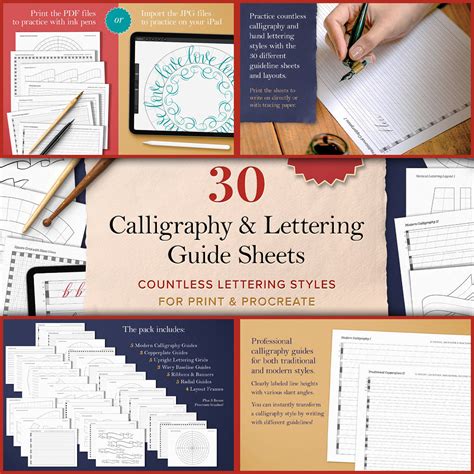
- Using Lettering Templates: Begin by selecting a chalk letter guide template. These templates often have specific guides for slant and center lines, which are crucial for achieving a balanced and professional lettering layout.
- Sketching with a Chalk Pencil: Use a dedicated chalk pencil brush within Procreate. Ensure that the "Streamline" setting is adjusted to your preference for smoother or more textured lines. Sketch your quote into the template guides, paying close attention to spacing and alignment.
- Refining Letterforms: As you sketch, you'll likely need to make adjustments. For instance, you might need to resize letters, adjust their slant, or refine their shapes to fit the template perfectly. Turning off the grid lines temporarily can help you visualize the overall composition.
- Polished Lettering with Layered Textures: To achieve a realistic chalk look, it's often beneficial to go over your initial sketch with different chalk brushes. This layering of textures, including grain, smudges, and streaks, creates depth and authenticity. Some brushes are designed to simulate the way chalk wears down, offering a natural, erodible quality.
- Utilizing Brush Features: Procreate brushes can offer pressure sensitivity, meaning the harder you press, the more intense the effect. This feature is invaluable for creating varied chalk strokes. Hacks like holding a line to create a perfectly straight stroke can also be useful when adhering to template guides.
- Adding Smudgy and Grungy Textures: To further enhance realism, use brushes designed for smudging or adding a grungy texture. Applying these subtly can create a more authentic, hand-crafted feel. Experiment with opacity to achieve the desired level of smudging without overwhelming the lettering.
- Incorporating Chalk Dust and Splatters: For a final touch, add elements like chalk dust or wet chalk splatters. These brushes can be swept across the composition to simulate airborne chalk particles or water spots, adding another layer of visual interest. Adjusting the opacity of these layers is key to making them look natural.
- Chalk Holiday Card Design Example: The versatility of these kits extends to various designs, such as holiday cards. By changing template line colors and combining different lettering styles (script, all caps), you can create unique and personalized designs. Some designs may even omit a chalkboard background for a crisp, clean look.
Photoshop Techniques for a Vintage Chalk Effect
For those working with Photoshop on a desktop, specific brush settings and layer manipulation can also yield impressive chalk effects. This method often involves building the effect in stages, starting with a base color and then applying textured strokes.
- Document Setup and Base Color: Create a new document, for instance, 1920x1280 pixels. Open a chalkboard background image and paste it into your document. You might also import a "Woman" image and use the Pen Tool to create a path around her, then copy and paste her into your scene. Desaturate the woman layer using a Hue/Saturation Adjustment Layer and clip it to her layer. Boost contrast with a Curves Adjustment Layer, also clipped.
- Creating a White Rectangle Frame: Create a new layer below the woman layer and paint a white rectangle using a standard chalk brush. Holding
Shiftwhile dragging ensures perfectly vertical or horizontal lines. - Adding Retro Fonts: Import and install retro fonts like "American Captain." Use the Type Tool to add text. To achieve a chalky appearance, right-click the font layer and access "Blending Options."
- Simulating Chalk Writing Irregularity: For text like "Teaching people since 1935," use multiple type layers for each line to control font size and placement. Since chalk writing is rarely perfectly regular or white, add a layer mask to your text group. Using the chalk brush at around 40% opacity with black on the layer mask will partially hide the text, creating a more natural, irregular look.
- Incorporating Graphics: Open and paste additional images, like a "Rocket," into your scene to enhance the retro feel.
- Adding Grain and Vignette: To further the retro photo manipulation aesthetic, add grain to your scene. You can achieve this using various filters. A vignette effect can also be added using the "Lens Correction" filter under the "Custom" tab, adjusting the settings to darken the edges of the image.
Advanced Photoshop Brush Customization for Chalk
Achieving a highly realistic chalk effect in Photoshop can also involve deep customization of brush settings. This allows for a unique, personalized chalk appearance that mimics the physical properties of chalk.
- Initial Brush Setup: Start by creating a new document filled with black. Create a new layer and select an erodible brush tip, such as the "Crayon" brush. Set your foreground color to white and paint a stroke to observe its initial texture.
- Brush Panel Customization: Open the Brush panel (
Window > Brush).- Texture: Ensure the "Texture" checkbox is off for now.
- Dual Brush: Click on "Dual Brush" and select a preset like "Spatter 27 Pixels." Adjust the "Spacing" and "Scatter" settings slightly to control the distribution of spatter.
- Brush Tip Shape: Navigate to "Brush Tip Shape." Set the "Size" to approximately 6 px, increase "Softness" to around 45%, and decrease "Spacing" to 1%. Turn on "Noise" and "Smoothing" for added texture.
- Erodible Brush Behavior: Recognize that many chalk brushes are "erodible," meaning their tips wear down with use. You can manually refresh the tip by clicking the "Sharpen Tip" button within the Brush Tip Shape section of the Brush panel.
- Saving Custom Tool Presets: Once you've fine-tuned your brush settings, save them as a "Tool Preset" by clicking the "Tool Preset icon" in the Options Bar, then the gear icon, and selecting "New Tool Preset." Name your preset for easy access.
- Working with Paths: For precise chalk text outlines, you can utilize vector paths.
- Creating Paths: You can create a type layer and then convert it to vector paths by right-clicking and choosing "Create Work Path." Alternatively, you can draw paths manually using the Pen Tool.
- Loading Paths as Selections: Open the Paths panel (
Window > Paths). With your path selected, choose "Stroke Path" from the panel's flyout menu. Select "Brush" as the tool and ensure "Simulate Pressure" is turned off. This will create an outline of your path. - Filling Paths: To fill in the chalk text, load the path as a selection by
Command-clicking (orCtrl-clicking on PC) the path thumbnail in the Paths panel. Create a new layer and, using your customized chalk brush, paint inside the selection. Purposely miss areas and avoid continuously painting over the same spot to maintain a chalky, uneven appearance.
- Applying Layer Styles for Depth: After filling in the text, use "Blending Options" from the Layer Style menu. In the "Blend If" section, use the "Underlying Layer" sliders. By holding
Option(orAlton PC) and dragging the black slider to the right, you can split it and allow darker areas of the background to show through, adding depth. - Creating Shadow Effects: To add depth and dimension, you can create a shadow effect. Duplicate your chalk text layer, nudge it slightly down and to the right using the arrow keys, and change its color to a light blue. Use the Eraser tool to selectively remove parts of this blue layer where it overlaps the main text, creating a subtle shadow. Apply a similar "Blend If" adjustment to this shadow layer.
- Warping Text for Flair: For a more dynamic look, you can warp your text. Convert your text layers (or a group of them) into a Smart Object. Then, go to
Edit > Transform > Warp. Select an appropriate warp style, such as "Arc," and adjust the bend and other parameters to achieve an unbalanced, stylized arc.
By combining these techniques, you can achieve a wide range of realistic and stylized chalkboard effects in Photoshop, catering to different project needs and creative preferences.
tags: #chalkboard #brush #photoshop