Graffiti art, with its bold strokes and vibrant expressions, has long captivated the artistic world. While traditionally associated with spray cans and urban landscapes, the digital realm offers a powerful platform to recreate and innovate within this dynamic art form. This guide delves into the intricacies of crafting compelling graffiti text effects within Adobe Photoshop, transforming ordinary words into visually striking pieces. Whether you're a seasoned designer or a curious beginner, this tutorial will equip you with the knowledge and techniques to generate unique graffiti lettering, explore various stylistic approaches, and seamlessly integrate them into your projects.
Laying the Foundation: Setting Up Your Digital Canvas
To begin crafting your graffiti text effect, the right backdrop is crucial. A brick wall, for instance, provides an authentic urban canvas, evoking the spirit of street art.
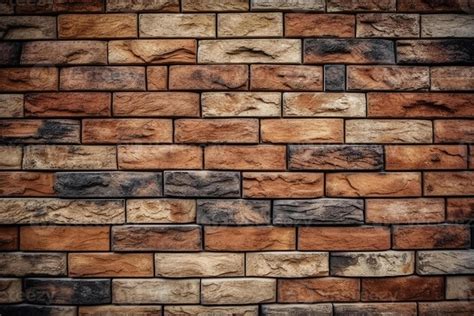
Open Adobe Photoshop and navigate to File > Open.... Select a brick wall image file (e.g., Brick-wall.jpg) from your tutorial assets or a similar texture you have available. This image will serve as the base for your graffiti.
Crafting the Core Text: Initial Letterform Creation
The essence of graffiti lies in its distinctive lettering. Photoshop's Type Tool is your primary instrument for this initial stage.
The "Vote" Element: Establishing the Primary Message
- Select the Type Tool (T).
- Choose a Graffiti Font: For this tutorial, the
Graffogiegraffiti text font is recommended. If this specific font is unavailable, select another font that emulates a graffiti style. - Set Font Size: Adjust the font size to
285 pt. - Type the Word: Enter the word "Vote" onto your artboard.
- Apply Warping for Dynamic Form: To imbue the text with a sense of movement and organic flow, a warp effect is applied. Go to
Type > Warp Text.- Select
Shell Upperfrom theStyledropdown. - Set
Bendto21%. - Set
Horizontal Distortionto-29%. - Set
Vertical Distortionto22%. - Click
OK.
- Select
Adding Supporting Text: "for" and "Pedro"
To build a complete phrase or name, additional text elements are introduced.
- Utilize the Type Tool (T) again.
- Select the same graffiti font (
Graffogieor equivalent). - Type the word "for".
- Set Font Size and Tracking: For the word "for", set the font size to
116 ptand thetrackingto75. Tracking refers to the uniform spacing between all characters in a text string. - Type the word "Pedro". Ensure that each word ("Vote", "for", and "Pedro") resides on its own distinct layer in the Layers panel. This isolation is crucial for independent manipulation and styling.
- Positioning the Elements: Use the
Move Tool (V)to strategically position the graffiti-style letters. Adjust them so they appear cohesive, as if arranged by a street artist. - Applying a Unified Rotation: To create a sense of natural placement and visual interest, select all three text layers in your Layers panel. Press
Control-T(orCommand-Ton Mac) to activate the Free Transform tool. Set theRotatevalue to-8°. This slight tilt can significantly enhance the authenticity of the graffiti effect.
Injecting Depth and Style: Layer Styles and Blending Options
The true artistry of digital graffiti often emerges through the sophisticated application of layer styles and blending options. These tools allow for the simulation of depth, texture, and the unique characteristics of spray paint.
Styling the "Vote" Layer
- Select the "Vote" graffiti text layer.
- Access Layer Styles: Navigate to
Layer > Layer Style > Blending Options.... This opens the Layer Style dialog box, where a multitude of effects can be applied.
Styling the "for" Layer
- Select the "for" graffiti text layer.
- Access Layer Styles: Go to
Layer > Layer Style > Blending Options.... Applying styles here will further enhance the visual complexity of the graffiti letters.
Styling the "Pedro" Layer: Advanced Blending for Realism
- Select the "pedro" graffiti letter font layer.
- Access Layer Styles: Navigate to
Layer > Layer Style > Blending Options.... - Underlying Layer Adjustment: Within the Blending Options, locate the
Underlying Layersliders.Alt-click(orOption-clickon Mac) on the white marker of theUnderlying Layerslider. This action splits the marker, allowing for independent control over the shadow and highlight components of the blend.- Set the left part of the split marker to
139. - Set the right part of the split marker to
201.This precise adjustment helps to integrate the text more realistically with the background, simulating how light and shadow would interact with painted letters on a textured surface.
These initial layer style applications are the foundation for creating a multi-dimensional graffiti effect. The combination of different styles and precise adjustments allows for a unique outcome for each text element.
Advanced Techniques: Displacement Maps and Textural Realism
To elevate the graffiti effect beyond flat text, incorporating elements that simulate real-world application, such as displacement maps and added textures, is essential. This imbues the text with a sense of being physically present on the background.
Creating a Displacement Map for Depth
A displacement map is a high-contrast black and white version of your background image. It's used to distort other layers (in this case, the text) in a way that mimics the contours and imperfections of the underlying surface, creating a more realistic 3D look.
Prepare the Background for Displacement:
- Open the background image (e.g., the brick wall).
- Desaturate the Image: Go to
Image > Adjustments > Desaturate(orShift + Command/Control + U). This converts the image to grayscale. If it's already black and white, proceed to the next step. - Increase Contrast: Open the
Levelspanel (Command/Control + L). Click theAutobutton for an automatic adjustment, or manually adjust the shadow and highlight sliders to significantly increase the contrast. The goal is a stark black and white image with deep blacks and bright whites. - Save as PSD: Save this high-contrast image as a PSD file. Naming it with "displacement" in the filename (e.g.,
Brick Wall Displacement.psd) is recommended for easy identification. It is crucial that this file is saved in PSD format for the displacement map to function correctly.
Revert to the Original Image: After saving the displacement map, you must return to your original, unedited background image. You can achieve this by:
- Using
Undo(Command/Control + Z) repeatedly. - Opening the
Historypanel (Window > History) and stepping back to the state before the desaturation and contrast adjustments. - Closing the displacement map file without saving changes and re-opening the original background image.
- Using
Applying the Displacement Map to Text
- Duplicate the Text Layer: Before applying the displacement, it's good practice to duplicate your primary text layer (e.g., "Vote"). This ensures you have an un-displaced original to fall back on.
- Apply the Filter: With the duplicated text layer selected, go to
Filter > Distort > Displace.- Set both
Horizontal ScaleandVertical Scaleto a value of3. These values control the intensity of the distortion. Experiment with slightly higher values if more pronounced warping is desired. - Select
Stretch To Fitas theDisplacement Map. - Choose
Repeat Edge Pixelsfor theUndefined Areassetting. This prevents harsh edges where the distortion extends beyond the original text boundaries. - Click
OK.
- Set both
- Select the Displacement Map File: Photoshop will prompt you to select a displacement map. Navigate to and select the PSD file you saved earlier (e.g.,
Brick Wall Displacement.psd).
The text layer will now be distorted according to the tonal values of the displacement map, making it appear as if it's conforming to the brick wall's surface.
Adding Texture and Realistic Blending
To further enhance the painted appearance, you can incorporate texture overlays and fine-tune the blending of the text with the background.
Importing and Applying Texture
- Open a Texture Image: Open a grunge texture or paint splatter image you wish to use.
- Drag Texture to Canvas: Select the texture layer and drag its thumbnail directly onto the canvas of your graffiti design document.
- Resize and Position: Use
Free Transform(Command/Control + T) to resize the texture layer as needed. Position its thumbnail in the Layers panel so it sits above all text layers but below any intended background elements. - Blend the Texture: Change the Blending Mode of the texture layer to
Multiply. This mode darkens the underlying layers, allowing the texture to integrate realistically. Reduce theOpacityof the texture layer to80%(or adjust to your preference) to prevent it from overpowering the text.
Blending Text with the Background
The Blend If option in the Layer Styles panel is a powerful tool for seamlessly integrating text with complex backgrounds.
- Access Blending Options: Double-click on the text layer's thumbnail to reopen the Layer Styles panel.
- Utilize "Blend If": Locate the
Blend Ifcontrols at the bottom of theBlending Optionstab.- On the
Underlying Layerbar, drag the shadow lever (the left triangle) to the right. This makes the darker parts of the text layer blend more with the darker parts of the background. - Drag the highlight lever (the right triangle) to the left. This allows the lighter parts of the text to blend with the lighter areas of the background.
- On the
- Soften the Blend: To create a smoother transition, split the levers:
Alt-click(orOption-clickon Mac) on one of the levers.- While holding
Alt/Option, drag the split part of the lever to the side. This creates a gradual fade rather than a sharp cutoff. - Repeat this process for the other lever.
This detailed blending ensures the text doesn't appear to be simply placed on top of the image but rather a natural part of it.
Enhancing Realism with Paint Splatters
Paint splatters are an iconic element of graffiti, adding dynamism and a sense of spontaneous creation.
Adding and Coloring Splatters
- Import Splatter Assets: Open image files containing paint splatters (e.g., SVG files).
- Select and Copy: Use selection tools like the
Lasso Tool (L)to isolate a splatter. Copy it (Command/Control + C). - Paste into Design: Return to your graffiti design and paste the splatter (
Command/Control + V). Ensure its layer is positioned appropriately in the Layers panel, typically below the main text layers. - Resize and Rotate: Use
Free Transform(Command/Control + T) to resize and rotate the splatter to fit your composition. - Color Overlay: Double-click the splatter layer's thumbnail to open Layer Styles.
- Navigate to the
Color Overlaytab. - Set
Blend ModetoNormalandOpacityto100%. - Choose a color from the
Colorpicker (e.g.,#1e1ea0).
- Navigate to the
- Blend Splatter with Background: In the
Blending Optionstab, adjust theOpacityof the splatter layer. Then, use theBlend Ifcontrols (similar to Step 6) on theUnderlying Layerbar to blend the splatter realistically with the background. Split the levers for a smoother transition.
Efficiently Applying Styles to Multiple Splatters
To maintain consistency and save time when adding multiple splatters:
- Copy Layer Style: Once you have styled and blended one splatter to your satisfaction, right-click on its layer thumbnail in the Layers panel and select
Copy Layer Style. - Paste Layer Style: Right-click on the thumbnail of any subsequent splatter layer and select
Paste Layer Style. - Adjust as Needed: While the style is copied, you may need to slightly adjust the
Color OverlayandBlend Ifsettings for each splatter to ensure they integrate uniquely with the background.
Grouping for Organization
To keep your Layers panel manageable, group related elements:
- Select Layers: Select the layers for the main text, any effects applied directly to text, and all the paint splatters.
- Create Group: Click the folder icon at the bottom of the Layers panel to create a new group.
- Name the Group: Rename the group to something descriptive, such as "Text Effects." This keeps your main text, its distortions, and embellishments organized together.
Iterative Refinement: Editing and Saving Styles
The power of Photoshop lies in its non-destructive editing capabilities, allowing for easy modifications and the preservation of creative work.
Editing Text Content
Should you need to change the words or phrases you've used:
- Locate the Original Text Layer: Find the initial, un-styled text layer (often hidden by turning off its visibility in the Layers panel).
- Edit Contents: Right-click on this original text layer's thumbnail and select
Edit Contents. - Make Changes: A new window will open, displaying only your text. Make any desired edits to the words, font, or initial size.
- Save and Update: Go to
File > Savein this new window. When you return to your main graffiti design, the changes will be automatically reflected across all applied layer styles and effects.
Saving Custom Styles
To reuse your meticulously crafted graffiti effect on future projects:
- Access Layer Styles: With a layer that has your desired styles applied, double-click its thumbnail to open the Layer Styles panel.
- Create New Style: Click the
New Stylebutton. - Name and Save: Give your style a descriptive name (e.g., "Graffiti Text Effect"). Ensure that both
Include Layer EffectsandInclude Layer Blending Optionsare checked. ClickOK.
Your custom style will now appear in the Styles tab within the Layer Styles panel, ready to be applied to any layer with a single click.
Exploring Diverse Graffiti Styles and Resources
The techniques outlined above form a robust foundation for creating a wide array of graffiti text effects. Beyond this tutorial, a wealth of resources and stylistic variations exist to further expand your creative horizons.
Pre-made Graffiti Styles and Mockups
For those seeking to expedite the process or explore different aesthetic interpretations, pre-made resources are invaluable.
- Graffiti Style Actions: Photoshop actions can automate complex sequences of steps, allowing you to apply sophisticated graffiti looks with a single click. These actions often incorporate multiple layer styles, textures, and distortions.
- Graffiti Text Effect PSD Packs: These downloadable Photoshop files provide pre-designed graffiti text effects. You typically place your text or design into a designated "smart object" layer, and the PSD automatically applies the elaborate styling. These packs often include various mockups and ASL (Adobe Style) files for further customization.
- Street Art Graffiti Logo Photoshop Actions: These specialized actions are designed to transform logos, portraits, figures, or objects into graffiti-style artwork. They leverage techniques that can mimic spray paint, stencils, and urban art aesthetics.
- 3D Graffiti Effects: For an even more impactful visual, consider resources that focus on creating three-dimensional graffiti text. These often involve advanced layer styling, lighting, and perspective adjustments.
- Spray Art Photoshop Actions: These actions are specifically geared towards simulating the look of spray paint, often featuring realistic overspray, drips, and textured edges. They can be used to create quick digital art pieces with a spray-painted feel.
Graffiti Text Effect in Photoshop Tutorial (Editable & Easy)
Graffiti Fonts and Licensing
The choice of font is paramount in establishing the character of your graffiti.
- Specialized Graffiti Fonts: Many websites offer a wide selection of graffiti-style fonts, ranging from clean and legible to highly stylized and abstract. These fonts are designed to capture the essence of traditional graffiti lettering.
- Enhanced Font Versions: Some foundries offer upgraded versions of their graffiti fonts. These enhanced versions often include more comprehensive character sets, improved performance, better cross-system compatibility, and additional stylistic alternates, preserving the original designer's artistic intent while improving usability.
- Licensing Considerations: It is crucial to be aware of font licensing. Many free fonts are available for personal, non-commercial use only. Always check the specific licensing terms before using a font for commercial projects. Websites often provide detailed information, including licensing agreements, sample artwork, and contact details for inquiries.
Beyond Text: Graffiti as Broader Art Form
It's important to remember that graffiti art extends beyond just text. It encompasses intricate drawings, character designs, and elaborate murals. When exploring graffiti effects in Photoshop, consider how these broader artistic principles can inform your text-based creations. The use of color, composition, and the interplay of positive and negative space are all vital elements.
Conclusion: Unleashing Your Digital Graffiti Potential
Mastering graffiti text styles in Photoshop is an iterative process of learning, experimenting, and applying creative techniques. By understanding the fundamental tools - the Type Tool, Layer Styles, Blending Options, and displacement maps - you can begin to replicate the raw energy and visual impact of traditional graffiti. The availability of specialized actions, PSD templates, and a diverse range of graffiti fonts further empowers designers to explore a boundless spectrum of styles. Whether you're aiming for a subtle weathered look or a bold, in-your-face statement, Photoshop provides the digital canvas and the sophisticated tools to bring your graffiti visions to life. The journey from simple text to a dynamic, urban-inspired masterpiece is an exciting exploration of digital artistry.