Adobe InDesign is a powerful desktop publishing application that offers a range of tools for managing text, from basic formatting to advanced layout control. For designers, editors, and anyone working with lengthy documents, understanding how to accurately count characters, words, lines, and paragraphs is crucial. This is especially true when adhering to specific editorial limits, fitting text within a prescribed layout, or measuring readability. While InDesign provides built-in features for counting elements within selected text frames, it also offers pathways to achieve document-wide counts through scripting and external tools. This tutorial delves into the various methods for character and word counting in Adobe InDesign, exploring both native functionalities and supplementary solutions.
Understanding Text Frame Statistics in InDesign
At its core, Adobe InDesign provides immediate feedback on text content through its Info Panel. This panel serves as a central hub for various document statistics, including character and word counts. To access this feature, you first need to open the Info Panel, which can be done using the hotkeys or by navigating through the application menu: Window > Info.
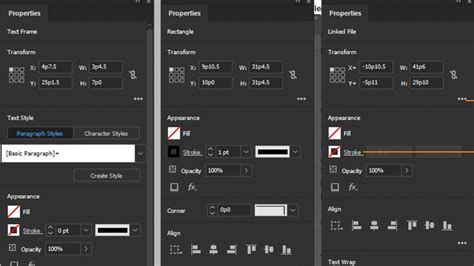
The information displayed in the Info Panel is dynamic and context-dependent. If you simply select a text frame, the panel will present general information about the frame itself, such as its dimensions. However, the real power of the Info Panel for text analysis is unlocked when you switch to the Type tool. With the Type tool active and a text frame selected, the Info Panel transforms to display detailed statistics about the text content within that frame. This includes the number of characters, words, lines, and paragraphs.
A particularly useful scenario where the Info Panel shines is when dealing with overset text. Overset text occurs when the content of a text frame exceeds its defined boundaries, meaning some text is not visible within the layout. InDesign visually indicates overset text with a small plus sign (+) at the bottom of the text frame. When you click on a text frame exhibiting this overset icon, the Info Panel will not only show the visible word count but also the number of words that are overset, effectively providing a complete count for that specific frame's content. This functionality is available in both normal layout modes and within the Story Editor, a dedicated window for editing text content.
For enhanced workflow, the Info Panel can be integrated into a custom workspace by docking it alongside other frequently used panels. This allows for quick access without disrupting your primary layout view. Alternatively, pressing the F8 key provides a direct shortcut to bring the Info Panel to the forefront.
It is important to note a significant limitation of the native Info Panel: it exclusively provides statistics for the currently selected text frame or story. It does not offer a built-in mechanism to aggregate word counts across all frames or for the entire document. This is where supplementary methods become essential.
Leveraging Scripts for Document-Wide Word Counts
When the need arises to obtain a word count for an entire InDesign document, the native tools fall short. However, Adobe InDesign's robust scripting capabilities offer a powerful solution. Several scripts have been developed to address this limitation, with the most commonly cited being the "count-text" and "count-all-text" scripts, often provided by community resources like InDesignSecrets.
To utilize these scripts, you first need to install them within your InDesign environment. The standard procedure involves placing the script files into the InDesign Folder, specifically within the Scripts > Scripts Panel subfolder. Once installed, these scripts become accessible through the Scripts panel in InDesign (Window > Utilities > Scripts).
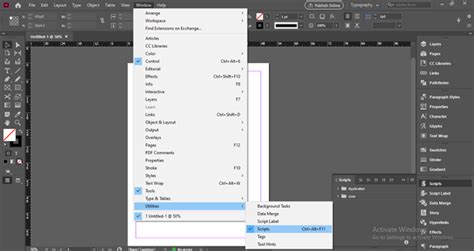
Running a script is typically a straightforward process: navigate to the Scripts panel, locate the desired script (e.g., "count-text"), and double-click it to execute. The "count-text" script is designed to count all the words within the currently active story or selected text. For a more comprehensive count, the "count-all-text" script goes a step further by including words that might be hidden within footnotes and tables, providing a more complete document-wide tally.
These scripts are invaluable for users who need to adhere to strict word count limitations for articles, books, or other publications. They eliminate the manual effort of counting words frame by frame or page by page, saving considerable time and reducing the potential for errors.
The ability to use scripts expands InDesign's functionality significantly. For instance, if you need to track specific elements within your text, such as the first instance of a particular paragraph style appearing in a header or footer, text variables can be employed. InDesign includes several preset variables (e.g., Creation Date, File Name) and allows for the creation of custom variables. This demonstrates the extensibility of InDesign beyond its core design features.
Exploring External Word Count Tools
In addition to InDesign's native features and community-developed scripts, third-party software applications offer dedicated word counting solutions that can be used in conjunction with InDesign documents. One such tool is AnyCount, a word count utility that supports a wide range of file formats, including those generated by InDesign.
Using external tools like AnyCount can be beneficial for several reasons. They often provide more advanced reporting features, detailed breakdowns of word counts by section or chapter, and may offer integration capabilities with other software. For professionals who frequently work with word count requirements across multiple platforms and file types, a dedicated tool can streamline the workflow.
The process typically involves exporting your InDesign document into a compatible format (such as PDF or RTF) and then importing that file into the word count software. Alternatively, some tools might offer direct integration or plugins for desktop publishing applications.
While InDesign excels at layout and design, relying on specialized tools for specific tasks like comprehensive word counting can enhance efficiency and accuracy, especially in professional publishing environments.
Advanced Text Formatting and Character Attributes
Beyond counting, Adobe InDesign offers a rich set of tools for manipulating text at a granular level, impacting how characters are displayed and, consequently, how they might be perceived in a count. Understanding these attributes is key to precise text management.
Baseline Shift, Superscript, and Subscript
The Baseline Shift feature allows you to move selected characters vertically, either up or down, relative to the standard text baseline. This is controlled within the Character panel or the Control panel. By entering a numeric value, you can precisely adjust the position. Using the Up Arrow or Down Arrow keys while the Baseline Shift box is selected provides a quick way to increment or decrement these values.
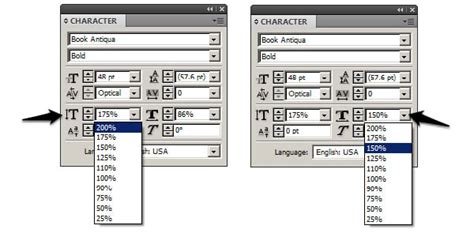
Superscript and Subscript are also accessible from the Character panel or Control panel. These formatting options raise or lower characters relative to the baseline and typically scale them down proportionally. The percentages applied for these effects are based on current font size and leading, and can be further customized in the Type Preferences settings. These are distinct from simple baseline shifts as they involve size and position adjustments inherent to the character’s role (e.g., in mathematical formulas or footnotes).
Underlines and Strikethroughs
InDesign provides extensive control over underlines and strikethroughs. You can toggle these formatting options on or off for selected text. Beyond simple application, you can define the thickness of the underline or strikethrough line, its offset from the baseline, and even customize the appearance of the area between dashes or dots if you opt for a dashed or dotted line style. This level of control is useful for stylistic emphasis or for highlighting text that needs to be removed or altered.
Change Case and Case Settings
The Change Case command is a powerful tool for altering the capitalization of selected text. This is distinct from simply typing text in uppercase or lowercase. InDesign offers several options:
- Sentence case: Capitalizes only the first letter of the first word in a sentence.
- Lowercase: Converts all selected characters to lowercase.
- Uppercase: Converts all selected characters to uppercase.
- Title Case: Capitalizes the first letter of each word.
- All Caps: Converts all characters to uppercase.
- Small Caps: Converts all characters to uppercase, but renders them in a smaller font size designed to match the lowercase height of the font.
- OpenType All Small Caps: A more sophisticated version of Small Caps, leveraging OpenType font features for superior typographic quality.
Using the Change Case command is generally preferred over manually typing or using the "All Caps" function when aiming for consistent results, especially when dealing with proper nouns or specific stylistic requirements. This is because "All Caps" simply enlarges existing lowercase letters, whereas true "Small Caps" are designed as part of the font. The distinction is crucial for accurate spell-checking and searching. The Properties panel now also includes a Lowercase option, further enhancing the flexibility of case manipulation.
Ligatures and Language Settings
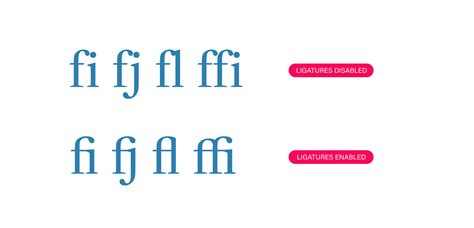
Ligatures are special character combinations where two or more letters are joined into a single glyph, creating a more aesthetically pleasing and typographically sound appearance. When working with OpenType fonts, selecting Ligatures from the Character panel menu, Control panel menu, or context menu will automatically produce standard ligatures defined within the font. This feature is often designed as part of the font itself for optimal visual harmony.
Properly setting the language for your text is fundamental for accurate spell-checking and hyphenation. You can select the language for a specific block of text or set a default language for new documents. InDesign utilizes language dictionaries for both spelling and hyphenation. This ensures that the software recognizes standard syllable breaks and provides appropriate suggestions. Changes to language settings do not affect existing text frames or documents unless explicitly applied. For instance, correctly identifying "Glockenspiel" as German text ensures accurate hyphenation and spell-checking within that linguistic context.
Numbering and Section Management
For documents that span multiple pages or chapters, InDesign’s robust numbering and section management features are indispensable. These tools allow for complex pagination schemes, essential for professional publications.
Page and Section Numbering
A single InDesign document can contain a vast number of pages, and page numbering can extend to very large figures. You can assign chapter numbers to documents, with each document limited to one chapter number. For varying numbering within a document, you can define sections. Each section can have its own numbering style and starting point.
The default behavior is for the first page to be a recto (right-hand) page numbered '1'. You can also define page numbering styles for documents that are part of a larger book in InDesign, ensuring consecutive numbering across multiple files.
Section Options
The Numbering & Section Options dialog box provides comprehensive control over how your document is paginated. You can choose to continue the numbering from the previous section or restart it. For each section, you can specify:
- Starting number: The number the section will begin with.
- Section label: A prefix or label for the section (e.g., Roman numerals, letters).
- Page numbering style: A wide array of styles, including Arabic numerals, Roman numerals, and letters.
- Chapter numbering style: Similar options for chapter numbering.
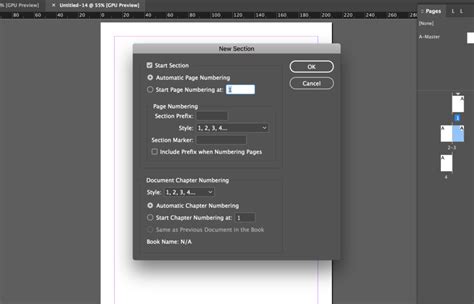
These options are critical for creating professional documents, including reports, books, and manuals, where clear and consistent navigation is paramount. The section indicator icon in the Pages panel visually denotes the start of a new section, providing a quick reference.
Text Variables for Headers and Footers
Headers and footers are essential for providing consistent background information across pages, such as chapter titles, document names, or page numbers. InDesign's Text Variables feature simplifies the process of populating these areas dynamically.
Creating and Using Text Variables
InDesign comes with several preset variables, such as Creation Date and File Name. However, you can also create custom variables. A common use case is to create a variable that automatically inserts the first occurrence of a specific paragraph style (e.g., a Heading style) into the header or footer.
To implement this, you would first create a text frame on the parent page (master page) where the header or footer will reside. Within this text frame, you can insert the desired text variable. When the document is updated, the variable will automatically pull the relevant information, ensuring consistency without manual intervention.
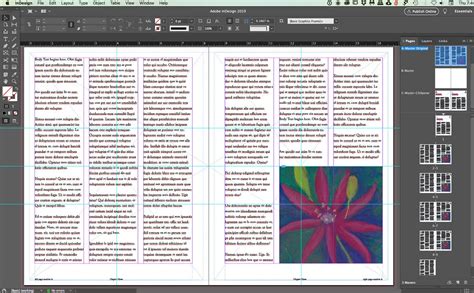
For instance, if you have a "Chapter Title" paragraph style, you can create a variable that finds the first instance of this style on a given page and displays it in the header. This is particularly useful for long documents where chapter titles change frequently. The variable is linked to the specified style, and if the style is applied to different text on different pages, the variable will update accordingly.
The flexibility of text variables means that headers and footers can display dynamic content, such as the current page number, the name of the document, or even the first word or character of the main story on that page, all managed through the Type > Text Variables menu.
Embracing Inclusivity in Language
Adobe is committed to fostering inclusivity. Starting with InDesign version 17.0 (2022), the company has been actively replacing non-inclusive language within the software and its documentation. This reflects a broader industry trend and core Adobe values, ensuring that the tools and resources provided are welcoming and respectful to all users.
This ongoing effort ensures that InDesign remains a tool that not only empowers creative professionals but also aligns with ethical and modern communication standards. The focus on equitable language underscores the importance of mindful communication in all aspects of digital creation.