When you're knee-deep in wedding photos and the deadline is looming, the last thing you want is your computer holding you back. Photo editing isn’t just about creativity-it’s about efficiency too. Adobe Lightroom, a powerful suite of tools for photo organization, editing, and sharing, demands capable hardware to deliver a smooth and responsive experience. Whether you're working with large RAW files, extensive catalogs, or applying complex edits, understanding and meeting the recommended system requirements is critical for an optimized workflow. While Lightroom is available on mobile and tablet, professionals often require a more robust desktop solution.
Understanding the Core Components: CPU, GPU, and RAM
The performance of Adobe Lightroom is a symphony of several key hardware components, each playing a vital role. A balanced system, where no single component becomes a bottleneck, is essential for maximizing efficiency.
Processor (CPU): The Brains of the Operation
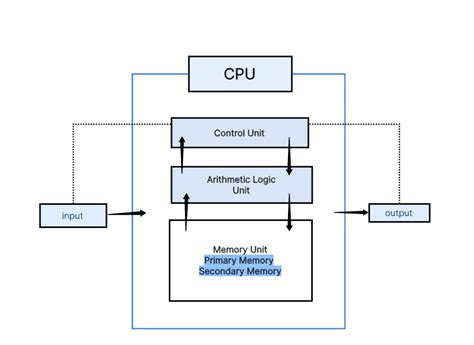
The Central Processing Unit (CPU) is fundamental to Lightroom's performance, influencing everything from catalog operations to the speed of RAW file processing and export. For general photo editing and smaller catalogs, a CPU with 4-6 cores is often sufficient. However, for more demanding tasks such as faster RAW conversions, batch processing, and handling very large catalogs (100,000+ images), a CPU with 8 cores or more is highly recommended. High clock speeds are also beneficial, as many catalog operations and individual adjustments still rely heavily on single-core performance.
Recommendation: Aim for an Intel Core i7 (10th Gen or newer) or AMD Ryzen 7 (3000 series or newer) as a solid baseline. For heavier workloads or future-proofing, consider Intel Core i9 or AMD Ryzen 9 processors. A base clock speed of 3.0 GHz or higher, with strong turbo boost capabilities, will ensure responsiveness.
Graphics Card (GPU): Accelerating Visual Tasks
While you don’t need a top-tier gaming GPU, a dedicated graphics card that supports GPU acceleration is crucial for a fluid Lightroom experience. The Develop module heavily utilizes the GPU for rendering images, especially when applying complex adjustments like sharpening, noise reduction, lens corrections, and localized edits. Furthermore, modern AI-powered features, such as Denoise and advanced masking, are significantly accelerated by a capable GPU, dramatically reducing processing times. A powerful GPU is also essential for smoothly driving high-resolution displays, such as 4K or 5K monitors.
Recommendation: NVIDIA GeForce RTX 30 series (e.g., RTX 3060, 3070) or RTX 40 series (e.g., RTX 4070, 4080), or AMD Radeon RX 6000 series (e.g., RX 6700 XT, 6800 XT) or RX 7000 series (e.g., RX 7800 XT, 7900 XT) are excellent choices.
VRAM (Video Random Access Memory): A minimum of 6 GB of dedicated VRAM is strongly recommended. For 4K/5K monitors, high-resolution RAW files, or extensive use of AI-powered features, 8 GB, 12 GB, or more VRAM will provide a superior experience.
Random Access Memory (RAM): The Workspace for Your Data
RAM, or Random Access Memory, acts as your computer's short-term workspace. For basic editing and smaller catalogs, a minimum of 16 GB of RAM is required. However, to ensure a smooth experience when working with large RAW files, moderate to large catalogs, or running multiple applications alongside Lightroom (like Photoshop), 32 GB of RAM is considered ideal for most users. For extremely demanding workflows, such as managing catalogs with over 200,000 images, extensive batch processing of high-resolution files, or heavy reliance on AI features, 64 GB or more of RAM will significantly improve performance and responsiveness. Faster RAM, such as DDR4 3200 MHz or DDR5 5200 MHz and higher, can also contribute to overall system responsiveness.
Storage Solutions: Speeding Up Access to Your Files
The type and configuration of your storage drives have a profound impact on Lightroom's performance, particularly for Lightroom Classic. A multi-drive setup utilizing Solid State Drives (SSDs) is highly recommended for optimal results.
The Multi-Drive SSD Setup
- Drive 1 (OS & Apps): A fast NVMe SSD (e.g., 500GB - 1TB) for your operating system and Adobe applications, including Lightroom and Photoshop. This ensures quick boot times and rapid application loading.
- Drive 2 (Catalog & Previews): A separate, very fast NVMe SSD (e.g., 500GB - 1TB) dedicated to your Lightroom catalog file (
.lrcat), preview files (.lrdata), and the Camera Raw cache. This is absolutely critical for achieving snappy performance when navigating your library, applying edits, and generating previews in Lightroom Classic. - Drive 3 (Active Photo Files): A fast NVMe or SATA SSD (e.g., 1TB - 4TB, or larger) for your active photo files (RAW, JPEG, TIFF). This dramatically reduces the time it takes to open and work with your images.
- Archival Storage: For long-term storage of older, less frequently accessed photos, larger Hard Disk Drives (HDDs) or Network Attached Storage (NAS) solutions can be utilized.
Avoid traditional Hard Disk Drives (HDDs) for your active catalog and photo files, as they will severely bottleneck performance and lead to frustrating delays. NVMe SSDs offer the best performance due to their superior read/write speeds.
Operating System and Software Considerations
Operating System (OS)
A stable and up-to-date operating system is foundational.
Recommendation:
- Windows: Windows 10 (64-bit) version 22H2 or later, or Windows 11 (64-bit).
- macOS: macOS Monterey (12.0) or later.
Always refer to Adobe's official system requirements for the specific version of Lightroom you are using, as OS compatibility can evolve. Professional or Enterprise versions of Windows/macOS are generally recommended over Home editions for enhanced stability, security, and suitability for creative workflows.
Regular Updates
Keeping your operating system, graphics drivers, and Adobe Lightroom software updated to the latest versions is paramount. Adobe frequently releases updates that include performance enhancements and bug fixes, often tailored for new hardware and improved stability. These updates can significantly impact your editing experience.
5 Ways to Speed Up Lightroom Classic!
Beyond Hardware: Catalog Optimization and Other Factors
While robust hardware is essential, other factors can significantly influence your Lightroom performance.
Catalog Optimization
For Lightroom Classic users, a well-maintained and optimized catalog is crucial. Regularly optimizing your catalog, keeping its size manageable, and ensuring it resides on a fast SSD (as mentioned in the storage section) are vital steps for maintaining peak performance, irrespective of your hardware's specifications.
Internet Connection and Adobe ID
It's important to note that an Internet connection, an Adobe ID, and acceptance of the license agreement are required to activate and use Adobe Lightroom. The application attempts to validate your software every 30 days. Furthermore, Lightroom may integrate with or allow access to certain Adobe or third-party hosted online services. These services are available only to users 13 and older and require agreement to additional terms of use and the Adobe Privacy Policy. Applications and services may not be available in all countries or languages and are subject to change or discontinuation without notice.
Laptop vs. Desktop Considerations
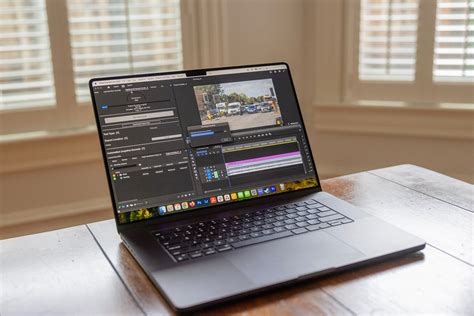
While Lightroom is accessible on mobile and tablet devices, professional workflows typically demand the power and ergonomics of a desktop system. When considering a laptop for Lightroom, prioritize powerful processors, ample RAM, and dedicated GPUs, understanding that thermal limitations can sometimes affect sustained performance compared to a well-cooled desktop.
Video Editing Capabilities
It is a common misconception that Lightroom is a full-fledged video editor. While Lightroom Classic does allow for basic video trimming and adjustments (such as exposure and contrast), it is not designed for comprehensive video editing. If your workflow involves significant video work, you will need dedicated video editing software.
Specialized Builds and UK Suppliers
For those seeking a high-end workstation specifically tailored for Lightroom, resources like Puget Systems offer valuable insights and configurations. Although Puget Systems may not directly supply to the UK, their recommended builds can serve as excellent guides for sourcing components or for UK-based custom PC builders. Overclockers.co.uk is one such supplier that has been recommended for purchasing components or custom builds. When considering a new computer, particularly for creative professionals, Apple Macs with their silicon chips offer a compelling, standardized, and integrated hardware architecture that often excels in performance and efficiency compared to older Intel configurations.
Future-Proofing and AI Features
The landscape of photo editing software is constantly evolving, with an increasing integration of AI-powered features. These advancements, such as AI Denoise and advanced masking, place a greater demand on GPU performance. Therefore, when budgeting for a new system, consider a GPU that can handle these current and future AI capabilities. Similarly, if your work is primarily intended for print and you don't anticipate using new HDR processing features soon, an HDR-capable display might be a negotiable component to manage budget constraints.
Monitor and Input Devices
A high-resolution monitor (4K or 5K) significantly enhances the photo editing experience by providing more detail and screen real estate. A color-calibrated monitor is indispensable for accurate color grading. Dual monitors can also substantially boost productivity. For more precise control during localized adjustments, a graphics tablet (e.g., Wacom) can be a valuable addition over a standard mouse.
Backup Strategy
Crucially, implement a robust backup strategy for both your Lightroom catalog and your original photo files. Data loss can be devastating for photographers, so regular backups to external drives or cloud services are non-negotiable.
By carefully considering these system requirements and optimizing your workflow, you can ensure that Adobe Lightroom becomes a powerful ally in your creative process, rather than a source of frustration.
tags: #system #requirements #adobe #lightroom