Clip Studio Paint, a robust and versatile digital art software developed by Celsys, has carved a significant niche for itself in the creative landscape. Initially known as Manga Studio in North America, this application, affectionately nicknamed "Kurisuta" in Japan, is not merely a drawing program; it's a comprehensive ecosystem for digital creation, catering to illustrators, comic artists, and animators alike. Available across a wide spectrum of devices including Windows, macOS, iPad, iPhone, Android, and ChromeOS, Clip Studio Paint offers a tiered feature set, with its most advanced edition being a page-based, layered drawing program that masterfully handles both bitmap and vector art, text, imported 3D models, and frame-by-frame animation. Designed with stylus and graphics tablet interaction in mind, its drawing tools are celebrated for their ability to emulate natural media, from pencils and ink pens to a vast array of brushes, alongside patterns and decorative elements.
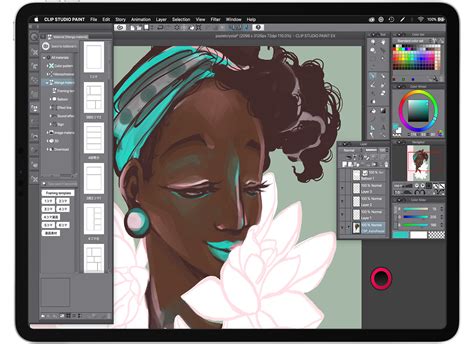
The software's accessibility is further enhanced by its flexible licensing model. Users can opt for a perpetual license for Windows and macOS, or choose from affordable monthly or annual subscription plans. For mobile and tablet users, versions are distributed through app stores, with a free trial period of up to six months, after which subscriptions unlock full functionality and cloud storage. This tiered approach ensures that Clip Studio Paint remains accessible to a broad range of artists, from beginners to seasoned professionals.
Mastering the Art of Line and Color: Core Drawing and Painting Capabilities
At its heart, Clip Studio Paint excels in its natural and intuitive drawing and painting tools. The program boasts a powerful brush engine, offering superior "handling" and stabilization compared to many other imaging programs. This translates into smoother, more controlled lines and a more responsive drawing experience. The variety of built-in brushes is extensive, encompassing everything from watercolors, oil paints, crayons, and colored pencils to specialized pens for inking. Each brush's behavior is largely determined by its shape and texture, with further customization available through the Sub Tool Detail window. Artists can meticulously adjust parameters such as brush size, hardness, and density, with density acting as the equivalent of Photoshop's flow setting. Lowering density can even produce a "dry brush" effect, mimicking traditional media. Stabilization is a key feature, often kept at a high setting (around 75%) to ensure clean, steady lines, especially crucial for detailed line art.
How to Use Clip Studio Paint STEP BY STEP For Beginners! [COMPLETE GUIDE]
The "Mix Ground Color" feature is particularly noteworthy, allowing brushes to smear existing colors on the canvas, much like real-world watercolor or wet paint. This dynamic mixing capability adds a layer of realism and expressiveness to digital painting. For those starting with traditional sketches, Clip Studio Paint integrates seamlessly, allowing artists to import their scanned drawings and refine them using tools like the polygonal lasso and move tools. When creating line art, particularly for characters, artists often advise against rigidly copying every detail from a reference photo, as this can lead to muted expressions. Instead, exaggerating certain proportions, like a slightly wider smile or larger eyes, can result in a more vibrant and engaging drawing. This approach saves time and effort, especially when compared to the meticulous work of experienced painters who opt to work without initial line art.
A fundamental principle often emphasized in digital art, and present within Clip Studio Paint's workflow, is the advantage of starting with a medium-toned canvas rather than a pure white one. This approach makes it significantly easier to build up highlights and shadows from a mid-range value, rather than starting from the brightest point and having to paint in every darker shade. Artists can lay in basic color areas using the fill tool and pencil, then proceed to paint in large areas of medium lights and shadows by adjusting color values up or down from their base. For instance, if a base skin tone is at 65% value, artists might adjust it by 15% up or down for subsequent passes of light and shadow. While these early stages might appear unrefined, they are crucial for establishing the foundational values of the artwork. Blending is often achieved by eyedroppering the edges of strokes and using a low-density brush to smooth the transition between colors, creating a seamless gradient.
Beyond the Brush: Advanced Tools and Workflow Enhancements
Clip Studio Paint distinguishes itself with a suite of advanced features designed to streamline the creative process and unlock new artistic possibilities. The "History" folder, for example, allows for easy management of past actions, while the "Sorting" feature, particularly "Auto Register by Material Type," aids in organizing digital assets. The "Align/Distribute" palette is invaluable for precise placement of elements, and the "Layer Comps" palette allows artists to save and recall different states of their layers, perfect for exploring variations in color schemes or compositions.
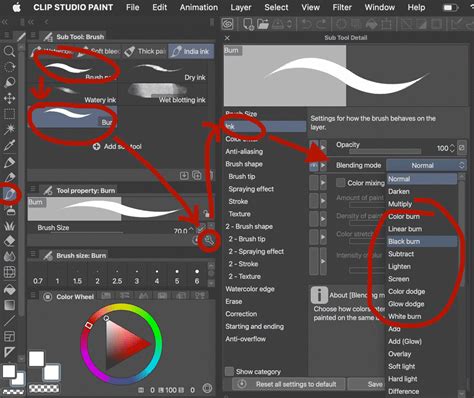
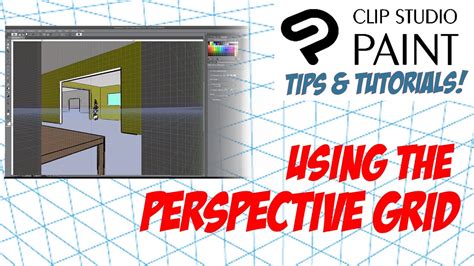
For brush enthusiasts, the "Tool Slider" palette provides quick access to adjust key brush parameters. Perspective drawing is significantly enhanced with tools like the "Fisheye Perspective Ruler," enabling the creation of complex, distorted perspectives. The software also offers advanced color manipulation features, including "Realistic Mixing" that simulates natural paint blending, and "Color Match," which allows for transferring color palettes between images. The ability to "Apply effects to multiple layers" simultaneously is a considerable time-saver for complex projects.
More specialized tools cater to specific artistic needs. "Puppet Warp" offers sophisticated distortion capabilities, while "Shading Assist" and "Spin Blur" provide automated assistance for adding depth and motion effects. "Lens Blur" and "Retro Film" filters emulate photographic effects, and "Chromatic Aberration" and "Noise" filters add realistic imperfections. For 3D integration, Clip Studio Paint supports "Paint on 3D models," and offers "3D head models," "3D hand models," and the ability to "Import 3D models with realistic rendering." The "Hand Pose Scanner" is a particularly innovative feature, allowing artists to capture hand poses from life and import them as 3D models. Integration with POSEMANIACS further expands the library of available 3D reference poses.
The program also includes powerful features for comic and manga creation. "Quick Filters" and "Quick Effects" provide rapid application of stylistic changes. The "Smart Shape" tool facilitates the creation of precise geometric forms. For animation, "Audio Scrubbing" allows for precise synchronization of animation with sound. The software's commitment to workflow efficiency is evident in features like "Batch export layer comp settings," "Crop/Extend canvas," and the ability to "Save recovery data for every operation." Furthermore, it tracks "Daily creative hours," providing artists with insights into their work habits.
Revolutionizing Workflow: Automation and Customization
Clip Studio Paint's "Auto Action" feature is a powerful tool for automating repetitive tasks. Users can record a series of actions, from simple brush adjustments to complex filter applications, and trigger them with a single click. This significantly speeds up the workflow, allowing artists to dedicate more time to creative endeavors rather than mundane operations. For instance, an action to apply a specific color overlay can be recorded and named, saving considerable time compared to manually applying the effect each time. The ability to rename actions and to experiment with deleting or modifying steps within them offers deep customization.
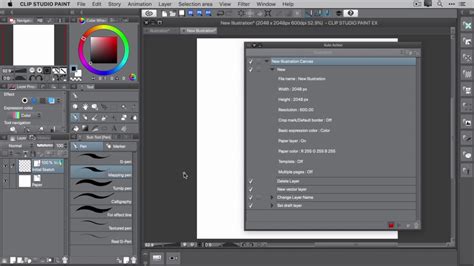
The "Select Layer" tool, found under the "Operation" tab, is another hidden gem for managing complex projects with numerous layers. By simply dragging a selection around a desired area on the canvas, artists can quickly isolate and select the corresponding layer(s), making edits and adjustments far more efficient. This tool becomes particularly invaluable when navigating intricate compositions.
A unique and highly praised feature is the "Transparency Color" option. Unlike traditional drawing programs that might only offer opaque colors or a standard eraser, Clip Studio Paint allows any brush to function as an eraser by setting its color to "Transparency." This is activated with the "C" shortcut and is especially beneficial when working with textured brushes, as it preserves the brush's traditional feel while enabling seamless erasing and refinement. This transforms the creative process, allowing for a fluid interplay between adding and removing elements without switching tools.
The software's customization extends to its user interface. The "Top bar" is fully customizable, allowing users to add their preferred brushes, color swatches, or menu commands for quick access. Deleting items from this bar is equally straightforward, enabling a personalized workspace tailored to individual needs. This level of interface control contributes to a more fluid and efficient user experience.
A Platform for Growth: Tutorials, Resources, and Community
Clip Studio Paint is more than just a software; it's an entry point into a vibrant creative community supported by extensive learning resources. Beginners can find confidence through numerous official tutorial articles and instructional videos that cover everything from basic interface navigation in "Simple Mode" to advanced techniques in "Studio Mode." Simple Mode offers an intuitive interface for immediate sketching and painting, while Studio Mode unlocks the full spectrum of the program's powerful tools, including vector editing and advanced workspace customization.
How to Use Clip Studio Paint STEP BY STEP For Beginners! [COMPLETE GUIDE]
The platform actively encourages users to explore and expand their creative toolkit through "Clip Studio Assets," a vast library of downloadable brushes, materials, and even 3D models created by both official artists and the user community. These assets can be used to decorate illustrations, add detail to characters' clothing and hair, or create intricate backgrounds. The availability of countless free and paid brush packs online further democratizes access to specialized tools and effects.
For aspiring comic and manga artists, Clip Studio Paint offers a wealth of specialized tutorials. These cover the entire process, from storyboarding and panel layout to inking techniques that replicate professional workflows. Tutorials on coloring comics, lettering, and creating dialogue balloons provide the essential skills for producing polished graphic narratives. The platform also addresses the nuances of webcomic creation, offering guidance on canvas preparation, inking webtoons efficiently, and even previewing work on mobile devices.
Animation is another area where Clip Studio Paint shines, with tutorials covering everything from basic frame-by-frame animation and walk cycles to more advanced techniques like animating with vectors, creating glowing effects, and utilizing keyframes. The software's integration with 3D models facilitates the creation of dynamic backgrounds, and its perspective rulers are instrumental in drawing complex scenes with accurate depth. Artists can also learn to create custom brushes for unique effects, such as gold and jewelry textures, or to blend ribbon brushes for decorative elements.
The program's adaptability is highlighted by its availability on multiple platforms, allowing artists to draw and ink on their phones, tablets, or desktop computers, ensuring a consistent workflow regardless of their chosen device. The ability to scan sketches from a phone and color them digitally bridges the gap between traditional and digital art. Through features like "Paint Skin with Clip Studio Paint" tutorials and guides on rendering hair realistically, the platform provides targeted instruction for achieving professional-quality results. The emphasis on creating "magazine illustrations," "animated emotes," and even "sticker outlines" showcases the software's broad applicability across various artistic disciplines.
The continuous development and updates, such as the introduction of new 3D referencing tools in version 2.0 and features like "Layer Comps" in version 3.0, demonstrate Celsys's commitment to evolving the software alongside the needs of its user base. This dedication to providing a comprehensive and ever-improving creative environment solidifies Clip Studio Paint's position as a leading digital art application.