Clip Studio Paint (CSP) is a powerful digital art software, favored by many for its robust brush engine and intuitive interface. However, even with capable hardware, users can encounter frustrating performance issues, most notably brush lag. This lag can manifest as a noticeable delay between stylus movement and on-screen rendering, a stuttering cursor, or even complete unresponsiveness, severely hampering the creative workflow. This article delves into the common causes of CSP lag and provides a comprehensive guide to troubleshooting these persistent problems, drawing from user experiences and technical insights.
Understanding the Nature of Brush Lag in CSP
Brush lag in Clip Studio Paint is a complex issue that can stem from various sources, ranging from software-specific optimizations to hardware limitations and even external software conflicts. Unlike some other art applications where lag might present as a general sluggishness, CSP's lag often specifically targets brush strokes, particularly when brush size increases or complexity is added through textures and advanced brush settings.
One of the key observations from user reports is that the lag intensifies with larger brush sizes. For instance, a default watercolor brush might perform flawlessly at size 30, but exhibit noticeable lag when increased to size 40. This phenomenon suggests that the brush engine itself, especially when dealing with moderately complex brushes exceeding a certain size threshold, is a primary culprit. This is not necessarily a hardware bottleneck, as some users with powerful CPUs and ample RAM report the issue, indicating a potential software-specific optimization challenge within CSP's brush rendering pipeline.
Furthermore, the type of brush significantly impacts performance. While default brushes might offer a smoother experience, custom brushes, often laden with intricate textures and parameters, tend to exacerbate lag. This is understandable, as these brushes require more computational resources to render each stroke. The way CSP handles these complex calculations appears to be a significant factor in the observed performance degradation.
The zoom level at which an artist is working also plays a role. Some users have noted that while lag might be present at various zoom levels, it can be more pronounced or even appear differently depending on how zoomed in or out the canvas is. This suggests that CSP's rendering engine might be optimized for certain zoom ranges, leading to discrepancies in performance when deviating from these optimal levels.
Software-Specific Settings and Their Impact
Clip Studio Paint offers a range of settings that can directly influence performance. Understanding and adjusting these can often alleviate lag issues.
Brush Engine Settings: "Specify by Size or Screen"
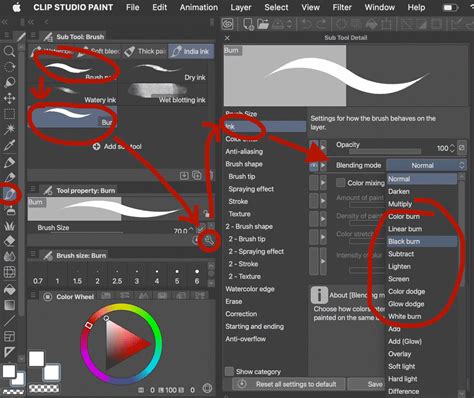
A frequently mentioned setting for mitigating brush lag is found within the Sub Tool Details palette under "Pen dynamics" or "Brush dynamics" (depending on the CSP version). The "Specify by size or screen" parameter is designed to optimize brush rendering by adjusting how the brush size is calculated. Enabling this setting can sometimes lead to a more responsive brush, even if it doesn't completely eliminate the lag. Users have reported varied success with this setting; for some, it provides a workable solution, while for others, it makes no discernible difference. Experimenting with this option at different zoom levels is crucial to determine its effectiveness for individual setups.
Input Frequency: Speed vs. Quality
Within the performance settings, users can often adjust the input frequency between "Speed" and "Quality." This setting influences how often the software samples pen input. While some tests have shown little to no discernable difference between these two modes in terms of brush lag, it's a parameter worth exploring. Setting it to "Speed" might prioritize responsiveness over visual fidelity in the rendering process, potentially reducing lag. Conversely, "Quality" might introduce more lag by prioritizing a more accurate rendering of each input point.
Undo History and Intervals
The undo history feature, while essential for any digital artist, can consume system resources. Users have experimented with reducing the undo count and adjusting the undo interval. While some have found that setting the undo history to a lower value or even zero, and the interval to 0 ms, can help reduce lag, others have reported no improvement even after these adjustments. This suggests that while undo history can be a contributing factor, it's not always the primary cause of severe lag.
32-bit vs. 64-bit Operation
A point of confusion for some users has been whether Clip Studio Paint runs in 32-bit or 64-bit mode. While Windows 10 is a 64-bit operating system, the CSP application itself might be installed as a 32-bit or 64-bit version. Running a 32-bit application on a 64-bit OS can impose limitations on memory usage and overall performance. Ensuring that the 64-bit version of CSP is installed and running is crucial for optimal performance, especially on modern hardware.
Performance Settings: General Optimization
Beyond specific brush settings, CSP offers general performance optimizations. These can include adjusting the rendering quality for canvas display, disabling certain visual effects, or optimizing how the software utilizes system resources. While these are not directly brush-related, a generally sluggish application can exacerbate perceived brush lag.
Hardware and System Considerations
While software settings are critical, the underlying hardware and system configuration play a significant role in how smoothly CSP operates.
CPU and GPU Utilization
A common misconception is that CSP exclusively relies on the CPU and does not utilize the GPU. While CSP's brush engine has historically been CPU-intensive, modern versions and certain operations can leverage GPU acceleration. Monitoring CPU and RAM usage via Windows Task Manager while drawing can help identify bottlenecks. If CPU or RAM usage spikes dramatically during brush strokes, it points towards a system limitation or a software process demanding excessive resources. However, many users report that even with headroom in CPU and RAM, lag persists, suggesting that the issue is not a simple hardware bottleneck but rather how CSP processes complex brush data.
RAM (Random Access Memory)
Having sufficient RAM is essential for any demanding creative application. While 16 GB of RAM is often considered adequate for most art tasks, complex projects with numerous layers, high-resolution canvases, and intricate brushes can push this limit. If system memory usage is consistently high, it can lead to performance degradation, including brush lag, as the system resorts to slower storage for temporary data.
Overclocking vs. Undervolting the CPU
The topic of CPU overclocking has come up in discussions about CSP lag. While overclocking can increase processing power, it also generates more heat and can lead to instability if not done correctly. Some users suggest that overclocking might not yield significant improvements for CSP lag and could even introduce new problems. Conversely, undervolting the CPU - reducing its voltage while maintaining clock speeds - can lead to a cooler, more stable processor. A cooler CPU can perform more consistently over longer periods, potentially reducing thermal throttling and contributing to a smoother experience. Maintaining a "max performance" power profile on AC power is also recommended to ensure the CPU is not being artificially throttled by power-saving measures.
Graphics Drivers and Windows Updates
Outdated or corrupted graphics drivers can cause a myriad of performance issues in any graphical application. Keeping graphics drivers up to date is a fundamental troubleshooting step. Similarly, recent Windows updates have been implicated in causing performance issues, not just in CSP but in other art applications like SAI and Sketchbook Pro as well. Sometimes, a specific Windows update can introduce a bug that affects driver compatibility or system resource management, leading to unexpected lag. In such cases, rolling back a recent update or waiting for a patch might be necessary.
Multiple Monitors and Multi-Monitor Setups
A curious observation from users experiencing cursor lag (where the cursor freezes for a moment before "teleporting" to the stylus's actual location) is that it often occurs in multi-monitor setups. This suggests that CSP's rendering or input handling might not be fully optimized for complex display configurations, leading to synchronization issues between the stylus input and the on-screen cursor across multiple displays.
Conflicting Software and Overlays
Background applications and overlays can consume system resources or interfere with CSP's operation. Notably, certain applications have been reported to cause issues when running concurrently with CSP. These can include specific security software, overlay programs (like Discord overlay), or even certain graphics driver control panels. Disabling or configuring exclusions for these applications within security software is often recommended by CSP's support resources. Checking the official FAQ for a list of known conflicting applications is a crucial step.

Troubleshooting Steps and Best Practices
When faced with CSP lag, a systematic approach to troubleshooting is essential.
- Monitor System Resources: Use Windows Task Manager to observe CPU, RAM, and GPU usage while drawing. Identify any spikes or consistently high usage.
- Update Drivers and Software: Ensure your graphics drivers, Wacom tablet drivers (if applicable), and Clip Studio Paint are all updated to the latest versions.
- Adjust CSP Settings:
- Experiment with "Specify by size or screen" in Pen dynamics.
- Test different Input Frequency settings (Speed vs. Quality).
- Lower Undo history and interval.
- Reduce canvas resolution and the number of layers if possible.
- Check performance settings for any general optimizations.
- Disable Conflicting Software: Temporarily disable or uninstall any applications known to cause conflicts with CSP, especially overlay programs and certain security software.
- Test Different Brushes: Compare performance with default brushes versus custom brushes to isolate if the issue is brush-specific.
- Test Different Canvases: Work on canvases of varying resolutions and DPI to see if the lag is resolution-dependent.
- Driver Mode (Wintab vs. Windows Native): If using a Wacom tablet, experiment with both Wintab and Windows Native Pen Drivers in CSP's settings. Sometimes one driver mode works better than the other for specific hardware or OS versions.
- System Stability: Ensure your system is stable. Avoid aggressive CPU overclocking if it leads to instability. Consider undervolting for consistent performance.
- Reinstall CSP: As a last resort, a clean reinstallation of Clip Studio Paint can sometimes resolve corrupted files or configuration issues. Remember to back up your settings first.
- Contact Support: If all troubleshooting steps fail, contact Clip Studio Paint's official support. Provide them with detailed information about your system, the issue, and the steps you've already taken. They may have specific insights or be aware of ongoing investigations into performance bugs.
Quick Brush Lag Solution | CLIP STUDIO PAINT
The Persistent Challenge of Brush Lag
Despite extensive troubleshooting, brush lag in Clip Studio Paint remains a persistent issue for some users. The fact that other art applications like Krita, GIMP, Photoshop, Paint Tool SAI, and Procreate can handle similar or even more demanding brush strokes on comparable hardware suggests that CSP's brush engine, particularly with complex custom brushes, has areas ripe for optimization. Users have reported significant lag on A4 canvases at 600 dpi with 500px brushes in Krita, but this is still often less severe than what is experienced in CSP. The observation that a simple square brush can lag when increasing from 565px to 566px in CSP, while other programs handle much larger brushes without issue, highlights a specific performance bottleneck.
The experience of users encountering lag even on very large canvases (e.g., 20k*20k) with unzoomed strokes further emphasizes that the issue is not solely tied to pixel density or zoom level but likely resides in how CSP processes and renders brush data at scale. The frustration is compounded when this lag impacts critical projects, such as animations requiring precise frame-by-frame drawing, leading to missed deadlines and significant stress.
While Celsys, the developer of Clip Studio Paint, is aware of these performance issues and reportedly investigating them, it is an area that requires continued focus to ensure a consistently satisfactory user experience. For artists who rely heavily on large, complex brushes or work on high-resolution canvases, the current brush lag can be a significant deterrent, leading them to seek alternatives or adapt their workflow to work around these limitations, which is far from ideal. The hope remains that future updates will address these performance bottlenecks, allowing artists to fully leverage the power of CSP without being hindered by lag.