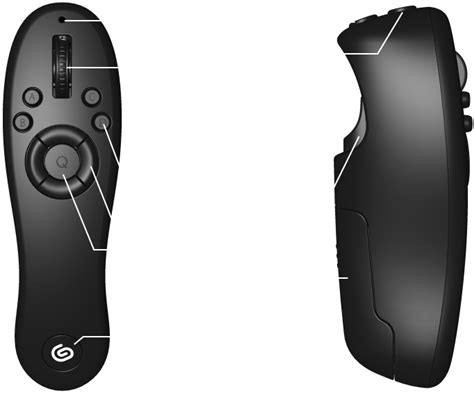
The Clip Studio Tabmate is a specialized, one-handed shortcut device designed to enhance the creative process for users of Clip Studio Paint. It aims to make the creation of illustrations, comics, and animations more seamless by providing quick access to frequently used tools and commands. This article delves into the functionality, setup, and user experience of the Clip Studio Tabmate, including its newer iteration, the Tabmate 2.
Understanding the Clip Studio Tabmate's Purpose
In the realm of digital art, efficiency is paramount. Artists often find themselves repeatedly reaching for their mouse or keyboard to execute common actions, which can interrupt the flow of creativity. The Clip Studio Tabmate addresses this by allowing users to customize button settings to switch to their most frequently used tools with the press of a button. This is particularly beneficial when working with a pen tablet or a tablet device, where one hand is dedicated to drawing while the other can manage shortcuts. The device is essentially a programmable peripheral that consolidates essential functions into an easily accessible unit.
The Clip Studio Tabmate 2, the latest model, builds upon the success of its predecessor. It retains the popular design and usability while expanding its compatibility to include iPad and iPhone, catering to a significant demand from mobile creators. Celsys, the company behind Clip Studio Paint, positions the Tabmate as a tool to "accelerate the production of illustrations and animations," emphasizing its role in a streamlined workflow.
Compatibility and Setup: Connecting Your Tabmate
To effectively use the Clip Studio Tabmate, certain prerequisites must be met. Primarily, you must have Clip Studio Paint Ver. 3.0 or later installed. The Tabmate connects wirelessly via Bluetooth, and the setup process can vary slightly depending on your operating system.
Windows Setup
For Windows users, the process begins with ensuring Bluetooth is enabled. Right-click the Bluetooth icon in the notification area of your taskbar and select “Add Bluetooth device.” The icon might be hidden within the pop-up window accessible via the up-arrow. Navigate to the “Manage Bluetooth devices” screen and confirm that Bluetooth is turned on. When the Tabmate is powered on, it will automatically enter pairing mode. You may need to be patient, as it can take a few minutes for the device to appear in the scan results. Ignore any devices that do not belong to you, such as a colleague’s phone or a neighbor’s TV, and wait until “TABMATE” is shown. Once paired, the “Manage Bluetooth devices” screen will display “TABMATE” as “Connected.” It is crucial to ensure the Bluetooth dongle or your computer’s built-in Bluetooth is in close proximity to the controller; a noticeable latency can occur if they are too far apart.
macOS Setup
On macOS, you will access Bluetooth settings through the Apple menu. Select “System Preferences,” then navigate to the “Bluetooth” screen and verify that Bluetooth is active. From the Bluetooth menu, choose “Open Bluetooth Preferences.” Similar to Windows, when the Tabmate’s power is turned on, it will automatically enter pairing mode. Once the device is paired, “TABMATE” will appear as “Connected” in the list of devices.
iPadOS and iOS Setup
For users of iPad and iPhone with the Tabmate 2, the connection process is initiated from within Clip Studio Paint itself. Open Clip Studio Paint and tap the CLIP STUDIO logo in the top left corner to access the menu. In Clip Studio Paint Ver. 3.0 or later, a new menu item called 'CLIP STUDIO TABMATE' will be available. Select 'Register a new TABMATE 2' within this menu. This will open a screen that prepares Clip Studio Paint for pairing. To initiate pairing on the Tabmate 2, press and hold the CLIP STUDIO button for three seconds until the lamp on top flashes red and blue. The connection is usually automatic once the Tabmate 2 is detected, and a success message or an icon on the toolbar will indicate the connection status.
It's important to note that the Tabmate is designed to work exclusively within Clip Studio Paint. Even if you attempt to program universal commands like keystroke modifiers, the operating system will not recognize the input if the device is not connected through Clip Studio Paint.

Customization: Tailoring the Tabmate to Your Workflow
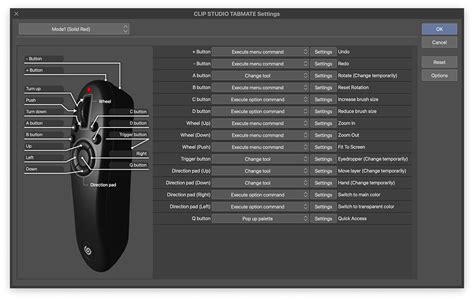
The true power of the Clip Studio Tabmate lies in its extensive customization options. By default, the buttons are assigned to common functions, but users can reassign them to suit their individual needs.
Button Assignment and Modes
The Tabmate offers a variety of buttons and a scroll wheel that can be programmed. Users can assign multiple functions to a single button by utilizing different press types: a short press, a long press, or even a sequence of up to four taps. This allows for a high degree of flexibility. For example, a single button could be programmed to switch tools on a short press and execute a specific command on a long press.
In "studio mode," the Tabmate 2 supports four distinct modes. These modes can be switched using a dedicated button, typically located at the top left of the software dialog box. Each mode can have its own set of assigned functions, enabling artists to create specialized configurations for different tasks. For instance, one mode might be optimized for line drawing with quick access to pen tools, while another could be set up for painting with brush and color selection shortcuts. Switching between these modes allows for rapid adaptation to different stages of the creative process.
When a button on the Tabmate is pressed, it is highlighted in the associated software dialog box, providing visual feedback during the customization process. The settings for the Clip Studio logo button, however, are generally fixed and cannot be changed.
Tool Rotation
A particularly useful feature is "Tool Rotation." This allows users to group tools and cycle through them with a single button press. For example, you could create a "Tool Rotation" group for various pen types (e.g., G-pen, Maru Pen, Pencil) and then assign a button to cycle through these options. This eliminates the need to navigate through menus to select different drawing instruments. Users can add new switches to the tool rotation and configure specific tools within each rotation. For instance, you could assign the 'Eraser' tool with a 'Hard' setting to a rotation.
User Experience and Performance
Early adopters and reviewers have shared varied experiences with the Clip Studio Tabmate, highlighting its potential benefits and occasional drawbacks.
Usability and Ergonomics
The physical design of the Tabmate is generally well-received. It is described as a small, lightweight gadget that can be comfortably held in the free hand. Its similarity in form factor to devices like the Nintendo Wii Nunchuk or a Nintendo Switch Joy-Con has been noted. The Tabmate 2, in particular, maintains the popular design of its predecessor, ensuring a familiar feel for returning users.
The improved operability of the scroll wheel on the Tabmate 2 has been praised. When assigned to functions like zoom in/out, it offers a smooth and precise experience with a satisfying tactile feedback for each step. This makes fine adjustments easier and reduces the likelihood of overshooting desired zoom levels.
Impact on Productivity
The primary goal of the Tabmate is to increase productivity by reducing the time spent on manual input. For many users, it succeeds in this regard. By reassigning frequently used actions like "undo," tool selection (e.g., G-pen, fill bucket), canvas manipulation, and zooming to dedicated buttons, artists can maintain their focus on the drawing surface. This "little to no interruption" workflow is a significant advantage. The Tabmate can feel more comfortable and liberating than using keyboard shortcuts with a free hand.
However, the extent to which an individual artist benefits can depend on their existing workflow and hardware. For instance, users who already utilize touch-enabled screens on devices like the Wacom Mobilestudio Pro or iPad Pro might find the Tabmate less essential, as their hands are already positioned for direct manipulation and navigation. In such cases, the Tabmate's utility might diminish, leading to it being "almost unnecessary" for some. The device won't inherently make someone a better artist, but it aims to streamline the process for those who adopt it effectively.
Battery Life and Sleep Mode
The Tabmate 2 has seen improvements in power management. Both the time to enter sleep mode and the time for the power to automatically turn off have been extended. On the Tabmate 2, these times are now 30 minutes, compared to 10 minutes for sleep mode and 20 minutes for power off on the previous model. This extended duration, combined with reduced power consumption, results in a battery life that is approximately 1.5 times longer. The device typically uses a single AA battery for power.
If the controller cannot find a computer to pair with after searching, or if it remains unused for a set period (e.g., 30 minutes), it will enter sleep mode to conserve power. The Tabmate remembers the last device it was paired with. To connect to a different computer, you must either shut down the current computer or stop the pairing process.
The Clip Studio Tabmate 2: Evolution and Availability
The Clip Studio Tabmate 2 represents a significant update, primarily due to its expanded platform compatibility.
Enhanced Compatibility
A key selling point of the Tabmate 2 is its newfound compatibility with iPad and iPhone. This addresses a strong demand from mobile creators who use Clip Studio Paint on these devices. The Tabmate 2 is compatible with iPadOS 16 and 17, iOS 16 and 17, Windows 10, Windows 11, macOS 12 to 14, and Android 11 or later. This broad compatibility ensures that a vast number of Clip Studio Paint users can benefit from the device.
Market Performance and Pricing
The release of the Tabmate 2 has been met with considerable enthusiasm. In the domestic pre-sale period starting March 2024, sales units reportedly exceeded 40 times the number of sales of the previous model in the same period the previous year. This surge in demand is attributed to its compatibility with iPad and iPhone. Demand has remained high even during regular sales periods.
The pricing for the Clip Studio Tabmate 2 has been observed to be around 12,800 yen on platforms like Amazon. Pre-order campaigns often include discounts, such as a 10% discount offered on the official Clip Studio site. It's important to be aware of regional variations; for instance, the "International Version" sold on Amazon for Japan and overseas may not include batteries.
Availability and Future Outlook
While the Tabmate 2 was initially available for pre-order, orders are expected to normalize with the end of the pre-order period. However, a continued high demand for standard sales is anticipated. The device has experienced periods of being sold out, indicating its popularity.
The Tabmate itself is not a device that will fundamentally change an artist's skill level. Instead, it is an accessory designed to augment an existing workflow. It's akin to upgrading from a manual screwdriver to a power tool - the user still needs to know how to use the tool, but the task is accomplished with greater speed and less effort. Celsys, with its mission of “Creating a more passionate world,” continues to provide solutions that support creative activities, and the Tabmate series is a testament to this commitment.
The Clip Studio Tabmate, particularly the Tabmate 2, offers a compelling proposition for digital artists seeking to optimize their workflow. Its customizable buttons, multi-mode functionality, and improved compatibility with mobile devices make it a valuable addition to the toolkit of any serious Clip Studio Paint user. While its impact may vary based on individual working habits and hardware, the potential for increased efficiency and a more streamlined creative process is undeniable.