The ability to convincingly depict the sky in digital art and photography is a cornerstone of creating immersive and believable scenes. Whether aiming for a serene azure expanse, a dramatic tempest, or a subtly atmospheric haze, the sky often sets the mood and context for an entire image. Photoshop cloud brushes have emerged as an indispensable tool for artists and retouchers, offering a dynamic and efficient way to add, enhance, or completely transform skies within a digital canvas. This article explores the multifaceted world of Photoshop cloud brushes, from their fundamental mechanics and diverse types to practical application techniques and the creative possibilities they unlock.
Understanding the Dynamics of Photoshop Cloud Brushes
At their core, Photoshop cloud brushes are digital tools designed to simulate the appearance of clouds. However, the sophistication of these brushes extends far beyond simple stamp-like effects. Modern cloud brushes, particularly those found in professional toolkits, are engineered to be dynamic and responsive, offering a level of realism and artistic control previously unattainable.
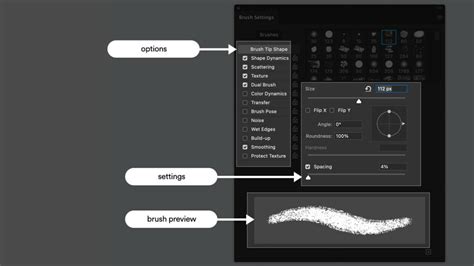
Unlike static "stencil stamp brushes" that produce identical results with every stroke, dynamic cloud brushes are designed to react to user input and the nuances of the digital canvas. This responsiveness means that no two brush strokes will ever be precisely alike, even when using the same brush. This inherent variability is crucial for achieving natural-looking results, as real clouds are rarely uniform. The "GrutBrushes Cloud FX" are a prime example, described as dynamic and responsive, turning a stylus into a tool that can "blanket your photo in delicious thick realistic clouds." This implies a level of texture, depth, and organic variation that mimics natural cloud formations.
The interaction with these brushes can be further refined through stylus pressure sensitivity. A light touch might produce a "slight whisp" of a cloud, characteristic of thin and wispy cirrus formations, while a firmer press could render a "blobby cumulus cloud brush," creating thicker, more substantial cloud masses. This pressure sensitivity allows artists to intuitively control the density, opacity, and form of the clouds they are painting, transforming their stylus into a highly versatile instrument.
Furthermore, the concept of "dynamic cloud brushes" often refers to those that possess "no defined texture," meaning they will "never repeat or even show a visible tile seam." This is achieved by generating cloud particles procedurally or through complex algorithms rather than relying on a fixed image. This lack of a repeating pattern is vital for creating large, seamless sky areas without obvious digital artifacts. In contrast, "static ‘Gumbo’ Cloud brushes" are mentioned as containing a texture, providing specific fill effects to "enhance the structure of your clouds." This distinction highlights the different approaches to brush design, catering to varied artistic needs.
Some advanced dynamic brushes, such as "Aerodust" and "Aerogig," offer even more interactive control. These brushes allow users to "shape the cloud particles by moving your Stylus around." As long as the stylus remains in contact with the tablet surface, the particles can be "shifted and pushed around like sand on a chalkboard." This unique capability enables the creation of swirling formations, wind-swept effects, and dynamic atmospheric phenomena that are difficult to achieve with static brushes.
A Spectrum of Cloud Types and Textures
The utility of Photoshop cloud brushes is amplified by the sheer variety of cloud types and textures they can simulate. The goal is to equip users with a comprehensive toolkit that addresses nearly any sky scenario imaginable.
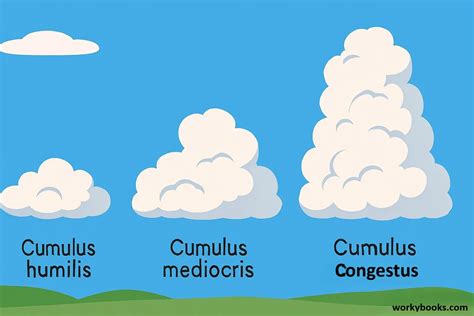
A single set, such as the "Aaron has put together a new set of 30 Custom Photoshop Cloud brushes," aims to cater to a broad spectrum of needs, being "perfect whether you are looking for white fluffy texture, thin & wispy clouds or even raging storm clouds." This indicates a deliberate design to cover the most common and visually impactful cloud formations.
Key cloud types and their simulated characteristics often include:
- Cumulus Clouds: These are the quintessential fluffy, white clouds with distinct, rounded tops and flat bases. Brushes designed for cumulus clouds, like the "Cotton Cloud" brush, are intended to create "fluffy cumulus cloud" shapes. Artists can achieve a range of densities, from light, airy puffs to dense, towering formations.
- Cirrus Clouds: Characterized by their thin, wispy, and feathery appearance, cirrus clouds often add delicate detail to skies. Brushes like "Kelp Cloud" are described as providing "crispy whisps around the edges," ideal for layering these fine details over or around more substantial cloud masses.
- Storm Clouds: For dramatic and atmospheric scenes, brushes that simulate the dark, brooding, and turbulent nature of storm clouds are essential. These brushes often have a heavier texture and a darker base tone, designed to convey the impending power of a weather event.
- Fog and Smoke Effects: Beyond distinct cloud formations, some brushes are designed to create softer, more diffuse atmospheric effects like fog or smoke. These can be used to add depth, mystery, or a sense of environmental condition to an image, enriching backgrounds or creating specific moods.
- Raging Storm Clouds: These are designed to capture the intensity and chaos of severe weather, with dynamic textures and often darker, more ominous tones.
The "GrutBrushes Cloud FX" set, for instance, offers "32 Dynamic cloud brushes which have no defined texture" and "10 static ‘Gumbo’ Cloud brushes which do contain a texture." This combination provides both the seamless, organic quality of dynamic brushes and the textural richness of static ones. The dynamic brushes ensure that large areas of sky can be filled without repetition, while the static brushes can add specific textural elements that enhance the perceived structure and volume of the clouds.
The inclusion of "cloud eraser Photoshop brushes" is also noteworthy. These specialized brushes are not for adding clouds but for refining them. They allow artists to "fine tune your clouds," precisely removing or softening edges, creating gaps, or sculpting the shapes of existing cloud formations. This level of control is critical for achieving a polished and integrated look.
Practical Application: Techniques for Realistic Skies
Achieving realistic cloud effects in Photoshop is an art form that combines the right tools with thoughtful application techniques. The goal is to move beyond simply stamping clouds onto an image and instead to integrate them seamlessly, making them appear as if they were always part of the scene.
High-Res Realistic Cloud Brushes for Photoshop - Promo
One of the most frequently emphasized techniques for realism is subtlety. As noted, "the secret to realistic clouds is subtlety." This means avoiding overly dense or starkly defined cloud masses. Instead, artists are advised to "take it easy" and build up cloud formations gradually.
Layering is paramount. It is "much better to paint multiple layers of clouds on top of each other than to press hard and create thick overbearing clouds." This approach offers several advantages:
- Flexibility and Control: Each layer can be adjusted independently in terms of opacity, color, and blend mode.
- Depth and Dimension: When layers overlap, they naturally create depth and dimension. "Where they overlap can create beautiful rich organic textures, the more layering the more natural it will look."
- Subtle Variation: Building up layers with slightly different brush strokes and opacities mimics the natural variations found in real skies.
Color Blending is another crucial aspect. Real-world clouds are rarely pure white. They are "made up of reflected light from their environment." Therefore, artists are encouraged to "use option/alt to click and pick your colours from your image, especially when working on a photo." This practice, known as color-sampling or eyedropping, allows for the selection of ambient colors from the surrounding image, ensuring that the clouds harmonize with the overall lighting and color palette. This technique is essential for making the added clouds feel like an organic part of the photograph.
Brush Opacity and Pressure Sensitivity go hand-in-hand with layering. Using a "light touch with your stylus will not only give you a ton of flexibility and control over your clouds, it will also produce much more realistic clouds." When working with brushes, a low brush opacity (e.g., 20-40%) is often recommended. This encourages building up strokes gradually, allowing for subtle transitions and a more integrated appearance. Pressure sensitivity, when available through a graphics tablet, further enhances this organic feel, allowing for hand-painted, natural-looking strokes.
Layer Modes can dramatically alter the mood and integration of cloud elements. While default Normal mode is useful, experimenting with modes like Overlay or Soft Light can subtly blend textures and colors, while Screen mode can be effective for brighter elements like stars or frost.
Masking is a powerful technique for refining and integrating cloud elements. By duplicating a brush layer and masking out parts of it, artists can create depth and ensure that clouds interact believably with foreground elements or other sky layers.
Finally, adjustments after applying brushes are key. Tweaking the brightness, hue, or temperature of a cloud layer can help it match the existing sky or establish a specific mood. For instance, adjusting the color temperature of frost brushes can make them appear cooler or warmer, better suiting the scene.
Expanding Creative Horizons: Beyond Simple Sky Replacement
Photoshop cloud brushes are not merely tools for replacing dull skies; they are versatile instruments that can be employed in a myriad of creative applications, transforming ordinary images into extraordinary visual narratives.
The primary use case, of course, is enhancing landscape photography. Whether aiming to "improve a street photo, making it more interesting and eye-catching or want to add an element to an empty sky," these brushes offer a direct solution. They can turn "boring skies into showstoppers" and make "any background beautiful and even mysterious."
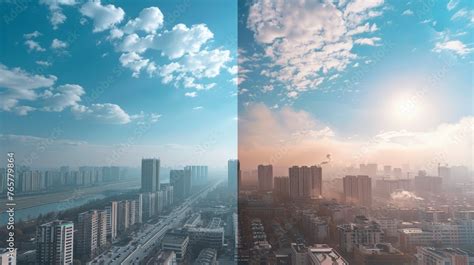
Beyond static enhancements, cloud brushes can be used to manipulate the mood and weather of a photograph. "Using Photoshop free Cloud brushes, you can change the weather, and accordingly the mood of the photo." By increasing the "density" of clouds, a clear sky can be transformed into a "stormy one as before the downpour." Conversely, less dense, more diffused brushes can soften a harsh sky or introduce a gentle atmospheric haze.
For photographers whose shots feature reflections, such as skies reflected in water, a crucial consideration arises: "If the sky in your picture is reflected in the water and you add clouds, you need to edit the reflection to achieve the natural look." This highlights the importance of considering all elements of a scene and ensuring that added atmospheric effects are consistent across reflections.
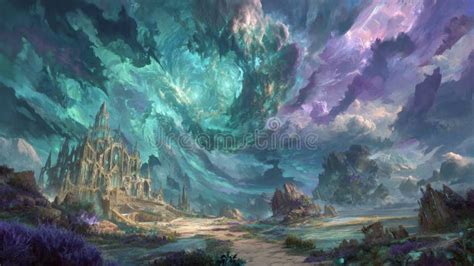
The application of these brushes extends to composite photography. Artists can use cloud brushes to create entirely fantastical skies, blend different environmental elements, or build complex, layered scenes. The dynamic nature of many brushes allows for the creation of swirling nebulae, ethereal mists, or even the dramatic skies of alien worlds.
Furthermore, specialized brush packs offer creative avenues beyond typical clouds:
- Night Sky Brushes: These packs can include "star clusters, nebula textures, and celestial overlays" that can be stamped onto images to create "cosmic dreams." They are particularly effective for long exposures, sci-fi composites, or moody night edits.
- Winter Frost Brushes: These brushes allow artists to simulate winter conditions, adding "snow flurries, ice patterns, and subtle crystalline textures." They can be used to build layered seasonal effects or simply add a "hint of chill" to a scene, even if the original photo was taken in warmer weather.
The versatility is further underscored by the fact that these brushes often come in the standard .abr file format, making them compatible with Adobe Photoshop and other software that supports this format, such as ON1 Photo RAW. This interoperability allows artists to leverage their preferred creative workflows and tools.
The availability of "free Photoshop brushes" democratizes access to these powerful creative tools. Packs like the "Realistic Cloud Brushes," "Quick Sky Enhancement Brushes," "Night Sky Brushes," and "Winter Frost Brushes" offer high-quality, professionally designed effects without financial barriers. This allows photographers and digital artists of all levels to "bring their edits to life" and "expand their creative toolkit without spending a dime."
Bridging the Gap: From Beginner to Professional
The power of Photoshop cloud brushes lies not only in their artistic potential but also in their accessibility. Whether you are a novice photographer looking to improve your first landscape shot or a seasoned professional crafting complex digital art, these tools offer a scalable solution.
For beginners, the initial learning curve is intentionally kept low. The advice is often to "pick one, adjust size and opacity, and start stamping or painting them into your image." The emphasis is on experimentation and fun: "Layer them, blend them, change colors; these brushes are made for creative exploration." This encourages a playful approach, allowing users to discover the capabilities of the brushes through practice.
The inclusion of resources like a "6 page PDF quick start manual" with an "overview of whats included and also includes some cloud painting tips" and a "brush guide which shows a sample of each of the brushes" provides a structured entry point. This manual helps users understand what they have, how to use it, and offers initial guidance on best practices.
As users progress, they can delve into more advanced techniques. The "Tips & Tricks for Next‑Level Brush Work" section highlights this progression:
- Blend for Realism: Moving beyond basic application to understanding how low opacity and gradual build-up create natural integration.
- Play with Layer Modes: Exploring the transformative effects of different blending modes for enhanced atmospheric qualities.
- Stack & Mask: Utilizing advanced layering and masking for depth and precise control.
- Combine with Adjustments: Integrating brush work with color and tonal adjustments for perfect scene harmony.
- Use Pressure Sensitivity: Leveraging advanced hardware (graphics tablets) for more nuanced and hand-painted results.
The availability of "Sample Brush Strokes of 50 of the GrutBrushes Cloud Brushes and Tools" allows users to preview the potential of a brush set before committing, aiding in informed selection.
The "Frequently Asked Questions" section addresses common concerns, such as compatibility and the nature of the brushes, further reducing barriers to entry. The reassurance that these brushes are "delivered as standard .abr files, which means they're compatible with most versions of Photoshop (CC and earlier) as well as other software that supports .abr imports" provides confidence in their usability.
Ultimately, Photoshop cloud brushes serve as a bridge, enabling individuals to achieve professional-looking results without necessarily requiring extensive manual painting skills. They democratize the creation of compelling skies, empowering a wide range of users to enhance their photographic and artistic endeavors. The continuous development and availability of diverse brush sets ensure that the creative potential for manipulating and creating skies in Photoshop remains vast and ever-expanding.