VSCO is more than just a photo editing app; it's a platform designed for creative expression, offering users a refined space to craft and organize their visual content. While often compared to social media giants like Instagram, VSCO distinguishes itself by prioritizing the artistry of photography over public social metrics. This focus appeals to a wide range of users, from teens seeking a less judgmental online environment to seasoned photographers looking for advanced editing tools.

Understanding the VSCO Ecosystem: From Profile to Publication
At its core, VSCO allows users to create a profile where they can upload images for editing and organize them into distinct categories such as Studio, Images, Journals, or Collections. This structure provides a private workspace for editing and a public-facing profile for sharing work. The app's interface is designed to be intuitive, enabling users to import photos from their camera roll, including videos, into their VSCO Studio. This private workspace is crucial, as any edits or organization within the Studio are not immediately public. It's important to note that deleting images from the device's camera roll will also remove them from VSCO Studio, as they are linked.
The editing process begins in the Studio, where imported images can be selected for various actions, including editing, using AI Lab tools, creating collages, syncing to a desktop, or sharing. VSCO offers a comprehensive suite of editing tools, starting with presets, which are pre-made filters designed to achieve a wide range of aesthetic styles with a single tap. The "For This Photo" feature utilizes AI to recommend suitable presets based on the image content, a popular starting point for many users. Beyond presets, users can delve into a robust set of manual editing tools.
The Art of Editing: VSCO's Comprehensive Toolset
VSCO's editing capabilities are where it truly shines, offering a depth that appeals to both novice and experienced creators. The app provides a vast library of over 200 presets, categorized to help users find the perfect look. These include free presets available to all users, standard presets with adjustable strength, and specialized categories like "Film presets" inspired by classic analog film stocks from brands such as Kodak, Fuji, Agfa, and Ilford. "We the Creators" presets are collaborations with photographers, offering their signature styles, while "VSCO Pro Presets" provide enhanced controls for advanced customization.
Beyond presets, the "Tools" tab in the VSCO photo editor offers granular control over every aspect of an image. These tools are designed for both correcting imperfections and making artistic enhancements.
- Adjust: Allows for cropping with various aspect ratios, rotation, skewing, and straightening to perfect composition.
- Exposure: Brightens or darkens photos to recover detail and correct under- or overexposed moments.
- Contrast: Modifies the difference between light and dark areas to shape mood and depth.
- Tone: Balances highlights and shadows to preserve detail in both bright and dark areas.
- Dodge and Burn: Selectively brightens or darkens specific areas using brush tools to guide the viewer's eye.
- Saturation: Adjusts the intensity of colors for a vibrant or muted look.
- White Balance: Corrects color casts by adjusting temperature and tint for accurate or stylized color rendition.
- HSL (Hue, Saturation, Lightness): Allows for fine-tuning of individual colors, adjusting their hue, saturation, and lightness without affecting the rest of the image.
- Sharpen: Enhances texture and clarity, bringing out subtle details.
- Clarity: Improves texture and depth while maintaining a natural look.
- Bloom: Softly blurs highlights to create a hazy, dreamlike glow, adding an atmospheric, cinematic feel.
- Halation: Introduces a subtle halo effect, reminiscent of vintage film, for a warm, cinematic glow.
- Grain: Adds film-like texture, mimicking the character and depth of analog photography.
- Vignette: Darkens or lightens the edges of an image to draw focus to the center.
- Fade: Lowers contrast for a softer, time-worn, muted, vintage print aesthetic.
- Skin Tone: Subtly balances reds and greens to refine skin tones without altering other image elements.
- Split Tone: Adds color to highlights and shadows for mood enhancement.
- Borders: Adds customizable borders to frame an image.
- Text: Overlays text onto images, with adjustable scale, color, and orientation.
- Blur: Controls focus by softening backgrounds or specific areas to guide attention.
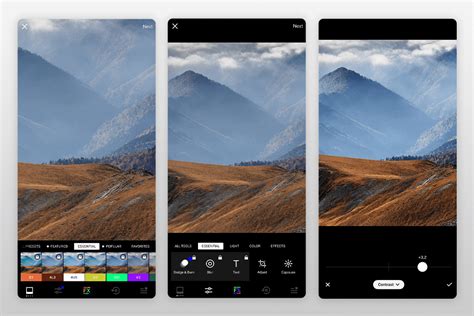
Beyond Photos: Video Editing and Creative Collages
VSCO's capabilities extend beyond still photography to include robust video editing tools. Users can import videos from their camera roll and apply the same familiar tools used for photo editing, such as exposure, color grading, grain, and film effects, to shape mood and motion. Specific video editing features include:
- Trim: Precisely cut video clips to tighten their start and end points.
- Speed: Adjust playback speed for slow-motion or time-lapse effects.
- Reverse: Play video clips backward or create seamless loops.
- Volume: Control or mute video audio.
- Video Effects: Apply retro and creative looks like VHS filters, digital glitches, and kaleidoscope mirroring.
VSCO also facilitates creative collage making. Users can start with designer templates or a blank canvas, layering images, shapes, and text with intuitive drag-and-drop controls. Opacity controls allow for double-exposure effects, and filters can be applied to individual elements to unify the collage's aesthetic. For more complex visual storytelling, the "Montage" feature allows users to layer photos, videos, shapes, and colors onto a canvas, sequencing them into scenes.
VSCO Capture Tutorial — How To Shoot with Live Camera Filters and Manual Controls From Your Phone
VSCO Capture and Advanced Editing Workflows
For photographers seeking more control over their shooting process, VSCO offers "VSCO Capture," a standalone camera app. This app provides manual controls for shutter speed, ISO, white balance, and more, allowing for greater precision. Users can shoot with VSCO presets or effects applied directly in-camera.
The "Recipes" feature is a powerful tool for streamlining the editing workflow. Users can save their custom edit sequences as Recipes, allowing them to quickly apply the same look to multiple photos. This feature, along with the ability to favorite and arrange tools, helps users personalize their editing space.
VSCO also offers a seamless editing experience across devices with its Desktop Studio for web, Mac, and PC. Photos and videos synced from the mobile app become available in the desktop editor, enabling users to continue editing on a larger screen or manage multiple projects more efficiently. This cloud sync ensures consistency across all devices without duplicating files.
AI Lab: The Future of Photo Editing on VSCO
VSCO's AI Lab introduces a suite of high-fidelity, AI-assisted tools designed for photographers who value detail. These tools, integrated within the VSCO app, include:
- AI Photo Editing with Prompts: Users can describe the desired look, and the AI will apply edits accordingly.
- AI Object Remover: Intelligently erases distractions and cleans up clutter in images.
- Image Upscaler: Sharpens images and reduces pixelization without sacrificing resolution.
Sharing and Community Engagement on VSCO
When ready to share, users can tap the share icon, which offers options to "Share to…" other apps, "Post to VSCO" for community visibility, or "Save to Camera Roll." Posting an image to VSCO makes it publicly viewable. Users can add a description and enable "Discussions" to allow members to engage in conversations about the image. It's important to note that only VSCO Plus or Pro members can participate in discussions, though anyone can view them.
The VSCO Feed is a chronological display of images from users you follow. Under each image, several icons allow for engagement:
- Favorites (Star icon): A private notification sent to the creator, indicating appreciation for their work.
- Reposts (Chasing arrows icon): Shares an image to your own followers, adding it to your Profile's Reposts tab. The creator is also notified.
- Discussions (Chat bubble icon): If enabled, allows members to start or join conversations about the image.
The VSCO Feed also features a suggested carousel with recommendations for new creators to follow. User profiles display published work, reposts, and personal information. Pro members can further organize their content by creating albums.
The Philosophy Behind VSCO's Aesthetic
VSCO's presets are crafted by a team of photographers and engineers, emphasizing detail and quality. The goal is to provide users with tools to enhance mood and apply artistic effects, ranging from quiet and muted to vibrant and saturated. New categories like "Cross-Processed Photo Presets" are regularly introduced, inspired by specific film stocks and their unique properties.
The app's approach to filters is that presets are essentially photo filters designed for a consistent style with a single tap. They are ideal for editing images with a unique yet cohesive feel. Users can also create their own custom edits and save them as "Recipes" for easy reuse, building a personal editing style.
Addressing Parental Concerns and Safety
For parents, VSCO offers a relatively safe environment compared to apps with extensive public social interaction. The absence of publicly visible likes, comments, and follower counts reduces the pressure for external validation and protection from public criticism. The description explicitly states, "With no public followers, likes or comments, you can post what you like, when you like." While users can follow and be followed, these metrics are private to the individual user.
However, privacy is still a consideration. While accounts cannot be made entirely "private," young users are encouraged to remove location information from their photos. VSCO allows users to opt out of including location data in both the images they take or upload, and those they share.
In-app purchases are available, with some free options and an annual subscription for access to exclusive editing tools and the complete preset library. VSCO has an age rating of 13+, with content restrictions managed by the developer. While explicit content is not prevalent, the app, like any user-generated content platform, requires vigilance.
Direct messaging is possible, but only between users who mutually follow each other, offering a layer of security not found in apps that allow DMs from anyone.
Parents concerned about their child's online safety can implement several proactive measures:
- Require Approval for All App Downloads: Utilizing parental control features like Apple's Screen Time and Family Sharing, or Google's Family Link, ensures that no app is downloaded without parental permission.
- Follow the 7-Day Rule: Before allowing a child to use a new app, parents should download and test it themselves for seven days, creating an account with their child's age and gender to experience the app as a user would. This allows parents to identify potential risks and have informed conversations with their children.
- Enable In-App Controls and Settings: While VSCO itself has limited parental controls, understanding and utilizing the app's privacy settings, such as disabling location data, is crucial.
The bottom line regarding VSCO's safety for kids is that it presents fewer direct risks than many other social platforms. Its appeal often stems from its utility in enhancing photos for other platforms, making it important for parents to understand this context.
Frequently Asked Questions About VSCO
What is the most popular VSCO photo filter?Popular filters include A4 for a warm, analog film vibe, B1 for a classic black and white look, and A6 PRO for a polished, professional finish. Exploring the personalized feed within VSCO can reveal which presets and tools other creators are using.
How do I put filters on my photos?Upload your image to your Studio, tap 'Edit Image,' and select a preset filter. The filter can be tapped again to adjust its strength. VSCO filters can be applied using the iPhone, Android app, or the VSCO Studio on desktop.
Can I make photos look like film?Yes, VSCO offers film-inspired photo filters designed to replicate the look of classic film stocks from brands like Kodak, Fuji, and Ilford.
Are photo filters the same as presets?VSCO presets are essentially photo filters designed to give pictures a consistent style with a single tap, perfect for achieving a unique yet cohesive aesthetic.
Can I create my own photo filters?Yes, VSCO allows users to save custom edits as "Recipes" for easy reuse on any photo, enabling batch editing and the development of a personal editing style.
Whatâs the difference between regular and Pro presets?VSCO Pro presets offer access to exclusive, professional-grade filters with additional sliders for contrast, color, and tone, providing more advanced customization options beyond the free filters.
Can I make photos black and white?Absolutely. VSCO offers over 15 black and white photo filters, each providing a unique monochrome aesthetic.
Can I use VSCO presets in Adobe Lightroom?Yes, VSCO Film presets are available for Adobe Lightroom, designed for advanced RAW workflows and desktop editing. These are free to download for VSCO Pro members and bring the signature film-inspired character to Lightroom.
Does VSCO have retro photo filters?Yes, VSCO offers a range of retro and vintage-inspired filters, including those that emulate classic film looks and distressed photo effects.
Can I combine filters with other photo editing tools?Yes, VSCO allows users to combine photo filters with tools like grain, fade, and HSL for complete creative control over their edits.