In the dynamic world of digital design and photo editing, the task of adjusting image dimensions is not just common; it's an unavoidable necessity. Whether you're adapting a photograph for a specific social media platform, creating a banner for a website, or simply refining a personal project, precise control over image size is paramount. Photoshop, a titan in the realm of image manipulation, offers a suite of tools designed to meet these demands. Among these, the Content-Aware Scale (CAS) feature stands out as a particularly intelligent and powerful solution for resizing images without compromising their integrity.
Understanding the Limitations of Traditional Scaling
When resizing images in Photoshop using traditional methods, such as the standard Scale command or the Image Size dialog, all pixels are affected uniformly. This means that every element within the image is stretched or compressed in proportion. While this approach is suitable for certain scenarios, it often leads to undesirable distortions, particularly when the image contains distinct subjects or important details. For instance, attempting to convert a landscape photograph into a square aspect ratio using regular scaling would inevitably warp and distort the main subjects, rendering the image unappealing. Similarly, expanding a canvas uniformly can lead to awkward stretching of foreground elements. The Canvas Size command offers an alternative for expanding the canvas, but it still relies on the underlying pixel information being stretched or duplicated.
Introducing Content-Aware Scale: An Intelligent Approach
Content-Aware Scale (CAS) is a sophisticated technology that significantly enhances the capabilities of Photoshop's image manipulation tools. It's not a standalone tool in the sense of being a separate application, but rather an intelligent algorithm that underpins several features, including patching, moving, scaling, filling, and extending pixels in rasterized images. The core principle of CAS is its ability to analyze the content of an image and intelligently determine how to best adapt to changes made during editing processes.

The most basic explanation of CAS is that when activated, it recognizes the content within your image to understand which areas are most important and how to best make up for the differences introduced by editing operations. This intelligent recognition allows CAS to preserve critical details while allowing less important areas to be stretched or compressed. This is where CAS offers two incredible advantages over simply enlarging or shrinking an image: first, it's an intelligent tool that does a pretty good job on its own of preserving the most important detail rather than blindly changing the size of everything; and second, it lets you directly specify which areas to protect and which can be stretched or compressed.
The Mechanics of Content-Aware Scaling
The Content-Aware Scale tool operates by analyzing the image's pixel information to identify areas of low importance. It then applies an algorithm to detect "paths of least importance" - essentially, seams of pixels that contribute the least to the overall visual content. These seams are then either removed (for shrinking) or duplicated (for expanding) to achieve the desired dimensions without significantly distorting the primary subjects.
The underlying technology often employed is akin to the "Seam Carving" algorithm. The core idea of Seam Carving is to find a continuous sequence of pixels with the lowest contribution to the image content and then "carve" (remove) it. This process repeats until the required image dimensions are achieved. For example, in an image of a hot air balloon against a blue sky, the sky pixels contribute less to the image's content than the balloon itself. Seam Carving would prioritize removing seams from the sky, preserving the balloon's integrity.
How to Use Content-Aware Scale in Photoshop
Using Content-Aware Scale in Photoshop is a straightforward process, though it benefits from understanding its parameters and potential for fine-tuning.
Open Your Image: Begin by opening the image you wish to resize in Adobe Photoshop.
Unlock the Layer: If your image is a background layer, it will likely be locked. Navigate to the Layers Panel (usually located in the bottom right corner) and click the lock icon to unlock the layer.
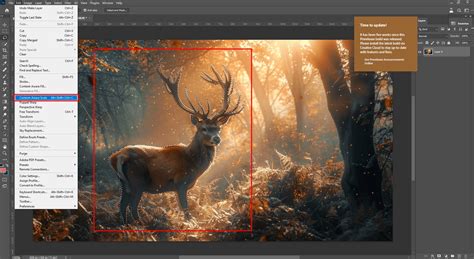
Select the Tool: Access the Content-Aware Scale tool by going to
Edit > Content-Aware Scale. Alternatively, you can often find it within the Transform tools or by pressingCtrl+Alt+Shift+C(Windows) orCmd+Option+Shift+C(Mac).Adjust the Size: Once the tool is active, a light blue border with anchor points will appear around your image. Click and drag on the edges or corners of this bounding box to adjust the image's size. As you drag, you'll observe that the main subject area is being protected, while the surrounding areas warp or compress. You can drag on any edge to adjust the aspect ratio in any direction.
Fine-Tuning with Options: In the Options Bar at the top of the screen, you can adjust or set various parameters to refine the scaling process.
- Reference Point Location: Click on the reference point to specify a fixed point around which the image will scale. By default, this point is at the center of the image.
- Set Horizontal/Vertical Scale: You can input specific percentages for width (W) and height (H) to scale the image relative to its original size.
- Amount: This value controls the degree of distortion applied to the subject. At 0%, the identified subject scales equally. Increasing this value allows for more distortion, while a value of 100% (default) aims to minimize distortion of the subject by prioritizing content-aware scaling over uniform scaling.
- Protect Option: This is a crucial setting. You can select "Protect Skin Tones" to help preserve the appearance of human skin during scaling, which is particularly useful when people are the main subject. This option tends to work best when your subject occupies at least one-third of the frame.
Commit Changes: Once you are satisfied with the scaled image, press
EnterorReturnto commit the changes.Crop Transparent Pixels (If Necessary): If your scaling operation has introduced transparent pixels around the edges, you can use Photoshop's Trim feature (
Image > Trim) to remove them.
How to Use Content-Aware Scale in Photoshop
Advanced Techniques: Protecting Specific Areas with Alpha Channels
While Content-Aware Scale is intelligent, it doesn't always perfectly identify the most critical areas of an image, especially in complex compositions. For greater control, you can manually specify which areas to protect. This is where Alpha Channels become invaluable.
- Create a Selection: Use selection tools like the Lasso Tool, Polygonal Lasso Tool, or the Object Selection Tool to make a rough selection around the area you want to protect. A rectangular marquee can also work well for simpler shapes.
- Feather the Selection: To ensure a seamless blend, it's often beneficial to feather the selection. Navigate to the "Select and Mask" workspace from the Options Bar, and increase the feather radius (typically between 3-10 pixels).
- Save Selection as Channel: Go to the Channels panel (usually located near the Layers panel). Click the "Save selection as channel" button at the bottom of the panel. This will create a new Alpha channel (e.g., "Alpha 1") representing your selection.
- Hide the Alpha Channel: You can now hide the newly created Alpha channel by clicking the eye icon next to it.
- Apply Content-Aware Scale: Select the Content-Aware Scale tool again. In the Options Bar, locate the "Protect" option and select your newly created Alpha channel from the dropdown menu.
- Scale Your Image: Now, when you drag the edges of the image to adjust its size, Photoshop will prioritize preserving the areas defined by your Alpha channel.
This method allows you to tell Photoshop precisely which parts of the image should remain unaltered, ensuring that your main subjects are always safe from distortion, even in challenging resizing tasks.
When Content-Aware Scale Excels and When It Struggles
Content-Aware Scale is a powerful tool, but it's not a universal solution for all image resizing needs. Its effectiveness is highly dependent on the content of the image.
Ideal Scenarios for CAS:
- Images with Clear Subjects and Simple Backgrounds: Photos with a distinct focal point (e.g., a person, a building, a product) and a relatively uniform or low-detail background (e.g., a blue sky, a plain wall, a body of water) are ideal. CAS can easily identify the subject as important and compress or expand the background without noticeable artifacts.
- Changing Aspect Ratios: When you need to convert an image from one aspect ratio to another without losing key elements. For example, transforming a 2:3 ratio photo into a 1:1 square for social media or a 16:9 banner.
- Minor Adjustments: CAS often performs best when making moderate adjustments to size. Pushing it to extreme limits can introduce unwanted stretching or warping.
Scenarios Where CAS Might Struggle:
- Complex Compositions: Images with multiple important elements, intricate patterns, or busy backgrounds can challenge CAS. The algorithm might not be able to discern which elements are most critical, leading to distortion in unexpected places.
- Images with Many Edges: If an image predominantly consists of edges and fine details, like dense foliage or detailed textures, CAS may struggle to find low-importance seams, potentially distorting these important areas.
- Extreme Resizing: Trying to drastically alter an image's dimensions, such as converting a wide panorama into a narrow vertical image, can often result in unnatural stretching and artifacts, even with careful protection of key areas.
- Intricate Backgrounds: If the background details are too intricate, Content-Aware Scale may result in unnatural stretching effects, creating a visually unappealing outcome.
In cases where CAS struggles, alternative tools like the Clone Stamp, Healing Brush, or Spot Healing Brush can be used to refine the filled or stretched areas. For significant expansions where CAS might fail, a workflow involving Content-Aware Crop followed by CAS can be beneficial. You can expand the canvas slightly with the crop tool (leaving "content-aware" unchecked) and then use CAS for further expansion.
Content-Aware Technology Beyond Scaling
It's important to note that "Content-Aware" is a broader technology within Photoshop that enhances the capabilities of multiple tools. Content-Aware Scale is just one manifestation. Other related features include:
- Content-Aware Fill: Introduced in Photoshop CS6 and significantly enhanced in later versions, this tool intelligently fills selected areas by analyzing surrounding pixels. It's incredibly useful for removing unwanted objects or blemishes. The Content-Aware Fill workspace offers an interactive editing experience with a live preview for precise manipulation.
- Content-Aware Move Tool: This tool allows you to seamlessly move or extend an object within an image, with Photoshop automatically adjusting the background to accommodate the change.
- Content-Aware Patch Tool: Similar to the Healing Brush but offering more control, this tool is effective for repairing larger areas by allowing you to select a source area to patch from.
These Content-Aware features, including Content-Aware Scale, all leverage Photoshop's artificial intelligence to understand image content and produce more natural and efficient editing results.
Historical Context and Evolution
Adobe Photoshop has included Content-Aware Scale as a tool since the release of Photoshop CS4 on October 15th, 2008. The underlying principle of content-aware scaling is applying an algorithm to an image to detect paths of least importance. Over the years, this technology has been refined and integrated into various tools, making it more powerful and versatile. The concept has also captured the imagination of the internet, leading to creative explorations like animated GIFs generated using Content-Aware Scaling, showcasing its potential for artistic and humorous applications.
Creative Controllers and Workflow Efficiency
While Photoshop's tools are incredibly powerful, mastering them can sometimes involve complex keyboard shortcuts and intricate mouse movements. For professionals and enthusiasts alike, tools like the TourBox are designed to significantly boost work efficiency. These creative controllers allow users to map frequently used functions and parameters, such as brush opacity, size, and hardness, to physical dials and buttons, potentially reducing reliance on the keyboard and streamlining the editing workflow.
Conclusion: A Powerful Tool in the Editor's Arsenal
Content-Aware Scale is a remarkable feature within Adobe Photoshop that offers a sophisticated solution to the common challenge of resizing images. By intelligently preserving important content and adapting less critical areas, it allows for greater compositional flexibility and aspect ratio adjustments without the detrimental distortions of traditional scaling methods. While it excels in specific scenarios and may require manual intervention or protection of key areas in more complex images, its ability to maintain image integrity makes it an indispensable tool for designers, photographers, and digital artists seeking to optimize their images for various applications. When used judiciously and with an understanding of its strengths and limitations, Content-Aware Scale empowers users to achieve professional-quality results with greater ease and efficiency.