The CorelDRAW file format, commonly known as CDR, is a proprietary vector graphics format developed by Corel Corporation. It is widely used by graphic designers for creating intricate illustrations, logos, and page layouts. However, the proprietary nature of the CDR format can present challenges when users need to share or utilize their designs in applications that do not natively support it. This article delves into the intricacies of converting CDR files to more universally compatible formats such as JPG, GIF, BMP, PNG, TIFF, PDF, and others, exploring both manual and automated methods, and addressing common user queries.
Understanding the CDR File Format and Its Challenges
CDR files are fundamentally vector-based, meaning they are composed of mathematical equations that define points, lines, and curves. This allows for infinite scalability without loss of quality. CorelDRAW itself is a powerful suite of graphic design tools, and its native CDR format is optimized for the features and functionalities within the software.
The primary challenge users encounter is the inability of many other software applications to directly open or edit CDR files. This necessitates a conversion process to make the designs accessible in more common formats. While CorelDRAW offers robust export options, not everyone who receives a CDR file will have the software installed. This leads to a demand for methods to convert CDR files without needing to own CorelDRAW.
Manual Conversion Methods: The CorelDRAW Approach
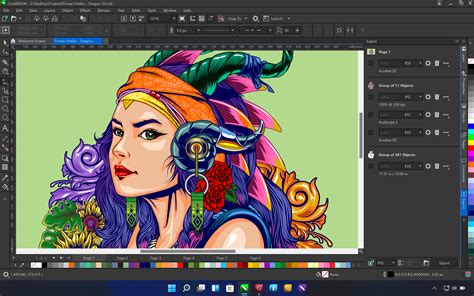
The most straightforward, albeit not always accessible, method for converting CDR files is to use CorelDRAW itself. If you have access to the software, the process is relatively simple.
- Opening the CDR File: Launch CorelDRAW and open the desired CDR file.
- Exporting the File: Navigate to "File" > "Export."
- Selecting the Output Format: Choose the desired format from the dropdown menu. Common options include JPG, PNG, GIF, TIFF, and PDF.
- Configuring Export Settings: Depending on the chosen format, you may have options to adjust resolution, color mode, compression, and other parameters. For example, when exporting to JPG, you can select the quality level. For PDF, you can choose compatibility settings and embed fonts.
- Saving the Converted File: Specify a location and filename for the exported file and click "Save."
This method ensures the highest fidelity conversion because CorelDRAW is the native application. However, it requires an investment in and installation of the CorelDRAW software, which can be a significant barrier for many users.
Converting CDR Files Without CorelDRAW: Exploring Alternatives
The need to convert CDR files without installing CorelDRAW has led to the development of various third-party tools and online converters. These solutions aim to bridge the gap for users who receive CDR files but lack the necessary software.
Third-Party CDR Converter Software
Numerous applications are designed specifically for converting CDR files. These often offer a more streamlined experience than manual methods and can be particularly useful for batch processing.
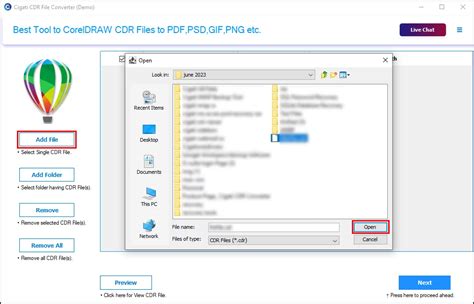
CorelDRAW CDR Converter is one such tool that is frequently mentioned. It is described as a multi-faceted utility that overcomes the limitations of manual approaches. This software allows users to convert CDR files to a wide array of formats, including:
- JPG
- GIF
- BMP
- PNG
- TIFF
- DOC (Word)
- DOCX (Word)
- XLS (Excel)
- HTML (Web Pages)
The typical workflow for using such software involves:
- Downloading and Installing: Acquire the setup file for the CDR file converter and install it on your Windows operating system.
- Loading CDR Files: The software usually provides dual options to load CDR files, often through a browsing interface or a drag-and-drop functionality.
- Selecting Output Format: Choose from the available file saving options, which typically number around ten.
- Initiating Conversion: Start the conversion process.
These tools often boast support for all Windows operating systems and are designed to be user-friendly, even for individuals with limited technical expertise.
Online CDR Converters
For users seeking immediate, no-installation solutions, online converters provide a convenient option. Websites like ImageToStl.com offer services to convert CDR files to various formats, including AI (Adobe Illustrator).
The process for using online converters is generally as follows:
- Upload the CDR File: Click an "Upload…" button or drag and drop your CDR file onto the designated area of the website.
- Select Target Format: Choose the desired output format (e.g., AI, JPG, PDF).
- Configure Options (if available): Some converters allow for minor adjustments to settings.
- Start Conversion: Initiate the conversion process.
- Download the Converted File: Once the conversion is complete, download the resulting file.
Key considerations for online converters:
- Security and Privacy: Reputable online converters assure users that their uploaded files are not stored long-term. For instance, ImageToStl.com states that CDR files are not stored, and the converted AI files are deleted after a short period (e.g., 4 hours), with options for longer retention or immediate deletion. They also emphasize the use of 256-bit SSL encryption for file security.
- Accessibility: These tools are typically web-based and can be accessed from any operating system (Windows, Linux, Android, iOS, Mac OS) with a modern web browser. This eliminates the need for high-spec computers, as the processing is done on the service's servers.
- Limitations: Some online converters may have limitations, especially if an Ad Blocker is enabled, which can affect conversion speeds, available settings, and download times.
How to Convert CorelDRAW to JPG 2019
Advanced Conversion Scenarios and Features
Batch Conversion
For users with multiple CDR files to convert, batch conversion is a crucial feature. Tools like the CDR converter mentioned earlier support converting up to 200 CDR files at a time. This significantly reduces the time and effort required compared to converting files individually. After batch conversion, users can often download the converted files either individually or as a single ZIP archive.
CDR to Specific Formats: A Closer Look
- CDR to PDF: Converting CDR to PDF is a common requirement for sharing documents that preserve layout and fonts. PDF (Portable Document Format) is a universally accepted format for document exchange.
- CDR to JPG/PNG: These raster image formats are ideal for web use, social media sharing, or inclusion in presentations. JPG is suitable for photographic images due to its efficient compression, while PNG is preferred for graphics with transparency.
- CDR to Word/Excel: Converting vector designs into editable document formats like DOC/DOCX or XLS can be more complex. While some converters claim this capability, the fidelity of the conversion can vary significantly, especially for intricate vector elements that may be rasterized or simplified. The success of such conversions often depends on the complexity of the original CDR file and the sophistication of the converter.
- CDR to AI: For designers working within the Adobe ecosystem, converting CDR to AI (Adobe Illustrator's native format) is highly desirable. This allows for seamless editing in Illustrator. Online converters are particularly adept at this, aiming for accurate conversions that preserve vector data.
Considerations for Accurate Conversion
The accuracy of a CDR file conversion depends on several factors:
- Complexity of the CDR File: Files with intricate gradients, complex vector paths, special effects, or embedded fonts may pose greater challenges for converters.
- Converter's Algorithm: The underlying technology and algorithms used by the converter play a critical role. Advanced converters utilize sophisticated methods to interpret and translate vector data.
- Target Format Limitations: Some target formats, like JPG, are raster-based and will inherently rasterize vector information, potentially leading to quality loss if not handled correctly.
Reputable conversion tools, whether software or online, are continuously updated with new features and improvements to enhance conversion accuracy.
Understanding File Types and Openers
It's important to note that not all files with the .cdr extension are necessarily CorelDRAW vector graphics. Sometimes, a file might be a "CorelDraw Image file," which is essentially a raster image saved within a CDR container. Identifying the nature of the CDR file is the first step in determining the appropriate opening and conversion programs.
While CorelDRAW is the primary application for .cdr files, other graphics software may offer some level of support for opening or importing them. These can include:
- Adobe Illustrator
- Corel PaintShop Photo Pro
- Inkscape (a free and open-source vector graphics editor)
- Microsoft Visio (though primarily for diagrams, it might have limited CDR import capabilities)
However, the level of support can vary, and direct editing of complex CDR files in these alternative applications may not always be flawless.
Choosing the Right Conversion Method
The "best" method for converting CDR files depends on individual needs and resources:
- For CorelDRAW users: Native export from CorelDRAW is generally the most reliable and highest-quality option.
- For occasional conversions without CorelDRAW: Online converters offer quick, accessible solutions for common formats like JPG, PNG, or PDF.
- For frequent or batch conversions without CorelDRAW: Dedicated third-party CDR converter software provides a robust and efficient solution, often with a wider range of output formats and batch processing capabilities.
When selecting a third-party tool or online service, consider factors such as supported formats, ease of use, conversion accuracy, security measures, and cost (if applicable). Many tools offer a demo or free version, allowing users to test their functionality before committing to a purchase or relying on the service for critical tasks.
Ultimately, the goal is to ensure that your valuable graphic designs remain accessible and usable, regardless of the software you or your collaborators have available. By understanding the different conversion pathways, users can confidently manage and share their CDR files across a multitude of platforms and applications.