Procreate offers a dynamic and intuitive environment for digital artists, and at the heart of creating compelling artwork lies the effective use of reference materials. Whether you're aiming for anatomical accuracy, capturing the nuances of a landscape, or simply seeking inspiration, integrating reference photos into your workflow is an essential practice. This guide delves into the various methods Procreate provides for incorporating and utilizing reference images, transforming your iPad into a powerful studio assistant.
The Indispensable Role of Reference in Art Creation
The human memory, while remarkable, is not an infallible repository of visual information. For artists, relying solely on memory can lead to inaccuracies in details, structure, and overall form. This is precisely where reference images become invaluable. They serve as a tangible link to reality, providing the correct details, proportions, and structural integrity necessary for a recognizable and believable artwork. Whether you are a beginner striving to understand basic shapes or an experienced artist aiming for photorealism, referring to a photo is essential for achieving accuracy and depth in your creations.
Integrating References: Procreate's Built-in Reference Window
Procreate streamlines the process of using reference photos with its dedicated Reference window. This feature allows you to display an image alongside your canvas, making it easily accessible without cluttering your primary workspace.
Activating the Reference Option
To begin, open Procreate and select the canvas you wish to work on. The first step is to activate the Reference option. Tap the Wrench icon, located in the top-left corner of the screen, to open the Actions menu. Navigate to the Canvas tab and locate the "Reference" toggle. Simply switch this toggle on.
Navigating Reference Options
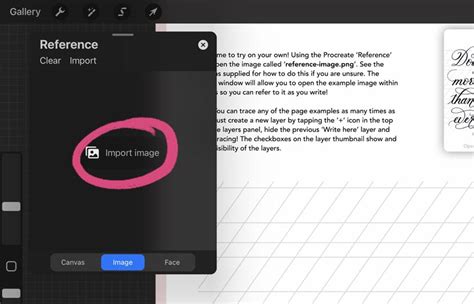
Once the Reference option is enabled, a pop-up window will appear, presenting three distinct choices: Canvas, Image, and Face. Each offers a unique way to leverage reference material.
Viewing Your Canvas as a Reference
The "Canvas" option might seem counterintuitive at first. However, when you're deeply engrossed in adding fine details to your artwork, it's easy to lose sight of the overall composition. Selecting "Canvas" within the Reference pop-up allows you to view your current work in a separate, smaller window. This acts as a constant preview, offering a "bigger picture" perspective while you're zoomed in on intricate areas. This is particularly useful for maintaining overall balance and harmony in your design.
Importing External Reference Photos
For external reference images, such as anatomical studies, architectural plans, or inspirational photographs, Procreate offers a seamless import function. Tap on "Image" within the Reference pop-up window, and then select "Import image." This will prompt you to browse your device's photo library. Choose your desired image, and it will appear within the reference guide window. This method is ideal for projects requiring specific visual data that isn't part of your current canvas. For instance, when working on complex body structures, importing detailed anatomical references is crucial. Many artists find excellent, royalty-free images on platforms like Unsplash, which permits free usage, even for commercial purposes.
Utilizing Your Face as a Reference Guide
The "Face" option transforms your iPad's front-facing camera into a dynamic reference tool, especially beneficial for portrait artists. When this option is selected, your face will appear in the reference box. The behavior of this feature adapts to your canvas content. If there's an image on your canvas, it will be overlaid onto your face, allowing you to see how your drawing might appear on a three-dimensional form. If your canvas is filled with a solid color, a mask overlay will appear on your face. This mask contours to the shape of your face and can be used like a blank canvas for drawing, providing a unique way to practice portraits or understand facial anatomy. Points indicating the eyes, nose, and mouth will be displayed on the canvas, guiding your drawing process. If you are nothing on the canvas, your face will show without any mask. If there is an image on the canvas it will show as an overlay on your face. If you fill the canvas with a color, it will place a mask overlay on your face. This mask can be used like a blank canvas for drawing as it contours to the shape of your face. On the canvas will be points for the eyes, nose and mouth. This is particularly great for portraits. You can then draw directly on the canvas, and your strokes will appear on the masked area of your face. If the "Face" option is selected, but the camera is not positioned correctly, you can click on "Options" to take a photo or video, or adjust settings.
Manipulating the Reference Window
The Reference window is designed for flexibility. You can reposition it on your screen by tapping and holding the small line at the top of the box and dragging it to your desired location. This ensures it doesn't obstruct your view of the main canvas. To resize the reference box, simply drag a corner or use a pinch-to-zoom gesture. To exit the reference guide entirely, you can tap the "X" in the top-right corner of the display box or toggle the Reference switch off again under the Wrench menu.
Advanced Techniques for Reference Integration
Beyond the built-in Reference window, Procreate offers other powerful methods for incorporating and working with reference images, particularly for tracing and detailed sketching.
Freehand Sketching from a Side Reference
This method closely mimics the traditional analog sketching process. Procreate allows you to pull up a small reference image adjacent to your main canvas. You can select a reference image by tapping "Image" within the Reference pop-up and choosing a photo from your library. You can zoom in on this reference image and manipulate the reference screen just as you would your regular canvas. This enables you to sketch on your main canvas while constantly referencing the external image. Many artists also use this technique to reference color palettes when inking their artwork. It's important to note that the reference box itself counts as a layer, which is a consideration if you are working under a strict layer limit.
Tracing Directly Over a Reference Image
Perhaps one of the most powerful ways to utilize reference images in Procreate is by tracing directly over them. This technique is invaluable for accurately capturing proportions and forms, significantly speeding up your workflow. Procreate even offers a method to ensure that the reference image does not appear in your final illustration's time-lapse recording.
Inserting Private Reference Photos
To trace without the reference appearing in your time-lapse, you need to insert the image as a "private photo." Tap the Wrench icon, then "Add." Instead of selecting "Insert a Photo," swipe left, and you will find the "Insert a private photo" option. You can repeat this process to add multiple private photos to your canvas. This is particularly useful when you need to combine elements from different reference images to construct a unique composition. Each inserted photo will appear on its own layer, allowing you to manipulate them individually.
Master Procreate Tracing: From Photo to Digital Art (Beginner Tutorial)
The Tracing Process
Once your reference image(s) are on their layers, add a new layer for your sketch directly above the reference layer(s). This ensures that you can easily delete the reference photos once your sketch is complete. Many artists favor specific brushes for sketching; the "Peppermint" brush, a default Procreate brush found in the "Sketching" library, is a popular choice. Sketching in a bright color, such as red, can also be beneficial, as it makes your sketch stand out more clearly against the reference image compared to black or gray. Select your desired color from the color swatch at the top right of your canvas.
Before you begin sketching, it's advisable to reduce the opacity of your reference image layer. Select the layer in the Layers panel and tap the "N" icon (which stands for "Normal" blending mode) to adjust the opacity slider. This allows you to see your sketch more clearly as you lay down your lines.
When sketching, aim for loose lines initially. The goal is to capture the main forms and proportions of your subject, not every minute detail. Once your loose sketch is complete, you can delete the reference photo layers and proceed with inking and refining your illustration.
Beyond Basic Referencing: Layer Management and Workflow
Understanding Procreate's layer management tools is crucial for an efficient workflow, especially when working with multiple reference images or complex compositions.
Layer Options: Rename, Select, Copy, Fill, and Clear
Layers added to your project have sequentially numbered titles by default. To rename a layer, tap on it in the Layers panel to bring up Layer Options, then tap "Rename." Selecting a layer allows you to take various actions on the non-transparent parts of that layer. You can "Copy" image data to the clipboard and "Paste" it into another layer or a different Procreate canvas. The "Fill" option will fill your entire layer with the currently selected color. If Alpha Lock is enabled, "Fill" will color only the existing artwork on that layer. "Clear" removes the contents of the entire layer and resets its opacity to 100%.
Alpha Lock and Layer Masks
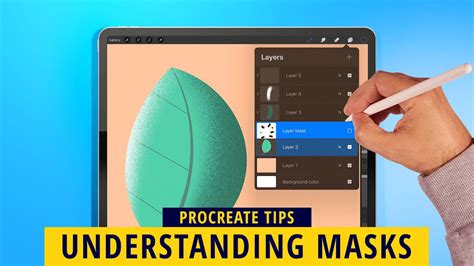
With Alpha Lock enabled, any further drawing or painting will only affect the existing artwork on that layer. A Layer Mask functions similarly to an Alpha Lock, but with a key difference: changes made to the Layer Mask can be removed or altered without affecting the parent layer. Layer Masks are excellent for non-destructively modifying the appearance of the parent layer.
Clipping Masks
A Clipping Mask functions like a Layer Mask but is not tied to a single specific layer. It acts as a separate layer that can be linked to any other layer. This means you can move a Clipping Mask from one layer to another or stack multiple Clipping Masks above a single base layer. Clipping Masks are a powerful tool for non-destructively modifying your content; if you dislike the result, you can simply remove the mask.
Snapping and Reflection Tools
Procreate's drawing guides can significantly enhance precision. They can "snap" your strokes to a guide or a perspective grid. Additionally, various reflection settings can mirror your strokes across the canvas in different ways, which can be incredibly useful for symmetrical designs or character work.
ColorDrop and Merging Layers
The "ColorDrop" feature allows you to fill any layer with color. "Merge Down" combines the active layer with the layer directly below it. You can merge multiple groups by using a simple pinch gesture: pinch together the top and bottom layers you wish to merge. Merging layers applies any blending mode to the pixels below. If you encounter your layer limit, merging unnecessary layers can free up space. This action can be undone immediately with a two-finger tap. If you use "Combine Down" on a layer directly above a Layer Group, it will merge the layer into the group.
Conclusion
Mastering the use of reference images in Procreate is a fundamental skill that elevates the quality and accuracy of your digital artwork. By utilizing the Reference window, importing external photos, and employing tracing techniques, artists can significantly improve their drawing process. Combined with a solid understanding of Procreate's robust layer management system, these tools empower you to create more detailed, accurate, and visually compelling art with greater efficiency.