Corel VideoStudio is a powerful and versatile video editing software designed to empower users of all skill levels, from beginners to seasoned professionals, to create captivating video content. This tutorial delves into the diverse functionalities and innovative features that make VideoStudio a go-to choice for video production, offering a structured approach to learning its capabilities. We will explore everything from basic editing techniques to advanced effects, ensuring a thorough understanding of how to bring your creative visions to life.
Getting Started with the VideoStudio Interface and Basic Editing
The foundation of any effective video editing project lies in understanding the software's interface and mastering fundamental editing techniques. VideoStudio provides an intuitive workspace that facilitates a smooth workflow.
Timeline Editing Essentials
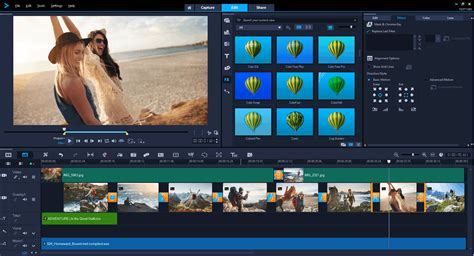
The heart of VideoStudio's editing process is its timeline. This is where you arrange, trim, and manipulate your video clips, audio tracks, and other media elements. The timeline editor offers various features and views, allowing you to navigate your project with precision. A crucial component of timeline editing is the Track Manager, which allows you to add or remove tracks, providing flexibility in organizing your project. Understanding how to navigate the timeline and utilize the Track Manager is the first step towards efficient video production.
Media Manipulation: Crop, Resize, and Position
Once your media is on the timeline, you'll often need to adjust its appearance. VideoStudio makes it easy to crop video, resize, and position your media exactly where you want it. This allows for creative framing and ensures that your footage fits seamlessly into your project. Beyond simple adjustments, you can also rotate and trim clips to refine their length and orientation.
Enhancing Your Clips: Filters and Effects
Adding filters and effects is an easy but creative way to enhance your clips or correct flaws in your video. VideoStudio offers a vast library of visual enhancements that can transform ordinary footage into something extraordinary. Whether you need to correct color imbalances, add a stylized look, or introduce dramatic visual changes, these tools provide a powerful means of artistic expression.
Creating Professional Titles and Text Overlays
Titles are essential for making your VideoStudio projects more professional and easier to follow. They serve to introduce segments, provide context, or add branding.
Basic Title Creation and Editing
VideoStudio provides straightforward tools to create and edit basic titles. You can input text, choose fonts, and adjust colors to match your project's aesthetic. This tutorial covers the basics of creating and editing these essential text elements.
Advanced Title Design with Motion and Graphics
For more dynamic presentations, VideoStudio's enhanced Title Editor allows you to create custom titles with motion, text, and graphics. You can then save these as presets for future use, streamlining your workflow. Furthermore, you can add text to motion graphics to create professional motion titles, including tips for adding effects and changing colors.
The Power of Boris Title Studio
Exclusive to VideoStudio Ultimate, Boris Title Studio is a powerful 2D and 3D titling tool for fast and creative animations. This feature offers a professional-grade solution for crafting elaborate and eye-catching titles that can elevate the cinematic quality of your projects.
Adding Visual Interest with Transitions and Overlays
Transitions and overlays are powerful tools for adding visual flair and creating polished video sequences.
Seamlessly Merging Clips with Transitions
Adding transitions is a quick and easy way to add some visual impact and interest to your videos. VideoStudio offers a wide array of transition effects that can blend your clips smoothly from one to the next, achieving professional results. You can learn how to add and customize transitions in VideoStudio to suit your specific needs.
Exploring New Transition Options
VideoStudio 2023 introduces exciting new features, including new title motion options and title effects, parallax transitions, and more. These advancements provide even greater creative control over how your video elements flow and interact.
Seamless Transitions for Smooth Flow
The Seamless Transitions feature in VideoStudio allows for smooth transitions by aligning similar colors or objects in one scene with the next. This creates a visually cohesive and flowing experience for the viewer.
Overlay Templates for Professional Styles
Learn how to use overlay templates in VideoStudio to turn your video clips into a news broadcast-style video. These templates provide pre-designed layouts and graphics that can instantly give your footage a professional polish. You can even download free overlay samples to follow along with the tutorials.
Enhancing Your Videos with Special Effects and Creative Tools
VideoStudio offers a rich collection of special effects and creative tools that allow for unique visual storytelling.
Manipulating Time: Stop Motion and Time Lapse
Creating captivating stop motion animation videos or time lapse videos is achievable with VideoStudio. These tutorials guide you through the process, from capturing frame-by-frame footage to rendering the final video, allowing you to experiment with different temporal perspectives.
Motion Tracking for Dynamic Effects
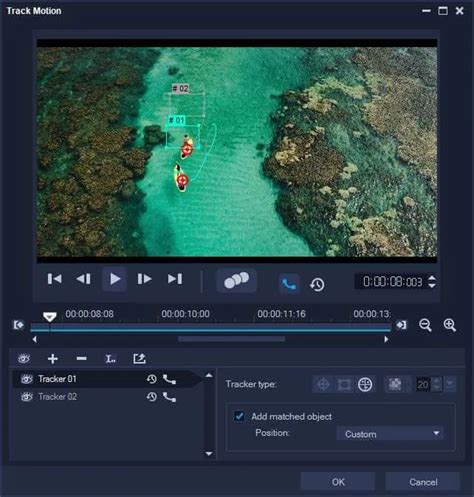
The Track Motion feature in VideoStudio is a game-changer for adding dynamic movement to your projects. You can capture natural motion paths, such as a bouncing ball, and apply them to titles and video clips. This allows you to create motion tracking text in VideoStudio, making titles follow moving subjects with ease. Advanced users can explore multi-point motion tracking to add moving text or graphics, or even apply blurs to obscure specific objects for privacy or stylistic reasons.
Picture-in-Picture and Split Screen Effects
Make your videos look more professional and polished by adding a picture-in-picture effect. VideoStudio provides multiple methods to achieve this popular visual technique. Similarly, the Split Screen feature allows you to show multiple video streams simultaneously. You can drag and drop clips into templates or create dynamic split screen videos, even customizing layouts with keyframes and saving them as templates.
Creative Use of Masks and Blend Modes
VideoStudio's tools for masking and blend modes offer advanced creative possibilities. You can use shape and brush tools to create masked areas, allowing you to apply effects selectively. The masking tools in VideoStudio Ultimate can be used to create text masks, title reveals, overlays, or to blur faces and backgrounds. Blend modes specify how overlay clips blend with the background, producing unique and amazing effects.
Face Effects for Subtle Enhancements or Comical Alterations
The new Face Effects in VideoStudio provide an accessible way to enhance your subjects. You can smooth and brighten skin for subtle enhancements or play with eye size and face width for a comical effect, adding a touch of fun or polish to your portraits.
Creative Content and Project Templates
VideoStudio comes packed with brand new creative content, including titles, video backgrounds, animated graphics, and sound effects, to inspire your projects. Furthermore, Instant Project Templates allow you to save time and energy by re-creating popular video styles in minutes. Whether using an Instant Project template or the FastFlick slideshow maker, creating a slideshow in VideoStudio is as easy as 1-2-3!
Audio Editing and Voiceovers
Sound is a crucial element of video production, and VideoStudio offers robust tools for managing audio.
Basics of Adding and Editing Audio
Learn the basics of adding and editing audio in VideoStudio, including layering clips, balancing audio levels, and adding royalty-free soundtracks. This ensures that your video's audio is as polished as its visuals.
Emphasizing Moments with Audio Cues
Learn how to use audio cues in VideoStudio to emphasize key moments in your video projects by matching your clips to the beat of a music track. This synchronization can significantly enhance the emotional impact and pacing of your videos.
Recording Voiceovers
Learning how to record a voice over is essential for creating effective educational and descriptive movies. VideoStudio's Voiceover tool makes this process straightforward, allowing you to add narration and commentary to your projects.
Advanced Features and Workflow Enhancements
VideoStudio continuously evolves, introducing advanced features and workflow improvements to enhance the editing experience.
Speech-to-Text for Easy Captioning
With VideoStudioâs new speech-to-text converter, creating captions is easy! Instead of creating subtitles manually, this tool automatically transcribes your audio, saving significant time and effort. You can quickly add subtitles using the Subtitle Editor and Title Tab to make your videos more accessible.
GIF Creator for Sharable Clips
The VideoStudio GIF creator allows you to easily capture a section of your video and convert it into a short, repeatable clip that you can share with anyone. This is perfect for social media or creating animated snippets.
Smart Proxy for Smooth HD Editing
Enjoy a fast and fluid editing experience in VideoStudio by enabling Smart Proxy. This feature allows you to edit HD content without slowing down your computer, making the process more responsive, especially on less powerful hardware.
Multi-cam Editing for Professional Shoots
The Multi-cam editor is invaluable for projects shot with multiple cameras. This tutorial shows you how to switch angles, cut and delete, add transitions, and easily align clips, streamlining the process of creating a cohesive multi-camera production.
360° Video Editing
VideoStudio's enhanced 360° video editing features allow you to import, edit, preview, and export directly to platforms like YouTube or VR headsets, opening up immersive storytelling possibilities.
High-Definition and 4K Projects
Learn how to maximize your high-definition footage and create Ultra HD 4K resolution projects. VideoStudio supports high-resolution workflows, ensuring your final output is of the highest quality.
Creating Promotional Videos
VideoStudio can be instrumental in creating professional promotional videos for businesses. From storyboarding to final touches, the software provides the tools needed to craft compelling marketing content.
Replicating Popular Video Styles
Easily replicate famous video styles, such as the iconic scrolling Star Wars intro text effect, using the title editor and custom motion options. This allows for creative homage and distinct visual branding.
Working with Portrait-Oriented Video
VideoStudio Ultimate offers creative ways to work with portrait-oriented video clips by applying masks and using backgrounds, ensuring that vertical video content is presented effectively.
Specialized Tools and Integrations
Beyond its core editing features, VideoStudio integrates with specialized tools for even greater creative control.
ProDAD Vitascene and RotoPen Filters
VideoStudio Ultimate integrates with powerful third-party plugins. The ProDAD Vitascene visual effects filter adds high-quality effects, filters, and transitions. The proDAD RotoPen filter allows you to animate a vehicle along a path, like a moving travel line on a map, offering sophisticated animation capabilities.
Corel DESIGNER for Technical Illustrations
While primarily a video editor, VideoStudio's ecosystem includes Corel DESIGNER, a full-featured vector graphics application. DESIGNER is ideal for creating technical illustrations with tools for 3D appearances, projected drawings, and precise measurements, ensuring accuracy in detailed diagrams.
XVL Studio for 3D Illustration Conversion
XVL Studio allows you to modify the settings and properties of a 3D model, converting it into a 3D illustration that can be imported into Corel DESIGNER, bridging the gap between 3D modeling and technical illustration.
Learning Resources and Community Support
To further enhance your VideoStudio journey, various learning resources are available.
Studio Backlot Training
Studio Backlot offers hundreds of courses and tutorials, providing access to a wealth of knowledge to help you quickly learn new effects and become proficient with VideoStudio. Purchasing VideoStudio often includes a free trial to Studio Backlot, offering an excellent opportunity to deepen your skills.
Custom Motion Backgrounds and Graphics Wipes
Studio Backlot also shares master tips for creating custom motion backgrounds. Additionally, you can learn how to use a Chroma key and prepared graphics to create your own custom animated graphic wipes, adding unique visual elements to your projects.
By exploring these features and techniques, users can unlock the full potential of Corel VideoStudio, transforming their raw footage into polished, engaging, and professional-quality videos.