It's a common and often frustrating experience for Adobe InDesign users: a feature that should be active is inexplicably grayed out, rendering it unusable. This can halt workflows, especially for complex tasks like creating assignment packages for InCopy, a process that relies on specific panel options. When these options, such as 'cancel package' or 'package for InCopy,' disappear or become inaccessible, it leaves users baffled, particularly when the same file functions correctly on another machine. This article delves into the multifaceted reasons behind InDesign's grayed-out features, exploring the underlying logic and offering solutions to restore functionality.
The Interplay of Tools and Selections: A Primary Culprit
One of the most frequent reasons for features appearing grayed out in InDesign is the selection of an inappropriate tool or the incorrect selection of objects. InDesign's context-sensitive interface dynamically adjusts the available options based on what is currently active. For instance, if you select a text frame with the Selection tool (the black arrow), the Character and Paragraph panels might appear grayed out. While InDesign does permit text formatting to be applied to all text within a selected frame using the Selection tool, the direct manipulation of character and paragraph attributes is reserved for the Type tool (the T icon). The workaround is straightforward: select the frame(s) with the Selection tool and then press the 'T' key to temporarily switch to the Type tool, thereby enabling the Character and Paragraph panels.
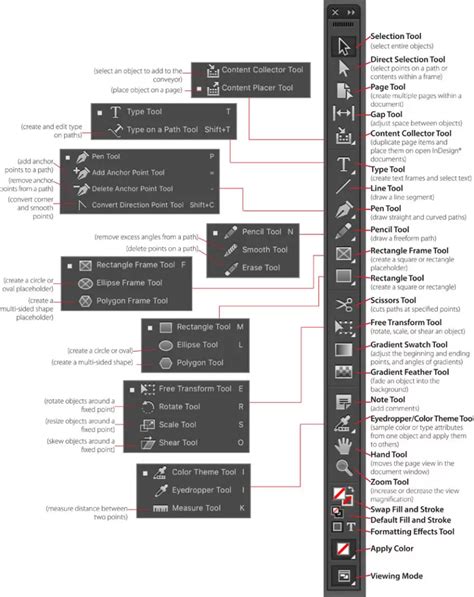
This principle extends to other InDesign functionalities. The availability of certain commands or panel options is directly tied to the active tool and the type of object or content currently selected. If the tool you're using doesn't operate on the selected item, or if the item itself doesn't support the intended action, the corresponding menu items or panel controls will be disabled. Understanding this fundamental connection between tool, selection, and functionality is the first step in troubleshooting grayed-out features.
View and Preview Settings: The Hidden Dependencies
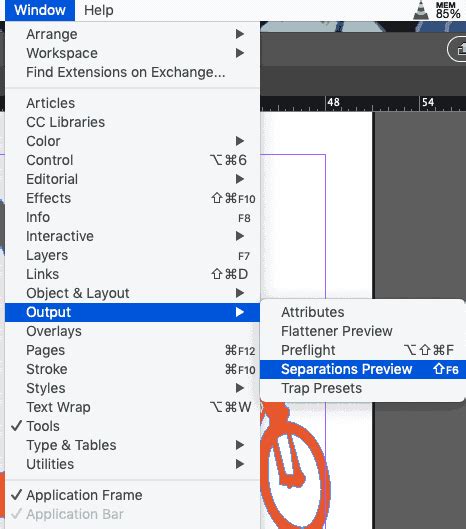
Beyond direct tool and selection interactions, InDesign's display and preview settings can also lead to seemingly disabled options. A prime example is the Separations Preview panel. You might observe all your inks listed, yet they appear grayed out. This situation is intrinsically linked to the View > Overprint Preview setting. If Overprint Preview is not active, the individual ink separations in the Separations Preview panel will not be controllable and will therefore be grayed out. Enabling View > Overprint Preview is often the key to regaining control over ink visibility and management within this panel.
Another common scenario involves Smart Guides. Users may find that Smart Guides, a feature designed to aid in alignment and spacing, are not functioning, even when indicated as "on" in the View > Grids & Guides menu. The problem can arise when View > Grids & Guides > Snap to Document Grid is enabled. When this specific snapping function is active, it can interfere with the operation of Smart Guides, causing them to become grayed out or unresponsive. Disabling "Snap to Document Grid" often resolves the issue, allowing Smart Guides to function as intended. These examples highlight how seemingly unrelated view and preview settings can have a direct impact on the availability of other interface elements.
Document Conversion and Versioning: The "Converted" Status
A particularly perplexing reason for grayed-out features, especially the File > Revert command, is related to document conversion and versioning. When you open a document created in an older version of InDesign, the program often converts it to the current version upon opening. This conversion process can sometimes alter the document's internal structure in ways that affect certain functionalities. The clue to this situation is usually found in the document's title bar, which may display the word "[Converted]".
Everything NEW in InDesign 2026!
When a document has been converted, the File > Revert option might be grayed out because there isn't a readily available prior state to revert to within the current InDesign session's memory that directly corresponds to the pre-converted file. InDesign's handling of "versions" can be a complex topic. While it strives for backward compatibility, certain operations or the ability to revert to a truly original state can be impacted by the conversion process. This underscores the importance of understanding the origin of your InDesign documents and being aware that opening and saving files from older versions can sometimes lead to unexpected interface behaviors.
Package Creation for InCopy: A Remote Workflow Challenge
The initial problem described - the missing 'cancel package' and 'package for InCopy' options - points to a specific workflow challenge related to InCopy assignments and remote collaboration. When these crucial options are absent from the package panel, it prevents users from creating new assignment packages, a critical step for sending work to clients using InCopy. The fact that the same InDesign file exhibited the full suite of options on another machine strongly suggests that the issue is not with the InDesign file itself, but rather with the InDesign installation or configuration on the affected machine.
Several factors could contribute to this localized problem:
- Corrupted InDesign Preferences: InDesign's preference files can become corrupted over time, leading to a wide range of unusual behaviors, including missing or grayed-out panel options. Resetting InDesign preferences to their default settings can often resolve such issues. This involves locating and deleting or renaming the preference files, forcing InDesign to create new ones upon the next launch.
- Incomplete or Corrupted Installation: A damaged InDesign installation can also manifest in missing or non-functional features. Reinstalling InDesign might be necessary to ensure all components are present and correctly configured.
- Plugin Conflicts: Third-party plugins or extensions can sometimes conflict with InDesign's core functionality, leading to unexpected grayed-out options. Disabling or removing recently added plugins can help identify if this is the root cause.
- User Profile Issues: In rare cases, issues with the user's operating system profile can affect application behavior. Testing InDesign under a different user account on the same machine can help determine if the problem is system-wide or specific to the user's profile.
- Specific Document State: While less likely if the file works on another machine, there could be a peculiar state within that specific document on the problematic machine that is triggering the disabling of the packaging options. However, given the consistent behavior across machines, this is a lower probability.
Troubleshooting this specific InCopy packaging issue requires a systematic approach, starting with the most common culprits like preference corruption and installation integrity. The success on another machine is a powerful diagnostic tool, indicating that the core software and file are likely sound, and the problem lies within the environment of the malfunctioning workstation.
Beyond the Obvious: Thinking Laterally About Grayed-Out Features
When faced with a grayed-out feature, it's beneficial to adopt a mindset that goes beyond the immediately apparent. Consider the second and third-order implications of the current state. For example, if a specific layer in your InDesign document is locked, any objects on that layer will become uneditable, and many associated commands might be grayed out. This is a direct consequence of the layer's locked status.
Thinking laterally involves exploring less conventional causes. Could a system-level setting be interfering? For instance, some operating system accessibility features might inadvertently affect application interfaces. Are there any background processes running that could be consuming resources or interfering with InDesign's communication with the operating system?
Furthermore, consider the possibility of a subtle change in a workflow that was previously functioning. Was a new script introduced? Was a document template modified? Sometimes, a seemingly minor alteration can have cascading effects on InDesign's behavior. The key is to approach the problem with a critical eye, questioning assumptions and exploring all potential avenues, even those that initially seem unrelated. The "wrong tool" or "wrong selection" is the most common explanation, but understanding the deeper dependencies within InDesign's architecture, from view settings to document history and even system-level interactions, is crucial for comprehensive troubleshooting.