Craiyon, a web-based text-to-image tool, has branched out from its origins as a playful sibling to more research-grade models to offer a suite of accessible AI-powered creative tools. Among these, its background remover stands out for its simplicity, speed, and impressive results. This tutorial will guide you through the process of removing backgrounds from your images using Craiyon, highlighting its features, benefits, and best practices for achieving professional-quality cutouts. Whether you're a seasoned graphic designer or a curious beginner, Craiyon's background remover promises an effortless and effective solution for all your image editing needs.
Understanding Craiyon's Background Remover
Craiyon offers an advanced AI-powered background remover designed to instantly remove backgrounds from images with remarkable precision. This tool is particularly adept at preserving intricate details such as individual strands of hair, delicate fur textures, and even transparent objects, ensuring a clean and accurate cutout every time. The process is straightforward: simply upload your image, and the AI automatically works to create a perfect silhouette.

The core philosophy behind Craiyon's tools, including its background remover, is to make AI image generation and editing accessible to everyone. It aims to democratize creative processes, allowing users to achieve professional-looking results without requiring extensive technical expertise or costly software. This commitment to user-friendliness and accessibility is evident in every aspect of the tool's design, from its intuitive interface to its entirely free usage model.
Why Choose Craiyon's Background Remover?
Craiyon's background remover distinguishes itself through several key advantages, making it a compelling choice for a wide range of users:
- 100% Free Background Remover: There are no hidden costs or subscription tiers for basic background removal. You can use the tool as much as you need without any financial commitment. This makes it an ideal solution for individuals and small businesses on a budget.
- Unlimited Usage: Unlike many other services that impose daily or monthly limits on the number of images you can process, Craiyon offers unlimited usage. You can remove backgrounds from as many images as you desire, without any restrictions or daily limits.
- HD Download: The tool ensures that your final images are downloaded in high definition (HD), up to 2k resolution. This means no pixelated messes or unwanted downsizing, preserving the quality of your original image.
- No Account Needed: Craiyon eliminates the hassle of sign-ups and logins. You can simply upload your image and begin removing the background immediately, saving you time and effort.
- Automatic & Accurate BG Remover: Powered by advanced AI, the tool automatically detects and removes the background with incredible precision. It handles complex details with ease, delivering professional results in seconds.
- Change Background Color: Beyond simply removing the background, Craiyon allows you to replace it with a transparent background, a solid white background, a solid black background, or any custom color of your choice. This flexibility is invaluable for various applications, from e-commerce product listings to graphic design projects.
How to Remove a Background from a Picture with Craiyon
The process of removing a background using Craiyon is designed to be as simple and intuitive as possible. Here’s a step-by-step guide:
Step 1: Select Your Image
You can import an image into Craiyon's background remover in several ways:
- "Import an image" Button: Click on the designated button on the Craiyon interface.
- CTRL+V (Paste): If you have an image copied to your clipboard, you can directly paste it into the tool.
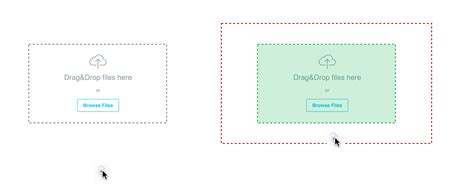
- Drag and Drop: Simply drag your image file from your computer's file explorer and drop it onto the Craiyon interface.
For images that were originally generated by Craiyon's AI image generator, there's an even quicker option: just click on "Remove background" directly associated with that image.
Step 2: Automatic Background Removal
Once your image is uploaded, Craiyon's AI background remover will automatically get to work. You don't need to select specific areas or use complex tools. The AI analyzes the image, identifies the subject, and meticulously removes the background. This automated process is what makes Craiyon so fast and efficient.
Step 3: Customize Your Background (Optional)
After the background has been automatically removed, you'll be presented with a transparent background by default. Craiyon offers easy options to change this:
- Transparent Background: Keep the background transparent if you intend to layer the subject onto another image or use it in designs where transparency is crucial.
- White Background: Select this option to add a clean, solid white background, which is ideal for product photos and many graphic design applications.
- Black Background: Choose a solid black background for a dramatic or minimalist aesthetic.
- Custom Color: Craiyon allows you to select any custom color for your background. Whether you need a specific shade of blue, a vibrant pink, or any other hue, you can easily pick it from a color palette.
Step 4: Download Your Image
Once you are satisfied with the background removal and any color changes, you can download your edited image. Craiyon provides high-resolution downloads, ensuring that your image retains its quality. Simply click the download button, and your image will be saved to your device.
How to Remove Image Backgrounds Instantly with Canva AI
Frequently Asked Questions About Craiyon's Background Remover
What is Craiyon's AI background remover?
Craiyon's AI background remover is a sophisticated, yet user-friendly, tool that leverages advanced artificial intelligence to automatically detect and remove the background from any image. It excels at preserving fine details and offers high-resolution downloads. It's perfect for product photos, portraits, or any image you want to isolate a subject from its surroundings.
Can I change the transparent background to a white or black background?
Absolutely. You can quickly and easily change the background color. After uploading your image and letting the AI remove the background, simply choose from the options to add a white background, black background, or any other custom color.
Is Craiyon's background remover free?
Yes, Craiyon's HD background remover is completely free to use. There is no signup required, no daily limits, and you consistently receive high-resolution results. You can remove backgrounds from an unlimited number of images.
How can I remove backgrounds faster?
For users who require even faster processing times, Craiyon offers an option to upgrade to a paid plan. Paid users enjoy priority access to servers, resulting in significantly faster background removal, often within seconds. This option also supports the ongoing development of Craiyon's AI models.
Can I improve background removal results?
To achieve the best possible results with Craiyon's background remover, consider these tips:
- Clear Subject-Background Contrast: Images where the subject is clearly distinct from the background tend to yield the most accurate results.
- Retry for Different Results: The AI may produce slightly different outcomes with each attempt. If you're not fully satisfied, hit "retry" for a fresh processing.
- Good Lighting and Focus: Ensure your original image has good lighting and is in focus. This helps the AI to better distinguish the subject from the background.
- AI Improvement Over Time: Craiyon's AI models are continuously being improved. As the AI gets better, the results of background removal will also improve over time.
Why might my background removal fail or not be perfect?
While Craiyon's AI is highly accurate, occasional issues can arise. Here are some common reasons and solutions:
- Image Size: If your image is very large (over 10MB), it might cause processing issues. Try reducing the image size before uploading.
- File Format: Ensure your image is in a common format such as JPG or PNG.
- High Traffic: During periods of high user traffic, processing times might be longer, or temporary issues may occur. Waiting a moment and retrying can often resolve this. Craiyon is continuously expanding its server capacity to accommodate all users efficiently.
- Manual Adjustments: If the automatic removal isn't perfect, you can often manually adjust the edges using provided editing tools within more advanced platforms. While Craiyon focuses on automation, understanding manual editing can be a useful skill for complex cases.
Craiyon: More Than Just a Background Remover
It's important to understand that Craiyon's background remover is part of a larger ecosystem of AI-powered creative tools. Craiyon itself is a web-based text-to-image generator that was born from a desire to make image generation accessible to everyone. It originated as a smaller, more playful version of more research-oriented models, known initially as DALL·E mini. Craiyon has since evolved into its own distinct product line, offering fast, free image generation directly within your web browser.
The Craiyon Interface and Image Generation
The user interface of Craiyon is deliberately minimal, encouraging creativity rather than complex parameter adjustments. The main component is the prompt box, where users enter their text descriptions for the desired image. This design is refreshing for those who are more idea-driven than settings-driven.
Each generation run typically produces a handful of visually distinct results, allowing users to select a composition or mood that sparks further ideas or serves as a starting point for refinement. While ads are present to keep the tool free, they are generally not intrusive. Users can experiment with short prompts for charming results or longer, more specific prompts for greater control. The guiding principle for effective prompting is "specific > vague."
Understanding Styles and Raw Mode
Craiyon offers various styles to influence the output of its image generator:
- Artistic: Produces digital paintings with creative textures.
- PhotoRealistic: Aims for photographic images.
- Illustration: Creates artistic, drawn-style visuals.
- Anime: Generates visuals inspired by Japanese animation.
- Vector: Offers clean, scalable graphics.
- Raw: This mode provides the ultimate control for experienced users. It removes Craiyon's automatic style enhancements, allowing complete creative control over the final image. Raw Mode can be used with mixed styles for highly specific outputs.
Image Editing with Retouch
Beyond background removal and generation, Craiyon incorporates a "Retouch" feature. This unlocks powerful image editing capabilities through simple text commands, allowing users to modify, enhance, and transform existing images without starting from scratch. This feature expands the creative potential of Craiyon, enabling users to refine their generated images or existing photos with ease.
Use Cases for Craiyon's Tools
Craiyon's suite of tools, including its background remover and image generator, are suitable for a wide array of applications:
- Brainstorming and Ideation: Quickly generate visual concepts for projects, stories, or marketing campaigns.
- Content Creation: Produce unique images for blog posts, social media, presentations, and websites.
- Product Mockups: Generate simple product shots or create variations with different backgrounds.
- Artistic Exploration: Experiment with different styles and prompts to create unique digital art.
- Educational Purposes: Help students and educators visualize concepts and explore AI capabilities.
- Personal Projects: Create custom graphics for invitations, personal websites, or creative endeavors.
- E-commerce: Efficiently prepare product images by removing backgrounds and adding consistent white or colored backgrounds.
- Portraits and Avatars: Isolate faces or create stylized avatars.
- Concept Art: Develop initial visual ideas for characters, environments, or scenes.
- Storyboarding: Generate quick visuals to map out narrative sequences.
- Game Development: Create placeholder assets or concept art for game environments and characters.
- Merchandise: Users can even order generated images directly as t-shirts from Craiyon.
Tips and Tricks for Optimal Results
To maximize your experience with Craiyon's tools:
- Start Simple, Then Build: Begin with a basic prompt or image and gradually add complexity or refine details.
- Experimentation is Key: Don't be afraid to try different prompts, styles, and retry options. The more you experiment, the better you'll understand how Craiyon interprets your requests.
- Detailed Descriptions: For image generation, be as specific as possible in your prompts. Include details about the subject, setting, style, lighting, and mood.
- Iterate and Refine: Treat Craiyon as a powerful starting point. For polished, production-ready images, you might use Craiyon for ideation and then refine the output in a more specialized editing tool.
Craiyon AI is accessible on both desktop and mobile devices, ensuring flexibility and convenience for users wherever they are. It supports common image formats like JPEG, PNG, and BMP for uploads. By embracing the capabilities of Craiyon, users can unlock a world of creative possibilities, making image editing and generation an accessible and enjoyable experience.
tags: #craiyon #background #remover