Photoshop offers a versatile array of tools for graphic design and image manipulation, and the ability to create and modify shapes is fundamental. Among the most frequently sought-after functionalities is the creation of rounded rectangles, a design element that can soften an image, add a touch of polish to user interface elements, or simply provide a more aesthetically pleasing container for text and graphics. This guide will delve into the various methods for achieving perfectly rounded rectangles in Photoshop, from initial creation to advanced editing, catering to users of all skill levels.
Creating Live Rounded Rectangles with Precision
One of the most straightforward and flexible methods for creating rounded rectangles in Photoshop involves utilizing the "Rectangle Tool" and its "Live Shape" properties. This approach allows for non-destructive editing of the corner radius even after the shape has been drawn.
To begin, open your Photoshop document. If the "Layers" panel is not visible, navigate to "Window > Layers" to display it. Next, select the "Rectangle Tool" from the toolbar, typically found on the left side of your workspace. If the toolbar itself is not visible, go to "Window > Tools".
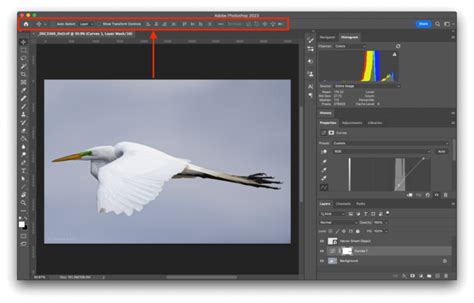
When you select the "Rectangle Tool," a set of "Options" will appear at the top of your workspace. Here, you can specify initial attributes for your shape. For instance, choosing "white" for the "color fill" will set the rectangle's interior to white. As you prepare to draw, you'll notice bright blue guides appearing, assisting in precise positioning. Place your cursor where these guides intersect at the top-left corner, indicating the starting point for your rectangle.
Once you have finished drawing your rectangle, the "Properties" panel will often open automatically. Should it not appear, go to "Window > Properties" to access it. Within the "Properties" panel, you'll find the crucial "corner radius" setting for your newly-drawn "live rectangle." Enter a value, such as "65 px," to instantly round the corners. The "Properties" panel also serves as a central hub for adjusting other aspects of your shape, including the "stroke" and "fill." Clicking the "stroke color" icon will reveal a "color swatches" panel, allowing you to select a color, for example, a "light blue color," to add a distinct stroke to your rectangle.
Editing Existing Rounded Rectangles
Modifying a rectangle that has already been created is equally accessible. The key is to first select the shape. Press the "A" key on your keyboard to activate the "Path Selection Tool," or locate and click this tool in the toolbar. With the "Path Selection Tool" active, simply click on the rectangle you wish to edit. If you are working with the light blue "Location" square example, click on that. You can then navigate back to the "Properties" panel to adjust its "Live Shape properties." Experiment by selecting other rectangles in your image to see how their properties can be manipulated.
A particularly useful feature is the ability to unlink the corner radius adjustments. By default, when you modify the radius, all corners change uniformly. However, clicking the "link icon" in the "Properties" panel will break this connection, allowing you to adjust each corner's radius independently. This offers a high degree of creative control, enabling asymmetrical rounding effects.
An Alternative Approach: Using the Shape Tool
Another efficient way to create shapes, including rectangles, is through the "Shape Tool," which can be accessed by pressing the "U" key. Once the "Shape Tool" is active, you can simply draw your desired rectangle directly onto the canvas. Similar to the "Rectangle Tool," the "Shape Tool" also offers control over corner radius. In the default workspace, this option is typically located at the top of your screen within the options bar.
Rounding Corners of Existing Images or Photographs
Beyond drawing vector shapes, you might want to apply rounded corners to an existing photograph or raster image. This process involves a slightly different workflow, often incorporating layer masks.
If you wish to give your image rounded corners in Photoshop, this tutorial will help you. Begin by opening your photograph in Photoshop. By default, the image will likely be on a single layer named "Background." To prepare for editing, it's best practice to duplicate this layer. Right-click on the "Background" layer in the "Layers" panel and choose "Duplicate layer." This creates a copy, preserving the original.
Now, you need a shape to act as a mask. You can draw a rounded rectangle over your image using the "Rounded Rectangle Tool" (as demonstrated in the earlier examples) or by using a vector layer mask. To use a vector layer mask, select the "Background copy" layer. At the bottom of the "Layers" panel, you'll find an icon that resembles a small camera; hovering over it will display the tooltip "Add vector layer mask." Click this icon to add a vector mask to your selected layer.
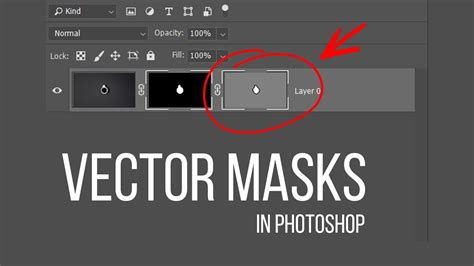
With the vector mask applied, you can then use the "Rectangle Tool" or "Rounded Rectangle Tool" to draw a shape on top of this mask. The key is to ensure the rectangle layer is positioned above your image layer. To achieve the rounded effect on the photograph, you would then use the mask associated with the vector layer mask to define the boundaries of your rounded shape.
A more direct method for rounding a photograph's corners involves using the "Rectangle Tool" to draw a rounded rectangle, then placing your photograph layer below this rounded rectangle layer. In the "Layers" panel, if your image layer is locked, click the lock icon to unlock it. Then, hover your cursor precisely in-between the image layer and the rounded rectangle layer. While pressing the "Opt" (Mac) or "Alt" (Win) key, click. This action will create a clipping mask, effectively clipping your image to the shape of the rounded rectangle, giving your photograph rounded corners.
Understanding Default Rounded Corner Behavior
It's worth noting a common point of confusion for some Photoshop users. In recent versions, Photoshop may automatically add rounded corners to rectangles drawn with the "Path Selection Tool" or "Rectangle Tool." This is not a glitch but a deliberate design choice to streamline workflows for professionals who frequently use rounded corners. When you draw a rectangle, look in the "Options bar" at the top of your screen. You will see a value for the "rounded corner radius." Whatever value is present there will be the default for your next rectangle. To revert to sharp corners, simply set this value to "0 px." This feature allows users to easily set any desired default for the corner radius of the "Rectangle Tool."
Advanced Techniques and Tools
While the "Rectangle Tool" and "Shape Tool" are primary for creating rounded rectangles, other tools can be employed for more complex selections and manipulations that can indirectly lead to rounded effects. The "Lasso Tool" is invaluable for making selections, and for those with an unsteady hand or seeking greater precision, the "Magnetic Lasso Tool" can significantly speed up the process of cutting out selections. These tools are more suited for selecting areas of an image to then apply effects or masks, rather than directly drawing vector shapes.
Conclusion
Photoshop's capabilities for creating and manipulating rounded rectangles are both powerful and accessible. Whether you are drawing a new vector shape with precise control over its curvature, or applying rounded corners to an existing photograph, the tools and techniques discussed provide a robust foundation. By understanding the nuances of live shapes, layer masks, and clipping masks, users can effectively integrate rounded rectangles into a wide range of design projects, from web graphics to print layouts. The flexibility offered ensures that whether you are a beginner or an experienced professional, you can achieve the desired aesthetic with efficiency and precision.