Encountering greyed-out AI tools within DaVinci Resolve can be a significant hurdle for video editors, particularly for beginners and small business owners in the United States. This issue, often manifesting as a "DaVinci Resolve AI tools greyed out" message, can feel like an insurmountable obstacle, hindering the creative workflow. This article aims to provide a thorough understanding of why these powerful features might be inaccessible and offer actionable steps to resolve the problem, ensuring users can leverage the full potential of DaVinci Resolve's artificial intelligence capabilities.
Understanding the Foundation: AI and GPU Power
At the core of many advanced video editing features, especially those powered by artificial intelligence, lies a substantial demand for processing power. AI tools, by their very nature, rely heavily on the computational might of the Graphics Processing Unit (GPU). The complex algorithms that drive functionalities like object recognition, motion tracking, and intelligent noise reduction require the parallel processing capabilities that GPUs excel at. Therefore, a primary suspect when AI tools are greyed out is the user's hardware, specifically their GPU.
A digital marketing agency in California, for instance, noticed their Magic Mask tool was unavailable. This particular AI-powered feature is instrumental in isolating and manipulating specific elements within a video frame. Its unavailability directly impacted their workflow, highlighting how crucial these tools are for professional editing tasks. The dependency on GPU power means that older or less powerful graphics cards may simply not meet the minimum requirements for these advanced AI functions to operate.
The Studio version of DaVinci Resolve, which offers a wider array of advanced features, including many AI-powered tools, is available as a one-time payment. This contrasts with subscription-based models and can be a significant factor for small businesses and individual content creators looking to invest in professional software without ongoing costs. However, even with the Studio version, the underlying hardware requirements remain paramount.
Navigating the Nuances: Version, Updates, and Compatibility
If you've recently opened DaVinci Resolve and found the AI tools greyed out, you are certainly not alone. Many users encounter this frustrating issue, which can feel like a roadblock in an otherwise smooth editing experience. One common reason is the version of DaVinci Resolve you are using. Software updates are crucial not only for introducing new features but also for fixing bugs and ensuring compatibility with evolving hardware and operating systems. Older versions may not fully support the AI tools or might have known issues that lead to them being disabled.
Therefore, a critical first step in troubleshooting the "DaVinci Resolve AI tools greyed out" error is to check your current DaVinci Resolve version. It's advisable to always run the latest stable release. Blackmagic Design, the developer of DaVinci Resolve, frequently releases updates that can resolve such issues. Visiting their official website to download the most recent version is a proactive measure that can often rectify the problem.
Beyond the software version, it's essential to consider GPU compatibility. The AI tools are designed to work with specific GPU architectures and driver versions. If your GPU drivers are outdated, they might not be able to communicate effectively with DaVinci Resolve, leading to the greyed-out tools. Ensuring your GPU drivers are up-to-date is as important as updating the software itself. Manufacturers like NVIDIA, AMD, and Intel regularly release driver updates to improve performance and fix compatibility issues.
Unpacking the Requirements: Project Settings and Feature Enablement
One common reason for certain AI functionalities being inaccessible is that they are only accessible under specific conditions or project settings. DaVinci Resolve is a highly complex piece of software, and many of its advanced features are context-dependent. For example, some AI tools might only be available when working with specific types of media, or within particular workspaces like the Color page or the Cut page.
I remember when I first started using DaVinci Resolve; I was eager to experiment with its powerful features but quickly hit a wall when my GPU wasn’t up to par for some advanced effects. This experience underscores the importance of understanding that not all features are universally available.
Another aspect worth checking is whether you have installed any necessary updates or plugins that enable the full functionality of these tools. While DaVinci Resolve comes with a robust set of built-in features, there might be specific AI modules or extensions that require separate installation or activation. This is particularly relevant if you are using third-party plugins that integrate with DaVinci Resolve's AI capabilities.
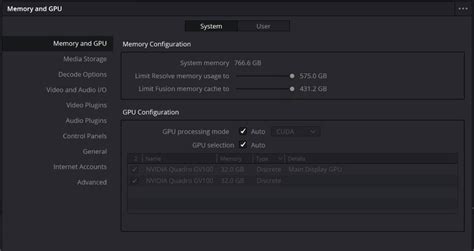
Additionally, sometimes it’s just a matter of navigating through preferences correctly. Have you checked whether the relevant options are enabled within the DaVinci Resolve preferences menu? There are often specific settings related to hardware acceleration, GPU usage, and AI feature enablement that need to be configured for optimal performance and access to all tools. Exploring these preferences thoroughly can often reveal the solution.
Licensing and Version Differences: Studio vs. Free
And let’s not forget about licensing issues! DaVinci Resolve is available in two main versions: the free version and the Studio version. While the free version is incredibly powerful and capable, certain advanced features, including many of the AI-powered tools, are exclusively reserved for the Studio version. If you are using the free version and attempting to access a tool that is only available in the Studio version, it will inevitably appear greyed out.
The Studio version cost is a one-time payment, which makes it an attractive option for professionals and serious hobbyists. For content creators and small agencies, investing in the Studio version is often a worthwhile consideration, as it unlocks a significantly broader range of capabilities that can streamline workflows and enhance the final product. If you suspect a licensing issue, verify which version of DaVinci Resolve you are running and compare its feature set to the features you are trying to access.
Troubleshooting Steps: A Practical Approach
So before throwing in the towel on those enticing greyed-out icons, take a moment to troubleshoot systematically. The process should involve a series of checks, starting with the most common causes:
- Version Check: Ensure you are running the latest stable version of DaVinci Resolve. Download it directly from the Blackmagic Design website.
- GPU Compatibility and Drivers: Verify that your GPU meets the recommended system requirements for DaVinci Resolve, especially for AI features. Update your GPU drivers to the latest version.
- Studio Version Features: Confirm that the AI tool you are trying to use is not exclusive to the DaVinci Resolve Studio version. If it is, you will need to purchase the Studio version.
- Project Settings and Context: Some AI tools might be context-sensitive. Ensure you are in the correct workspace (e.g., Color page) and that your project settings do not inadvertently disable these features.
- Preferences Exploration: Dive into DaVinci Resolve's preferences. Look for settings related to GPU acceleration, system performance, and AI features. Ensure that hardware acceleration is enabled and correctly configured for your GPU.
- Plugin and Update Verification: If you are using any third-party plugins that interact with AI features, ensure they are up-to-date and compatible with your DaVinci Resolve version. Check for any specific updates or required components for the AI tools themselves.
How To Fix 5 Common Problems In DaVinci Resolve
By systematically working through these steps, users can often diagnose and resolve the issue of greyed-out AI tools. The frustration of encountering these limitations can be mitigated by a methodical approach to troubleshooting, ensuring that the powerful AI capabilities of DaVinci Resolve are fully accessible for every editing project. The key lies in understanding the interplay between software, hardware, licensing, and project-specific configurations.