DaVinci Resolve color control panels are indispensable tools for both aspiring and seasoned colorists, offering a gateway to faster workflows and expanded creative possibilities. These panels provide intuitive, hands-on control over multiple parameters simultaneously, a significant advantage over mouse-based adjustments, enabling more nuanced creative choices and accelerated project completion. Developed in collaboration with leading colorists, each panel boasts a logical layout, positioning essential controls within natural hand placement for efficient operation. DaVinci Resolve offers three distinct panels, ensuring a perfect match for any project's demands and scope.
The DaVinci Resolve Panel Ecosystem: From Micro to Advanced
DaVinci Resolve Micro Color Panel: Compact Power for On-the-Go Grading
For those new to color grading or in need of a portable solution, the DaVinci Resolve Micro Color Panel stands out. Its incredibly compact design belies its professional capabilities, featuring dozens of dedicated color controls. The Micro Panel integrates seamlessly alongside a keyboard, making it an ideal companion for on-set grading sessions with a laptop. This panel is designed to offer essential controls in a small footprint, allowing for immediate tactile feedback on primary adjustments and key color parameters.
DaVinci Resolve Mini Panel: The Freelancer's Versatile Companion
The DaVinci Resolve Mini Panel is engineered for freelance professionals who require a fully-featured, portable control surface that can be set up in a home studio or easily transported between different work locations. It bridges the gap between the simplicity of the Micro Panel and the comprehensive nature of the Advanced Panel, offering a robust set of tools for a wide range of projects. The Mini Panel is designed for efficiency, allowing colorists to maintain a fluid workflow without being tethered to a mouse.
DaVinci Resolve Advanced Panel: The Pinnacle of Professional Color Grading
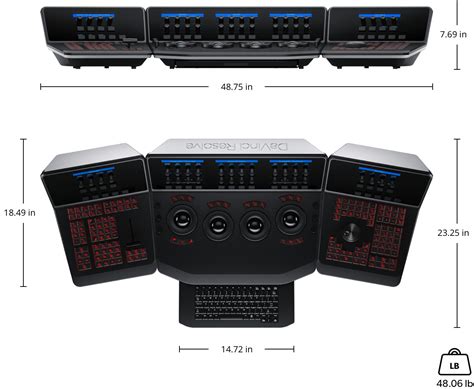
Designed for high-end professional color suites handling feature films, television productions, and major commercial projects, the DaVinci Resolve Advanced Panel represents the zenith of control. This powerful panel provides every necessary tool for crafting cinematic images, including sophisticated controls for refined color grading and the creation of Power Windows. Its design is centered around maximizing efficiency and precision for the most demanding professional workflows.
Deep Dive into Advanced Panel Functionality
The DaVinci Resolve Advanced Panel, a significant evolution from its Micro and Mini counterparts, is a comprehensive control surface comprising a main console, two auxiliary consoles positioned on either side, and an integrated slide-out keyboard within the central console. This modular design ensures that every facet of the DaVinci Resolve color page is accessible and controllable with precision.
Trackballs: The Heart of Color Manipulation
At the core of the Advanced Panel's color control are its trackballs. These allow for intuitive adjustment of colors across the lift, gamma, and gain tonal ranges. A key advantage over traditional mouse and keyboard interfaces is the ability to manipulate multiple trackballs simultaneously, opening up a vast array of creative possibilities for unique color effects. The smooth, gliding rings surrounding each trackball enable fine-tuning of master levels and the establishment of dynamic contrast. Dedicated keys positioned above each trackball provide immediate reset functions for color, level adjustments, or both, ensuring that experimentation can be quickly undone or refined.
The DaVinci Resolve Mini and Micro Color Panels also feature trackball-like controls, though the Advanced Panel offers a more extensive array. These panels include three keys at the top, facilitating quick switching between primary and log wheel modes, activating offset, temperature, and tint controls, and enabling the full-screen viewer output.
Primary Adjustment Controls: Foundational Image Shaping
Primary adjustment controls are fundamental to shaping the luminance and chrominance of an entire image. These tools are designed to target specific tonal and hue ranges, representing the most common adjustments needed for dynamic imagery. This makes them particularly valuable for photographers, graphic designers, and colorists working under strict deadlines.
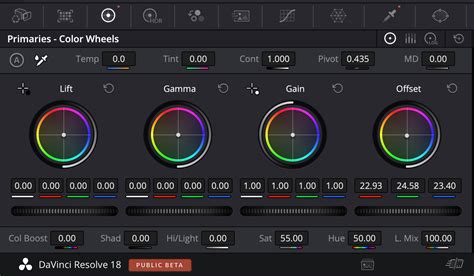
The DaVinci Resolve Micro Color Panel and Mini Panel are equipped with 12 primary color correction control knobs. These knobs allow for rapid adjustments to image contrast, saturation, hue, temperature, tint, midtone detail, color boost, shadows, highlights, and more. The dedicated lift, gamma, and gain knobs-often referred to as shadows, midtones, and highlights respectively-provide precise control over the luminance (brightness) of specific tonal ranges within an image.
- Contrast: This control alters the tonal difference between the lighter and darker areas of an image.
- Pivot: Adjusts the "balance" of contrast, influencing how contrast is applied across different tonal ranges.
- Midtone Detail: Modifies the contrast specifically on edge details within an image, directly impacting the perception of sharpness and definition.
- Color Boost: Intelligently enhances saturation in areas with low color intensity, while leaving already saturated areas untouched, resulting in a more natural and subtle color enhancement.
- Shadow and Highlight Knobs: These allow for the lightening or darkening of shadow details or the retrieval of overexposed highlights in high dynamic range images.
Saturation and Hue Control: Mastering Color Intensity and Tone
- Saturation: This knob controls the overall intensity of colors in an image. Increasing saturation makes colors appear more vibrant, while decreasing it diminishes their intensity, eventually leading to a grayscale image if reduced to zero.
- Hue: The hue knob allows for rotation of all hues within an image or a selected area around the color wheel. The default setting of 50 preserves the original distribution of hues, while adjustments shift the overall color balance.
- Luminance Mix: This control governs the balance between color adjustments and luminance-only adjustments, offering further fine-tuning of the image's color and brightness characteristics.
Advanced Panel Navigation and Workflow Integration
The DaVinci Resolve Mini Panel and DaVinci Resolve Advanced Panel feature dedicated buttons that provide immediate access to the color page palettes. This eliminates the need to constantly switch between the control panel and the mouse for accessing different toolsets.
Primary Bars and Custom Curves: Granular Control
Primary bars offer more subtle adjustments to individual color channels and luminance compared to trackballs. Both the Mini and Advanced Panels display these primary bars, allowing for precise manipulation. Custom curves provide an even finer level of control over image luminance and chrominance. By isolating color channels using buttons above the displays and rotating the knobs, users can adjust channel luminance in precise 20% increments.
Power Windows and Qualifiers: Targeted Corrections
A significant feature of the Advanced and Mini Panels is the ability to create Power Windows. These are shape-based objects that allow color corrections to be precisely applied to specific areas of an image. Users can generate various window shapes, including squares, circles, polygons, and gradients, offering immense flexibility in isolating and treating specific regions.
The qualifier tool further enhances targeted adjustments by isolating portions of an image based on specific ranges of hue, saturation, or luminance. By activating the qualifier button and selecting a mode, users can create precise key selections for targeted grading.
Tracking Controls: Dynamic Corrections for Moving Subjects
The tracking controls are essential for analyzing and following moving objects within a scene. For instance, a Bezier Power Window can be drawn around a car, and the tracking controls will then analyze its movement throughout the shot, ensuring that any applied color correction remains locked onto the subject.
Still Store: Preserving and Reapplying Grades
The still store functionality allows color corrections to be saved in the gallery, complete with a preview. This enables colorists to reapply previously created looks to other clips efficiently. DaVinci Resolve color panels provide dedicated keys for quickly saving, previewing, and recalling these stills.
Color Displays and Soft Knobs: Visual Feedback and Precision Adjustment
The color displays on the DaVinci Resolve Mini Panel and DaVinci Resolve Advanced Panel offer precise control over the tools within the color page. On the Mini Panel, selecting a palette from the list of dedicated keys brings up its unique interface and settings on the screens. Arrow keys allow navigation between a palette's modes or pages. Soft keys above the displays enable channel isolation, preset selection, and other feature-specific actions. The soft knobs located beneath the displays are used for parameter adjustments. This integrated system allows for the generation of preset Power Window shapes and their tracking without the need for a mouse.
Illuminated Controls: Working in Low Light Environments
Color grading often takes place in low-light conditions to ensure accurate color representation on the grading monitor. The keys and soft knobs on DaVinci Resolve color panels illuminate when selected, providing clear visual feedback on active controls in dim environments. The DaVinci Resolve Mini Panel and Advanced Panel feature backlit keys, making it easy to locate and press each button. The Advanced Panel even allows for customization of the backlight color of its keys, further enhancing usability.
Navigation and Transport Controls: Streamlining Workflow
The area to the right of the trackballs on the panels is equipped with keys for navigating the timeline, stepping through clip frames, and jumping between nodes in the node editor. These navigation keys significantly reduce the need to reach for a mouse, saving valuable time during common tasks like switching between nodes. The play forward, reverse, and stop transport keys offer full control over the project timeline or connected decks. The DaVinci Resolve Advanced Panel enhances this with a jog/shuttle knob for faster and more precise scrubbing through footage.
Integrated Keyboard: Essential for Organization and Metadata
The DaVinci Resolve Advanced Panel provides quick access to virtually every feature on the color page, minimizing reliance on a mouse or keyboard. However, organization and labeling are critical components of any post-production workflow. The Advanced Panel features a slide-out keyboard, invaluable for entering clip metadata, naming imported files and generators, clearly labeling nodes in the node editor, and adding notes to clip flags and markers. This keyboard can also be optimized by assigning custom shortcuts or utilizing preset shortcut preferences.
Beyond Color Grading: Control Surfaces for Editing and Audio
While the DaVinci Resolve Advanced Panel is synonymous with color grading, Blackmagic Design also offers specialized control surfaces for other aspects of the post-production workflow, including editing and audio post-production.
DaVinci Resolve Editor Keyboard: Precision Editing
The DaVinci Resolve Editor Keyboard is designed for editing, featuring a large search dial and a layout with specific keys for editing functions. A separate Editor Keyboard is specifically tailored for multi-camera editing, news cutting, and live sports replays, with buttons that facilitate rapid camera selection and editing. For a more traditional approach, a full-sized QWERTY editor keyboard is available in a premium metal design, complete with a metal search dial with clutch and additional keys for editing, trimming, and timecode.
Fairlight Studio Console: Immersive Audio Post-Production
The Fairlight Studio Console is engineered for audio post-production, providing fast and comprehensive audio editing capabilities for sound engineers facing tight deadlines. Used by Hollywood and broadcasters, these large consoles simplify the mixing of complex projects with a vast number of channels and tracks. The console offers adjustable leg angles (0º for a flat surface, 8º for a slight incline) and provides quick access to virtually every Fairlight feature. Customizable console configurations are possible with a blank 1/3rd wide bay, allowing for the creation of bespoke control surfaces.
How to MIX Dialogue, Music & SFX in Davinci Resolve for PERFECT AUDIO
The ATEM Switcher Ecosystem: Live Production Control
Beyond the DaVinci Resolve suite, Blackmagic Design's ATEM line offers advanced control panels for live production switching. The ATEM Advanced Panel, compatible with ATEM Constellation switchers, offers significantly faster operation compared to software control. Various models cater to different needs, from the compact ATEM Micro Panel to the expansive ATEM 4 M/E Constellation control surface.
ATEM Advanced Panel Features: Broadcast-Grade Control
ATEM Advanced Panels provide enhanced control over ATEM Constellation switchers, enabling the setup of more complex effects. These panels feature broadcast-quality physical buttons, knobs, and a T-bar fader, granting simultaneous access to all switcher features.
- Input Buttons and LCD Screens: Panels range from 1 M/E to 4 M/E configurations, featuring varying numbers of input buttons and system control LCD screens. These screens display functions for knobs and buttons, offering a clear view of operations.
- Transition Control: Dedicated hardware buttons for each transition type, with system control LCD screens displaying options and parameters, allow for instant access and modification without navigating complex menus.
- Transition Styles: ATEM switchers support a wide array of transition styles, including smooth mix transitions, standard SMPTE wipes with edge softening, dip transitions for creative effects, and DVE transitions for dynamic motion graphics.
- DVE and Keying: ATEM Advanced Panels excel in positioning DVEs for picture-in-picture effects using joysticks and knobs. For chroma keying, system control knobs allow for fine adjustments of parameters, ensuring clean key edges and seamless multi-layer compositing, even while observing live video output.
- T-Bar Control and Preview Transition: The ergonomically designed T-bar fader enables precise manual control of transitions during live performances. An auto transition button instantly executes pre-selected transitions. A useful preview transition button allows users to simulate transitions and effects before they go live, minimizing on-air errors. The fade to black (FTB) button provides full control over the program output, fading it smoothly to black, with an option to fade audio simultaneously.
- Joystick Control: The joystick offers full 3-axis control for manipulating X, Y, and Z positions of wipe patterns and ATEM Constellation DVEs, ideal for positioning live video over video and creating picture-in-picture effects.
- Macros and Remote Operation: Users can record and trigger custom macros directly from the hardware panel. Macros are stored within the ATEM Constellation, ensuring consistency across all connected control panels. Ethernet connectivity allows for remote operation and the setup of multiple control panels working in parallel.
- Modular Design for Repair: The modular design of ATEM Advanced Panels, with independently replaceable PCBs, fans, LCDs, joysticks, T-bars, and system control knobs, facilitates low-cost repairs in the event of accidental damage.
ATEM Micro Panel: Accessible Live Switching
The ATEM Micro Panel offers a low-cost solution for adding panel control to ATEM Software Control. It features broadcast-quality buttons, a familiar layout with program and preview buttons, and shift buttons to access up to 20 sources. It also includes buttons for upstream and downstream keyers, a macro button, and M/E buttons for controlling up to 4 M/E switchers. A fader allows for smooth manual transition control, and its low profile makes it highly portable.
The Evolving Landscape of Control Surfaces
The integration of advanced control surfaces like the DaVinci Resolve Advanced Panel and the ATEM Advanced Panel represents a significant leap forward in post-production and live broadcast workflows. These tools move beyond mere function, offering an intuitive and tactile experience that empowers creators to achieve unprecedented levels of precision and creativity. As technology advances, the demand for such integrated hardware solutions will undoubtedly continue to grow, shaping the future of digital content creation.