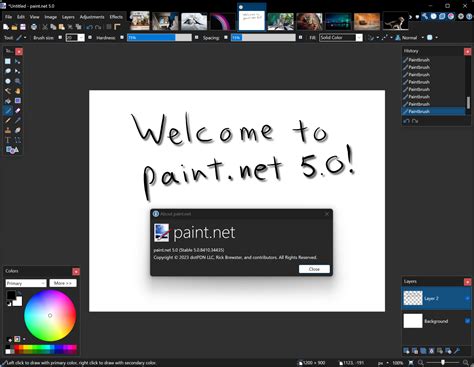
Paint.NET, a remarkably capable yet entirely free image editing program, has become an indispensable tool for many, particularly those involved in game development where cost-effectiveness is a significant advantage. Among its many strengths, the plugin system stands out as a feature that users have truly come to appreciate. This guide will walk you through the process of installing plugins, expanding the already impressive functionalities of Paint.NET, and unlocking a new realm of creative possibilities.
The Foundation of Plugin Installation: Understanding the Process
At its core, the installation of most Paint.NET plugins is a straightforward procedure. The primary format for plugin distribution is typically a DLL (Dynamic Link Library) file, almost always encapsulated within a ZIP archive. Therefore, the initial step in this journey involves acquiring these ZIP files from the web.
Before embarking on the installation, it is crucial to ensure that Paint.NET is not running. Closing the application prevents any potential conflicts during the file transfer and registration process. Once you have identified a plugin you wish to install, the next action is to click on the provided link to initiate the download of the associated ZIP file. Patience is key here; allow the download to complete entirely.
Step-by-Step Plugin Installation
After the ZIP file has been successfully downloaded, the process of integrating the plugin into Paint.NET can begin. The following steps will ensure a smooth installation:
Locate the Downloaded File: Navigate to the directory where your browser saved the downloaded ZIP file.
Extract the Plugin Files: Most operating systems have built-in support for ZIP files, or you can use a third-party utility like 7-Zip or WinRAR. Right-click on the ZIP file and select an option such as "Extract All…" or "Unzip to here." This will unpack the contents, revealing the plugin's DLL file(s) and potentially other supporting files.
Identify the Plugin Folder: The key to installing Paint.NET plugins lies in placing them in the correct directory. This folder is typically located within your Paint.NET installation directory. The standard path is:
C:\Program Files\paint.net\Effects. If you have installed Paint.NET in a different location, you will need to adjust this path accordingly.Transfer the DLL File: Copy the extracted DLL file (and any other necessary plugin files, though DLLs are the most common) and paste them directly into the
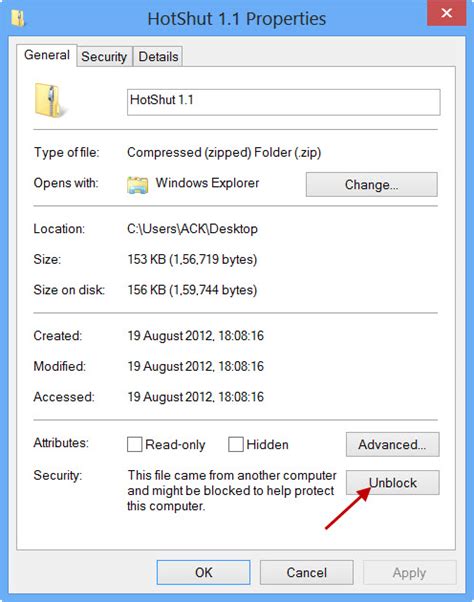
Effectsfolder.Address Potential File Blocking: In some instances, especially when downloading from the internet, Windows may block DLL files to prevent potential security risks. To overcome this, you need to "unlock" the DLL. Right-click on the DLL file you just copied into the
Effectsfolder. From the context menu that appears, select "Properties." In the "Properties" window, navigate to the "General" tab. If an "Unlock" button is visible at the bottom of this tab, click it. Afterward, click the "Apply" button to confirm the changes.Restart Paint.NET: Once the DLL file is safely in the
Effectsfolder and any necessary unblocking is complete, restart Paint.NET.Locate Your New Effect: Upon reopening Paint.NET, your newly installed plugin should be available. The most common place to find it is within the "Effects" menu. However, it's important to note that many plugin developers organize their effects into submenus. Therefore, you may need to explore various submenus within the "Effects" menu to find your specific plugin.
Exploring Plugin Functionality: A Deeper Dive
Paint.NET's plugin system allows for a wide array of enhancements. These can range from simple image filters to complex tools that fundamentally alter how you manipulate images. For example, a plugin might offer functionality similar to the wave filter found in more professional software like Photoshop. Such a plugin could convert your image from Cartesian coordinates to polar coordinates, opening up unique visual possibilities.
While testing such a coordinate conversion plugin, it's worth noting that its behavior might be dependent on the selected region of the image. For instance, applying it to a non-square rectangle might not yield the expected or optimal results. This highlights the importance of understanding the specific requirements and limitations of each plugin.
5 Really Useful Plugins for Paint.NET
Beyond Basic Installation: Understanding Plugin Diversity
The world of Paint.NET plugins is vast and ever-expanding. Developers contribute a diverse range of tools, each designed to address specific needs or introduce novel creative approaches. Some plugins might focus on artistic effects, replicating traditional media like oil paints or watercolors. Others might enhance productivity, offering batch processing capabilities or advanced selection tools.
It's also common to encounter plugins that modify the user interface, adding new toolbars or panels to streamline workflows. The flexibility of the plugin system means that users can tailor Paint.NET to their precise requirements, transforming it from a general-purpose image editor into a specialized tool for graphic design, digital art, web development, or even game asset creation.
Considerations for Plugin Usage
While plugins offer immense power, it's essential to approach their installation and use with a degree of caution and understanding.
- Source Reliability: Always download plugins from reputable sources. Unofficial or untrusted websites may distribute plugins containing malware or causing system instability. Official forums or dedicated plugin repositories are generally safer options.
- Compatibility: Ensure that the plugin is compatible with your version of Paint.NET. Older plugins may not function correctly with newer versions, and vice-versa. Plugin developers usually specify the compatible versions.
- Performance Impact: Some complex plugins, especially those performing intensive calculations, might impact Paint.NET's performance, particularly on less powerful hardware. If you notice significant slowdowns after installing a plugin, it might be the culprit.
- Plugin Conflicts: In rare cases, two or more plugins might conflict with each other, leading to unexpected behavior or crashes. If you suspect a conflict, try installing plugins one at a time to identify the problematic one.
- Documentation: Always check if the plugin comes with any documentation or instructions. This can provide valuable insights into its usage, limitations, and best practices.
Unlocking Advanced Capabilities
The ability to "unlock" DLL files, as mentioned earlier, is a crucial step that some users might overlook. This Windows security feature is designed to protect users from potentially malicious code. By right-clicking the DLL, selecting "Properties," and clicking "Unlock" on the "General" tab, you are essentially telling Windows that you trust the file and allow it to be executed by Paint.NET. This simple action resolves many installation issues.
The concept of unlocking files is a fundamental aspect of operating system security, ensuring that users have explicit control over the execution of downloaded content. While it adds an extra step, it's a vital safeguard in the digital world.
The Creative Potential of Plugins
The true power of Paint.NET plugins lies in their ability to extend the software's core capabilities far beyond its default offerings. Consider a plugin that can convert an image from Cartesian to polar coordinates. This is not a common operation in standard image editors, but it can be incredibly useful for specific artistic or technical applications. Imagine creating radial gradients that are difficult to achieve otherwise, or generating patterns based on angular and radial positions.
The developer's note about testing with non-square rectangles highlights a common challenge in plugin development: handling edge cases and diverse input formats. While a plugin might work flawlessly with standard square images, its behavior with irregular shapes or specific selections can vary. This underscores the importance of experimentation and understanding the nuances of each tool.

A Community-Driven Ecosystem
The rich ecosystem of Paint.NET plugins is a testament to the active and creative community surrounding the software. Developers, often users themselves, contribute their skills to create tools that benefit everyone. This collaborative spirit ensures that Paint.NET remains a dynamic and evolving platform. From simple visual tweaks to complex functional additions, the community's contributions are what truly make Paint.NET a powerhouse for free image editing.
If you have found this guide helpful in installing plugins, a simple gesture of thanks can go a long way in supporting the continued development and maintenance of such resources. And for those who enjoy a mental challenge, solving a sudoku puzzle can be a fun way to pass the time while contemplating your next creative project.
The journey of enhancing your Paint.NET experience through plugins is one of exploration and discovery. By following these steps, understanding the underlying principles, and engaging with the community, you can unlock a world of creative potential and tailor the software to perfectly suit your artistic and professional needs.