When working on demanding video editing projects, particularly those involving complex color grading or high-resolution footage like 4K or 8K, users of DaVinci Resolve may encounter frustrating playback issues. This can manifest as choppy playback, dropped frames, or a lagging timeline, significantly hindering the creative workflow. These technical limitations can hold back even the most inspired ideas, transforming a fluid creative process into a tedious battle with your software. Fortunately, DaVinci Resolve offers several built-in features and external tools designed to alleviate these performance bottlenecks, ensuring a smoother editing experience.
Understanding the Root Causes of Choppy Playback
The primary reason for choppy playback in DaVinci Resolve, especially on computers with lower specifications, stems from the immense computational power required to process and render high-resolution video, complex effects, and intricate color grades in real-time. When your hardware struggles to keep up with these demands, the software cannot display frames at a consistent rate, leading to a stuttering playback experience. This is particularly noticeable when dragging the timeline or applying effects.
The issue is exacerbated by the increasing trend towards higher resolution footage. Projects in 4K or even 8K resolutions inherently demand more processing power and memory than their 1080p or 720p counterparts. Without proper optimization, even a powerful system can buckle under the strain, leading to performance degradation.
DaVinci Resolve's Built-in Performance Enhancements
DaVinci Resolve provides several powerful tools directly within the software to combat playback lag and improve overall performance. These features are designed to reduce the computational load on your system, allowing for a more fluid editing experience.
Performance Mode: A Lifeline for Lower-Spec Systems
One of the most effective tools for improving editing, mixing, and color grading on computers with lower performance capabilities is "Performance Mode." To access this feature, navigate to the top menu bar and select "Preferences" under "DaVinci Resolve." Enabling Performance Mode can significantly boost your editing experience by optimizing resource allocation.
However, it's important to understand the trade-offs. While enabling Performance Mode is highly beneficial for playback smoothness, it comes at the cost of reduced visual fidelity on your monitor. If you prioritize high-quality visuals during your editing process, you may choose to disable Performance Mode. This decision involves balancing the need for a fluid editing experience with the desire for the most accurate visual representation of your work.
How To Fix GPU Configuration Warning In Davinci Resolve 20
Adjusting Project Timeline Resolution
For projects involving high-resolution footage, a practical approach to mitigate playback issues is to temporarily lower the resolution of your project timeline. Instead of working directly with 4K or 8K timelines, you can set your project timeline to a lower resolution, such as 1080p or 720p. This can be done as needed within the project settings.
While DaVinci Resolve offers a quick way to select project resolutions, you can also customize timeline settings more granularly. By reducing the timeline resolution, you are essentially telling DaVinci Resolve to work with a less demanding version of your footage for playback purposes. This doesn't affect the final rendered output, which will still be at your project's original high resolution. This method significantly lightens the load on your system during the editing process.
Render in Place: Pre-rendering Complex Segments
When you have a specific clip or section of your timeline that is causing significant playback lag due to complex effects or grading, the "Render in Place" feature can be a game-changer. This function allows DaVinci Resolve to render that specific clip, applying all the associated effects and grades to a newly generated clip.
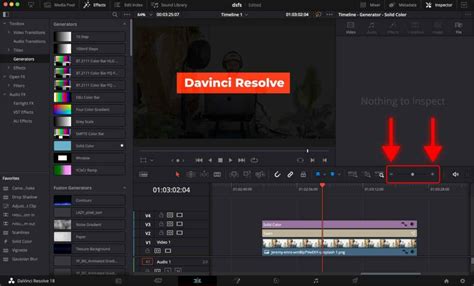
This pre-rendering process means that when you play back that section, DaVinci Resolve is no longer processing the effects in real-time but is instead playing back a pre-rendered, optimized version. You can also specify the exact content that the "Render in Place" feature needs to render, giving you precise control over which parts of your project are optimized. This is particularly useful for sections with heavy visual effects or intricate color grading that are difficult to play back smoothly.
Timeline Proxy Resolution: A Compromise for Smoothness
The "Timeline Proxy Resolution" is another widely adopted method for ensuring smooth operation within DaVinci Resolve. This approach enhances real-time performance by reducing the computational demands placed on your system. Crucially, it achieves this without compromising the final video quality of your project.
When you enable proxy media, DaVinci Resolve creates lower-resolution, smaller file-size versions of your original media. These "stand-ins" are used for playback and editing. This means you can work with these stand-ins efficiently, experiencing much smoother playback and timeline manipulation. Once you are ready to export your final project, DaVinci Resolve automatically utilizes your original, high-resolution media, ensuring that your final output is pristine.
Render Cache: Leveraging Disk Space for Performance
The Render Cache feature in DaVinci Resolve allows you to work and render simultaneously. When enabled, DaVinci Resolve will render sections of your timeline that it deems beneficial for playback performance. These rendered cache media files are stored on your hard drive and persist unless manually deleted.
Clearing out unnecessary render cache media files is a vital maintenance step. Over time, these files can consume significant disk space. By periodically clearing them, you not only free up valuable storage but also improve DaVinci Resolve's overall playback performance. Regularly managing your render cache ensures that the software is not bogged down by outdated or redundant cached data.
Optimizing Your System Before Starting a Project
Beyond the tools within DaVinci Resolve itself, there are several methods to reduce the strain on your computer before you even begin a project. These proactive steps can significantly improve your overall editing experience.
Proxy Media Workflow
Creating proxy media is a highly effective strategy for managing demanding projects. This process involves generating lower-resolution, smaller file-size versions of your original footage. These proxy files act as stand-ins during the editing process. You can then efficiently work with these stand-ins, experiencing significantly smoother playback and timeline responsiveness. This process may take some time and will require extra storage space on your hard drive for the proxy files, but the performance gains are often well worth the investment.
Optimized Media
Similar to proxy media, "Optimized Media" involves beneficial modifications to your source footage. This can include standardizing file encoding and bitrate, ensuring that all your media is in a format that DaVinci Resolve can handle more efficiently. Optimized media can lead to substantial performance improvements, especially when dealing with a wide variety of camera formats and codecs. Like proxy media, generating optimized media requires additional disk space and processing time upfront.

External Solutions for Enhanced Workflow
While DaVinci Resolve offers robust internal tools, sometimes external hardware or software solutions can provide an additional layer of performance enhancement.
The Role of Specialized Hardware Controllers
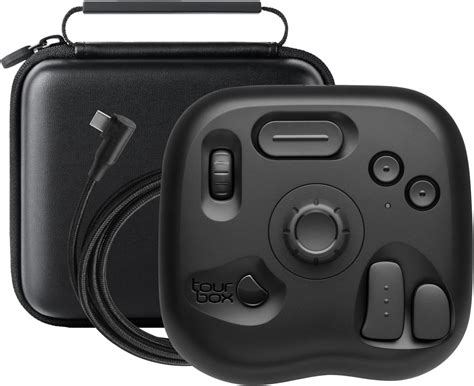
For those who find themselves constantly battling lagging playback and an inefficient video creation workflow, specialized hardware controllers can be a valuable addition. Devices like the TourBox are designed to streamline the editing process by providing tactile control over software functions. With a TourBox, you no longer need to memorize complex keyboard shortcuts or spend time searching through lengthy command menus. The exceptional operational feedback experience offered by such controllers can significantly speed up your workflow and reduce the cognitive load associated with complex editing tasks.
Conclusion
Experiencing choppy playback in DaVinci Resolve can be a significant impediment to creative productivity. However, by understanding the underlying causes and leveraging the array of built-in optimization tools â such as Performance Mode, adjusting timeline resolution, Render in Place, Timeline Proxy Resolution, and Render Cache â users can dramatically improve their editing experience. Furthermore, proactive system optimization through proxy or optimized media workflows, and considering specialized hardware controllers, can further enhance performance, especially on lower-spec machines. By implementing these strategies, editors can overcome technical limitations and ensure that their creative vision flows naturally onto the screen without being hampered by tedious technicalities.