DaVinci Resolve, a powerhouse in video editing and color grading, offers more than just robust video export capabilities. The ability to easily export individual image frames from your footage is a highly valuable, yet sometimes overlooked, feature. Whether you need to capture a specific moment for reference, create a thumbnail, or integrate a still image into another project, understanding how to export high-quality PNGs from Resolve is essential. This guide will walk you through the process, ensuring you can leverage this functionality effectively.
The Versatility of Image Exports from Video Projects
While DaVinci Resolve is primarily known for its advanced video editing and color correction tools, its capacity to extract still frames from video sequences significantly enhances its utility. This feature allows creators to bridge the gap between dynamic video content and static graphical elements. The process is straightforward, involving the selection of a desired frame, potential image refinement, and then exporting it in a suitable format.
The core idea is that any frame within your video project can be treated as an independent image. This means that the rich color grading and adjustments you apply to your video can be directly translated to the exported still image. This is particularly useful when you've spent time perfecting the look of a scene and want to capture that exact aesthetic as a standalone visual asset.
Navigating to the Frame: The First Step in Image Extraction
To begin the process of exporting an image from DaVinci Resolve, you first need to have your project loaded. If your timeline contains the video clip from which you wish to extract a frame, you are already in a prime position. It's important to note that you don't necessarily need to have an image file already present in the timeline; any video clip will suffice.
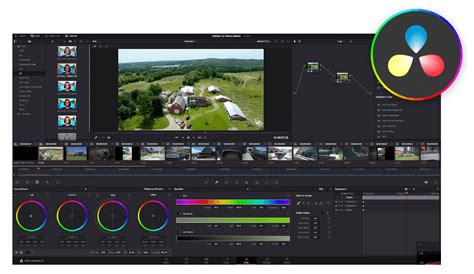
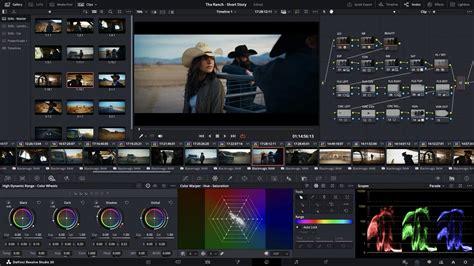
Once your project is open, the next crucial step is to navigate to the Color Grading section of DaVinci Resolve. This is where the magic of visual refinement happens. Within this workspace, you gain the opportunity to make precise color adjustments to your footage before exporting it as an image. You can utilize the powerful grading curves, color wheels, and other tools to alter aspects such as contrast, saturation, hue, and overall color balance. This allows you to tailor the visual appearance of the frame to your exact specifications, ensuring the exported image meets your aesthetic requirements.
After you have made all the desired adjustments and are completely satisfied with the look of the image, the next phase is to pinpoint the exact frame you wish to export. This involves scrolling through your video clip in the timeline.
Grabbing the Still: Capturing Your Chosen Frame
Once you have precisely located the desired frame in your video, the next action is to right-click on the preview window. This contextual menu will present you with several options. Among these, you will find and should select the "Grab Still" option.
Selecting "Grab Still" performs a vital function: it saves the current frame as a high-quality still image, essentially creating a snapshot of your video at that precise moment. This saved frame is often referred to as a "still" and is stored within DaVinci Resolve's gallery for further manipulation or export. While this step successfully captures the image you want to work with, there are still a few additional steps required to formally export it as a file.
Accessing and Exporting from the Gallery
After you have "Grabbed a Still," you'll need to access DaVinci Resolve's gallery to find and export this captured image. If the gallery is not immediately visible, you might need to adjust your workspace. A common reason for the gallery being hidden is the activation of full-screen mode. If you are experiencing trouble locating your gallery, check to see if full-screen mode is enabled and, if so, disable it to make the gallery panel visible. The gallery is typically located on the left side of the Color page interface, often appearing as a series of thumbnail previews.
Within the gallery, you will see the image (the "still") that you just saved. To proceed with exporting this image, right-click directly on its thumbnail. From the contextual menu that appears, select the "Export" option.
This action will trigger a dialog box to appear on your screen. This dialog box is where you will configure the specifics of your image export. You will be prompted to select a directory or location on your computer where you wish to save the image file. Furthermore, you can assign a specific name to your file, which is crucial for organization and easy identification later on.
Choosing the Right File Type: PNG vs. JPG
An important decision you will need to make during the export process is the selection of the image file type. DaVinci Resolve offers several options, but two of the most common and widely used are JPG and PNG.
JPG (or JPEG) is a popular choice for many image exports due to its ability to achieve smaller file sizes through lossy compression. This means that some image data is discarded to reduce the overall file size, which can be beneficial for web use or when storage space is a concern. However, JPG does not support transparency. If your image has areas that you intend to be see-through, JPG is not the appropriate format.
PNG (Portable Network Graphics), on the other hand, is a raster graphics file format that supports lossless data compression. This means that no image quality is lost during compression, making it ideal for images where detail and clarity are paramount. Crucially, PNG supports transparency. If you have a graphic or a frame with elements that need to be transparent, such as a logo or a character that needs to be overlaid on another background, then PNG is the superior choice. For many users looking for high-quality image exports from DaVinci Resolve, especially those requiring transparent backgrounds for further use in motion graphics or web design, PNG is often the preferred format.
After carefully considering your needs and selecting the appropriate file type (most commonly PNG for its transparency capabilities and lossless quality), along with the desired file name and save location, you will finalize the export.
Still Getting WASHED OUT Images? Use These Export Settings To Fix It!
Finalizing the Export: Saving Your Image
With all the necessary information entered into the export dialog box - including the file name, save location, and crucially, the file type (PNG or JPG as needed) - you are ready to complete the process. Click on the "Export" button.
If you have followed all the steps correctly, your image will now be saved at the chosen location on your computer, ready for use in any other application or project. This successful export signifies your mastery of extracting high-quality still frames from your DaVinci Resolve projects.
Advanced Considerations and Alternative Methods
While the "Grab Still" and export method from the Color page is a robust and widely used technique, DaVinci Resolve also offers other ways to export frames, particularly in newer versions. For instance, in DaVinci Resolve 18.5 and later, the Cut page has gained the ability to export a current frame as a still. This can be a quicker workflow for users who prefer the simplicity of the Cut page.
To export from the Cut page, you can use the cursor to navigate to the desired frame. Then, go to the File menu, and select "Export Current Frame as Still." Similar to the Color page method, a dialog box will appear allowing you to choose the save location, file name, and file type. You can select JPEG or PNG, among other options, to suit your project's needs.
Similarly, on the Edit page, you can also export a still frame. Use the program window and the slider below it to find the precise frame you want to capture. Once you've found it, navigate to File > Export Current Frame as Still. This will again open the export dialog, giving you control over the save location, filename, and file type.
It's worth noting that when exporting stills from the Color page using the "Grab Still" method and then right-clicking the thumbnail in the Gallery to "Export," there might be an option to "Export with Display LUT." This option allows you to export the still image with any applied Look-Up Tables (LUTs) baked into the image, which can be useful if you want to preserve a specific color transformation. However, for a raw image export, it's generally advisable to export without the LUT unless it's specifically required for your workflow.
Understanding File Formats for Optimal Results
The choice between PNG and JPG is critical and depends entirely on the intended use of the exported image.
PNG's Strengths:
- Transparency: Essential for graphics that need to be placed over other backgrounds without a solid border. This is a primary reason to choose PNG over JPG for DaVinci Resolve exports.
- Lossless Compression: Preserves every pixel's data, ensuring the highest possible image quality, which is crucial for detailed graphics, logos, or any image where sharp lines and subtle color gradations are important.
- Alpha Channel Support: Explicitly supports an alpha channel, which defines the transparency of each pixel.
JPG's Strengths:
- Smaller File Sizes: Achieved through lossy compression, making JPGs ideal for web use where bandwidth and loading times are a concern.
- Wide Compatibility: Supported by virtually all image viewing and editing software, as well as web browsers.
- Good for Photographs: When exporting photographic stills where subtle imperfections from compression are unlikely to be noticeable, JPG can offer a good balance of quality and file size.
When exporting from DaVinci Resolve, if you are capturing a frame that is part of a video with a solid background that you want to remove later, or if the frame itself contains elements that are meant to be transparent, then PNG is the only viable option. If you are simply grabbing a reference photo or a thumbnail for a video that will have a solid background itself, JPG might suffice, but PNG will always offer superior quality.
Troubleshooting Common Issues
One frequent point of confusion for users is the visibility of the gallery on the Color page. As mentioned, this is often due to full-screen mode. To resolve this, simply exit full-screen mode by pressing the Esc key or clicking the full-screen icon again.
Another potential issue could be related to DaVinci Resolve versions. While the core functionality of exporting stills has been present for a long time, specific shortcuts or the availability of this feature on different pages (like the Cut page) might vary between versions. Always ensure you are using a reasonably up-to-date version of DaVinci Resolve for the most streamlined experience. If a specific option isn't available, exploring alternative pages or methods within the software is a good troubleshooting step.
For users needing to export a series of frames, DaVinci Resolve also offers options for image sequence exports, which can be configured within the Deliver page, though this is typically for video export settings and not individual stills in the same way as the "Grab Still" function.
The process of exporting images from DaVinci Resolve, particularly in the PNG format, empowers creators to integrate high-quality, precisely graded visuals from their video projects into a wide array of other applications. By understanding the nuances of the export process, including the crucial choice of file format, users can ensure their still images meet the demands of any project.