DaVinci Resolve is a powerful and comprehensive video editing software that offers a complete toolkit designed to bring your ideas to the screen without friction. Its advanced features allow for seamless editing, including the efficient removal of unwanted blank spaces on your timeline. This tutorial will guide you through the essential steps and concepts for managing your clips and ensuring a polished final product, moving from specific editing techniques to broader workflow enhancements.
Understanding Clip Linking in DaVinci Resolve
A fundamental aspect of efficient editing in DaVinci Resolve is understanding how to link clips. When you have multiple elements that are meant to stay together, such as a video clip with its corresponding audio and subtitles, linking them is crucial. For instance, if you have about 75 subtitles on a timeline where each is only meaningful to a particular clip, just as the audio must be in the correct place, linking ensures these elements remain synchronized.
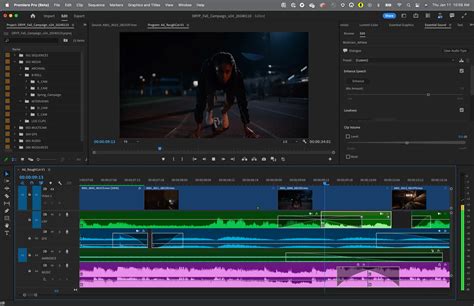
When you click on a video clip that also has audio in the timeline, the audio also highlights because they are linked. If you then right-click the highlighted clips, at the very bottom of the menu that pops up, you will see “Link Clips” with a checkmark. If you uncheck that checkmark, you will separate the audio from the video. Conversely, if you want to link a new audio clip to that video clip, you can lasso both clips, and when they are highlighted, right-click and enable the checkmark on the “Link Clips.” To add your subtitles to your linked video and audio clips, you also lasso the corresponding subtitle clip, then right-click and checkmark the Link Clips.” Essentially, anything you link together will move together. This feature is invaluable for maintaining the integrity of your edit, especially when dealing with complex sequences or making significant timeline adjustments.
The Power of "Delete Gaps" for Timeline Cleanup
One of the most common tasks in video editing is removing unwanted gaps or black spaces that appear on the timeline after cutting or deleting sections. DaVinci Resolve provides a straightforward command to address this: "Delete Gaps." This command automatically identifies and removes all empty spaces between your clips on the selected track or tracks, consolidating your edit.
However, it's essential to use this command with caution, especially if you haven't linked related clips. For example, I had about 75 subtitles on a timeline where each is only meaningful to a particular clip, just as the audio must be in the correct place. When I did as you did and cut a section out early in the timeline, used the delete gaps command, and immediately said, “OH $h!t.” Quickly did an undo, then linked the subtitles to the video and audio. This illustrates a critical point: before using "Delete Gaps," ensure that all associated elements (video, audio, subtitles, graphics) are properly linked. If they are not linked, deleting gaps can result in audio and subtitle tracks shifting out of sync with their corresponding video clips, leading to a fragmented and incorrect edit.
Integrating Third-Party Tools: MotionVFX and mExtension
While DaVinci Resolve boasts a robust set of built-in tools, the ability to integrate with third-party plugins and assets can significantly expand your creative possibilities. MotionVFX is a prime example of a company offering a vast universe of effects, elements, and tools that can be seamlessly integrated into your workflow.
MotionVFX provides cinematic, million-dollar-looking effects within minutes, eliminating the tedious technicalities of building everything from scratch across different tools. Their philosophy centers on enabling editors to "Edit without limits." To access and utilize MotionVFX assets directly within your editing software, they offer a dedicated application called mExtension.
Installing and Using mExtension
To start using the MotionVFX subscription, you first need to download and install mExtension. This application acts as a bridge, enabling you to browse, download, and apply plugins and elements directly to your timeline without leaving your primary editing software, such as Final Cut Pro (though the principles apply to integration with other NLEs as well). During the installation process, you will be asked which software plugins you want to install and to activate the device you are currently working on. Voilà!
Exploring MotionVFX Subscription and Trials
MotionVFX understands that users need to ensure their tools fit into their workflow before committing to a subscription. That's why they offer a 14-day free trial for each plan. This trial provides no-watermark, no-render-limits access to all plugins, allowing you to experiment extensively.
Furthermore, MotionVFX offers "Free Elements," a collection available to all users who download and install mExtension, even before deciding to start a free trial. This collection includes a versatile range of overlays, effects, transitions, typography, and add-ons, from minimal and subtle designs to distinct, pop culture-inspired ones. This allows you to get a feel for their asset quality and style.
Subscription Management and Flexibility
The 14-day free trial is designed to help you check if their subscription meets your expectations and make an informed decision. After subscribing, you have the flexibility to stop the subscription before the next billing period to avoid further charges. If you stop the subscription, you will retain access to the subscription products until the end of the current billing cycle, and the next payment will not be collected. Should you change your mind, you can always renew the subscription. The payment will be collected according to the schedule if the subscription has not yet expired, or immediately if it has expired.
The daily limit on downloads across all plans is 500 elements. Importantly, transferring downloaded elements between devices does not use up this download limit, offering further flexibility. You can access all subscription information and make changes in "My Subscriptions" within your account or directly within mExtension.
It's important to note that MotionVFX will ask for your payment method before launching the trial. This is standard practice for many subscription services to facilitate a seamless transition should you decide to continue after the trial period. You also have the option to upgrade (to the Ultimate plan) or change your billing period, such as moving to an annual plan or a flexible monthly plan.
Achieving Cinematic Quality with Advanced Effects
DaVinci Resolve, especially when augmented with tools like those from MotionVFX, empowers users to achieve cinematic, million-dollar-looking effects with remarkable ease. The software is designed so that when your tools work flawlessly, creativity flows naturally, free from the constraints of tedious technicalities. This means you can focus on bringing your vision to the screen rather than getting bogged down in the complexities of building effects from the ground up.
The continuous development by companies like MotionVFX ensures that their tools are constantly being improved, addressing potential technical limitations that might hold editors back. This commitment to innovation means you always have access to cutting-edge assets and functionalities, helping you create professional-grade content efficiently. The goal is to provide a one-stop access to an entire universe of creative assets, allowing for a fluid and unhindered post-production process.