In the fast-paced world of video editing, efficiency is paramount. Keyboard shortcuts are the unsung heroes that can dramatically speed up your workflow, allowing you to navigate and manipulate your timeline with unparalleled speed. One such frequently sought-after function is the ability to select all clips to the right of the playhead without resorting to the mouse. This article delves into the intricacies of this operation within DaVinci Resolve, exploring existing methods, potential workarounds, and the underlying principles that govern timeline management.
The Quest for a Direct Keyboard Shortcut
Many editors, accustomed to optimized workflows, find themselves searching for a direct keyboard shortcut to select all clips to the right of the playhead in DaVinci Resolve. The desire to avoid the mouse for repetitive actions is a common one, as even small detours can add up to significant time loss over the course of a project. The common understanding is that pressing 'A' activates the 'Track Select Forward tool'. However, this tool, while useful, still requires a subsequent mouse click to initiate the selection of clips to the right of the playhead. This disconnect between activating a tool and executing the action without a mouse click is precisely where the frustration arises for keyboard-centric editors.
It's understandable why users seek a more streamlined approach. The process of switching from the keyboard to the mouse, clicking, and then potentially switching back to the keyboard can be a significant bottleneck. For instance, consider an editor who meticulously lays out their footage in a sequence, separating clips by set amounts of time for scenes, camera setups, and takes. This organizational strategy allows for a clear visual overview of all footage at a glance. To further enhance this workflow, the editor might have implemented macros to move entire sections of footage down the timeline in predefined increments. This is an operation performed many times a day, and the inclusion of a keyboard function to select everything to the right of the playhead could be integrated into these macros, saving tens of minutes each time footage is organized, which can occur several times a week. This highlights the substantial time-saving potential that a direct keyboard selection could offer.
Exploring Existing Tools and Their Limitations
While a dedicated, single-key shortcut for "select all to the right of playhead" might not be immediately apparent through a simple scan of DaVinci Resolve's extensive keyboard shortcut list (which can be accessed via Opt-Cmd-K on Mac), the 'A' key for the 'Track Select Forward tool' is the closest native functionality. Once this tool is activated, a click to the right of the playhead on the timeline will indeed select all subsequent clips across all enabled tracks.
However, the core issue remains: this still necessitates a mouse click. The perceived "antagonism toward keyboard optimization" sometimes observed in editing communities, and even within software development, often stems from a misunderstanding of the cumulative impact of such small inefficiencies. The argument is not simply about pressing one button versus two; it's about the sequence of actions. Activating the 'Track Select Forward tool' with 'A' is one action. Then, you must move to the mouse, perform a click, and potentially switch back to the selection tool. This contrasts sharply with a hypothetical single keyboard command that achieves the entire operation in one go.
Third-Party Solutions and Creative Workarounds
For those who find the existing workflow insufficient, third-party plugins can offer solutions. One such example mentioned is the plugin called Excalibur, which has been known to provide this exact functionality, allowing editors to select clips to the right of the playhead directly from the keyboard. This underscores the demand for such a feature and the market's response to it.
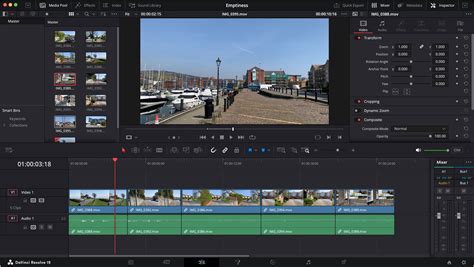
Beyond plugins, creative use of DaVinci Resolve's existing features can also mitigate some of the friction. While not a direct shortcut, understanding how to leverage the 'Track Select Forward tool' effectively is crucial. Once clips are selected using the 'A' key followed by a click, you can then drag all selected clips forward to create space or utilize the 'Insert Gap' function to push them. This allows for the manipulation of the selected content, even if the initial selection process isn't entirely keyboard-driven.
Understanding the "Why" Behind Workflow Optimization
The pursuit of keyboard optimization in editing software like DaVinci Resolve is not merely about preference; it's rooted in fundamental principles of human-computer interaction and cognitive load. When performing repetitive tasks, minimizing physical movement and cognitive switching between different input devices (keyboard and mouse) leads to a smoother, more focused, and ultimately faster editing process.
Consider the concept of "muscle memory." Experienced editors develop intricate muscle memory for keyboard shortcuts, allowing them to execute complex commands almost subconsciously. Introducing a mouse interaction breaks this flow, requiring conscious thought and physical action that disrupts the rhythm. This is why functions that can be performed entirely from the keyboard are so highly valued.
The practice of laying out footage in a structured manner, as described by some editors, is a prime example of proactive workflow design. By segmenting footage by scene, camera, and take, editors create a visually intuitive timeline. The ability to then quickly select and manipulate these segments using keyboard commands directly supports and enhances this organizational strategy. The time saved in organizing footage translates directly into more time available for creative tasks like color grading, sound design, and narrative refinement.
DaVinci Resolve's Edit Page vs. Cut Page
It's important to note that the availability of certain shortcuts can be context-dependent within DaVinci Resolve. The 'A' shortcut for the 'Track Select Forward tool' is specifically available on the Edit Page. The Cut Page, designed for rapid assembly and a more streamlined, less feature-rich editing experience, does not offer this particular shortcut. This distinction is crucial for users who might be experimenting with different pages within Resolve and expecting consistent functionality.
DaVinci Resolve 20 Quick Tip: 🔥 Edit Faster with 3 Keyboard Shortcuts ⌨️
The Broader Implications of Workflow Design
The discussion around selecting clips to the right of the playhead in DaVinci Resolve touches upon a broader theme in digital content creation: the optimization of user interfaces and workflows. The ideal software interface should cater to a spectrum of users, from beginners who might rely more on visual cues and mouse interaction to seasoned professionals who demand the utmost efficiency through keyboard control.
The "antagonism toward keyboard optimization" is, in a way, a reflection of differing user priorities and design philosophies. Some may prioritize discoverability and ease of learning, which often favors mouse-driven interfaces with clear visual menus. Others, particularly those who spend countless hours in the software, prioritize speed and precision, which are best achieved through a deeply integrated keyboard command structure.
Ultimately, the goal of any powerful editing software should be to provide users with the tools and flexibility to work in a way that best suits their individual needs and project requirements. For those who frequently engage in timeline organization and manipulation, a more direct keyboard-based method for selecting clips to the right of the playhead would undoubtedly be a welcome enhancement to DaVinci Resolve's already robust feature set. Until such a direct shortcut is implemented natively, understanding the existing tools, exploring third-party solutions, and adopting smart workflow strategies remain the most effective approaches to mastering this aspect of DaVinci Resolve editing.