DaVinci Resolve stands as a titan in the realm of video and audio editing, renowned globally for its sophisticated color grading, color correction, visual effects, audio post-production, and comprehensive video editing capabilities. This all-in-one motion graphics video editing application is a staple for many professional editors, gracing operating systems like Windows, macOS, and Linux. While its free version is remarkably powerful, a common query arises: "Does DaVinci Resolve free have a watermark?" The straightforward answer is that the free version of DaVinci Resolve itself does not impose watermarks on exported videos. The watermark issue typically surfaces when utilizing unlockable pro features, which are part of the paid, professional version of the application. Therefore, if you find yourself seeking an easy way to remove a watermark from videos edited using DaVinci Resolve, acquiring the pro version is a direct solution. However, for those who prefer to avoid additional expenditure, several methods can be employed to achieve watermark removal.
Understanding DaVinci Resolve's Watermark Behavior
It is crucial to understand that DaVinci Resolve, in its standard free offering, does not inherently place watermarks on exported videos. The perceived watermark problem often stems from the use of advanced, "pro" features that are unlocked or enhanced in the paid version. Consequently, the most direct and officially sanctioned method to avoid watermarks when using these advanced functionalities is to purchase the professional edition of DaVinci Resolve. This unlocks the full suite of tools without the imposition of any export limitations like watermarks.
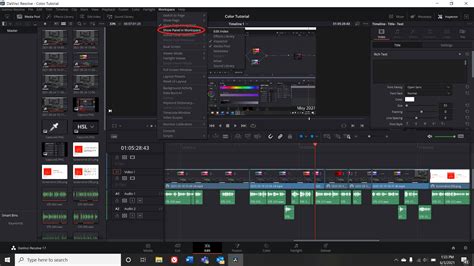
However, the narrative around DaVinci Resolve watermarks can be nuanced. Many users report that the free version is entirely watermark-free, which is accurate for standard exports. The confusion often arises when users experiment with or inadvertently enable features that might be associated with the Studio (paid) version, or when they are working with footage that already contains a watermark from another source.
Exploring Third-Party Solutions for Watermark Removal
When seeking to remove watermarks from videos, especially those edited with DaVinci Resolve, third-party software offers robust solutions. One such prominent application is Tipard Video Converter Ultimate. This offline tool is designed to tackle various forms of watermarks, including logos, text overlays, timestamps, and date stamps, with remarkable efficiency. A significant advantage of Tipard Video Converter Ultimate is its capability to remove multiple watermarks simultaneously from a single video. Furthermore, its extensive compatibility with over 500 video formats, including MP4, AVI, MOV, MKV, FLV, VOB, M4V, WMV, and WebM, makes it a versatile choice for a wide array of video files.
The application is lauded for its beginner-friendly interface, ensuring that even novice users can navigate its features with ease. Beyond watermark removal, Tipard Video Converter Ultimate is equipped with a suite of advanced editing functionalities, such as a video merger, video trimmer, video metadata editor, and color correction tools, positioning it as a comprehensive video processing solution.
To utilize Tipard Video Converter Ultimate for removing DaVinci Resolve watermarks, the process is straightforward:
- Download and Install: Begin by downloading and installing Tipard Video Converter Ultimate onto your computer.
- Access Toolbox: Upon launching the application, navigate to the "Toolbox" panel, where a list of editing features is presented.
- Import Video: Click the '+' icon to import the DaVinci Resolve video from which you wish to remove the watermark.
- Select Watermark Removal Area: Once the video is loaded, click the "Add watermark removing area" button. A new screen will display a designated box for watermark removal and a preview of your video.
- Export: When you are ready to proceed, click the "Export" button located at the bottom right of the interface to initiate the watermark removal process and save your clean video.
Leveraging DaVinci Resolve's Built-in Tools for Watermark Removal
While third-party tools are effective, DaVinci Resolve itself offers sophisticated in-built functionalities that can be employed for watermark removal, particularly in its Studio version. This approach leverages the software's native power, often leading to more integrated and seamless results.
Method 1: Using the Paint and Object Removal Tools (Studio Version)
For users with the Studio version of DaVinci Resolve, the "Object Removal" feature, coupled with the "Paint" tool, provides a powerful means to eliminate watermarks. This method is particularly effective for static or relatively slow-moving watermarks.
- Project Setup: Launch DaVinci Resolve, create a new project, and import the video containing the watermark. Drag this video onto the timeline.
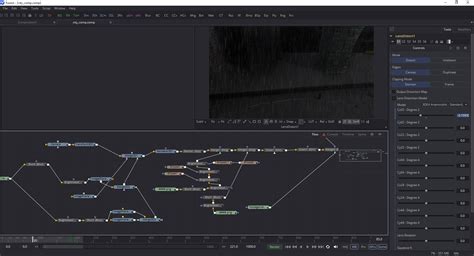
- Access Fusion Page: Navigate to the "Fusion" page, which is dedicated to visual effects and compositing.
- Select Paint Tool: In the Fusion page, locate and select the "Paint" tool. This tool allows for manual manipulation of image areas.
- Utilize Inspector and Clone: Open the "Inspector" panel. Within the "Clone" options, you can select an area of the video adjacent to the watermark (using the Alt key) and "paint" it over the watermark, effectively covering it with surrounding pixels. This process requires meticulous work to ensure a natural blend.
- Adjust Brush and Zoom: Adjust the brush size as needed for precision. Zooming into the preview window is essential for detailed work.
- Tracking for Moving Watermarks: If the watermark is on a moving object or background, tracking becomes essential. The "Auto-Tracker" in the Fusion page can be used to follow the watermark's movement. You'll draw a selection around the watermark and then use the tracker to ensure the removal effect follows it throughout the video. The "Modify with Tracker Position" option is key here.
- Object Removal Effect: For more advanced and automated removal, especially in the Studio version, search for the "Object Removal" effect in the "Open FX" library and apply it to a node. This feature is designed to intelligently analyze and remove unwanted elements.
- Clean Plate Generation: After applying Object Removal, the affected area might appear gray. To resolve this, utilize the "Build Clean Plate" option and check "Show Clean Plate" to generate a seamless background.
- Rendering: Finally, switch to the "Deliver" page to render your video with the watermark successfully removed.
Method 2: Using the Patch Replacer Effect (Free Version)
For users of the free version of DaVinci Resolve, the "Patch Replacer" effect, available under Resolve FX, offers a viable alternative for watermark removal. While it might require more manual adjustment than the Object Removal tool in the Studio version, it can still yield good results.
- Timeline Setup: Add your video to the DaVinci Resolve timeline and navigate to the "Edit" tab.
- Apply Patch Replacer: Open the "Effects library," click on "Open FX," and locate the "Patch Replacer" effect. Drag and drop this effect onto the video clip on your timeline.
- Overlay Adjustment: Click the "fx" drop-down icon below the video preview window and select "Open FX Overlay." Two windows will appear: one for selecting a source area to copy from and another for pasting that area to cover the watermark.
- Position and Resize: In the preview window, carefully move and resize these two overlay windows. The goal is to use a clean part of the video to replace the area occupied by the watermark.
- Inspector Controls: Access the Inspector panel and go to "Effects" to further refine the Patch Replacer controls. Here, you can adjust the region shape, replacement detail, and other parameters to achieve a more natural look.
- Disable Overlay and Render: Once satisfied with the removal, disable the overlay by clicking the "fx" icon again. Then, proceed to the "Deliver" page to export your watermark-free video.
How To REMOVE OBJECTS From VIDEO In Davinci Resolve (Studio)
Legal and Ethical Considerations
It is imperative to address the legal and ethical implications surrounding watermark removal. While the technical means to remove watermarks exist, their application is subject to copyright laws and terms of service. In most jurisdictions, removing a watermark from copyrighted material without the explicit permission of the copyright holder is illegal, especially for commercial use or public distribution.
The methods described above are primarily intended for personal use on videos where you hold the rights or have obtained explicit permission. Publishing or commercially exploiting content from which watermarks have been removed without authorization can lead to significant legal consequences, including copyright infringement lawsuits. Always consider the legal framework and respect intellectual property rights before undertaking any watermark removal process.
DaVinci Resolve's Format Support and Pricing
DaVinci Resolve is a professional-grade software that supports a vast array of video formats, ensuring compatibility with most production workflows. Some of the formats it readily handles include ARI, MTS, MXF, AVI, CIN, DNG, DPX, CDX, MP4, EXR, and MOV, among many others. This extensive support underscores its versatility as an editing solution.
The software is available under different pricing structures. While a powerful free version exists, the professional capabilities, including advanced features like Object Removal, are part of the paid DaVinci Resolve Studio. Understanding these pricing tiers is crucial for users who may require specific functionalities for their projects.
In conclusion, while DaVinci Resolve itself, in its free iteration, does not impose watermarks, the methods for removing them, whether through third-party tools or the software's own advanced features, are varied. The choice of method often depends on the version of DaVinci Resolve being used, the complexity of the watermark, and the desired level of quality. Crucially, any endeavor into watermark removal must be guided by a strong understanding of copyright law and ethical considerations.