DaVinci Resolve, a powerhouse in non-linear editing and color grading, has long been the software of choice for a vast array of creators, from independent filmmakers to Hollywood professionals. As technology rapidly evolves, understanding the system requirements for running this demanding software, especially on the latest operating systems like Windows 11, is crucial for a smooth and efficient post-production workflow. This guide delves into the essential hardware and software considerations to ensure your DaVinci Resolve experience is as seamless as possible.

The Evolution of DaVinci Resolve and its Hardware Demands
DaVinci Resolve's journey from a specialized, multi-million dollar hardware color corrector tied to telecine and film scanners in the late 1980s to the accessible software solution it is today represents a significant democratization of professional video post-production. Blackmagic Design's acquisition and subsequent development have transformed the landscape, making high-end tools available on off-the-shelf computer hardware. This evolution means that the days of million-dollar suites, affordable only by large commercial post-production facilities, are long gone. Computer technology has advanced so dramatically that almost anyone with the desire to learn can now access these powerful tools.
Historically, high-end video post-production tools like Resolve necessitated high-end workstation-class hardware, often featuring multiple dedicated GPUs and substantial amounts of RAM. While this remains true for those seeking the ultimate performance, a significant shift has occurred. Just as proprietary, expensive systems gave way to software running on standard computer hardware, we are witnessing another turning point. Modern entry-level systems, particularly those powered by Apple Silicon, can now run DaVinci Resolve with sufficient performance for the majority of visual creators. Whether your media originates from a smartphone, a mirrorless camera, or a cinema camera, a relatively modest investment can get you started. The common questions from users revolve around DaVinci Resolve's minimum system requirements, rather than the ideal, no-object-barred systems.
DaVinci Resolve Versions and Licensing
DaVinci Resolve is available in two primary versions:
- DaVinci Resolve (Free Version): This version offers a robust set of features suitable for individual creators and those just starting out. It includes core editing, color correction, visual effects, motion graphics, and audio post-production tools. For Mac users, hardware acceleration for AVC/H.264/H.265 codecs is available in this free version. The free version works with virtually all 8-bit video formats at up to 60fps in resolutions as high as Ultra HD 3840 x 2160.
- DaVinci Resolve Studio: This paid version unlocks advanced features, including collaborative workflow capabilities, all plugins without watermarks, and support for timelines and exports above UHD resolution. For Windows users, investing in a DaVinci Resolve Studio license is highly recommended, primarily to enable hardware AVC/H.264/H.265 GPU acceleration, which significantly improves performance when working with these common codecs. DaVinci Resolve Studio 20 features over 100 GPU and CPU accelerated Resolve FX.
For Windows users, the Studio license is particularly valuable for enabling hardware-accelerated decoding and encoding of AVC/HEVC media. While the free version on Mac benefits from this acceleration, Windows and Linux users will need the Studio license to achieve similar performance gains.
Understanding DaVinci Resolve's Resource Intensity
It's crucial to understand that simply installing DaVinci Resolve does not automatically create a workable system. Resolve is one of the most resource-intensive video applications available and can overwhelm an unprepared system. It's not safe to assume that if you can run other NLEs like Premiere Pro or Final Cut Pro X smoothly, DaVinci Resolve will be equally happy. DaVinci Resolve demands more resources and will utilize everything you provide. Therefore, some hardware components are more critical than others, depending on the specific type of work you intend to do.
Minimum and Recommended System Requirements for Windows 11
While Blackmagic Design provides official system requirements, real-world performance often benefits from exceeding these minimums. The following outlines key components and their recommended specifications for running DaVinci Resolve on Windows 11.
Central Processing Unit (CPU)
The CPU plays a significant role, especially in decoding highly compressed codecs like AVC/H.264 and HEVC/H.265. If your GPU does not handle hardware decoding, your CPU will bear the brunt of this task.
- Minimum Requirement: Intel Core i7 or AMD Ryzen 7. A decent Intel Core i7 CPU is a minimum.
- Recommended Requirement: Intel Core i9 or AMD Ryzen 9. The latest generation Core i9 or AMD Ryzen 7 processors are excellent choices. For high-end performance, processors like the AMD Ryzen 9 7950X, 13th Gen Intel Core i9 (e.g., 13900K), or AMD Ryzen 9 7900X are top contenders.
For Windows users, Intel vs. AMD Ryzen chips have been a long-standing debate. While both brands offer excellent processors, DaVinci Resolve often shows slightly better performance with Ryzen chips. For those on a budget or working with less demanding codecs and minimal effects, processors like the Ryzen 5 3600 or Intel Core i5 can suffice for basic editing. However, for more complex workflows, higher resolutions, and extensive effects, investing in an Intel Core i7 or AMD Ryzen 7, or even higher-end Core i9 or Ryzen 9 processors, is highly recommended.
Random Access Memory (RAM)
RAM is essential for smooth multitasking and handling large projects, especially when using modules like Fusion.
- Minimum Requirement: 16 GB. You need at least 16 GB of system RAM for any laptop or desktop you are considering.
- Recommended Requirement: 32 GB+. I recommend 32 GB, especially if you plan on using Fusion or working with large timelines. High-end and professional users may even consider 32 GB to 128 GB of fast RAM.
If you are building a PC or choosing a laptop, ensure that the system allows for future RAM upgrades. Upgradability is a key factor in keeping a system usable for an extended period.
Graphics Processing Unit (GPU)
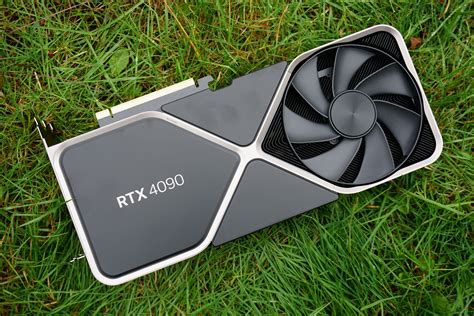
The GPU is arguably the single most important component for DaVinci Resolve performance, particularly for color grading, effects, and rendering.
- Minimum Requirement: 4 GB VRAM. A GPU with at least 4 GB of dedicated memory is recommended, whether it's a mobile GPU in a laptop or a desktop card.
- Recommended Requirement: 8 GB+ VRAM. 8 GB or more of VRAM is preferable for tackling most 4K projects and beyond.
NVIDIA GPUs with CUDA support are generally preferred due to their strong integration and performance in Resolve. While AMD Radeon cards can work, NVIDIA often leads in benchmarks. For users on Windows or Linux, a DaVinci Resolve Studio license is necessary to enable hardware-accelerated decoding and encoding for common codecs.
Understanding GPU Memory (VRAM):
The amount of VRAM is critical. If you've encountered the "GPU Memory is Full" error, this breakdown may help:
- 512 MB: Not viable for DaVinci Resolve.
- 1 GB: Suitable for basic HD ProRes work and checking RAW files, but avoid noise reduction and optical flow.
- 1.5 GB: The minimum for using Resolve with some complexity in HD. Noise reduction and optical flow will remain problematic.
- 2 GB: A comfortable HD experience, but limited 4K work.
- 4 GB: The minimum for comfortable 4K work.
- 6 GB: Capable of handling most 4K project requirements.
- 8 GB+: Allows comfortable work on projects exceeding 4K resolution.
For those on a budget working primarily in HD, an absolute minimum of 2 GB GPU memory is recommended, with 4 GB being a more realistic minimum. The more plugins you intend to use, the more GPU memory you will need. Performance is also influenced by media resolution, timeline resolution, and media codecs.
Media Storage
Storage speed is paramount for real-time playback and efficient media handling. Relying on a single internal or external spinning hard disk for heavy, high-resolution media will invariably lead to bottlenecks.
- Minimum Requirement: SSD. A fast Solid State Drive (SSD) is essential.
- Recommended Requirement: SSD or RAID configuration. For optimal performance, consider using one SSD for your operating system and applications, and a second SSD or a fast HDD for your media cache and footage. Direct Attached RAID or Network Attached Storage (NAS) RAID over 10GbE is ideal for larger workflows.
A typical single hard disk drive (HDD) can deliver around 80MB/sec, which might suffice for a single stream of compressed video but will be insufficient for more demanding tasks.
Storage Options:
- Internal NVMe SSD: Offers throughput as high as 3500MB/sec.
- External NVMe SSD (via USB 3.1 Gen 2 / USB Type-C): Can provide over 1000MB/sec (e.g., Sandisk Extreme Pro Portable SSD).
- External SATA SSD (via USB 3.1 Gen 1 or Thunderbolt): Slower but more affordable, offering around 530MB/sec (e.g., Samsung T5, Sandisk Extreme Portable SSD).
- RAID Arrays: Internal or external desktop Thunderbolt RAID arrays are excellent solutions for single systems. For internal RAID, ensure your system chassis has at least four free drive bays and a motherboard supporting hardware RAID, or a free PCIe slot for a dedicated RAID controller card.
Even with advancements in RAW codecs like Apple ProRes RAW and Blackmagic RAW, which promise high quality at lower bit rates, fast storage remains a critical component.
Operating System and Software
- Operating System: Windows 10 or later (Windows 11 is fully supported). DaVinci Resolve also runs on macOS and Linux.
- Drivers: Ensure you have the latest drivers for your GPU and Blackmagic Design Desktop Video (version 10.4.1 or later recommended for Windows/Linux).
DaVinci Resolve does not support 32-bit operating systems.
How to Make Davinci Resolve Run Faster & Smoother | 5 Tips
Laptops and DaVinci Resolve
Running DaVinci Resolve on a laptop is certainly possible, but it requires careful consideration of specifications.
Minimum Laptop Requirements:
- Intel Core i7 or AMD Ryzen 7 CPU
- 16 GB RAM
- Dedicated GPU with at least 2GB VRAM (4GB+ recommended)
- Fast Solid State Drive (SSD)
Recommended Laptop Specifications:
- Intel Core i7 / Apple M1 Pro or better CPU
- 32 GB RAM
- Dedicated NVIDIA RTX GPU or Apple M-series chip
- At least 1 TB NVMe SSD
Popular laptop models that can handle DaVinci Resolve include MacBook Pro (M1/M2 Pro or better), Dell XPS 15 or 17, MSI Creator Series, and ASUS ProArt StudioBook. For Windows laptops, prioritize models with dedicated NVIDIA GPUs (e.g., RTX 30-series or newer) and ample RAM.
Monitoring and Color Management
While not strictly a minimum system requirement for running the software, proper monitoring is essential for color grading. For serious color work, consider a separate video output interface (e.g., a DeckLink card or Thunderbolt interface) connected to a calibrated reference monitor. While a desktop screen or monitor is necessary for general use, it is not the ideal tool for precise color monitoring.
DaVinci Resolve on Windows 11: Key Takeaways
DaVinci Resolve is an incredibly powerful and versatile tool, but its performance is directly tied to the hardware it runs on. For Windows 11 users, paying close attention to the CPU, RAM, GPU (especially VRAM), and storage speed is paramount.
- GPU is King: Invest as much as your budget allows in the graphics card, as it is the most critical component for Resolve.
- RAM Matters: 16 GB is the absolute minimum, but 32 GB is highly recommended for a smoother experience, especially with complex projects.
- Fast Storage is Essential: Utilize SSDs, preferably NVMe, for your operating system, applications, and media cache.
- Codec Considerations: If working with highly compressed H.264 or H.265 footage, ensure your system (especially the GPU with a Studio license on Windows) can handle hardware decoding.
- Don't Neglect the CPU: A capable CPU complements the GPU and is vital for tasks like codec decoding.
By carefully selecting your hardware components and understanding the demands of DaVinci Resolve, you can build or acquire a system that meets your needs and allows you to leverage the full creative potential of this industry-leading post-production software on Windows 11. Remember, while powerful hardware alleviates stress, a great vision and a solid understanding of editing principles remain the most important tools for any creator.