The Adobe InDesign Gap tool stands as a powerful, yet often underutilized, asset for designers seeking to refine the spacing and arrangement of elements within their layouts. This versatile tool offers a flexible approach to controlling the distances between objects, allowing for swift and precise adjustments to frames, images, and various other layout components without the need for tedious manipulation of individual object dimensions or positions. By understanding and implementing the various techniques associated with the Gap tool, users can elevate their design process, achieving cleaner, more professional, and visually harmonious results with significantly improved efficiency.

Understanding the Fundamentals of the Gap Tool
At its core, the Gap tool (accessible via the shortcut 'U') empowers users to modify the spacing between adjacent objects directly on the InDesign pasteboard. This functionality is particularly beneficial when working with complex layouts, grids, or when making iterative design changes. The primary advantage lies in its ability to adjust spacing without directly altering the size or position of the frames themselves, thus preserving the integrity of existing content and layout structures.
When the Gap tool is activated and the cursor is positioned adjacent to an object, a distinct double-headed arrow appears, visually indicating the gap to a neighboring object or to the document's edge. The precise value of this distance can be observed and monitored within the Control palette, offering a numerical reference for accuracy.
Core Functionality: Adjusting Distances
The Gap tool offers several distinct methods for manipulating these distances, each yielding different results:
Direct Manipulation: By clicking and dragging the gap area with the mouse button held down, users can enlarge or reduce the space. Crucially, this action simultaneously adjusts the dimensions of the relevant object frames. The behavior of the content within these frames is governed by the Object Fitting Options. For instance, if "Fit Automatically" is selected, the content will scale proportionally to fill the resized frame. In this mode, the neighboring objects expand or contract, while their edges opposite the adjusted gap maintain their original positions.
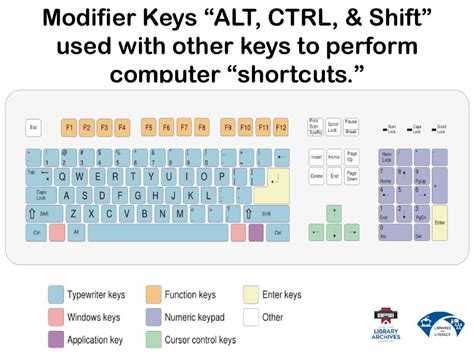
Parallel Movement with Alt Key: Holding down the Alt key (Windows) or Option key (macOS) while using the Gap tool introduces a different behavior. In this scenario, the neighboring objects move parallel to each other, effectively widening or narrowing the gap without altering their individual sizes. This is incredibly useful for maintaining the proportions of individual elements while adjusting their overall spacing within a composition.
Independent Gap Scaling with Ctrl/Cmd and Alt/Option Keys: A more nuanced control is achieved by pressing both the Alt and Ctrl keys (Windows) or Cmd key (macOS) simultaneously. This combination allows for scaling only the space between the neighboring objects. The objects themselves remain static in size, moving towards or away from each other to accommodate the adjusted gap. This method provides precise control over the white space, ensuring that the objects' intrinsic dimensions are preserved.
Simultaneous Object and Gap Scaling with Ctrl/Cmd Key: Pressing the Ctrl key (Windows) or Cmd key (macOS) while using the Gap tool results in a simultaneous adjustment of both the distance between two neighboring objects and the size of those objects. This means that as the gap increases or decreases, the objects themselves will also scale accordingly. This behavior is particularly effective when paired with the "Fit Automatically" option in the Object Fitting settings. When this option is active, images and graphics within the frames will grow or shrink in proportion to their frames, ensuring that the visual content remains well-fitted and aesthetically pleasing as the layout is modified.
Advanced Techniques and Practical Applications
The true power of the Gap tool is unlocked when applied strategically to specific design challenges and workflows. Its ability to make global or localized adjustments efficiently makes it indispensable for a variety of layout scenarios.
1. Rapid Adjustment of Gaps Between Multiple Objects
For layouts featuring numerous frames, such as image galleries or multi-column text arrangements, the Gap tool excels at dynamically altering the spacing.
Procedure:
- Select the Gap tool (Shortcut: U).
- Position the mouse pointer over the gap between two or more frames. The gap will be visually highlighted.
- Click and drag to enlarge or reduce the gap.
Tip: Holding down the Shift key while dragging will exclusively alter the gap size without affecting the positions or dimensions of the frames themselves. This is ideal for fine-tuning spacing while keeping elements locked in place.
2. Maintaining Frame Proportions During Adjustment
In many design contexts, preserving the aspect ratio of frames is crucial for maintaining visual harmony and preventing distortion. The Gap tool facilitates this with a simple modifier.
Procedure:
- Select the Gap tool (Shortcut: U).
- Hold down the Ctrl key (Windows) or Cmd key (macOS).
- Click and drag the gap.
Advantage: This method ensures that as the gap is adjusted, the frames resize proportionally, maintaining their original aspect ratios. This is invaluable for achieving symmetrical layouts and a cohesive aesthetic, especially when dealing with images or graphics that should not be stretched or squeezed.
3. Precise Control in Complex Grid Layouts
The Gap tool is particularly adept at managing the intricate spacing requirements of grid-based designs, where numerous objects need to be arranged with consistent spacing.
Procedure for Specific Frame Adjustment:
- Select the Gap tool (Shortcut: U).
- Hold down the Alt key (Windows) or Option key (macOS).
- Click and drag the gap between specific frames.
Benefit: This ensures that only the adjacent frames connected by the selected gap are adjusted, preventing unintended alterations to other parts of the layout. This granular control is essential for maintaining the integrity of complex designs.
Enhancement with Smart Guides: For even greater precision, combine the Gap tool with InDesign's Smart Guides. Navigate to View > Grids & Guides > Enable Smart Guides. Smart Guides will dynamically display alignment and spacing information as you work, helping you maintain exact distances and achieve pixel-perfect layouts.
4. Establishing Consistent Gaps in Large Projects
For extensive documents like magazines, brochures, or multi-page reports, maintaining consistent white space is paramount for a professional appearance. The Gap tool offers an efficient solution for this.
Application: By strategically using the Gap tool across multiple pages, designers can quickly establish and enforce standardized gaps between elements. This not only saves time but also ensures a uniform look and feel throughout the entire publication. The tool's ability to adjust white space both between and around page items makes it a versatile instrument for managing the overall visual rhythm of a document.
5. The Gap Tool as a Measurement Instrument
An often-overlooked capability of the Gap tool is its utility as a quick measurement device. This can be particularly helpful when working with designs provided by external sources or when needing to replicate specific spacing without relying solely on guides.
Usage:
- Measuring Margins: Hover the Gap tool over the space between an object and the top, bottom, left, or right edge of the page. The Control palette will display the precise measurement.
- Measuring Object Separation: To determine the distance between two objects, hover the Gap tool over the gap between them. This allows for accurate measurement to inform the setup of multi-column frames or to establish a column-based grid.
This "accidental" discovery highlights the tool's multifaceted nature, proving useful even in scenarios where its primary function might not be immediately apparent.
How to use the gap tool Indesign for beginners
Integrating the Gap Tool with Other InDesign Features
The true potential of the Gap tool is amplified when used in conjunction with other powerful InDesign features.
Collaboration with Auto-Fit
As mentioned earlier, pairing the Gap tool with the "Auto-Fit" option within the Object Fitting settings creates a synergistic workflow. When "Auto-Fit" is enabled, frames and their content will resize proportionally as the gap is adjusted. This is invaluable for creating fluid layouts that adapt gracefully to changes in spacing. For example, if you increase the gap between images in a grid, "Auto-Fit" ensures that the images themselves scale up to fill their expanded frames without distortion, maintaining a visually pleasing composition. This partnership is especially beneficial for item-heavy layouts where real-time visual feedback is crucial.
Synergy with the Align Panel
While the Gap tool directly manipulates spacing, the Align panel (Window > Object & Layout > Align) offers complementary functions for distributing and aligning objects.
- Distribute Spacing: The Align panel allows you to specify exact distances between objects, either center-to-center or edge-to-edge. This can be used to initially set up precise gaps, which can then be further refined or adjusted using the Gap tool.
- Aligning Objects: The Align panel is essential for ensuring that objects are correctly positioned relative to each other or to the page. Once objects are aligned, the Gap tool can then be employed to fine-tune the white space between them.
Understanding Document Gutters
The initial gap size when creating a grid of frames is often influenced by the document's gutter setting. This setting, which defines the space between columns, can be established when creating a new document or modified later via Layout > Margins and Columns. While the Gap tool allows for dynamic adjustments, understanding the baseline gutter setting provides context for initial frame creation and helps in maintaining a consistent grid structure.
Best Practices and Considerations
To maximize the effectiveness of the Gap tool, consider these best practices:
- Leverage Keyboard Shortcuts: Familiarize yourself with the 'U' shortcut for the Gap tool and the modifier keys (Shift, Alt/Option, Ctrl/Cmd) to expedite your workflow.
- Utilize Smart Guides: Enable Smart Guides to receive visual cues for alignment and spacing, ensuring accuracy.
- Understand Object Fitting Options: Be aware of how your content will behave when frames are resized. "Fit Automatically" is often the most beneficial setting when working with the Gap tool for dynamic layouts.
- Check for Inconsistent Gaps: If the Gap tool is not behaving as expected, it might indicate that the gaps are not uniform. Use the Align panel or carefully reapply the Gap tool to ensure consistent spacing before making further adjustments.
- Work with Visible Guides: For complex layouts, using non-printing guides can help in visualizing and managing the intended spacing, even when the Gap tool is actively resizing objects.
By mastering the InDesign Gap tool and integrating it with other design functionalities, users can achieve a level of precision, flexibility, and efficiency in their layout design that significantly enhances the quality and speed of their creative output. This tool, though seemingly simple, offers profound control over the visual rhythm and organization of any InDesign document.