Working with intricate Photoshop documents, especially those boasting a multitude of layers, can often feel like navigating a digital labyrinth. The sheer volume of elements can lead to tedious searching, accidental edits, and a general slowdown in workflow. Fortunately, Photoshop offers a powerful yet sometimes overlooked feature designed to combat this complexity: Layer Isolation. This technique allows you to temporarily focus on specific layers, making intricate edits and targeted adjustments significantly more manageable.
Understanding the Core Concept: What is Layer Isolation?
At its heart, layer isolation in Photoshop is akin to an "Isolation Mode" found in other creative applications like Adobe Illustrator. The fundamental principle remains the same: to simplify your workspace by temporarily hiding or de-emphasizing all layers except for those you explicitly choose to work with. This is particularly invaluable when you need to edit a specific object that is obscured by numerous other elements, thereby preventing accidental modifications to unintended parts of your artwork.
When you isolate layers, your object becomes the sole focus within the Layers panel. This heightened visibility allows for precise manipulation without the visual clutter and potential for error associated with a sprawling layer stack.
Entering the Isolation Zone: Methods for Isolating Layers
Photoshop provides several intuitive pathways to activate layer isolation, catering to different user preferences and workflows.
Using the "Select > Isolate Layers" Command
The most direct method is to utilize the "Select > Isolate Layers" command. This feature is designed to streamline your workflow by allowing you to concentrate on specific parts of your image.
- Select Your Target Layers: Begin by selecting the layer or layers you wish to isolate within the Layers panel. This can be done by clicking on a single layer, or by using Command-click (Mac) / Control-click (Win) to select multiple non-contiguous layers. For contiguous layers, you can click the first layer, hold down the Shift key, and click the last layer.
- Activate Isolation: Navigate to the menu bar and choose "Select," then click on "Isolate Layers."
- Observe the Change: Upon activation, you will notice that only the selected layers remain visible and active in the Layers panel. All other layers are temporarily hidden, effectively creating a focused workspace.
- Exiting Isolation: To return to your full layer view, simply choose "Select > Isolate Layers" again from the menu bar. This toggles the feature off, revealing all your layers once more.
Leveraging the Layers Panel Filter Menu
An alternative and often more integrated approach is to use the filter menu within the Layers panel itself. This method allows for dynamic isolation as you select elements.
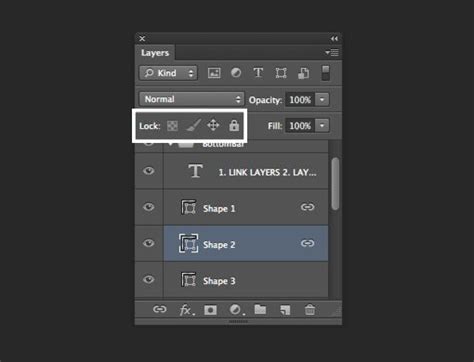
- Enable "Selected" Filter: At the top of the Layers panel, you'll find a filter menu, typically defaulting to "Kind." Click on this menu and select "Selected" from the dropdown options.
- Automatic Isolation: With the "Selected" filter active, each layer you click on and select within the Layers panel will automatically be isolated. This means that as you add layers to your selection, Photoshop dynamically filters the panel to show only those chosen layers.
- Adding Layers to the Isolated Set: While in this "Selected" filter mode, you can continue to add more layers to your isolated set by simply clicking on them in the document window. Photoshop will recognize these clicks and update the Layers panel accordingly.
- Disabling the Filter: To exit this isolation mode and see all your layers again, simply click the "filter" icon (often depicted as a funnel or a toggle switch) to the right of the filter dropdown menu, or change the filter back to its default setting.
The Move Tool and Auto-Select: A Dynamic Duo
The Move tool, in conjunction with its "Auto-Select" option, offers a highly dynamic way to select and isolate layers directly from the canvas.
- Enable Auto-Select: With the Move tool (V) active, look to the Options bar at the top of your screen. Enable the "Auto-Select" checkbox. You can then choose whether it defaults to selecting "Layer" or "Group."
- Click to Select: Now, when you click on an object in your document canvas, the corresponding layer (or group) will be automatically highlighted in the Layers panel.
- Adding to Selection: To add multiple layers to your selection using this method, hold down the Shift key while clicking on additional objects on the canvas.
- Combining with "Selected" Filter: For an even more streamlined experience, you can combine the Move tool with Auto-Select and the "Selected" filter in the Layers panel. As you click on objects with Auto-Select enabled, they will be added to your selection, and the "Selected" filter will ensure that only these active layers are displayed.
- Temporary Auto-Select: If you prefer to keep Auto-Select disabled to prevent accidental layer movements, you can temporarily activate it by holding down the Command key (Mac) / Control key (Win) while the Move tool is selected. This will allow you to click and select layers from the canvas without moving them.
Context-Sensitive Menus: Precision Selection
When working with the Move tool, a right-click (or Control-click on Mac) on an object in the canvas will bring up a context-sensitive menu. This menu lists all the layers that Photoshop detects beneath your cursor, organized hierarchically. This is incredibly useful when dealing with overlapping elements, as it allows you to precisely select the specific layer you intend to modify, even if it's not the topmost visible layer.
Advanced Techniques and Considerations
Beyond the fundamental methods, several advanced techniques and nuances can further enhance your layer isolation workflow.
Isolating Groups and Nested Structures
When you isolate a layer group, all the layers contained within that group are also displayed. This is incredibly useful for managing complex compositions, such as a detailed car render that might have 100 layers dedicated solely to the vehicle itself. However, a known limitation, particularly in older versions of Photoshop, was the inability to unfold or collapse groups within the isolated view if they were already closed. To address this, users had to exit isolation mode, open the desired group, and then re-enter isolation. This behavior is by design, as the panel aims to present a flat view of the selected layer structure during isolation.
Releasing Layers from Isolation
If, after initiating isolation, you decide that a particular layer should not be part of the isolated set, you can easily remove it. Right-click on the layer's name in the Layers panel and select "Release from Isolation."
Working with Smart Objects and Adjustment Layers
Layer isolation is highly effective for applying consistent edits across multiple instances of a Smart Object. If you isolate several Smart Object layers and apply an adjustment or a layer style to one, the effect can ripple through to all instances. However, it's important to note that this only works if you desire the exact same modification for every instance.
A crucial point to remember is the limitation of the Move tool with Auto-Select. While it can select Fill layers, Shape layers, and image layers, it cannot select Adjustment layers directly from the canvas. This is where the context-sensitive menu becomes invaluable, as it lists all detectable layers, including Adjustment layers, allowing for their selection.
The Importance of Layer Naming
While not strictly a function of layer isolation, good layer naming practices are paramount for efficient workflow. Clearly named layers and groups make it significantly easier to identify and select the elements you want to isolate, especially in documents with hundreds of layers. It's a habit that pays dividends in time saved and reduced frustration.
Master Layers - Photoshop for Beginners | Lesson 2
Troubleshooting and Workarounds
As with any software, occasional quirks or unexpected behaviors can arise. One reported issue involved the inability to expand or collapse layer groups within an isolated view in Photoshop CC 2014.2.1. While this was noted as a design choice in some discussions, understanding such limitations helps in devising workarounds. If you encounter a similar issue where you need to delve deeper into a collapsed group during isolation, the solution often involves temporarily exiting isolation mode, expanding the necessary group, and then re-applying the isolation.
Enhancing Workflow with Keyboard Shortcuts
For those who thrive on keyboard shortcuts, assigning custom shortcuts can further accelerate the isolation process. The "Select > Isolate Layers" command can be assigned a keyboard shortcut, allowing for instant activation and deactivation without needing to navigate through menus.
Practical Applications of Layer Isolation
The utility of layer isolation extends across various Photoshop tasks:
- Complex Composites: When assembling multiple images into a single scene, isolating specific elements allows for precise blending, color correction, and manipulation without affecting other parts of the composition.
- Detailed Illustrations: For artists working on intricate illustrations with numerous character layers, background elements, and effects, isolation provides a clear view of individual components for detailed refinement.
- Web Design Mockups: In web design, where elements like buttons, text boxes, and images are often layered, isolation helps in adjusting individual UI components without disrupting the overall layout.
- Photo Retouching: When performing detailed retouching on specific areas of a photograph, such as skin blemishes or intricate background details, isolation ensures that edits are confined to the intended pixels.
- Vector Artwork in Photoshop: For users who incorporate vector shapes and paths within their Photoshop documents, isolating these elements allows for precise manipulation of points and curves, similar to working in a dedicated vector editor.
By mastering the various methods of layer isolation and understanding its nuances, Photoshop users can transform complex, multi-layered projects into more manageable and efficient creative endeavors, significantly boosting productivity and reducing the likelihood of errors.