Blender, a powerful and versatile open-source 3D creation suite, has undergone significant evolution in its user interface and workflow. One area that has seen notable changes, particularly impacting how users interact with their scenes, is the selection behavior. Understanding these changes is crucial for efficient modeling, animation, and overall scene manipulation. This article will delve into the intricacies of Blender's selection modes, focusing on the "deselect edit mode" aspects and providing a detailed breakdown of the available options, shortcuts, and customization possibilities.
The Evolution of Selection Tools in Blender
Historically, Blender's selection tools have aimed for intuitive and efficient interaction. However, as the software has matured, certain functionalities have been refined to offer greater clarity and control. A significant shift occurred with the update to selection behavior, which directly impacts the "deselect edit mode" experience. The previous, more consolidated options like "Inverse" and "(De)select All" have been updated and reorganized within the "Select" menu.
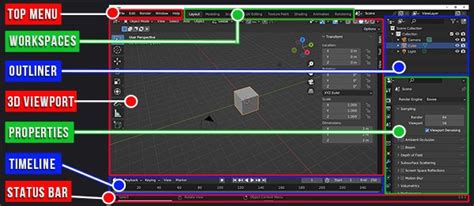
The design philosophy behind these changes emphasizes distinct actions for clarity. In essence, the former "(De)select All" functionality has been thoughtfully split into two separate, unambiguous operations. This separation allows for more precise control over what is selected and what is not.
Core Selection Actions: All, None, and Invert
The default selection behavior in Blender is now governed by three fundamental shortcut combinations, each offering a dedicated action:
Select All (A): This is the primary shortcut for selecting everything within the current context. Pressing the 'A' key will select all visible objects or components, regardless of any pre-existing selection. This action is a straightforward way to initiate a complete selection, making it a foundational tool for many operations.
Deselect All (Alt + A): Conversely, 'Alt + A' is dedicated to deselecting everything. This action clears any active selection, returning the scene to a state where nothing is highlighted. This is invaluable when you need to start a selection process from scratch or if you've accidentally selected too much.
Invert Selection (Ctrl + I): The 'Ctrl + I' shortcut offers a powerful way to reverse the current selection. If you have a group of items selected and press 'Ctrl + I', those items will become unselected, and all previously unselected items will now be selected. This is incredibly useful for isolating specific elements or performing operations on everything except a particular set of objects.
These three core actions-All, None, and Invert-form the bedrock of Blender's selection system, providing users with the essential tools to manage their scene elements efficiently.
Understanding "Deselect Edit Mode" in Context
The concept of "deselect edit mode" is intrinsically linked to these core selection actions, especially when working within the Edit Mode of Blender. In Edit Mode, you are manipulating the individual vertices, edges, and faces of a mesh. When you perform a "deselect all" operation, it specifically applies to the components within that active mesh.
For instance, if you are in Edit Mode and have selected several vertices, pressing 'Alt + A' will deselect all of those vertices. If you then press 'A', all vertices of the currently active mesh will be selected. The 'Ctrl + I' command, when applied in Edit Mode, will invert the selection of vertices, edges, or faces, depending on what you are currently working with.
It's important to note that these selection actions operate within the "Interactive Context mode." This means that the behavior of 'A', 'Alt + A', and 'Ctrl + I' is generally consistent whether you are in Object Mode, Edit Mode, Sculpt Mode, or any other interactive mode within Blender. The software intelligently applies these commands to the relevant elements within the currently active mode.
Customizing Your Selection Workflow
While the default shortcuts are designed for efficiency, Blender's strength lies in its customizability. Users are not locked into the default keybindings and can tailor them to their personal preferences and workflows. This is particularly relevant if the default "deselect edit mode" shortcuts or other selection commands don't feel intuitive to you.
To adjust these settings, you can access Blender's Preferences:
- Click on the Edit menu in the main application header.
- Navigate to Preferences. This will open the Blender Preferences window.
- Within the Preferences window, locate and click on the Keymap sub-menu item.
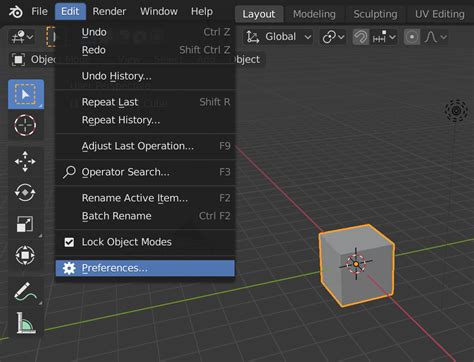
In the Keymap section, you'll find a vast array of customizable shortcuts. While the default 'A', 'Alt + A', and 'Ctrl + I' are standard, you can reassign them or discover alternative shortcuts for selection actions.
The "Select All Toggles" Option: A Legacy Behavior
For users who prefer the older, more consolidated "(De)select All" behavior where a single key press could toggle between selecting and deselecting all, there is an option to re-enable this. This is achieved through the "Select All Toggles" checkbox.
To activate this legacy behavior:
- In the Keymap sub-menu, under the Preferences sub-section, locate the Select All Toggles checkbox.
- Activate (click) this checkbox.
- Once checked, you can close the Blender Preferences window.
With "Select All Toggles" enabled, the 'A' key will now function as a toggle. If everything is unselected, pressing 'A' will select everything. If something is selected, pressing 'A' will deselect everything. This replicates the behavior found in previous versions of Blender and can be a comfort for long-time users. However, it's important to be aware that enabling this option might alter the behavior of the dedicated "Select All" and "Deselect All" actions if they were previously assigned to other keys or if you intend to use the default 'A' for a strict "select all" function.
How to Setup Blender's Industry Compatible Keymap for Beginners
Beyond the Defaults: Advanced Selection Techniques
While the core 'A', 'Alt + A', and 'Ctrl + I' shortcuts are fundamental, Blender offers a wealth of other selection methods to enhance efficiency, particularly when dealing with complex scenes or intricate models.
Box Select and Circle Select
These are visual selection tools that allow for rapid selection of multiple elements.
Box Select (B): Pressing 'B' activates Box Select mode. You can then click and drag a rectangular box over your scene. All objects or components that fall within this box will be selected. This is excellent for selecting contiguous groups of items.
Circle Select (C): Pressing 'C' activates Circle Select mode. You'll see a circular brush appear. You can then paint over elements to select them. You can adjust the size of the circle with the mouse wheel. This is useful for more organic or freeform selections. To deselect with Circle Select, right-click while in the mode.
Lasso Select (Shift + Ctrl + Left Click Drag)
This tool allows you to draw a freeform lasso around elements to select them. It's a more precise version of Circle Select for irregular shapes.
Select Linked (L)
In Edit Mode, if you have a vertex, edge, or face selected, pressing 'L' will select all geometry that is "linked" to it. This means all parts of the same mesh that are connected. This is incredibly useful for quickly selecting an entire object's mesh or specific connected components.
Select More/Less (Ctrl + Numpad Plus/Minus)
When working in Edit Mode, these shortcuts are invaluable for expanding or contracting your selection. 'Ctrl + Numpad Plus' will select neighboring components (e.g., if you have an edge selected, it will select adjacent edges). 'Ctrl + Numpad Minus' will do the opposite, shrinking the selection.
Select Random
This is a powerful tool for procedural operations. You can find it under the Select menu in Edit Mode. It allows you to select a specified percentage of your current selection randomly. This is often used in conjunction with modifiers or for creating varied effects.
The Importance of Context in Selection
It's crucial to reiterate the importance of context in Blender's selection system. The behavior of 'A', 'Alt + A', and 'Ctrl + I', as well as other selection tools, is influenced by:
- Mode: Whether you are in Object Mode, Edit Mode, Sculpt Mode, etc., dictates what elements can be selected.
- Selection Type: In Edit Mode, you can switch between selecting vertices, edges, or faces, and your selection commands will apply accordingly. You can toggle between these modes using the icons at the top of the 3D viewport or by pressing '1', '2', or '3' on the number row (not the numpad).
- Active Object: In Object Mode, selection commands apply to the currently active object(s).
Understanding these contextual nuances ensures that your selection actions yield the intended results, preventing frustration and improving your workflow. For instance, if you're in Object Mode and press 'A', you'll select all objects in the scene. If you then switch to Edit Mode for one of those objects and press 'A', you'll select all components of that specific mesh.
Avoiding Common Selection Pitfalls
With the refined selection system, some common misconceptions can still arise:
- Confusing "Select All Toggles" with Default Behavior: If you've enabled "Select All Toggles," remember that 'A' now acts as a toggle. If you're expecting it to always select everything, you might be surprised when it deselects.
- Accidental Selection in the Wrong Mode: Always be mindful of which mode you are in. Pressing 'A' in Object Mode selects objects, while in Edit Mode, it selects mesh components.
- Over-reliance on a Single Method: While shortcuts are fast, understanding the visual tools like Box Select and Circle Select can be more efficient for certain tasks. Similarly, "Select Linked" is indispensable for working with complex meshes.
- Not Utilizing "Invert Selection": Many users overlook the power of 'Ctrl + I'. It's a quick way to select everything except what you've already chosen, saving significant time compared to manually selecting the remaining elements.
Conclusion: A Foundation for Creative Freedom
The evolution of Blender's selection behavior, including the clear distinction between "Select All" and "Deselect All," along with the powerful "Invert" option, provides users with a robust and intuitive system. Whether you prefer the default shortcuts, the legacy toggle behavior, or extensive customization, Blender empowers you to work efficiently. By mastering these selection tools and understanding their contextual application, you lay a strong foundation for creative freedom and unlock the full potential of this dynamic 3D software. The ability to precisely select and deselect elements is not just a technicality; it's a fundamental aspect of realizing your artistic vision within Blender.