Achieving perfectly smooth skin in Photoshop is a fundamental skill for any portrait photographer aiming to elevate their work. This tutorial will guide you through several effective techniques, from basic blemish removal to advanced texture and tone manipulation, ensuring your portraits have a flawless yet natural appearance. We'll explore efficient workspace setup, essential tools, and sophisticated methods to transform your images.
Setting Up Your Photoshop Workspace for Efficiency
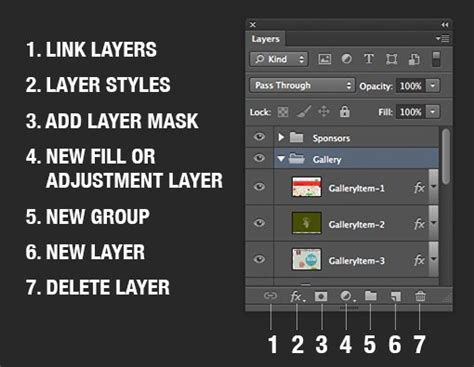
An organized workspace is the bedrock of an efficient Photoshop workflow. Understanding and utilizing Photoshop's core features, such as layers and keyboard shortcuts, can significantly speed up your retouching process.
Layers are foundational in Photoshop and are essential for non-destructive editing. Each layer functions like a transparent sheet on which we can edit different elements. For skin retouching, we often work with several layer types. The Background Layer is our original image, which we safeguard by making a Duplicate Layer (Ctrl+J / Command+J on Windows, or Command+J on Mac). Adding a New Layer is another common step, where we might use tools such as the Spot Healing Brush or Clone Stamp Tool.
Efficient navigation of the Photoshop interface can significantly improve our workflow. The Layers Palette, typically located on the right side of the screen, displays our image’s layer structure. Utilizing Keyboard Shortcuts can speed up our workflow considerably. For instance, Ctrl+J (Command+J on Mac) is used to duplicate a layer, and pressing 'B' selects the Brush Tool.
Essential Tools for Initial Blemish Removal
Before diving into complex smoothing techniques, it's crucial to address immediate imperfections. Tools like the Spot Healing Brush and the Healing Brush Tool are invaluable for this initial cleanup.
The Spot Healing Brush is a quick and effective way to remove small blemishes, acne, and freckles. To use it, we simply select the tool from the toolbar and click on the unwanted spot. The Spot Healing Brush automatically analyzes and samples nearby areas, ensuring that the correction looks natural. For larger areas or spots closer to edges, we should paint over the blemish or imperfection.
For more control, the Healing Brush Tool offers a more precise approach to photo retouching. Once we select the Healing Brush Tool, we Alt-click (on Windows) or Option-click (on Mac) to define a source area. After selecting the source, we paint over the blemish, mole, or scar. This tool is invaluable for retouching larger imperfections or areas where texture continuity is crucial.
When working with portraits, it’s important to remember that while temporary blemishes like acne can be removed, permanent features such as moles or certain scars are often part of what makes an individual unique and should be considered for removal carefully, if at all.
Remove Blemishes - Photoshop Retouching Course | Lesson 1
Advanced Skin Smoothing Techniques
Once the initial blemishes are addressed, we can move on to more sophisticated methods for achieving smooth skin while preserving natural texture. These techniques often involve advanced filters and layer manipulation.
Neural Filters for Effortless Smoothing
Neural Filters offer a powerful, AI-driven way to smooth skin while retaining natural texture. To access this tool, duplicate the original portrait layer using Ctrl J (Windows) or Command J (macOS). Navigate to the Filter menu and select Neural Filters. Enable the Skin Smoothing option to activate the effect. Adjust the Blur Filter and Smooth Skin sliders until the desired smoothness is achieved. This method is particularly useful for quick, high-quality results.
Frequency Separation: Texture vs. Tone
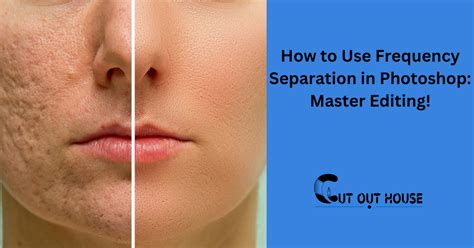
Frequency Separation is a highly effective technique that separates skin texture from its color and tone. This allows for independent adjustments to each component, offering precise control over the final look.
Begin by duplicating the original layer twice. Apply a Gaussian Blur to the second layer to blur out fine details, effectively isolating the color and tone. On the top layer, use the High Pass Filter to isolate the skin's texture. Set the blend mode of the top layer to Linear Light. This separation allows for independent adjustments to the color and texture layers, enabling you to smooth tones without destroying texture, or refine texture without affecting color.
The High Pass Filter Method for Smooth Skin
The High Pass filter, often used for sharpening, can also be employed for skin smoothing. This method involves duplicating the image layer, applying a High Pass filter, and then setting the layer’s blend mode to Soft Light or Overlay. This technique enhances texture while smoothing out blemishes, offering a balanced approach.
To implement this:
- Duplicate your background layer.
- Go to Filter > Other > High Pass.
- Choose a Radius value that highlights the skin's texture without making it overly sharp. The exact value will depend on the image resolution and the desired effect, but a common starting point is between 5 and 15 pixels.
- Click OK.
- Change the layer's blend mode to Soft Light or Overlay.
- To refine the effect, you can add a Layer Mask and paint with black to hide the smoothing in areas that should retain more detail, such as around the eyes or hair.
Gaussian Blur and Layer Masks for Controlled Smoothing
To achieve a smooth and flawless base in Photoshop, we can utilize techniques like Gaussian Blur combined with Layer Masks.
Start by duplicating the background layer. Apply the Gaussian Blur filter (Filter > Blur > Gaussian Blur). Adjust the Radius value to control the intensity of the blur. Create a Layer Mask for this blurred layer. Paint on the Layer Mask with a soft white brush to reveal the blur effect only on the skin areas. This ensures that the smoothing is consistent and doesn't make the skin appear unrealistic.
When applying these filters, it's crucial to maintain a balance between smoothness and natural texture. Over-smoothing can lead to an unnatural, plastic-like appearance. Adjusting the opacity of the smoothing layer and using a soft brush for blending on the layer mask are key to achieving a natural look.
Refining Portrait Details: Eyes, Mouth, and Hair
While skin smoothing is essential, enhancing other portrait elements can significantly elevate the overall image. Focusing on the eyes, mouth, and hair can transform a good portrait into a great one.
Enhancing Eyes for Impact
To bring out the best in eyes, we start by sharpening and increasing contrast. Next, we can enhance the whites of the eyes to reduce redness or dullness by using a subtle adjustment layer. Applying a subtle dodge and burn technique around the eyelids, using a small, soft brush with the Dodge Tool set to highlights and the Burn Tool set to midtones, can add depth and emphasize the natural shape of the eyes.
Subtle Enhancement of Lips
For the lips, we can use the Brush Tool to subtly enhance their natural color. Choose a soft round brush with a low opacity and pick a slightly pinker or redder shade than the natural lip color. Sharpening the lips slightly with the Sharpen Tool at a low strength can bring out details in the texture, making them appear more defined.
Defining Hair Details
When refining hair details, we focus on sharpening and adding contrast. Using the Sharpen Tool at a moderate strength (e.g., 20-30%), we can run it along strands of hair to define individual hairs and add texture. This brings a sense of dimension and realism to the hair.
Local Adjustments and Blend Options
Employing brushes for local adjustments in Photoshop allows for precise control over specific areas of an image.
To begin, select the Brush Tool. It’s crucial to tailor the brush size and hardness based on the area you are adjusting. Alter the Opacity and Flow settings in the options bar; lower opacity and flow settings yield gradual changes, which are useful for subtle adjustments. The Blend Options also play a pivotal role. For local adjustments, using blending modes like "Soft Light" can enhance texture without overpowering the original details.
When focusing on local skin texture adjustments, our primary tools are the Adjustment Brush Tool and the Spot Healing Brush. With the Adjustment Brush Tool, we can access Blend Options to fine-tune how our edits integrate with the original image. Meanwhile, the Spot Healing Brush addresses specific blemishes and uneven patches. Carefully editing these areas avoids creating an artificial look. Additionally, using a layer mask can limit smoothing effects to targeted regions.
Color Correction and Tone Adjustment
In Photoshop, color correction and adjustment are crucial tasks when working with portrait images to ensure natural and pleasing skin tones.
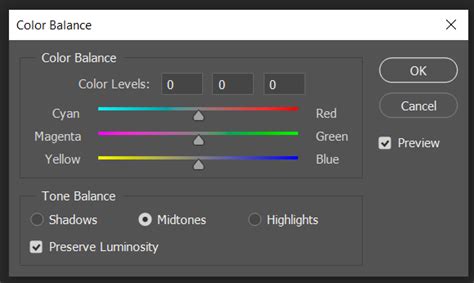
Adjustment layers are powerful tools that allow us to modify colors and tones non-destructively. To start, open the Layers Panel and navigate to Layer > New Adjustment Layer. Options like Selective Color, Color Balance, and Hue/Saturation are essential for precise adjustments. Selective Color lets us target specific color ranges, making it easy to tweak skin tones. Color Balance is effective for overall color temperature adjustments, while Hue/Saturation allows for control over the intensity and vibrancy of colors.
Adjusting skin tones is a delicate task requiring precision. We start by selecting Layer > New Adjustment Layer > Selective Color. Access the Selective Color panel by double-clicking the layer thumbnail in the Layers Panel. Sometimes, using Blending Modes such as Vivid Light can also enhance skin tones. We select the layer, apply the blending mode, and adjust the opacity to blend it seamlessly.
Smart Sharpening and Finalizing Your Image
Using smart filters allows us to non-destructively sharpen our images, providing flexibility and maintaining the quality of our work.
With your layer converted to a Smart Object, you can go to Filter > Sharpen > Smart Sharpen. In the dialog box, you can adjust the Amount, Radius, and Reduce Noise settings. After applying the smart filter, you can fine-tune it by double-clicking on the smart filter layer in the Layers panel. This reopens the settings, allowing for real-time adjustments.
Once the image is sharpened to your satisfaction, the next step is to finalize and save.
- For Web: Go to File > Export > Save for Web. Here, you can choose formats like JPEG or PNG, adjust quality settings, and resize if needed.
- For High-Quality Prints: Save your work as a TIFF or high-resolution JPEG via File > Save As.
- For Cloud Storage or Sharing: Utilize File > Save to Cloud for backups and easy access.
Frequently Asked Questions About Skin Smoothing in Photoshop
This section addresses common queries regarding achieving smooth skin in Photoshop.
How do I smooth skin using Photoshop's built-in tools?Start with the Spot Healing Brush to remove blemishes. Then, use the Blur tool or the Gaussian Blur filter to soften the overall skin texture. For more advanced smoothing, consider the High Pass filter method or Frequency Separation.
Is there a reliable smooth skin filter in Photoshop CC?Yes, the Camera Raw filter in Photoshop CC offers a reliable smooth skin option, including a Texture Slider that provides high-end skin softening techniques. Additionally, the Neural Filters include a dedicated Skin Smoothing option.
Can Photoshop smooth skin without additional plugins?Absolutely. Photoshop provides all necessary tools to smooth skin without external plugins. Using the built-in Spot Healing Brush, Gaussian Blur, Camera Raw filters, and Neural Filters can yield excellent results.
How do I adjust settings for a natural look?To achieve a natural look, lower the opacity of your smoothing layer and use a soft brush with low flow for blending. It's crucial to maintain a balance between smoothness and texture to avoid an unnatural, plastic-like appearance.
What is the high pass technique for skin smoothing?The high pass technique involves duplicating the image layer, applying a High Pass filter, and setting the layer’s blend mode to Soft Light or Overlay. This method enhances texture while smoothing out blemishes by isolating and then blending the details.
How can I blend skin tones effectively?Skin tones can be blended effectively using the Mixer Brush tool, which smoothly blends colors. Alternatively, Frequency Separation allows you to work on the texture and color separately, creating a more seamless blend.
Expert Recommendation
For those looking to delve even deeper into advanced skin retouching techniques and achieve professional-grade results, we highly recommend exploring the ADVANCED SKIN RETOUCHING WORKFLOW with Nino Batista from PRO EDU. Such specialized training can provide invaluable insights and advanced strategies for mastering portrait retouching.