The advent of High Efficiency Video Coding (HEVC), also known as H.265, has revolutionized video compression, offering significantly improved efficiency over its predecessor, H.264. This advanced codec allows for higher quality video at smaller file sizes, making it increasingly popular for recording in 4K resolution across a wide array of devices, from smartphones and DSLRs to drones like the DJI Mavic series and professional cameras such as the Canon XF705. However, this efficiency often comes at the cost of increased complexity, which can lead to significant hurdles when attempting to edit HEVC footage natively within professional editing software like DaVinci Resolve. Users frequently encounter issues ranging from an inability to import files entirely, with Resolve reporting "Media Offline" or "unsupported file type," to choppy, lagging playback and audio sync problems, even when working with the seemingly powerful DaVinci Resolve Studio.
The Inherent Challenges of HEVC in Editing Workflows
At its core, the difficulty in editing HEVC/H.265 footage stems from the codec's design philosophy. HEVC offers roughly twice the image quality of H.264 at the same bit rate, or the same quality at half the bit rate. This remarkable compression is achieved through sophisticated algorithms that analyze and predict data across multiple frames, a process known as "Group of Pictures" (GOP) compression. While this is highly effective for storage and streaming, it presents a significant challenge for editing software.
When editing, software needs to access and process individual frames rapidly and efficiently for real-time playback and manipulation. The GOP structure, which relies on inter-frame prediction (where subsequent frames store only the differences from previous or future frames), means that to decode a single frame, the software may need to reconstruct data from multiple other frames within the GOP. This computational burden can overwhelm even powerful systems, leading to the "Media Offline" errors, stuttering playback, and audio drift that many DaVinci Resolve users experience.
Understanding the "Media Offline" Phenomenon
The "Media Offline" error, particularly when encountered with H.265 files in DaVinci Resolve, is a symptom of the software's inability to properly access and decode the video stream. This can occur for several reasons, often exacerbated by the complexity of the HEVC codec. In Resolve 15 on Windows 7, for instance, users reported an immediate "Media Offline" error when trying to import H.265 MP4 files from a Mavic 2 Pro, while H.264 clips posed no such problem. This points to a fundamental incompatibility or lack of decoding support for the specific H.265 implementation in that version of Resolve.
In DaVinci Resolve Studio 16.2, a more insidious issue arises: seemingly random "Media Offline" segments interspersed with playable video. This behavior, even with hardware-accelerated decoding enabled, suggests that the system is struggling to maintain a consistent decode rate, leading to intermittent dropouts. The reliance on CPU decoding for H.265, especially on laptops and lower-power systems, is a primary culprit, as the CPU must work overtime to decompress these heavily compressed files in real-time before they can be processed for editing.

DaVinci Resolve Versions and H.265 Compatibility
DaVinci Resolve's support for H.265 has evolved over its versions, and the distinction between the free and Studio editions is crucial.
The Free Version of DaVinci Resolve
The free version of DaVinci Resolve has historically had more limited support for H.265/HEVC decoding. While it may be able to import and play some common 8-bit 4:2:0 H.265 files (often found in smartphone footage), it generally struggles with higher bit depths, different chroma subsampling formats (like 4:2:2 or 4:4:4), and professional camera formats. Hardware acceleration for decoding is typically not available in the free version on Windows or Linux, meaning all the heavy lifting falls to the CPU. This makes editing 4K H.265 footage particularly challenging, often resulting in the aforementioned playback issues.
DaVinci Resolve Studio
DaVinci Resolve Studio, the paid version, offers enhanced capabilities, including support for hardware-accelerated H.264 and H.265 decoding on compatible GPUs (primarily NVIDIA and AMD on Windows). This can significantly improve playback performance, as the GPU takes over the computationally intensive decoding tasks. However, even with Studio, not all H.265 files are guaranteed to play back smoothly. Factors like bit depth (10-bit HEVC, especially in formats like DJI's DLOG-M), chroma subsampling, and the overall power of your system still play a significant role. While Studio offers a substantial improvement, it doesn't entirely eliminate the need for optimized workflows for the most demanding H.265 content.
Operating System Considerations: Windows and HEVC
A notable factor, particularly for Windows users, is the lack of native HEVC codec support in Windows 10 and 11 by default for many common file formats. While DaVinci Resolve Studio might implement its own internal support, the free version may not, leading to "Media Offline" errors. A common workaround for Windows users is to purchase and install the "HEVC Video Extensions" from the Microsoft Store for a small fee. This can enable better compatibility for H.265 files within the operating system and potentially improve Resolve's ability to access them, especially in the free version.
Strategies for Smooth H.265 Editing in DaVinci Resolve
Given the inherent challenges, several strategies can be employed to ensure a smoother editing experience with H.265 footage in DaVinci Resolve, ranging from in-software solutions to pre-editing transcoding.
1. Transcoding to Edit-Friendly Codecs
Transcoding HEVC/H.265 files to an intermediate, less compressed codec is widely considered the most reliable solution for improving performance, stability, and reliability throughout the post-production workflow. This process converts the heavily compressed H.265 files into formats that DaVinci Resolve can decode and process much more efficiently.
- Apple ProRes: A professional, visually lossless codec widely supported across macOS and Windows. It offers excellent editing performance but results in significantly larger file sizes. ProRes 422 HQ is a common choice for 8-bit or 10-bit 4:2:0/4:2:2 footage, while ProRes 4444/4444 XQ is suitable for higher bit depths and 4:4:4 chroma subsampling.
- Avid DNxHD/DNxHR: Avid's professional intermediate codecs are also highly effective for editing. DNxHD is typically used for HD footage, while DNxHR supports 4K and higher resolutions. Options like DNxHD 220 (for 8-bit) or DNxHR HQX (for 10-bit) provide a good balance of quality and performance.
These intermediate codecs essentially "bake in" the decoded frames, eliminating the need for real-time decoding during playback and rendering. While the resulting files are much larger, the trade-off is a dramatically smoother editing experience.
How to Encode Videos to HEVC / H.265 With Handbrake?
2. Utilizing DaVinci Resolve's Optimized Media and Render Cache
DaVinci Resolve offers built-in tools to alleviate the strain of editing compressed footage without necessarily resorting to external transcoding.
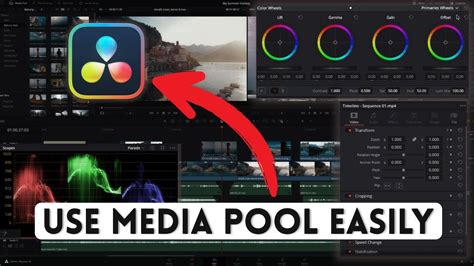
- Optimized Media: Within Resolve, you can right-click on problematic clips in the Media Pool and select "Generate Optimized Media." Resolve then creates proxy versions of these clips in a chosen intermediate codec (like ProRes or DNxHR) and resolution. The software automatically handles the linking between your original camera files and the optimized media, allowing you to switch between them seamlessly. This significantly reduces the processing load during editing. The format and resolution for optimized media can be set in the Project Settings.
- Render Cache: The Render Cache feature allows Resolve to pre-render sections of your timeline, especially those with complex effects or demanding codecs. By setting the Render Cache format to a more edit-friendly codec (like ProRes or DNxHD), you can ensure that these rendered sections play back smoothly. This is particularly useful for ensuring consistent playback during the editing process.
3. Hardware Acceleration and System Considerations
For users of DaVinci Resolve Studio, leveraging hardware acceleration is key. Ensuring you have a compatible GPU and that Resolve is configured to use it for decoding can make a substantial difference.
- GPU Selection: NVIDIA and AMD GPUs on Windows, and most modern GPUs on macOS, can provide hardware decoding capabilities for H.264 and H.265.
- Resolve Preferences: Within DaVinci Resolve's Preferences (under System > Decode Options), you can check if hardware acceleration for H.264/HEVC is enabled and selected.
- System Power: It's important to acknowledge that editing 4K H.265 footage, even with optimizations, demands a powerful system. A strong CPU with multiple cores, ample RAM (32GB or more is recommended for 4K workflows), and fast storage (SSDs are essential) will contribute significantly to a smoother experience. Laptops and lower-spec systems will naturally struggle more with these demanding codecs.
4. Checking File Integrity and Metadata
Sometimes, the issue isn't solely with DaVinci Resolve or the codec itself, but with the integrity of the file or its metadata.
- Media Player Test: Before importing into Resolve, try playing the H.265 file in a robust media player like VLC. If it plays without issues, the file itself is likely intact, and the problem lies within Resolve's compatibility. If it stutters or has errors in VLC, the original recording may have been corrupted.
- Filename Conventions: Ensure that your H.265 files do not have unusual characters in their filenames, as these can sometimes cause import failures in video editing software.
Conclusion: Embracing an Optimized Workflow
While H.265/HEVC offers compelling advantages in video compression, its complexity presents a distinct challenge for professional video editing in DaVinci Resolve. The "Media Offline" errors and playback issues are not necessarily indicative of a faulty program but rather a reflection of the computational demands imposed by decoding these advanced codecs.
For users of the free version of DaVinci Resolve, or those working on less powerful systems, transcoding H.265 files to intermediate codecs like Apple ProRes or Avid DNxHD/DNxHR, or utilizing Resolve's "Optimized Media" feature, are the most effective solutions. For DaVinci Resolve Studio users, leveraging hardware acceleration is crucial, but even then, understanding the limitations and employing optimized media workflows can lead to a more stable and efficient post-production process. By understanding the underlying technical reasons and adopting the right strategies, editors can successfully navigate the complexities of H.265 and ensure a fluid editing experience in DaVinci Resolve.