The world of professional video editing has long been dominated by proprietary software, often tethered to specific operating systems. However, the landscape is evolving, and for Linux users, the prospect of wielding the powerful DaVinci Resolve has become increasingly tangible. While not without its challenges, installing and running DaVinci Resolve on Linux is an achievable goal, offering a robust and cost-effective alternative to its macOS and Windows counterparts. This guide delves into the intricacies of getting DaVinci Resolve up and running on various Linux distributions, exploring installation methods, potential pitfalls, and essential considerations for a smooth post-production workflow.
The Allure of DaVinci Resolve on Linux
DaVinci Resolve, renowned for its integrated approach to editing, color correction, visual effects, motion graphics, and audio post-production, has captured the attention of professionals and enthusiasts alike. Its elegant interface, powerful features, and Hollywood pedigree make it a compelling choice. Blackmagic Design's decision to offer DaVinci Resolve in both free and Studio versions for Linux systems has further democratized access to this industry-leading software.
For many, the transition to Linux is driven by a desire for greater control, customization, and often, a reprieve from subscription models and the perceived bloat of other operating systems. The ability to run DaVinci Resolve natively on Linux aligns perfectly with this ethos, allowing users to build a powerful post-production pipeline without being beholden to a particular ecosystem.
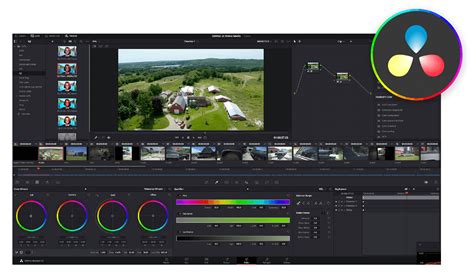
The author's personal journey highlights this sentiment. Having successfully integrated the Studio version of DaVinci Resolve into their workflow on Windows and macOS, the logical next step was to explore its Linux capabilities. The setup of a PostgreSQL database on a separate Linux system further illustrates a commitment to a cross-platform, project-accessible environment, underscoring the flexibility that Linux can offer. This exploration is not just about installing software; it's about crafting a personalized and efficient post-production ecosystem.
Preparation and Initial Hurdles
Embarking on the journey of installing DaVinci Resolve on Linux often begins with a search for installation options, which quickly reveals a common theme: missing libraries and compatibility issues. This is a recurring challenge when integrating complex, proprietary software into the diverse and ever-evolving Linux ecosystem.
One prevalent method gaining traction is the use of Distrobox. This innovative approach involves creating a containerized environment within your chosen Linux distribution, effectively installing a separate, tailored operating system instance. This isolation can circumvent many dependency conflicts, allowing DaVinci Resolve to run within its own carefully managed ecosystem.
Alternatively, some users opt for a more manual approach, installing DaVinci Resolve directly onto a distribution like Ubuntu and then painstakingly identifying and installing each missing library. This method, while potentially more integrated, is often described as "laborious" due to the sheer number of dependencies that might need to be addressed.
Official Support and Rocky Linux
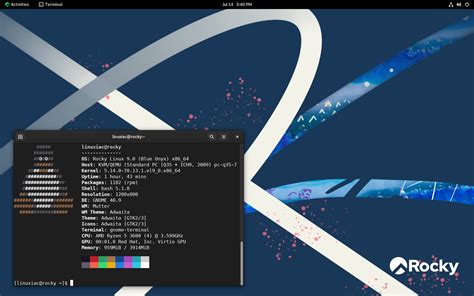
Blackmagic Design officially states its support for CentOS and Rocky Linux. The Linux downloads for DaVinci Resolve even include an ISO file specifically for Rocky Linux 8.?. This official endorsement suggests a more straightforward installation path on these particular distributions.
To test this officially supported route, an installation within a virtual machine using VMWare Workstation Pro was undertaken with Rocky Linux. While the installation itself was successful, the virtualized environment presented limitations, particularly regarding graphics support. The X300 computer, with its modest GPU, struggled to provide adequate graphical performance, and a virtual machine inherently passes on a virtualized graphics card, further exacerbating the issue. Despite this, the attempt highlighted the importance of hardware compatibility, especially for a GPU-intensive application like DaVinci Resolve.
DavinciBox and Linux Mint
During the research into Linux installations, a project named DavinciBox emerged as a promising solution. This project, hosted on GitHub, leverages Distrobox to create a container specifically optimized for DaVinci Resolve. However, DavinciBox has a dependency on Linux Mint 22, as Distrobox itself is not available in older versions of the distribution.
Despite this version requirement, the DavinciBox tool proved successful in installing and running DaVinci Resolve 18.6 on Linux Mint. Crucially, issues with audio and 10-bit H265 files, often stumbling blocks for Linux users, were reportedly absent. For users who, like the author, frequently switch between Linux and other operating systems for their editing work, the ability to easily manage drive mappings within this containerized setup is a significant advantage. This indicates that containerization can indeed provide a stable and functional environment for DaVinci Resolve on Linux.
Scripting and Tooling for a Smoother Experience
Beyond containerization, the Linux community has developed various scripts and tools to streamline the DaVinci Resolve installation process. These often cater to specific distribution families or hardware configurations.
The MakeResolveDeb Script
For Debian-based systems, such as Ubuntu and its derivatives like Linux Mint, a script by Daniel Tuffeson offers a novel approach. This script converts the official DaVinci Resolve installer (a .run file) into a native Debian .deb package. If the prerequisites are met, this process can be quite efficient, leading to a more integrated installation.
However, even with this helpful tool, challenges can arise, particularly concerning graphics card recognition. The author's experience with a newer PC featuring an NVIDIA RTX 3060 illustrates this. Despite installing Linux Mint 22 and attempting the DavinciBox method, DaVinci Resolve failed to recognize the NVIDIA graphics card, even after installing the necessary NVIDIA and OpenGL drivers. This points to a persistent need for meticulous driver management and potential workarounds for GPU detection.
NVIDIA Graphics Card Considerations
The NVIDIA ecosystem on Linux, while powerful, can present unique hurdles. The successful installation of DaVinci Resolve often hinges on having the correct NVIDIA drivers installed and properly configured. This includes not only the proprietary NVIDIA drivers but also ensuring that OpenGL and CUDA (for NVIDIA) or OpenCL (for AMD) are correctly set up.
Research into resolving these NVIDIA-specific issues can lead to various community-driven solutions. One such avenue involves delving into articles that, while perhaps primarily focused on AMD Radeon graphics cards, might offer insights or general principles applicable to NVIDIA configurations. The experience of encountering un-recognized 10-bit H265 clips, later attributed to using a free version of DaVinci Resolve, also highlights the importance of understanding the nuances between the free and Studio versions, as well as the codec support each offers. The visual quality of menu fonts on high-resolution displays is another detail DaVinci Resolve addresses with a specific setting, demonstrating the software's attention to user experience even in niche areas.
Codec Considerations and Licensing
Beyond installation, DaVinci Resolve's interaction with media files on Linux can present its own set of challenges, particularly concerning codecs.
AAC Audio Limitations
A notable limitation is DaVinci Resolve's handling of the AAC codec. This audio codec, widely used in consumer video formats like MP4, often requires a license to be fully supported by DaVinci Resolve. Without the necessary license, audio tracks encoded with AAC may not be processed correctly, leading to silent audio or playback issues. The Blackmagic Design forums often host discussions and provide workarounds for this specific problem, typically involving transcoding the audio to a more compatible format like Apple Lossless Audio Codec (ALAC) or FLAC.
H.265 10-bit Files
The support for H.265 10-bit files is another area where users might encounter difficulties. While the Studio version of DaVinci Resolve generally offers better codec support, the free version on Linux can sometimes struggle with these high-efficiency video files. Workarounds often involve re-muxing or transcoding these files using tools like FFmpeg before importing them into Resolve.
The Role of FFmpeg
FFmpeg emerges as an indispensable tool for many Linux users working with DaVinci Resolve. Its versatility in handling a vast array of audio and video codecs makes it crucial for transcoding, re-muxing, and preparing media for optimal performance within Resolve. Whether it's converting AAC audio to ALAC or re-encoding H.265 files, FFmpeg provides the necessary command-line power to overcome codec limitations.
Minimum System Requirements and Distribution Support
DaVinci Resolve is a demanding application, and its performance on Linux is heavily influenced by the underlying hardware and the chosen distribution. Understanding the minimum system requirements is paramount to a successful installation and a smooth editing experience.
Official Minimum Requirements (CentOS/Rocky Linux)
Blackmagic Design officially lists the following minimum system requirements for DaVinci Resolve on Linux, with a focus on CentOS and Rocky Linux:
- Operating System: CentOS 7.3 or Rocky Linux 8.6 (or later versions).
- System Memory: 16â32 GB of RAM.
- Discrete GPU: A dedicated graphics card with at least 2GB of VRAM.
- GPU Support: OpenCL 1.2 or CUDA 11 compatibility.
- GPU Driver: The version required by your specific GPU (NVIDIA/AMD).
It's important to note that these are minimum requirements. For professional workflows, particularly those involving higher resolutions (4K and above), complex visual effects, or GPU-accelerated features like noise reduction, significantly more RAM and VRAM are highly recommended. A powerful multi-core CPU is also a critical component for overall system responsiveness.
Beyond Official Support: Other Distributions
While CentOS and Rocky Linux are officially supported, the Linux community has demonstrated success in running DaVinci Resolve on a broader range of distributions. These often involve specific installation scripts or containerization methods.
- Ubuntu-based distributions (including Linux Mint): These are popular choices due to their widespread use and extensive package repositories. Tools like MakeResolveDeb and DavinciBox have been developed to facilitate installation on these systems.
- Fedora: Fedora, being a Red Hat-based distribution like CentOS and Rocky Linux, can sometimes leverage similar installation methods. Specific guidance for Fedora with NVIDIA GPUs often involves enabling RPM Fusion repositories and installing CUDA drivers.
- Arch Linux: Arch Linux, known for its rolling release model and the Arch User Repository (AUR), offers a highly customizable environment. The AUR often contains up-to-date packages for DaVinci Resolve and its dependencies, making installation relatively straightforward for experienced Arch users.
The Free vs. Studio Version Distinction
A crucial aspect to consider on Linux is the difference between the free and Studio versions of DaVinci Resolve. While the free version offers a powerful set of tools, it comes with limitations, especially concerning codec support and advanced features.
Free Version Limitations on Linux:
- H.264 and H.265 decoding: Often not supported, requiring transcoding.
- AAC audio decoding: Generally not supported.
- Interlaced video handling: Limited.
- GPU usage: May not be as optimized as the Studio version.
- Advanced features: Noise reduction, certain effects, and AI tools may be excluded.
- Export resolutions: Limited to UHD (3840x2160).
Studio Version Advantages on Linux:
- Full codec support: Includes H.264, H.265, and other professional codecs.
- Enhanced audio support: Better handling of various audio codecs.
- Advanced features: Access to AI tools, advanced noise reduction, and a wider array of effects.
- Interlaced video: Proper handling for older footage.
- Higher export resolutions: No limitations on output resolution.
- GPU utilization: Generally more optimized for GPU acceleration.
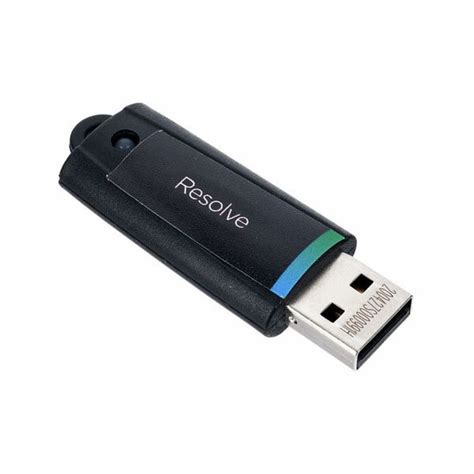
The Studio version requires a license, either a registration code or a USB dongle. While the Studio version significantly expands codec support, it's worth noting that even on Linux, some encoder/decoder limitations might persist compared to Windows and macOS versions.
Installation Methods and Workarounds
The path to a functional DaVinci Resolve installation on Linux is paved with various methods, each with its own set of advantages and potential challenges.
Direct Installation from Blackmagic Design
The most straightforward approach, as suggested by Blackmagic Design, is to download the official Linux installer (a .zip archive containing a .run file) from their support website. This installer is an executable script that guides you through a GUI-based installation process.
- Download: Obtain the DaVinci Resolve or DaVinci Resolve Studio archive from the Blackmagic Design support page.
- Extract: Unzip the downloaded archive. You'll find the installer script and an instruction PDF.
- Make Executable: Open a terminal, navigate to the download directory, and make the installer script executable:
bashchmod +x DaVinci_Resolve_*.run - Run Installer: Execute the installer script:
bash./DaVinci_Resolve_*.run - Follow GUI: The installer will launch. Proceed through the prompts, accepting the terms, and initiating the installation.
- Install Dependencies: If the installer reports missing packages, use your distribution's package manager (e.g.,
aptfor Debian/Ubuntu,dnffor Fedora,pacmanfor Arch) to install them.
Using MakeResolveDeb for Debian/Ubuntu Systems
For users on Debian-based systems, the MakeResolveDeb script offers a way to package the official installer into a .deb file, allowing for a more conventional installation via dpkg.
- Install Dependencies:
bashsudo apt updatesudo apt upgradesudo apt-get install fakeroot xorriso - Install NVIDIA Drivers (if applicable):
bashsudo apt-get install nvidia-driver nvidia-opencl-icd libcuda1 libglu1-mesasudo apt-get install libnvidia-encode1 - Download DaVinci Resolve and MakeResolveDeb: Download both the DaVinci Resolve
.ziparchive and the MakeResolveDeb script from their respective sources. Place them in the same directory. - Extract:
bashcd ~/Downloads # Or your download directoryunzip DaVinci_Resolve_Studio_*.ziptar zxvf makeresolvedeb_*.sh.tar.gz - Run MakeResolveDeb:
bash../makeresolvedeb_*.sh DaVinci_Resolve_Studio_*.runThis process can be resource-intensive and time-consuming. Ensure the script reports "[DONE]" with zero errors. - Install the .deb Package:
bashsudo dpkg -i davinci-resolve_*.debNote: The exact filename of the generated.debpackage might vary based on the Resolve version.
Distrobox and Containerization
Distrobox offers a robust solution for isolating DaVinci Resolve dependencies and configurations. This approach is particularly useful for users who want to maintain a clean system or experiment with different DaVinci Resolve versions without affecting their primary OS.
- Install Distrobox: Follow the official Distrobox installation guide for your distribution.
- Create a Container: Use Distrobox to create a container based on a suitable distribution (e.g., Ubuntu, Fedora). For example, to create an Ubuntu 22.04 container:
bashdistrobox create --name davinci-resolve-container --image ubuntu:22.04 - Enter the Container:
bashdistrobox enter davinci-resolve-container - Install DaVinci Resolve within the Container: Inside the container, you can follow the direct installation method described earlier, downloading the installer from Blackmagic Design and running it.
- DavinciBox: For a more streamlined experience, explore the DavinciBox project on GitHub, which automates the setup of a DaVinci Resolve-optimized container, often based on Linux Mint 22.
Arch Linux and the AUR
Arch Linux users benefit from the Arch User Repository (AUR), which often hosts community-maintained packages for DaVinci Resolve.
- Install GPU Drivers:
- AMD:
yay -S amdgpu-pro-libgl opencl-amd - NVIDIA:
pacman -Syu nvidia nvidia-utils opencl-nvidia
- AMD:
- Install DaVinci Resolve from AUR:
- For the free version:
yay -S davinci-resolve - For the Studio version:
yay -S davinci-resolve-studio
- For the free version:
- AMD Specific Launch: If using an AMD GPU, you might need to launch Resolve with the
proglscript:bashprogl /opt/resolve/bin/resolveTo make this permanent, modify the application's.desktopfile to includeproglin theExecline.
Graphics and Display Issues
Ensuring DaVinci Resolve utilizes your graphics hardware effectively is crucial for performance. Several issues can arise related to display and GPU interaction on Linux.
NVIDIA and AMD GPU Drivers
The choice and installation of GPU drivers are critical. For NVIDIA, proprietary drivers are generally recommended. For AMD, the amdgpu-pro drivers are often necessary for optimal OpenCL performance. Open-source drivers like Nouveau for NVIDIA or the default Mesa drivers for AMD may not provide the required performance or compatibility.
- NVIDIA: Ensure you are using the latest stable proprietary driver. For CUDA acceleration, the CUDA Toolkit might also be necessary.
- AMD: Use the
amdgpu-prodrivers. OpenCL support is essential, and ensuringrocm-opencl-runtimeis correctly installed can be vital.
HiDPI and Font Rendering
HiDPI (High Dots Per Inch) displays, common on modern monitors, can sometimes lead to scaling issues or blurry text within DaVinci Resolve. The software offers specific settings to adjust menu text rendering for better clarity.
Wayland vs. X11
DaVinci Resolve has historically performed better on the X11 display server compared to Wayland. While Wayland offers modern features, some applications, including DaVinci Resolve, may encounter issues with window decorations, input handling, or general stability. Users might need to switch to an X11 session to ensure optimal performance and avoid graphical glitches. Environment variables like QT_QPA_PLATFORM=wayland can sometimes be used to force Wayland support, but this is not always successful for DaVinci Resolve.
Discrete GPU Troubles
Using Distrobox with discrete GPUs can sometimes present challenges. While it often works fine on desktop environments, specific configurations might require additional steps to ensure the container can properly access and utilize the dedicated GPU.
Audio and Input
Audio handling on Linux can be a complex area, and DaVinci Resolve is no exception.
ALSA and PulseAudio/PipeWire
DaVinci Resolve interfaces directly with ALSA (Advanced Linux Sound Architecture). If your system uses PulseAudio or PipeWire as its sound server, you'll need to ensure proper integration. Installing packages like pulseaudio-alsa or pipewire-alsa can bridge this gap, allowing Resolve to correctly access your audio devices.
Before version 17.3, audio input and recording capabilities were limited to Blackmagic's DeckLink capture cards. Version 17.3 introduced support for ALSA audio input, enabling recording directly from standard audio devices within the Fairlight page.
Audio Codec Limitations
As previously mentioned, the AAC audio codec is a common pain point. While the Studio version has improved codec support, AAC decoding is still a known issue on Linux. Transcoding audio to formats like ALAC or FLAC using FFmpeg is a standard workaround.
Scripting and Automation
DaVinci Resolve supports scripting, which can be leveraged for automating tasks and extending its functionality on Linux.
Python and Lua Scripting
The Studio version of DaVinci Resolve allows for external scripting using Python and Lua. This opens up possibilities for creating custom workflows, batch processing, and integrating Resolve with other tools. The developer documentation, often found within the installation directory under Developer/Scripting, provides comprehensive details on how to get started.
Custom Scripts and GitLab Projects
The community has developed various scripts to aid in the installation and configuration of DaVinci Resolve on Linux. Projects on platforms like GitLab often provide scripts for setting up Distrobox environments or automating dependency installation. For instance, scripts like davinci-resolve-distrobox-1.sh and davinci-resolve-distrobox-2.sh are designed to streamline the process of creating a dedicated Distrobox for Resolve.
Advanced Considerations and Troubleshooting
Beyond the core installation, several advanced topics and common troubleshooting steps are relevant for DaVinci Resolve users on Linux.
GPU Memory Management
DaVinci Resolve is a VRAM-hungry application. Running out of GPU memory can lead to crashes or performance degradation. Monitoring GPU usage with tools like nvidia-smi (for NVIDIA) or radeontop (for AMD) is essential. Closing unnecessary applications, especially web browsers that can consume significant VRAM, can free up resources.
Lock Files and Application Instances
DaVinci Resolve uses lock files in /tmp to prevent multiple instances from running simultaneously and to manage application state. If the application hangs or crashes unexpectedly, these lock files can prevent it from relaunching, with the system reporting that another instance is already running. Manually deleting these lock files (e.g., qtsingleapp-DaVinc-*-lockfile) can resolve this issue.
Font Handling
DaVinci Resolve primarily looks for system fonts in /usr/share/fonts and /usr/local/share/fonts. User-installed fonts in ~/.local/share/fonts might not be recognized. Creating symbolic links from user font directories to system font directories can ensure that all installed fonts are available within Resolve.
Plugin Compatibility
While DaVinci Resolve supports OpenFX plugins, compatibility with Linux can sometimes be an issue. Some plugins developed for Windows or macOS may not have Linux versions or may require specific configurations to work correctly.
External Scripting and Workflow Integrations
DaVinci Resolve Studio supports workflow integration plugins written in JavaScript. While these are well-documented for macOS and Windows, Linux support for these integrations has historically been limited. Users might need to consult the latest documentation for updates on this feature.
Keyboard Modifier Issues
The application's use of Alt+Mouse button combinations for timeline scrolling and zooming can conflict with desktop environment shortcuts. Adjusting desktop environment settings or using utilities like evsieve or IMWheel can remap these keybindings to avoid conflicts.
XDG Desktop Portals
DaVinci Resolve's lack of support for XDG desktop portals means that file pickers and other system interactions might not integrate seamlessly with modern Linux desktop environments. This can lead to a less unified user experience.
Licensing and Activation
Activating the DaVinci Resolve Studio license on Linux can sometimes present issues, especially after fresh installations or updates. Ensuring that the system's network configuration and hardware identifiers are correctly recognized by the licensing mechanism is important.
Embrace the Journey
Installing and running DaVinci Resolve on Linux is an endeavor that requires patience, a willingness to troubleshoot, and an appreciation for the vibrant Linux community. While the officially supported path on Rocky Linux exists, the flexibility of other distributions, combined with powerful tools like Distrobox and community scripts, opens up a world of possibilities. By understanding the hardware requirements, codec nuances, and potential pitfalls, Linux users can unlock the full potential of this industry-leading post-production software, building a powerful and personalized creative environment. The journey may have its complexities, but the reward of a fully functional, highly customized DaVinci Resolve setup on Linux is undoubtedly worth the effort.