The High-Efficiency Image Container (HEIC) format, while offering significant advantages in compression and quality, presents a persistent challenge for users due to its limited native support across various platforms and applications. This incompatibility often necessitates conversion to more universally accepted formats like JPEG. This article delves into the nuances of HEIC, explores the reasons behind its adoption and the widespread need for conversion, and outlines practical methods for transforming HEIC files into JPGs, ensuring seamless integration with your digital workflow.
The Rise of HEIC: Efficiency Meets Quality
HEIC is a modern image file format that has gained prominence, particularly with Apple's adoption of it as the default for photos captured on iPhones and iPads. This shift was driven by the format's ability to offer superior image quality and significantly smaller file sizes compared to the long-standing JPEG standard. HEIC achieves this efficiency through advanced compression techniques, including the use of High-Efficiency Video Coding (HEVC), which is also used for video compression. This means users can store more high-quality photos on their devices without sacrificing storage space.
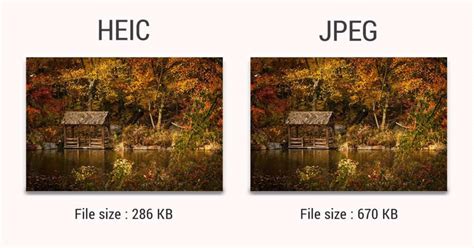
The HEIC format is not merely a single image; it's a container that can hold multiple images, depth maps, and other related data. This capability is fundamental to features like Live Photos on iOS devices, where a short video clip is captured along with the still image. This advanced functionality, coupled with its storage efficiency, makes HEIC a compelling choice for image capture in the modern era.
However, despite its technical merits, the widespread adoption of HEIC has been hampered by a lack of native support across many operating systems, web browsers, and older software applications. This has led to a common scenario where users, especially those who have recently upgraded to newer Apple devices, find themselves unable to view or use their photos on non-Apple platforms or in applications that haven't yet been updated to support HEIC.
Navigating HEIC Incompatibility: The Need for Conversion
The primary hurdle with HEIC lies in its versatility, or rather, its current lack thereof in terms of broad compatibility. While newer versions of operating systems like Windows and macOS have introduced some level of HEIC support, it's often not as seamless or as widely integrated as JPEG. For instance, while Microsoft's Image Manager can browse HEIC files, the speed of native Windows Photo apps in opening these images is reported to be significantly weaker than dedicated professional image viewers. Similarly, while macOS offers built-in support, many third-party applications, especially older ones or those developed for cross-platform compatibility, may still struggle.
This lack of universal support creates a practical problem. Imagine a user who has captured precious memories on their iPhone, only to find that they cannot easily share these photos with friends using Android devices, upload them to certain web platforms, or even open them in their preferred image editing software without encountering errors or needing to take extra steps. This is where the necessity for conversion to a more universally compatible format, such as JPG, becomes apparent.
The desire for HEIC support in image viewers is a recurring theme. Users have expressed the need for software like Honeyview to support HEIC files, stating that if such viewers could handle HEIC natively, the tedious process of converting to JPG would be eliminated. This highlights a user-driven demand for greater accessibility to the HEIC format.
Beyond personal use, HEIC incompatibility can also affect content creators and web developers. For example, in the context of web galleries, such as Gallery 3, developers have noted that image libraries like GD and GraphicMagick do not yet support HEIC, whereas ImageMagick does. This means that for a gallery to display HEIC images, the underlying image processing library must have explicit HEIC support, which is not always the case. This can lead to a situation where, even if the operating system supports HEIC, the web application built upon it might not.
Strategies for Converting HEIC to JPG: Online and Offline Solutions
Fortunately, bridging the compatibility gap between HEIC and JPG is achievable through various conversion methods. These solutions range from simple, one-click browser extensions to more involved offline tools and even cloud-based workarounds.
Browser Extensions: Swift and Secure Conversions
One of the most convenient ways to convert HEIC to JPG is by using specialized browser extensions. These extensions are designed for ease of use and often perform conversions directly within the browser, eliminating the need for separate software installations.
A prime example of such a tool is the "Convert HEIC to JPG" extension. This extension offers several user-friendly features:
- Right-Click Conversion: Users can simply right-click on any HEIC image and select "Save image as JPG." This straightforward method allows for quick conversion of individual files.
- Drag-and-Drop Functionality: The extension provides a pop-up window where users can drag and drop HEIC images from their computer's file system for conversion.
- Batch Conversion: For users dealing with multiple HEIC files, this extension supports batch processing, enabling the conversion of numerous images to JPG with a single click. This is particularly useful when transferring photos from a device like an iPhone.
- ZIP File Download: After batch conversion, users can download the converted JPG files as a ZIP archive. This feature is beneficial as it has no file size limitations, ensuring that even large collections of images can be downloaded efficiently.
A significant advantage of these browser-based converters is their commitment to user privacy. Unlike some online converters that upload files to their servers for processing, extensions like "Convert HEIC to JPG" ensure that all conversions are handled locally on the user's computer. This means the extension cannot access your files, and no personal data is stored, collected, or transferred, providing a secure environment for your images.
The compatibility of these extensions is also a strong point. They are designed to work across various browsers, including Chrome, Firefox, and others, making them universally accessible. The installation process is typically straightforward, often involving adding the extension to the browser and granting necessary permissions through a confirmation pop-up. Once installed, the extension integrates seamlessly into the browsing experience, allowing for direct conversion without intermediary software.
Cloud Storage Workarounds: Leveraging Google Drive
For users who store their photos on cloud services like Google Drive, a direct conversion within the platform is not typically available, as cloud storage providers primarily focus on file storage rather than format conversion. However, a workaround exists that leverages Google Drive and external conversion tools.
If you have HEIC photos stored on Google Drive that originated from an iOS device, you can convert them to JPG using a free HEIC converter tool and then re-upload them to your Drive account. While Google Drive itself does not offer a built-in HEIC to JPG converter, you can:
- Download the HEIC file(s) from your Google Drive to your local computer.
- Use a web-based converter (like iMobie HEIC Converter, which works in the browser, supports drag-and-drop, and can preserve EXIF data) or a desktop application to convert the downloaded HEIC files to JPG.
- Upload the newly converted JPG files back to your Google Drive account.
This method, while involving a few more steps, ensures that your HEIC files are accessible in the JPG format within your preferred cloud storage environment.
Desktop Software and Operating System Features
Beyond browser extensions, dedicated desktop software and built-in operating system features also offer solutions for HEIC to JPG conversion.
- macOS: Newer versions of macOS have built-in support for HEIC. Users can often open HEIC files directly in the Photos app or Preview. For conversion, you can open the HEIC file in Preview, go to "File" > "Export," and choose JPEG as the format. Alternatively, the Photos app allows you to export photos as JPEGs when transferring them to a Mac or PC. This can be configured in Settings > Photos > Transfer to Mac or PC.
- Windows: Windows 10 and later versions have introduced HEIC support through optional "HEIF Image Extensions" and "HEVC Video Extensions" from the Microsoft Store. Once these are installed, you can often open HEIC files directly in the Photos app and use the "Save As" function to convert them to JPG.
- Third-Party Desktop Applications: A multitude of third-party applications are available for both Windows and macOS that are specifically designed for image conversion. These often offer advanced features, batch processing capabilities, and support for a wide array of formats, including HEIC to JPG conversion. Examples include iMazing HEIC Converter (free for Windows and Mac) and various paid professional photo editing suites.
How to Convert HEIC to JPG on Mac
Preserving Quality During Conversion
A common concern when converting image formats is the potential loss of quality. Fortunately, modern HEIC to JPG converters are designed to mitigate this issue. When converting HEIC to JPG, it's possible to preserve the image quality at the original file size by maintaining the resolution, keeping the original DPI (dots per inch), image size, and dimensions. This ensures that the converted JPG file closely matches the visual fidelity of the original HEIC image.
When selecting a converter, look for options that explicitly mention quality preservation or the ability to maintain original resolution and dimensions. Most reputable browser extensions and desktop applications will offer these features to ensure a satisfactory conversion outcome.
The Future of HEIC and Universal Compatibility
While the need for HEIC to JPG conversion is currently prevalent, the landscape of digital imaging is constantly evolving. As more operating systems, software, and web platforms continue to integrate native HEIC support, the demand for conversion may gradually decrease. However, given the vast installed base of older software and devices, and the ongoing development cycles for many applications, the utility of reliable HEIC to JPG conversion tools is likely to persist for the foreseeable future.
The development of formats like HEIC represents a move towards more efficient data handling in digital media. The challenges associated with its adoption highlight the complexities of achieving universal compatibility in a rapidly advancing technological world. For now, understanding and utilizing the available conversion methods ensures that users can seamlessly share and utilize their high-quality HEIC images across all their devices and platforms.