Adobe Lightroom is a cornerstone for photographers, serving as both a powerful cataloging system and a vast data bank for your visual creations. While the software itself is designed to be non-destructive, ensuring the safety of your original files and the intricate edits you apply is paramount. This involves understanding how Lightroom saves your work and implementing a robust backup strategy that addresses multiple layers of your photographic data.
The Three Tiers of Lightroom Data
Lightroom fundamentally operates by leaving your original photographs untouched. When you import images, the software might assist in copying them to a designated hard drive, but subsequent editing actions do not alter these source files.
Tier 1: Your Original Photographs
The core of your photographic assets lies in your original image files, typically RAW files or JPEGs. Lightroom's non-destructive editing philosophy means that any adjustments you make-cropping, color correction, exposure tweaks-are not directly applied to the original file. Instead, these changes are recorded as data associated with that photograph.

When you make edits, Lightroom writes and saves these changes as data connected to that photograph. This data is stored within the Lightroom catalog. You also have the option to export this data as an XMP file. This can be particularly useful if you need to share a RAW image along with your edits with someone who doesn't have direct access to your Lightroom catalog. The non-destructive nature of Lightroom ensures that your original photographs remain safe. You can always revert to the original file, no matter how experimental or extensive your edits become. When you desire a version of your photograph with the edits applied, you simply export the images. This process creates new files while preserving the originals in their designated location. This forms the first crucial tier in a comprehensive backup system that requires diligent attention.
Safeguarding Your Raw Assets
Upon returning from a photography session, especially from a location shoot, the immediate priority should be backing up your SD cards. Copy these images to your computer and then to a dedicated hard drive. It is highly recommended to label these folders with the date and a brief, descriptive title. A practical method is to format the date in reverse chronological order (e.g., YYYYMMDD) so that when folders are sorted numerically, they also appear in chronological order of capture.
For example, if you were backing up on Friday, June 3rd, 2022, the folder could be named "20220603 Hiking up Ben Nevis." This system allows for efficient retrieval of photographs based on the year and approximate time of capture. After copying all photographs to the primary backup drive, create a duplicate of this folder and store it on a separate hard drive, ideally in a different physical location within your home. This separation provides a vital layer of protection against localized disasters such as fire or theft.
Tier 2: Your Lightroom Catalog
The Lightroom catalog is the central nervous system of your photo library. Once you import your photographs, the catalog diligently stores all associated data: file locations, EXIF data, previews (depending on your preview settings), and, crucially, all the edits you've made. This catalog is what enables Lightroom's non-destructive editing workflow, allowing you to revisit and modify your work at any time.
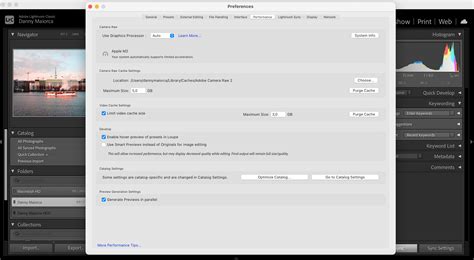
When you close down Lightroom, the software often prompts you to back up your catalog. It is imperative not to ignore this prompt. The user experience shared in the provided text highlights a critical scenario: a hard drive failure where the original catalog was stored, leading to the loss of all edits. While the original photographs might have been safe on another drive, the hours spent meticulously editing were gone. This underscores the immense value of the catalog data, especially for extensive editing sessions or when working with a large volume of images from a single event or shoot.
Catalog Backup Frequency and Strategy
Lightroom Classic offers the ability to schedule regular catalog backups when you exit the software. By default, Lightroom prompts you to back up weekly. However, if you are actively working on a large number of photos daily, a week's worth of potential loss can be significant. The frequency can be adjusted to prompt daily, weekly, monthly, or every time Lightroom exits. This setting can be found in the Edit > Catalog Settings (Windows) or Lightroom > Catalog Settings (Mac) menu, under the General tab, using the "Back up catalog" pop-up. You can also change the location for backups here, and it is strongly recommended that this location be a different physical disk from your main catalog drive to mitigate the risk of a single drive failure wiping out both your catalog and its backup.
How Long to Keep Catalog Backups?
Lightroom compresses backups using ZIP compression to conserve disk space. However, with daily backups, these files can accumulate. Backups are not automatically deleted, meaning you will need to manually manage them. A sensible approach is to keep a few older backups in addition to the most recent ones. Recommendations vary, but a common strategy includes keeping backups from the last year, with at least one per month for the past year. Some users opt for more, such as keeping the last backup of each month for the trailing three months, plus the most recent 4-5 daily or weekly backups. The exact retention period should align with your personal risk tolerance and the amount of work you can afford to lose.
Tier 3: Your Exported Photographs
Once you are satisfied with your edits, the final step in the workflow is exporting your images. This creates new, usable files (like JPEGs or TIFFs) that you can share, print, or use for other purposes. These exported files represent your final, edited creations.
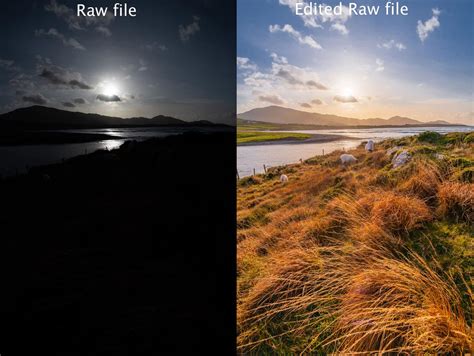
Saving exported photographs to a cloud-based service like Dropbox or Google Drive offers an additional layer of redundancy. This automatically backs up your edited images to both your local hard drive and the cloud provider's servers. Furthermore, cloud storage allows you to access your edited images from any device.
The Importance of Exported File Backups
Even if you've exported your images and consider your editing work complete, it's still important to back up these exported files. There may be instances where you wish to re-edit a photograph or export it with a different crop or adjustment. Without a backup of your exported versions, you might find yourself unable to locate them in your catalog, potentially losing both the edited versions and, in rare cases, even the originals if your catalog becomes corrupted and you haven't backed it up. This was a hard lesson learned by some users, emphasizing the need to back up not only the original photographs and the catalog but also the final exported edited images.
How To Save Photo in Lightroom Classic | Export Settings in Lightroom Classic | Tutorial
Beyond Lightroom: Comprehensive Backup Strategies
While Lightroom's catalog backup feature is essential, it is only one component of a comprehensive backup strategy. Remember that catalog backups do not save copies of your original photographs.
The Three-Tiered System in Practice
A robust backup system can be visualized as a three-tiered approach:
- Tier 1: Original Photographs: Stored on at least two separate hard drives, with one copy kept off-site or in a different physical location.
- Tier 2: Lightroom Catalog: Backed up regularly (daily, weekly, or monthly, depending on your workflow) and stored on a different physical drive than your main catalog.
- Tier 3: Exported Edited Photographs: Saved to a cloud storage service and/or a separate external hard drive.
This multi-layered approach ensures that for every stage of your photography and editing process, there are redundant copies. If one hard drive fails, or if your catalog becomes corrupted, you have multiple points of recovery.
Metadata and XMP Sidecars
For an extra layer of security, especially concerning essential metadata like keywords, ratings, and captions, you can configure Lightroom to write this information back to the image files themselves or to XMP sidecar files. This is often considered a "last resort" backup for metadata. While non-Adobe applications may not interpret Lightroom's specific edit instructions, they can often read metadata embedded in or associated with RAW files (like NEF for Nikon or CR2 for Canon) via XMP files. This ensures that key information is preserved even if your catalog is lost. Some users also opt to export their final images as DNG (Digital Negative) files, which can embed metadata directly, though DNG's compatibility with non-Adobe software can sometimes be less widespread than standard RAW formats with XMP sidecars.
Making Informed Decisions About Backup Frequency
The question of "how often" to back up and "how long" to keep backups is subjective and depends on your individual risk tolerance.
How Often Should I Back Up My Catalog?
- Daily: If you are a professional or an avid hobbyist working on a large volume of images daily, daily backups are highly recommended. This minimizes the potential loss of work.
- Weekly: This is Lightroom's default and a reasonable option for users who don't make extensive edits every single day.
- Monthly: Suitable for very casual users or those who only make minor adjustments infrequently.
- Every Time Lightroom Exits: This provides the most frequent backup without requiring manual intervention beyond acknowledging the prompt.
The key is to consider how much work you can afford to lose if the worst-case scenario occurs.
How Long Should I Keep Backups For?
There's no single definitive answer. Some users keep backups for several months, others for a year or more. A common approach is to keep a tiered history:
- The most recent 4-5 daily/weekly backups.
- One backup from each of the last 3-6 months.
- One backup from each of the last 12 months.
As hard drives become more affordable and offer larger capacities, it becomes increasingly feasible to retain backups for extended periods. The goal is to have enough historical data to recover from significant user errors (like accidentally deleting keywords from thousands of images) or catalog corruption without losing an excessive amount of work.
Testing Catalog Integrity
Lightroom Classic offers a feature to check for catalog corruption before completing a backup. This can be initiated within the backup process itself. Additionally, you can test catalog integrity when opening a catalog. In the General panel of the Preferences dialog box, select "Prompt Me When Starting Lightroom" under "When Starting Up Use This Catalog." Then, when you start Lightroom Classic, you will be prompted to choose a catalog, allowing you to select and test different catalog files.
Starting with later versions of Lightroom Classic (version 14.2 and beyond, released February 2025), users will have enhanced capabilities to view catalog backup data and perform actions on multiple backups simultaneously. This will further streamline the management of your backup archive.
Ultimately, a proactive and multi-faceted approach to backing up your photographs and catalog data is not just good practice; it's an essential safeguard for your creative work. By understanding the different components of your Lightroom workflow and implementing a consistent backup routine, you can ensure that your photographic journey is protected against the unexpected.
tags: #does #lightroom #automatically #save