Photopea stands out in the digital art and photo editing landscape as a remarkably powerful, web-based application. Developed by Ivan Kutskir, it offers a comprehensive suite of tools that rival traditional desktop software, all accessible directly through a web browser. While it may not boast the backing of a billion-dollar corporation, Photopea supports advanced features like artboards, layers, scripts, and smart objects. Furthermore, for those who opt for a premium subscription, Photopea integrates certain AI capabilities, expanding its utility even further. The application is adept at handling both raster and vector graphics, and a wealth of help resources are readily available to users. Despite its impressive feature set, some users might find certain processes to be a bit slower compared to industry-leading software, which is why Adobe Photoshop continues to hold its ground as an Editors' Choice winner for image manipulation due to its state-of-the-art performance and tools.
Pricing: A Generous Free Tier with Premium Enhancements
One of Photopea's most significant advantages is its accessibility, with most of its features available completely free of charge. While advertisements are present on the site, a free account provides users with a respectable half a gigabyte of online storage. For those seeking more advanced functionality, a $5-per-month Premium account unlocks generative AI tools, powered by external services, and increases the online storage allocation to 5GB. This premium tier also eliminates sidebar advertisements and doubles the number of steps available in the history panel, offering a more streamlined and powerful editing experience.
In terms of cost, Photopea's Premium price point is notably lower than its main competitor, Adobe Photoshop. The Premium subscription is approximately one-quarter of the cost of Adobe Photoshop's entry-level plan (starting at $22.99 per month with an annual commitment). However, it's worth noting that Photoshop's subscription includes a substantial 100GB of cloud storage. For users seeking a balance between features and cost, Adobe Photoshop Elements offers a significant portion of Photoshop's core functionality for a one-time fee of $99.99 for a three-year license. Another strong contender in the market is CyberLink PhotoDirector, which includes AI image generation capabilities and a wealth of stock photo content, available for $64.99 per year or a one-time purchase of $99.99.
What's New in Photopea? Continuous Evolution
Despite being developed by a small team, Photopea consistently introduces new capabilities, demonstrating a commitment to staying relevant in the ever-evolving digital editing landscape. Recent updates have significantly enhanced the user experience and expanded the toolset.
Enhanced Gradient Options
The Gradient Fill panel has been expanded with new methods, allowing users to choose from Classic, Linear, Perceptual, Smooth, and Stripes options. This provides greater control and flexibility when creating gradient effects.
Seamless Image Sharing
A new feature allows users to share their work via a web link. This can be used to share either a final image (JPG or PNG) or the original PSD file, facilitating collaboration and feedback.
Improved Memory Usage
Significant improvements have been made to memory management, with RAM usage reduced by 10% to 40%. This is particularly noticeable when utilizing layer styles, leading to a smoother performance, especially on less powerful machines.
Advanced Raw Conversion Adjustments
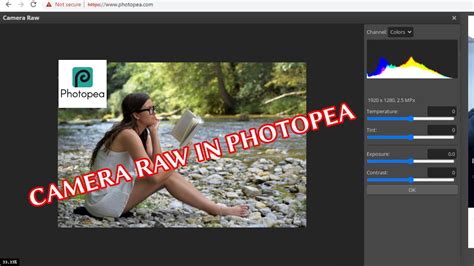
The raw conversion process has been upgraded with more adjustment sliders, bringing it closer to the capabilities found in applications like Lightroom. New options include Clarity, Dehaze, Saturation, Texture, and Vibrance, allowing for more nuanced control over raw image files.
Perspective Warp Tool
The introduction of the Perspective Warp tool offers a powerful new way to manipulate images. Users can now stretch or compress their images by drawing rectangles on them, providing precise control over perspective.
Reduced Color Noise
The "Reduce Color Noise" feature is now available in both the main editing interface and the camera raw file import window. This feature complements existing sliders for Strength and Protect Detail, offering more refined control over noise reduction.
Text Tool Improvements
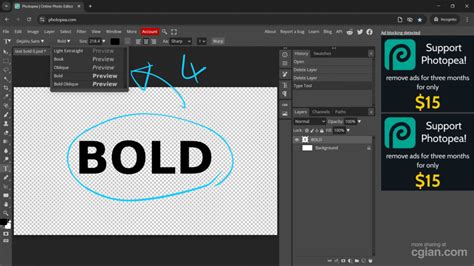
Photopea has enhanced its text capabilities with improved variable fonts support. Variable fonts allow for multiple typographic styles within a single font file, offering greater flexibility in design. Additionally, fonts are now applied to the image as the cursor hovers over typeface choices, and a new Glyphs panel displays a comprehensive range of characters.
Getting Started: Effortless Entry into Editing
As a web app, Photopea requires no installation. Users can begin editing immediately by simply navigating to the Photopea website in their browser. It's important to note that for the full range of features to be available, it is recommended to use a Chromium-based browser. While it can be used in Firefox or Safari, some capabilities might be limited.
To access local files, users need to grant the web app permission to access their photo folders. Alternatively, Photopea can connect to cloud storage services like Dropbox, Google Drive, or OneDrive for seamless access to files. For optimal performance, it's advisable to disable any content blockers that might interfere with the web app's functionality. Dragging and dropping image files directly onto the program window is also supported, mirroring Photoshop's functionality where dropping an image onto an existing one creates a new layer. The inclusion of Smart Objects further enhances workflow by allowing multiple instances of an image to be edited simultaneously by modifying the original.
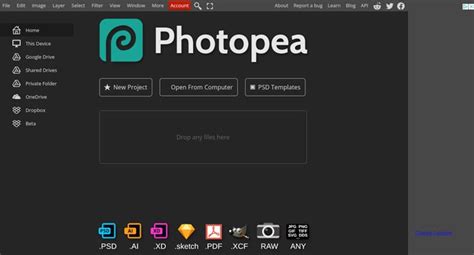
Unlike workflow-centric applications like Lightroom, Photopea lacks a dedicated import option. However, users can access files through the "File > Open More" menu, which offers options to open from local folders, cloud storage, a URL, or even take a picture using the webcam, in addition to pre-existing PSD templates.
Upon opening any image file, Photopea automatically converts it to a PSD format. This behavior is similar to Photoshop, which, while allowing users to open files in their original format, typically saves edited projects with layers in PSD. For users creating new images from scratch, Photopea provides a selection of templates, akin to Photoshop.
Raw Camera File Support: Capable for Many Workflows
Photopea demonstrates a commendable ability to open and display a wide variety of raw camera files, including formats like Canon CR3 and Nikon NEF. However, it's worth noting that some files may occasionally appear corrupted. While it doesn't offer the exhaustive options found in Lightroom or Photoshop for raw file processing-such as color space selection, lens profile corrections, and presets-it does provide essential noise reduction sliders for Color, Protect Detail, and Strength. A recent "Nicer" option has been introduced, which effectively increases brightness and contrast, yielding good results in test shots. As mentioned, the raw import window now includes Clarity, Dehaze, Saturation, Texture, and Vibrance options, which will be familiar to users of Lightroom.
A significant advancement is Photopea's support for up to 32-bit-per-channel color. This capability is crucial for workflows that involve outputting images at higher bit depths, such as TIFFs, bringing Photopea closer to the standards set by applications like Photoshop and Capture One. While 8-bit color is sufficient for web work, higher bit depths are beneficial for high-end photo printing. This move towards higher bit depth support aligns Photopea with recent advancements in professional editing software, which are increasingly accommodating HDR10 monitors. Currently, Photopea supports RGB and CMYK color modes, which should cater to the needs of the vast majority of users. While not a primary recommendation for demanding raw workflows, Photopea can serve as a capable alternative when access to traditional software is limited.
Interface: Intuitive, Familiar, and Feature-Rich
Photopea's editing interface is designed to be highly familiar to users of Adobe Photoshop. It features a left-hand toolbar, which, like Photoshop, utilizes a press-and-hold action to reveal additional tools. Control options are displayed across the top, dynamically changing based on the selected tool. On the right side, users will find panels for brushes, history, layers, properties, swatches, and more. While users have less freedom to reposition panels compared to Photoshop, and some panels may stack below the visible window, all panels can be toggled on and off.
A minor omission is the absence of a dedicated button for viewing images at 100% zoom, often referred to as "actual pixels" or 1:1. However, the menu item "Pixel to Pixel" serves this purpose effectively, and the Ctrl-1 keyboard shortcut provides quick access. Zooming can be achieved by holding Alt and using the mouse wheel, a familiar gesture for Photoshop users. The program offers robust keyboard shortcut support, with many combinations mirroring those in Photoshop, including Ctrl-Z for stepping back through the change history, or direct navigation within the History panel.
While multiple images can be open simultaneously, Photopea does not currently support displaying more than one image window at a time for direct comparison. Users can overcome this limitation by opening additional browser windows to Photopea. For certain tools, an integrated Help button provides guidance, directing users toward the correct usage.
Compared to other free Photoshop alternatives, such as GIMP, Photopea's interface is generally considered more user-friendly and intuitive. While GIMP does offer support for Photoshop plug-ins, Photopea allows users with coding knowledge to build their own custom solutions.
Basic Photo Editing Tools: All the Essentials Covered
The "Image" menu in Photopea provides access to a comprehensive range of standard lighting and color adjustment tools. These include Brightness/Contrast, Curves, Exposure, Hue/Saturation, Levels, and Shadows/Highlights. Additionally, users can find Desaturate, Vibrance, and Replace Color options. For non-destructive editing, adjustments can also be applied through dedicated adjustment layers. The Crop tool is well-implemented and clear, as are the Perspective Crop and Slice tools. For pixel-level edits, Photopea offers Blur, Sharpen, and Smudge capabilities.
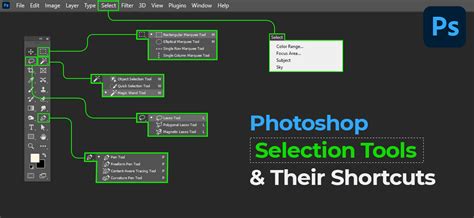
Photopea includes a full suite of selection tools that have been standard in Photoshop for years, such as Ellipse, Lasso, Magic Wand, Magnetic Lasso, and Rectangle. Impressively, it also incorporates more recent, automatic selection tools like Object Selection and Quick Selection. When using these tools, a "Subject Select" button appears in the top toolbar, allowing for rapid selection of the primary subject. The Refine Edge view can be used to perfect selections, though a slight delay might be observed between drawing to add or remove from a selection. The Quick Selection tool allows users to simply click on an object to select it, while Object Selection enables the user to draw a box around the desired area. Both tools performed exceptionally well during testing.
Working With Layers: Comprehensive Blending and Masking
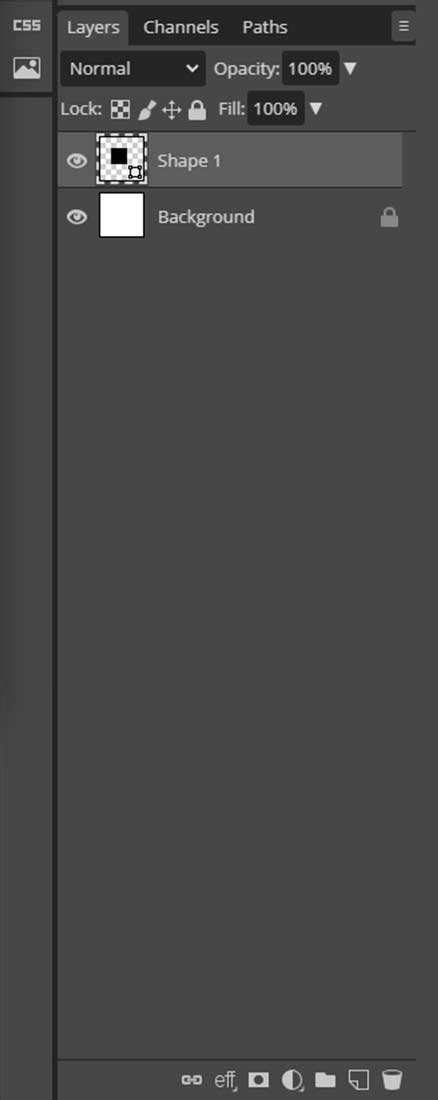
For users accustomed to Photoshop, Photopea offers a remarkably complete layer-based workflow, which is an impressive achievement for a free application. Beyond standard layers with transparency and 27 blending modes, Photopea supports adjustment and mask layers. Layer options include 3D, bevel and emboss, color overlay, drop shadow, gradient overlay, inner shadow, inner glow, satin, and stroke. Users can even define custom layer styles. Photopea includes a good selection of gradients, which benefit from the added support for 16- and 32-bit color depths, though the library is not as extensive as Photoshop's.
Brushes: Functional, with Import Capabilities
While Photopea may not offer the sheer breadth of brushes and brush options found in Photoshop, it provides a solid foundation for most editing tasks. Users might miss advanced features like the Art History and History Brush, but the ability to import custom brushes in the ABR format is a significant advantage. Photopea's brushes support tip dynamics and color dynamics, which introduce randomization to stroke aspects. A Scatter option further enhances the potential for varied brushing results. In addition to the standard brush tool, Photopea includes essential tools like Clone Stamp, Healing, Patch, Pencil, and Spot Healing.
Text Tools: Impressively Flexible and Advanced
Photopea's text tools are another area where the application excels, especially for a free, browser-based editor. It features both Type and Vertical Type tools, with options to present text in an arc. A wide array of royalty-free fonts is available. Beyond standard font styles, users can adjust kerning (referred to as horizontal scaling), ligature, subscript, superscript, and tracking settings. The ability to choose alternate glyphs adds another layer of typographic control. The recent addition of variable fonts support significantly expands the creative possibilities for text design.
Generative AI: A Developing Feature Set
For users who upgrade to Photopea's $5-per-month Premium account, access to generative AI image services becomes available. The Text-to-Image panel, found under "Window > More," allows users to input text prompts, such as "goat riding a bike," to generate images. However, like many current generative AI tools, the results can be inconsistent and may require multiple iterations of the text prompt to achieve satisfactory outcomes. Even advanced AI features in Photoshop are not always perfect without refinement.
Generated images can be directly incorporated onto the canvas by clicking on the result in the panel. In addition to on-demand image generation, Photopea offers a gallery of stock images within the same panel. Various AI plug-ins are also available, further extending the AI capabilities.
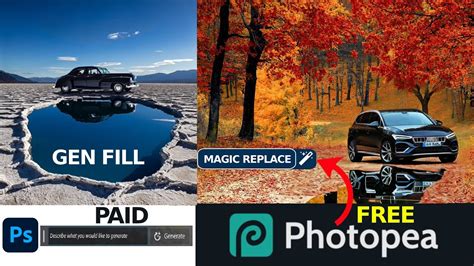
Generative AI also plays a role in the Magic Replace tool, located within the Healing Brush section of the toolbar. This tool functions similarly to text-to-image generation but allows for targeted replacements within an image. For instance, a user could select a hat and replace it with a different color or type of hat by describing the desired change. While the results may not always be highly impressive, the tool can be useful for simpler modifications.
Vector Editing: Beyond the Basics
Photopea is capable of creating and editing both vector graphics and bitmap images. It can even open Adobe Illustrator (.AI) files. Unlike Photoshop, which often flattens AI files to a single layer, Photopea preserves all path layers. The application provides standard path tools, including Curvature Pen, Free Pen, Pen, and Shapes. Furthermore, Photopea can convert raster images to vector images, a function that proved effective even with complex photographic input during testing. Users can specify the number of colors and choose between "Cartoon" and "Photo" treatments. For basic vector editing needs, Photopea is a viable option. However, for more advanced vector work, Adobe Illustrator remains the preferred choice.
Outputting Your Work: Extensive Format Support, Limited Printing
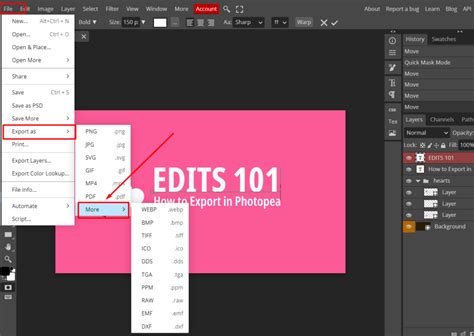
Photopea supports a broad spectrum of file formats for exporting creations. The default export format is PSD, but the "Export As" menu provides access to common formats such as BMP, GIF, JPG, PDF, PNG, SVG, TIFF, and WEBP, as well as less common ones like DDS and PPM. Notably, Photopea does not include direct printing capabilities. Selecting "Print" from the menu redirects users to a "Save for web" dialog box with PDF as the output format.
Compatibility with Photoshop Files: Seamless Integration
Photopea demonstrates excellent compatibility with Photoshop files. It had no issues opening various PSD files, retaining all layers and opening them with surprising speed. While advanced AI effects applied in Photoshop might be preserved visually in Photopea, they may not be editable. Conversely, Photopea files can be opened without any trouble in Photoshop.
Potential Drawbacks of Photopea
As a web-based application, a significant consideration with Photopea is the risk of losing work if the browser tab is accidentally closed or the internet connection is interrupted. Another noted downside is that certain operations, such as shadow adjustments, were found to be unexpectedly slow during testing.
For professional photographers and designers, the industry is in a constant state of flux, moving from traditional darkrooms to digital workflows and now embracing AI-assisted post-production. In this evolving landscape, tools like Photopea and Imagen represent different approaches to image manipulation. Photopea, a web-based editor, mirrors the functionality of traditional desktop software, focusing on manual image manipulation. It's ideal for detailed edits on individual images, such as background removal, text addition, or compositing. Its strength lies in offering granular control through manual input.
In contrast, Imagen is a comprehensive AI-powered post-production solution designed as a desktop application that integrates with Adobe's suite of tools. Imagen goes beyond simple editing by analyzing a user's previous edits to create a "Personal AI Profile," which is then applied to new photos, automating much of the post-production pipeline. This approach prioritizes speed, consistency, and volume, incorporating AI Culling and Cloud Storage into a unified ecosystem.
The core philosophy of Photopea is manual control, where the user selects tools and applies effects with precision. This offers granular control but can be time-consuming, especially for batch editing. Imagen, on the other hand, champions efficiency and consistency by leveraging AI to make editing decisions, aiming to get users 95% of the way there, with final tweaks made manually. The AI learns from these adjustments, continuously refining the user's personal style.
Culling and Organization
Photopea lacks a dedicated culling module, requiring users to open and review files one by one, which is impractical for large volumes of images. Imagen features an AI Culling Studio that groups similar photos and allows users to set culling strictness or even cull to an exact number, significantly streamlining the selection process.
Image Editing and Adjustments
In Photopea, standard adjustment tools like Curves, Levels, and Hue/Saturation require manual slider adjustments for each image. Imagen automates these processes, analyzing image content to apply appropriate edits based on the user's AI Profile. This includes AI-powered local adjustments, such as automatic subject masking and skin smoothing, which are crucial for portrait and wedding photographers.
Workflow Integration and Automation
Photopea operates in isolation, which is suitable for single-image editing but creates bottlenecks for batch processing. Imagen is designed for seamless integration, automating tasks like HDR merging and perspective correction, particularly beneficial for real estate photographers. Its workflow is designed to be non-disruptive, processing metadata efficiently without moving large RAW files.
User Interface and Learning Curve
Photopea's interface, while familiar to Photoshop users, can be dense with icons and menus. Imagen, by contrast, is designed for ease of use, with a straightforward installation and profile creation process. Users can leverage pre-made "Talent AI Profiles" or create their own based on existing Lightroom catalogs.
Performance and Accessibility
Being a web app, Photopea's performance is dependent on the browser and internet connection. Large files can lead to lag, and browser crashes pose a risk of work loss. Imagen, as a native desktop app, is optimized for performance, processing photos at high speeds. It handles heavy lifting in the cloud while efficiently managing data locally. Its non-destructive editing approach preserves original RAW files.
Cost and Value Proposition
Photopea offers a generous free tier, with a paid subscription for enhanced features. Imagen, while not free, offers a trial and a cost-per-photo editing model that can provide significant ROI for professional photographers by drastically reducing editing time, allowing them to take on more clients or dedicate time to other aspects of their business.
Personalization and Consistency
Photopea offers static actions and scripts, which can be less effective for varying image conditions. Imagen's core feature is its Personal AI Profile, which learns and evolves with the user's editing style, ensuring consistent results across large batches of photos.
Batch Processing Capabilities
Photopea's batch processing capabilities are limited and can be clunky. Imagen excels at volume, designed to handle thousands of photos with consistency, making it ideal for school and sports photography.
Data Management and Security
Photopea does not store user photos, placing the responsibility for backups on the user. Imagen uses industry-standard encryption and security protocols, ensuring data safety.
In essence, comparing Photopea and Imagen is akin to comparing a precise scalpel to a high-speed robotic assembly line. Photopea is an impressive feat of web engineering, bringing powerful pixel-level editing to the browser. Imagen, however, represents a workflow revolution for professional photographers, addressing the critical pain points of image volume and processing time. For those aiming to grow their business, deliver galleries faster, and maintain a consistent style without sacrificing personal time, Imagen offers a compelling solution.
Nano Banana vs Photoshop: A Fair Comparison
Frequently Asked Questions About Photopea and AI Editing
1. Is Imagen a web-based app like Photopea?No, Imagen is a desktop application that must be installed on a computer (Mac or Windows).
2. Can I use Imagen for free?Imagen offers a trial that includes 1,000 free AI edits, allowing users to test its full capabilities, including Personal AI Profiles and AI tools.
3. Does Imagen replace the need for Photoshop?Not entirely. Imagen replaces manual batch editing in Lightroom. For heavy retouching or complex compositing on specific images, Photoshop (or Photopea) may still be necessary.
4. How does Imagen learn my style?Imagen analyzes previously edited photos by uploading Lightroom catalogs. The AI identifies patterns in the "Before" and "After" states to understand user preferences for exposure, color, and tone.
5. Can Photopea batch edit photos like Imagen?No, Photopea is primarily designed for single-image editing.
6. Does Imagen work with RAW files?Yes, Imagen is built to handle RAW files. It edits the metadata of RAW files, preserving the full dynamic range and quality of the image without re-rendering pixels.
7. What is the "Straighten" tool in Imagen?The "Straighten" tool uses AI to analyze the horizon and vertical lines in a photo, automatically rotating the image to ensure a perfectly level horizon. This is a significant time-saver for all photographers.
8. Can I cull my photos in Photopea?Culling in Photopea is very difficult due to the lack of a comparison view, rating system, or library module.
9. What happens if I lose my internet connection?Photopea requires an internet connection to load but can work offline once loaded (until the tab is closed). Imagen requires an internet connection to upload project data and download edits.
10. Is my data safe with Imagen?Yes, Imagen employs industry-standard encryption and security protocols to ensure data safety.
11. Can Imagen smooth skin automatically?Yes, the "Smooth Skin" AI tool in Imagen automatically detects faces and applies a smoothing effect to the skin, balancing texture and smoothness for a professional look.
12. Does Imagen work with my existing presets?Yes, existing presets can be used as a base for a Lite Personal AI Profile.
13. How fast is Imagen?Imagen is exceptionally fast, editing photos at an average speed of under 0.5 seconds per photo. It is possible to edit an entire wedding gallery in a very short amount of time.
Photopea (pronounced FOH-tə-PEE) is a web-based photo and graphics editor developed by Ivan Kutskir. It is utilized for image editing, creating illustrations, web design, and converting between different image formats. Photopea operates as free, advertising-supported software, offering a premium ad-free subscription for individuals and teams, as well as a corporate-focused, self-hostable version of the application. It is compatible with all modern web browsers, including Opera, Edge, Chrome, and Firefox. The app handles both raster and vector graphics, supporting Photoshop's PSD format, as well as JPEG, PNG, DNG, GIF, SVG, PDF, and other image file formats. Photopea provides various image editing tools, including a spot healing brush, a clone stamp healing brush, and a patch tool. It offers cloud storage for project files through a feature known as PeaDrive. Free users receive 500 MB of storage, while premium subscribers are allocated 5 GB. Photopea also offers AI features such as background removal, image replacement, and image generation, utilizing models like Stable Diffusion. Free users can access AI features once per day, while premium subscribers receive 3,000 AI credits per month. The ad-free premium subscription is available for individual users and teams of up to 50 users. Organizations requiring more extensive premium access can opt for a self-hosted version of Photopea for a fee.
The subscription service removes all advertisements from the application, allows the editor to occupy the full width of the user's screen, increases PeaDrive storage from 500 MB to 5 GB, doubles the edit history length, and provides additional AI credits. Photopea can be self-hosted, but this service incurs a monthly fee, ranging from $500 to $2,000, depending on the program's usage.
Using Photopea on the Render Network enables seamless editing of AI generations. Through any of the Render Network image outputs, users can find a pencil icon to access Photopea's advanced editing software. This feature allows for subtle or significant enhancements to AI-generated images. Users can even cycle through their image outputs while working within Photopea, facilitating a fluid editing process.