For many digital artists, Procreate is the undisputed champion of drawing applications. Its intuitive interface, robust brush engine, and seamless integration with the Apple Pencil have made it a favorite for creating illustrations on the iPad. However, Procreate's exclusivity to Apple devices leaves a significant portion of the creative community, particularly Windows users, seeking comparable functionality. Fortunately, the landscape of digital art software for Windows is rich and diverse, offering a plethora of powerful alternatives that can rival, and in some aspects even surpass, Procreate's capabilities. This article delves into the best Procreate alternatives for Windows, exploring their unique strengths, and also examines innovative solutions for bridging the gap between iPad and Windows for a more expansive creative workflow.
The All-Encompassing Choice: Adobe Fresco
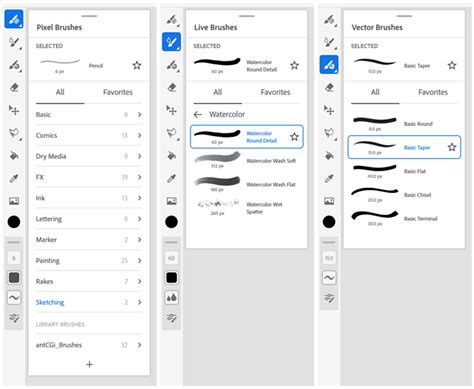
When seeking a direct and powerful alternative to Procreate on Windows, Adobe Fresco stands out as a top contender. Launched in 2019, Fresco has been a personal favorite, offering a compelling blend of features that cater to both beginners and seasoned professionals. One of its most significant advantages is its accessibility; Fresco is entirely free to use, eliminating the subscription barriers that often accompany professional creative software.
Fresco's drawing experience is remarkably intuitive, mirroring the fluid feel of traditional media. The pencil brush strokes, for instance, react with such believability that it’s easy to forget you're working on a digital canvas. This realism extends to its live brushes, which simulate the behavior of traditional tools like watercolors with astonishing accuracy. Users can adjust parameters like the water-to-paint ratio to achieve precise watercolor effects, building upon each stroke to create dynamic and natural-looking artwork. This level of control and fidelity is a hallmark of Fresco, allowing artists to translate their vision into digital form with exceptional precision.
A key differentiator for Adobe Fresco, and a significant advantage over Procreate, is its ability to handle both raster and vector layers within a single document. This hybrid approach offers unparalleled flexibility. Artists can begin with a sketch using pixel-based brushes and then refine it with crisp, scalable vector lines. This is particularly beneficial for creating comic book-style artwork, where sharp lines are essential and can be scaled infinitely without loss of quality. Adobe continuously updates Fresco, promising an ever-expanding toolkit that keeps the software at the forefront of digital art innovation.
Crucially, the premium features and brushes that once required a subscription are now completely free, making Fresco an even more attractive proposition. This democratizes access to advanced tools, empowering a wider range of artists to explore their creativity without financial constraints.
The Professional Standard: Adobe Photoshop
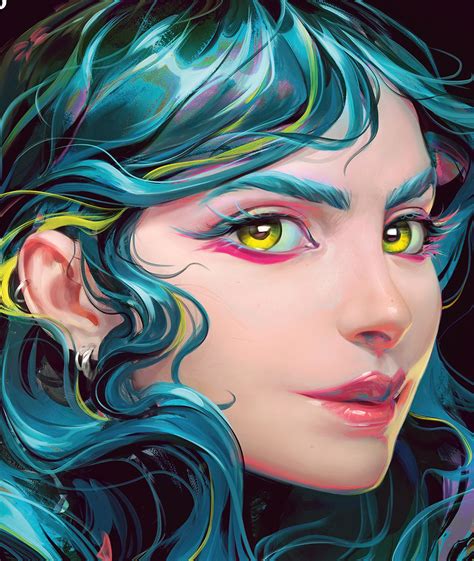
For those who require an even more comprehensive suite of tools and have aspirations for professional-level output, Adobe Photoshop remains an industry-leading alternative. While often associated with photo editing, Photoshop is also an exceptionally powerful drawing program, favored by professional artists for its vast capabilities and deep control over the creative process.
Photoshop boasts an extensive library of brushes, sophisticated layer management options, and a wide array of selection and shape tools, providing artists with virtually everything they need to realize complex projects. Its widespread adoption in the industry means there's an enormous ecosystem of plugins and extensions available, further enhancing its functionality. For instance, AI-powered plugins can assist with generating images from text prompts, and Adobe's own Firefly AI can be integrated for similar creative exploration.
However, Photoshop's sheer power can be a double-edged sword. For beginners, the program can be incredibly daunting, often requiring dedicated courses to fully grasp its intricacies. The extensive photo-editing features, while powerful, might be perceived as unnecessary by artists whose primary focus is drawing. Yet, for those willing to invest the time to master its diverse tools, Photoshop offers the potential to add unparalleled depth and sophisticated effects to their artwork. The abundance of online tutorials and educational resources ensures that learning Photoshop, while challenging, is an accessible endeavor for dedicated artists.
The primary drawback for many users considering Photoshop is its subscription-based model. While the cost of entry is spread over time, it represents an ongoing commitment that may not suit all budgets.
Mastering Vector Graphics: Adobe Illustrator
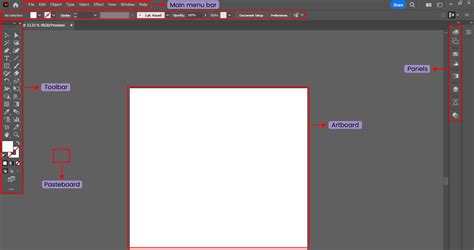
While Procreate and Photoshop primarily operate within the realm of raster graphics (pixel-based images), Adobe Illustrator is the industry standard for vector graphics. Vector graphics are resolution-independent, meaning they can be scaled to any size without any loss of quality, making them ideal for logos, icons, and designs that need to be reproduced at various dimensions.
Illustrator, while a companion to Photoshop, offers a distinct workflow centered around mathematical paths rather than pixels. This makes it particularly well-suited for precise line work and graphic design elements. While it can import raster files, its core strength lies in creating sharp, scalable vector art.
Compared to Photoshop, Illustrator is often considered slightly easier to learn, especially for those new to vector-based design. Like its sibling applications, a wealth of free online tutorials are available to guide new users. For true mastery, formal instruction might be beneficial. Illustrator excels in typography, offering a vast selection of fonts and extensive tools for manipulating text. It also provides efficient methods for creating patterns and applying various effects to selected layers. Adobe's Creative Cloud subscription grants access to a massive library of assets, including fonts and images, further enriching the design possibilities.
The significant hurdle for many potential Illustrator users is its subscription requirement. There is no one-time purchase option, and the monthly fee can be a deterrent for hobbyists or those with tighter budgets.
A Niche Powerhouse for Comics and Manga: Clip Studio Paint Pro
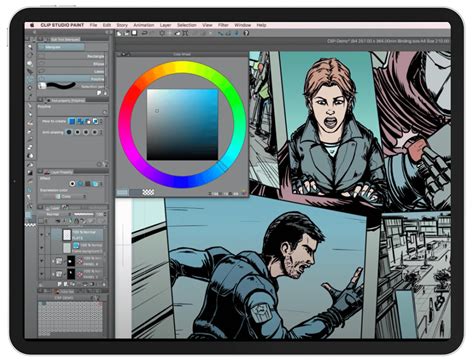
For artists who specialize in comic books, manga, or sequential art, Clip Studio Paint Pro emerges as a standout Procreate alternative, offering specialized tools that Procreate lacks. One of its most significant advantages is its extensive library of 3D assets. These models can be imported into a document and posed to create realistic or stylized figures, which artists can then draw over on separate layers. This is invaluable for accurately depicting complex poses, hand gestures, and body positioning, saving considerable time and effort.
Beyond static 3D models, Clip Studio Paint Pro also features AI-powered finger scanning. This innovative tool allows users to capture finger positioning from a camera and transfer it onto a 3D figure, further streamlining the process of creating accurate hand poses.
The software's interface shares similarities with Photoshop, making it relatively easy for users familiar with professional drawing applications to adapt. However, Clip Studio Paint Pro also offers robust 2D animation features and supports both vector and raster brushes, providing a versatile toolkit for a wide range of artistic needs.
What makes Clip Studio Paint Pro particularly compelling is its pricing structure. It's available as a one-time purchase, offering incredible value for its extensive feature set, especially when compared to subscription-based alternatives. This makes it an exceptionally attractive option for comic and manga creators looking for professional-grade tools without ongoing costs.
The One-Time Purchase Powerhouses: Affinity Photo 2 and Affinity Designer 2
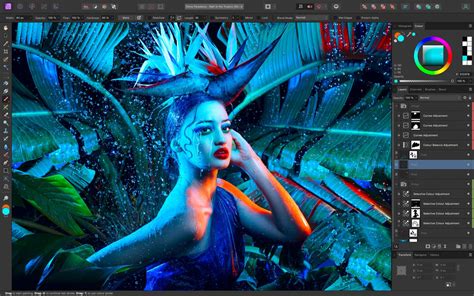
Serif's Affinity suite offers a compelling alternative for artists seeking professional-grade software without the commitment of a subscription. Affinity Photo 2 is positioned as a direct competitor to Adobe Photoshop, providing a comprehensive array of photo editing and digital drawing tools. It empowers artists to create artwork with a high degree of control, offering features that rival Photoshop's.
The pressure sensitivity on compatible Windows devices with styluses is excellent, allowing for nuanced brush strokes. Affinity Photo 2 handles large files efficiently and applies effects quickly, provided the user's Windows device has sufficient processing power. The software includes a vast brush library with diverse textures and thicknesses, adding depth to drawings. Its layer system is intuitive, and it includes masking features similar to those found in Photoshop, simplifying complex editing tasks. For users already familiar with Photoshop's layout, transitioning to Affinity Photo 2 is generally a smooth experience, though beginners may require some time to become fully acquainted with its capabilities.
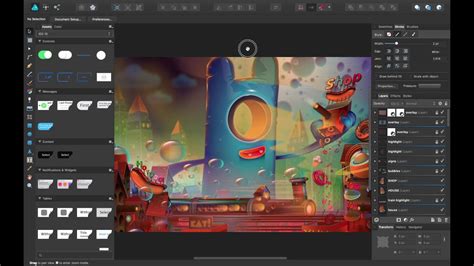
Complementing Affinity Photo 2 is Affinity Designer 2, a vector graphics program that directly challenges Adobe Illustrator. For artists focused on creating vector-based projects, Affinity Designer 2 is an excellent choice, especially for those who are hesitant about Illustrator's subscription model. It offers powerful vector tools that are highly comparable to Illustrator's, all available through a single, one-time purchase.
A free trial allows users to explore its features before committing. The fixed price point of $70 is remarkably competitive in the vector graphics software market. Affinity Designer 2 provides a wealth of layer effects and a familiar layout for those experienced with industry-standard design software, making it easy for graphic design veterans to adopt. It includes numerous fonts and effects for creating unique designs, and its Shape Builder Tool simplifies the creation of complex shapes by combining or subtracting segments. This makes it efficient for producing distinct logos, icons, and other graphical assets. While not as ubiquitous as Adobe's offerings, Affinity Designer 2 has a growing and dedicated user base.
The Open-Source Champion: Krita
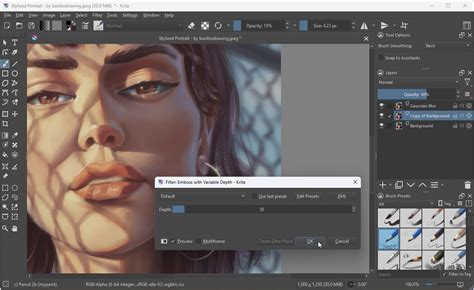
Krita is a remarkable open-source drawing and 2D animation program that serves as an excellent Procreate alternative for Windows users, regardless of their experience level. Despite being free, Krita doesn't compromise on features, offering a robust set of tools for digital artists. Its interface is relatively easy to navigate for those already familiar with drawing software, and a large, active user community provides ample resources for learning and support.
Krita boasts a vast library of brushes, and its layer management is straightforward and efficient. Whether aiming for a realistic aesthetic or a stylized, cartoony look, Krita's presets and customization options can help artists achieve their desired outcome. The program also includes basic 2D animation tools, allowing users to incorporate movement into their artwork.
While Krita is a powerful free option, some users note that certain tools and interface elements may not feel as polished as those in commercial software like Procreate or Photoshop. Additionally, updates, while generally beneficial, can occasionally introduce bugs or temporary issues that require resolution. Nevertheless, for a free, feature-rich drawing application, Krita is an outstanding choice.
Bridging the Gap: Utilizing DeskIn for iPad-to-Windows Workflows
While the aforementioned applications offer excellent native Procreate alternatives on Windows, some artists may still wish to leverage the unique capabilities of Procreate itself, perhaps due to existing familiarity or specific features. The good news is that while Procreate is not available for Windows, tools exist to effectively bridge the gap, allowing for a powerful integrated workflow.
DeskIn is a software solution that enables users to mirror their iPad screen onto a Windows PC wirelessly. This means that while the operations are performed on the iPad using Procreate, the visuals are displayed on a larger Windows screen, offering a more expansive view of the artwork. This feature is invaluable for catching finer details that might be missed on a smaller iPad display. It transforms the iPad into the artist's input device, with the Windows screen acting as a high-resolution canvas or gallery.
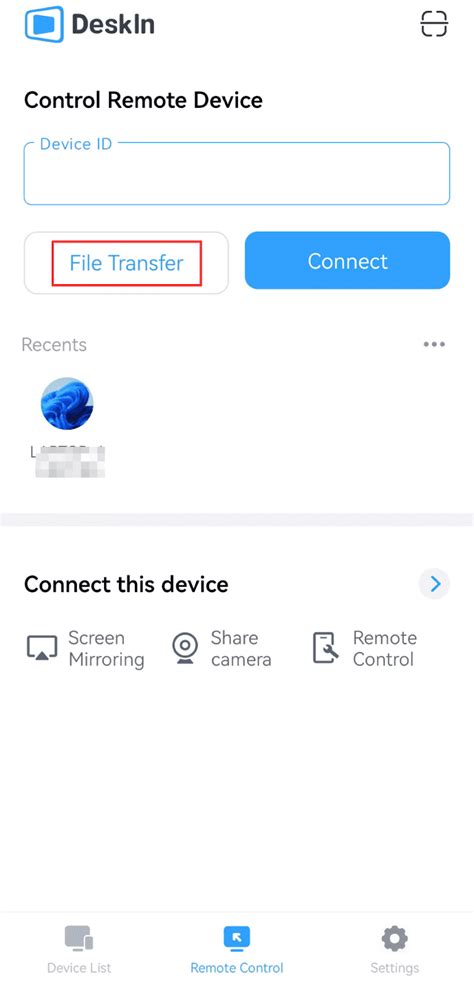
DeskIn's core features are free to use, eliminating subscription costs. It supports wireless, cross-regional projection with remarkably low latency (under 40ms), ensuring that brush strokes appear on screen almost instantaneously. The visuals are displayed in crystal-clear quality, up to 2K resolution at 60 frames per second, preserving the vibrancy of colors and textures. The setup is straightforward: install DeskIn on both devices, log in with the same account, and then use the iPad app to scan a QR code displayed on the PC. This instantly mirrors the iPad's screen, allowing Procreate to be used with the larger Windows display.
DeskIn Remote Desktop lets you play PC Games on your Mobile Device! (iPad, iPhone, Android, Mac)
Beyond mirroring, DeskIn offers an "Extend Screen" feature, effectively turning the iPad into a second monitor for the Windows PC. This is immensely useful for artists who need additional space for reference images, color palettes, tutorials, or inspiration boards, without cluttering their primary workspace. This portable dual-screen setup can significantly enhance productivity and creative flow.
Furthermore, DeskIn provides remote access capabilities, allowing users to control their Windows PC from their iPad, even when away from their desk. This means accessing files, launching applications, or making minor edits to projects stored on the PC, all from the convenience of the iPad. This is particularly handy for traveling artists or those who need to access their work remotely.
DeskIn's compatibility extends beyond just iPad and Windows, supporting a wide range of operating systems and devices, making it a truly universal creative tool. Its emphasis on pressure-sensitive stylus input, high-resolution visuals, and seamless cross-platform integration makes it an ideal solution for artists looking to enhance their workflow.
Transitioning Your Workflow and Brushes
Migrating from Procreate to a Windows-based drawing application doesn't necessitate a complete overhaul of artistic habits. Several practical steps can ensure a smooth transition.
1. File Migration: A crucial first step is exporting Procreate files into universal formats like PSD (Photoshop Document). This preserves layers, adjustments, and other critical data, allowing for seamless continuation of work in alternative applications.
2. Recreating Brushes: Replicating Procreate’s beloved brushes in new software can be a key to maintaining a familiar feel. For applications like Krita and Clip Studio Paint, if .abr (Photoshop brush) files are supported, they can often be imported directly. Alternatively, users can manually adjust settings such as pressure taper, texture grain, and stabilization within the new software to mimic Procreate’s brush dynamics. Matching parameters like "Hardness" and "Spacing" can help replicate Procreate's organic feel. For specialized software like Rebelle 7, instead of attempting to replicate Procreate brushes, artists might find it more rewarding to explore the unique watercolor bleed and oil mixing effects it offers, potentially leading to new stylistic discoveries.
3. Adapting to Shortcuts and Workflow: Moving to a desktop environment often involves adapting to keyboard shortcuts and mouse inputs, which differ from Procreate's touch-centric gestures. Learning and assigning custom shortcuts for frequently used actions, such as canvas rotation or brush size adjustment, can significantly speed up the workflow. For instance, assigning "Rotate Canvas" to a shortcut key in Clip Studio Paint, or using "Ctrl+Alt+Scroll" for smooth zooming in Krita, can help maintain a fluid creative process. Embracing these changes allows artists to leverage the multitasking capabilities and larger screen real estate often associated with Windows pen displays.
The Hardware Advantage: Pen Displays for Enhanced Creativity
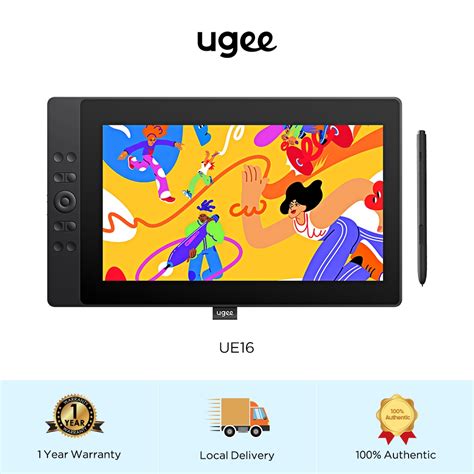
For artists transitioning from an iPad to a Windows environment, a large pen display can be a transformative upgrade. These devices offer a spacious drawing surface and the ability to run multiple applications simultaneously, which is invaluable for referencing materials while working on a project. The larger surface area also provides a more comfortable drawing experience, allowing artists to rest their hands naturally during extended creative sessions.
The Ugee UE16 is a noteworthy example of a budget-friendly pen display that bridges the gap between cost and professional functionality. Its 15.6-inch screen offers ample space for detailed work and efficient multitasking. The display boasts vibrant colors with 143% sRGB coverage and 8-bit color depth for smooth gradients, supporting various color profiles like sRGB, Adobe RGB, and DCI-P3. The fully laminated display minimizes parallax, ensuring precise pen input.
A standout feature of the Ugee UE16 is its 16K pressure sensitivity, which surpasses the typical 8K found on many tablets. This heightened sensitivity allows the U-pencil to detect even the faintest strokes, closely mimicking the nuance of traditional pencils, brushes, or charcoal. This level of detail translates to a more refined and accurate drawing experience compared to many other styluses.
Ergonomically, the UE16 includes an adjustable stand that offers 10 different angles, reducing wrist strain during long drawing sessions. Its slim profile (0.3 inches thick) also makes it portable. Customizable shortcuts, both on the tablet itself (eight programmable keys) and on the screen (sixteen programmable shortcuts), allow artists to map frequently used actions, further streamlining their workflow and replicating the gesture-driven efficiency of Procreate.
Final Recommendations for Different User Groups
For Students: Pairing Krita with the Ugee UE16 pen display offers an exceptionally cost-effective yet powerful solution. Krita's extensive features, combined with the UE16's high-pressure sensitivity and customizable shortcuts, provide a seamless and accessible transition for students moving from Procreate or starting their digital art journey on Windows.
For Hobbyists or Animation Workers: For those with more advanced needs, combining Clip Studio Paint or Adobe Fresco with the Ugee UE16 is an excellent choice. These premium tools, when utilized with the UE16's precise input and ergonomic design, can significantly elevate the digital drawing and animation experience. Clip Studio Paint, in particular, is ideal for comic and animation work, while Fresco offers a versatile blend of raster and vector capabilities.
Ultimately, while Procreate remains an iPad exclusive, the Windows ecosystem offers a rich and diverse array of alternatives and complementary technologies. Whether opting for a powerful native application like Adobe Fresco, a specialized tool like Clip Studio Paint, or leveraging innovative solutions like DeskIn to integrate an iPad into a Windows workflow, artists have more options than ever to create, refine, and share their digital art on the Windows platform.