Adobe InDesign, a powerhouse for editorial design, is frequently the chosen tool for crafting sophisticated presentation files. Its prowess in handling and formatting text, coupled with its excellent reference management and layout fidelity when incorporating images or graphs, makes it ideal for creating academic PDFs and visually rich documents. However, the ubiquitous nature of Microsoft PowerPoint for presentations means that users often face the challenge of converting their meticulously designed InDesign files into editable PPTX formats. This article delves into the various methods and considerations for exporting InDesign presentations to PowerPoint, ensuring minimal disruption to your workflow and design integrity.
The Direct Export Conundrum: Why InDesign to PowerPoint Isn't a One-Click Solution
A common query among designers is whether an InDesign file can be directly exported to PowerPoint. The straightforward answer is no; Adobe InDesign does not offer a native, direct export option to PowerPoint format. This means that to achieve the desired conversion, intermediary steps and tools are necessary. The process inherently involves converting the content through other formats, such as PDF, or utilizing specialized third-party solutions. While some layout elements can be preserved, complex designs, specific font treatments, and interactive features may not translate seamlessly, often requiring post-conversion adjustments.
Method 1: The PDF Workflow - Leveraging Adobe Acrobat Pro
One of the most accessible methods for converting InDesign to PowerPoint involves using a PDF editor, with Adobe Acrobat Pro being a prime example, especially if you are already within the Adobe Creative Cloud ecosystem. This approach is particularly useful for users who may only need to perform this conversion occasionally and can leverage free trial periods for software.
Step 1: Exporting from InDesign to PDF
The initial step in this workflow is to export your InDesign document into a PDF format.
- Open your InDesign file: Launch the InDesign project you wish to convert.
- Navigate to Export: Go to
File > Export. - Select PDF Format: Choose
Adobe PDF (Interactive)as the export format. WhileAdobe PDF (Print)can also be used, the interactive option is often better suited for presentation-like content. - Configure Export Settings: A dialog box will appear allowing you to tweak export options. For most cases, the default settings are sufficient. Simply click
Export.
This generates a PDF version of your InDesign presentation. The fidelity of this PDF is crucial for the subsequent conversion step.
Step 2: Converting PDF to PowerPoint with Adobe Acrobat Pro
Once you have your PDF file, the next stage involves converting it into a PowerPoint presentation using Adobe Acrobat Pro.
- Open the PDF in Acrobat Pro: Launch Adobe Acrobat Pro and open the PDF file you just exported from InDesign.
- Initiate Export: Go to
File > Export To > Microsoft PowerPoint Presentation. - Select Export Format: Ensure that
Microsoft PowerPoint Presentationis selected as the export format. - Review Options (Optional): Acrobat Pro offers limited options at this stage. It is generally advised to proceed with the default settings unless you encounter specific text recognition issues. These options should be fine as they are for most users.
- Save the Presentation: Click
Save. Acrobat Pro will then process the PDF and convert it into an editable PowerPoint file. This conversion typically takes only a few seconds.
The resulting PowerPoint file should be largely editable. However, it's important to note that anchor points for shapes not originally created within PowerPoint might present limitations for modification. This method is effective for presentations with a substantial amount of text, embedded graphics, and references that originated in InDesign.
Step 3: Post-Conversion Tweaking and Refinement
After the conversion, the generated PowerPoint file will likely require some degree of refinement. The success of the conversion is directly proportional to the complexity of the original InDesign design.
- Layout Alignment: Ensure that different elements are correctly aligned on each slide.
- Color Accuracy: Verify that colors have been exported as intended. PowerPoint handles color profiles differently than InDesign (e.g., CMYK vs. RGB), which can lead to discrepancies. For print-requiring projects, it is always recommended to perform printing directly from InDesign.
- Font Consistency: Check that fonts have been rendered correctly. If the specific fonts used in InDesign are not available on the system running PowerPoint, they may be substituted, leading to a distorted appearance.
- Element Verification: Compare the converted PowerPoint slides against your original InDesign document to guarantee that all elements are present and positioned as desired.
If significant adjustments are needed, professional presentation design services can be a valuable resource for cleaning up and optimizing converted slides.
Method 2: Utilizing Specialized Plug-ins - The ID2Office Solution
For users who frequently need to convert InDesign files to PowerPoint or other Office formats, specialized plug-ins offer a more streamlined and integrated solution. Recosoft Corporation's ID2Office is a prominent example, designed to automate the conversion process directly within Adobe InDesign.
Introducing ID2Office: Direct Conversion Power
ID2Office is a powerful automation tool developed by Recosoft Corporation that converts Adobe InDesign files directly into Microsoft Word, PowerPoint, and Apple Keynote formats. The latest version, ID2Office 2026, supports Adobe InDesign 2026 and offers numerous enhancements for exporting InDesign content to Office and Keynote formats. It also includes compatibility updates for macOS 26 and Windows 11, ensuring smooth operation on the latest operating systems.
Paramjit Chadha, MD of Recosoft Corporation, states, “ID2Office 2026 remains the only solution that accurately and efficiently exports InDesign 2026 content to widely used Office formats - instantly and effortlessly.”
How ID2Office Works
ID2Office converts InDesign documents into Microsoft Word, PowerPoint, and Apple Keynote files while meticulously preserving text, paragraph styles, character styles, tables, graphics, and overall layout fidelity. This capability empowers designers and business users to repurpose InDesign content effortlessly for Office workflows and presentations, effectively bridging the gap between creative design and business productivity.
The process with ID2Office is remarkably simple:
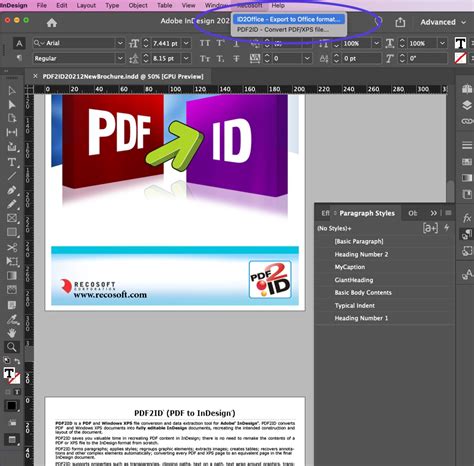
- Access the Command: Within InDesign, navigate to the Recosoft menu and select the
ID2Office - Export to Office formatscommand. - Set Export Type: Choose your desired export format, which can be Word, PowerPoint, or Keynote, and click
OK. - One-Click Export: Your InDesign file is then exported in just a few seconds, with tables, text, graphics, and images remaining editable and properly structured.
ID2Office converts and exports InDesign (.indd) files to .docx, .pptx, and .key formats. It aims to convert all text, fonts, style sheets, paragraph structure, frame linking information, tables, graphics, footnotes, end-notes, and other InDesign elements to their corresponding Word, PowerPoint, and Keynote equivalents. Every page in the InDesign document is exported to an equivalent page in the resulting Office or Keynote file. ID2Office analyzes the layout and specific details of the InDesign document during the conversion to maintain the layout in the output file.
Key Features and Benefits of ID2Office
- Support for Latest InDesign Versions: ID2Office 2026 is compatible with InDesign 2026, while also supporting InDesign CC 2023 through 2025.
- Multiple InDesign Installations: For macOS users, ID2Office can now be installed simultaneously against multiple versions of InDesign.
- Enhanced Conversion Fidelity: The latest version incorporates improvements for greater accuracy in layout and text rendering, ensuring enhanced visual consistency across Office and Keynote exports.
- Direct Conversion: Eliminates the need for intermediate file formats like PDF, streamlining the workflow.
- Editable Output: Preserves the editability of text, graphics, and other elements in the converted files.
- Security: All conversions are processed locally on your computer, ensuring the privacy and security of your content.
- Language Support: Includes support for Chinese, Korean, Japanese, Hebrew, and Arabic languages.
- Seamless Integration: Integrates directly with Adobe InDesign, requiring no additional software installations beyond the plug-in itself.
ID2Office is available through annual subscription plans, with ID2Office Standard 2026 (macOS/Windows) priced at US$229.00 and ID2Office Professional 2026 (macOS only) at US$279.00.
System Requirements for ID2Office
To ensure compatibility and smooth operation, ID2Office has specific system requirements:
- macOS:
- Operating System: macOS 13.x or higher
- Hardware: Apple Silicon or Intel-based Mac
- Application: InDesign 2023 - 2026
- Windows:
- Operating System: Windows 10/Windows 11
- Hardware: Intel/AMD (equivalent) core i3 or higher CPU machine
- Application: InDesign 2023 - 2026
Common Errors and Troubleshooting
When converting files between formats, encountering errors is not uncommon.
- "The specified file could not be written to. It may be in use" Error: If you encounter this error, particularly when exporting from Acrobat, try saving the exported file to a different folder. This often resolves the issue, suggesting a potential file access or permissions problem.
Considerations for Font and Design Fidelity
A significant challenge in converting from InDesign to PowerPoint is maintaining font consistency and overall design fidelity.
Font Issues
The user in the initial query experienced complete font changes despite having the fonts downloaded and available across all platforms on their computer. This highlights a common pitfall. PowerPoint may not always recognize or correctly render fonts that are managed by InDesign or Adobe Fonts.
- Font Embedding: While InDesign offers robust font embedding options for PDFs, PowerPoint's font handling can be less sophisticated.
- Font Substitution: If a font is not available on the system opening the PowerPoint file, it will be substituted, leading to changes in text appearance, spacing, and layout.
- Adobe Fonts: Fonts accessed through Adobe Fonts can sometimes pose compatibility issues when transferred to applications outside the Adobe Creative Cloud ecosystem.
To mitigate font issues:
- Use Standard Fonts: Whenever possible, design with fonts that are widely available and standard across different operating systems and applications (e.g., Arial, Times New Roman, Calibri).
- Outline Text: As a last resort, you can outline text in InDesign before exporting to PDF. This converts text into vector shapes, preserving its appearance but rendering it uneditable as text in PowerPoint. This is generally not recommended if text editability is a priority.
- Install Fonts: Ensure that the exact fonts used in InDesign are installed on the computer where the PowerPoint presentation will be viewed or edited.
Design Elements
- Condensed Font Styles and Opacity: For better results when converting via Adobe Acrobat, it is advisable to avoid using condensed font styles and advanced options like opacity. These can sometimes be misinterpreted during the conversion process.
- Interactive Features: Interactive elements created in InDesign, such as buttons, hyperlinks, or animations, will generally not transfer directly to PowerPoint. These will need to be recreated manually within PowerPoint using its native tools.
- Color Profiles: As mentioned, color profiles (CMYK vs. RGB) can cause colors to appear differently. For precise color matching, especially for print, it’s best to manage color within InDesign itself.
InDesign: How to Send Files to PowerPoint and Keep Editability (Video Tutorial)
Recosoft Corporation: A Pioneer in Workflow Automation
Recosoft Corporation has established itself as a leader in developing solutions that enhance workflow automation and productivity for creative professionals. Their suite of tools includes:
- PDF2Office®: A de-facto utility for converting PDF files to Excel, Word, PowerPoint, and OmniGraffle.
- PDF2Office® for iWork: Converts PDF files to Keynote, Numbers, and Pages.
- IR2Office: The only tool for converting Adobe Illustrator to PowerPoint and Apple Keynote.
- ID2Office: The InDesign-to-Word, InDesign-to-PowerPoint converter discussed extensively here.
- PDF2ID®: A leading tool for converting PDF files to InDesign.
The company's expertise lies in designing and delivering PDF converters and InDesign and Illustrator software solutions that significantly improve workflow automation and user productivity.
Alternative Approaches and Considerations
Copying and Pasting Elements
While technically possible, copying and pasting individual elements (text frames, images) from InDesign to PowerPoint is a highly time-consuming and labor-intensive method. It would require exporting text and images separately and then manually positioning them on each slide in PowerPoint, defeating the purpose of efficient conversion. This approach is only practical for very simple, single-slide layouts or for very few elements.
"Convert to Alternate Layout" in InDesign
InDesign offers a "Convert to Alternate Layout" feature, which allows users to change page dimensions within the same document. This can be used to create a layout that matches PowerPoint's slide dimensions. Subsequently, you can export this alternate layout as a PDF and then convert that PDF to PowerPoint using Acrobat Pro. This method can offer more control over how content adapts to new dimensions, with options to scale or adapt it. However, it still relies on the PDF conversion step for the final output to PowerPoint.
Conclusion: Choosing the Right Path for Your InDesign to PowerPoint Conversion
Converting an InDesign presentation to PowerPoint is achievable, but it’s rarely a seamless, direct process. The choice between using a PDF editor like Adobe Acrobat Pro and a dedicated plug-in like ID2Office often depends on the frequency of conversion, the complexity of the design, and the desired level of automation and fidelity.
For occasional conversions, the PDF workflow via Adobe Acrobat Pro is a viable and cost-effective solution, provided you have access to the software. For professionals who regularly need to repurpose InDesign content for PowerPoint, ID2Office offers a more integrated, efficient, and accurate solution, directly addressing the challenges of maintaining layout and editability. Regardless of the method chosen, a degree of post-conversion tweaking is usually necessary to ensure the final PowerPoint presentation meets your expectations and maintains the integrity of your original design.
tags: #export #from #indesign #to #powerpoint