The digital landscape of image formats is constantly evolving, with new technologies emerging to offer enhanced compression, superior quality, and greater flexibility. Among these, WebP has gained significant traction, particularly due to its impressive compression capabilities developed by Google. However, the widespread compatibility of older formats like JPG means that conversion remains a crucial process for many users. This article delves into the world of WebP to JPG conversion, exploring the functionalities of online tools like ezgif.com and the underlying principles of these image formats.
Understanding WebP and JPG: A Tale of Two Formats
Before diving into the conversion process, it's essential to understand the fundamental differences between WebP and JPG.
JPG (Joint Photographic Experts Group) is a universally recognized image format. It employs a lossy compression algorithm, which means it discards some image data to achieve smaller file sizes. This considerable compression is the primary reason for its widespread adoption. Almost all image-viewer programs and applications recognize and can open JPG files. Simply double-clicking a JPG file will usually result in its opening in your default image viewer, image editor, or web browser. JPG files open automatically on popular web browsers such as Chrome, Microsoft applications such as Microsoft Photos, and Mac OS applications such as Apple Preview. The compression algorithm for JPG allows users to find the perfect balance between file size and visual fidelity. While JPG excels at compressing photographs and graphics, it notably does not support transparency. When a WebP file with transparency is converted to JPG, you can choose a background color to replace transparent areas.
WebP, on the other hand, is a modern image format developed by Google. It supports both lossy and lossless compression, offering significant advantages in terms of file size reduction without a noticeable sacrifice in visual quality. In many cases, WebP files are typically 25-35% smaller than equivalent JPEG images at the same visual quality. This efficiency makes WebP an attractive option for web developers aiming to optimize website loading times. WebP also boasts support for transparency, a feature that JPG lacks. This means that when converting from WebP to PNG, transparency is preserved exactly in the converted PNG file.
The Need for Conversion: Bridging the Compatibility Gap
Despite the advantages of WebP, the ubiquitous nature of JPG means that conversion is often necessary. Many older devices, software applications, and even some web platforms may not fully support WebP. Therefore, converting WebP images to JPG ensures broader compatibility and accessibility. This is where online conversion tools come into play, offering a convenient and accessible solution.
Exploring Online Conversion Tools: Focus on ezgif.com
Online platforms dedicated to image and animation editing have become invaluable resources for users needing quick and efficient file format transformations. ezgif.com is a prime example of such a platform, offering a suite of tools for creating, editing, and converting various animation and image formats, including GIF, APNG, WebP, MNG, and AVIF.
Among its extensive offerings, ezgif.com provides a dedicated Free Online JPG to WebP converter and, crucially for this discussion, a WebP to JPG converter. These tools are designed for speed, security, and ease of use.
Key Features of ezgif.com's WebP to JPG Converter:
- Free and Unlimited Conversions: Users can convert as many images as they need without encountering restrictions or charges. This is particularly beneficial for individuals or businesses dealing with large volumes of images.
- Drag-and-Drop Functionality: The interface allows for effortless uploading of files by simply dragging them into the designated upload area. This streamlines the user experience, making it quick and intuitive to get started.
- URL Upload Support: For even greater convenience, the tool supports converting images directly from a web address. This eliminates the need to download files before conversion.
- Generous Size Limit: A substantial 200MB size limit per file ensures that users can handle even large image files without issue.
- No Watermarks: ezgif.com provides clean, professional results with no branding or watermarks added to the converted images. This is essential for maintaining the integrity and aesthetic of the original image.
- Secure and Private: The platform prioritizes user privacy. Files are encrypted during transfer and are automatically deleted after processing, typically within an hour. This ensures that sensitive images remain protected.
How to Convert WebP to JPG Using ezgif.com
The process of converting WebP to JPG using ezgif.com is remarkably straightforward:
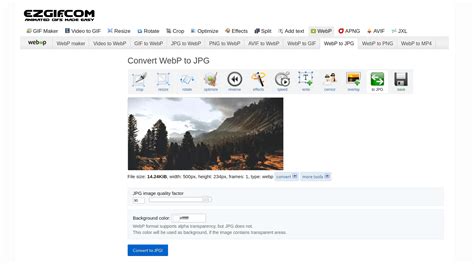
- Upload Your WebP File: Navigate to the WebP to JPG converter tool on ezgif.com. You can either click the "Choose File" button to select a file from your device or drag and drop your WebP image directly into the upload area. Alternatively, you can paste a direct URL of the WebP image.
- Initiate Conversion: Once the file is uploaded, click the "Convert to JPG!" button. The tool will then process your WebP file and generate the corresponding JPG image.
- Download Your JPG File: After the conversion is complete, you will be presented with the option to download your newly created JPG file. You can save it to your device for immediate use.
This process allows for a quick turnaround, enabling users to obtain a JPG version of their WebP image in a matter of moments.
Beyond Basic Conversion: Advanced Features on ezgif.com
ezgif.com's utility extends far beyond simple format conversion. The platform continuously updates its tools, demonstrating a commitment to providing comprehensive image and animation manipulation capabilities. Recent updates highlight this dedication:
- Edge Cleanup for Background Removal: An "edge cleanup" option has been added to background removal and effects tools. This feature is designed to remove fuzzy, semi-transparent, or distorted color pixels that can remain along the edges after a color is replaced with transparency. The result is cleaner, sharper edges in the final image.
- New Video Tools: The introduction of new video tools expands the platform's versatility. These include:
- Video Filters: For adjusting brightness, contrast, saturation, and applying effects like grayscale, sepia, blur, and sharpen.
- Video to WebM Converter: This tool allows for the conversion of any video to the open WebM format, utilizing VP9/Opus codecs.
- Video Screenshot Tool: This enables users to capture a single frame from a video as a JPG or PNG image, providing a simple way to extract specific moments from video content.
- Animated SVG to GIF Converter: A new tool allows for the conversion of static SVG images into animated GIF or APNG formats. Users can define animation duration, frame delay, and loop count, offering creative control over animated graphics.
- Improved Output Quality and Encoder Selection: For WebP/APNG/AVIF/JXL to GIF converters, there's been an improvement in output quality, along with the addition of encoder selection options. This gives users more control over the conversion process and the final visual outcome.
- "Remember Settings" Checkbox: To enhance user convenience, a "Remember settings" checkbox has been added to several tools. When enabled, this option saves selected options even if users switch between tools or upload new files. This is especially helpful for processing multiple similar files efficiently. The settings are stored in a browser cookie and can be cleared by unchecking the box.
- Autocrop for Animated Formats: The crop tool now supports autocrop (trimming transparent areas) for APNG, WebP, and AVIF files. Previously, this functionality was exclusive to GIFs.
- Aspect Ratio Tool: A new aspect ratio tool has been introduced for cropping, stretching, or padding videos to fit specific aspect ratios. Additionally, video to GIF/WebP/APNG/AVIF converters now support changing aspect ratios and automatically cropping black bars from videos, further refining video-to-animation conversions.
- Improved GIF Maker Performance: Performance has been enhanced for the GIF maker when working with a large number of frames, ensuring smoother operation.
- Overlay Tool Enhancements: The overlay tool now supports overlaying an animated GIF on top of another animated GIF or a static image, expanding its creative possibilities. Previously, it was limited to static images as overlays.
- Animated GIF Analyzer: A new tool allows for the inspection of the internal structure of animated GIF images. It provides detailed information about the file, including dimensions, file size, total frame count, loop count, and the global color table (palette). It also offers frame-by-frame details such as frame dimensions, x/y offsets, duration, and disposal method.
Making a GIF with EZGif com
Why Convert JPG to WebP? (And the Reverse)
While this article focuses on WebP to JPG conversion, it's worth noting the advantages of converting in the opposite direction. As mentioned, the WebP format offers superior compression, leading to smaller file sizes without compromising quality. This is invaluable for web optimization. The Free Online JPG to WebP converter on ezgif.com allows users to leverage these benefits. By converting JPGs to WebP, website owners can reduce bandwidth usage and improve page load speeds, leading to a better user experience. The tool also offers a JPG quality slider, allowing users to find the perfect balance between file size and visual fidelity when converting JPG to WebP.
Frequently Asked Questions About WebP and Conversion
What is the WebP image format?WebP is an image format developed by Google that provides both lossy and lossless compression. It aims to deliver smaller file sizes than traditional formats like JPEG and PNG while maintaining comparable visual quality.
What is the difference between WebP and PNG?WebP is a modern format that offers both lossy and lossless compression with generally smaller file sizes compared to PNG. PNG, on the other hand, is a lossless raster format with universal support, meaning it preserves every pixel without compression artifacts. While WebP can be lossless, PNG is inherently lossless and is often preferred for its universal compatibility and suitability for editing workflows where repeated saving can degrade quality in lossy formats.
Does the WebP to PNG conversion preserve transparency?Yes, when converting WebP to PNG using tools like ezgif.com's converter, transparency is preserved exactly in the converted PNG file. This is a critical feature for images that require transparent backgrounds.
Is the conversion process free?Yes, online tools like those offered by ezgif.com are typically free to use. They often come with no watermarks, no signup requirements, and no conversion limits, making them accessible to everyone.
The ability to seamlessly convert between image formats like WebP and JPG is a testament to the evolution of digital imaging and the development of user-friendly online tools. Platforms like ezgif.com play a vital role in bridging the gap between modern, efficient formats and the established standards that ensure broad accessibility, empowering users to manage and utilize their visual assets effectively.