In the dynamic world of digital content creation, understanding and manipulating video aspect ratios is a fundamental skill. When creating videos for different social media platforms, altering the aspect ratio is essential to increasing productivity. Specific dimensions are preferred by each platform; YouTube favors widescreen videos, while Instagram favors square videos. This guide will delve into why aspect ratios matter, how they influence viewer experience, and provide detailed tutorials on how to adjust them using both professional software like Adobe Premiere Pro and more accessible alternatives like Wondershare Filmora.
The Importance of Aspect Ratio in Visual Storytelling
The aspect ratio is the magic formula behind the shape of your image or video. It's expressed as two numbers separated by a colon, like 16:9, 3:2, or 4:3. Every aspect ratio size has a different resolution, and the aspect ratio determines how your video appears in front of an audience. What happens if you use the wrong aspect ratio? Your content might not fit the screen properly. You could end up with black bars on the sides or top, or some important parts of the image might get cut off, leading to a distorted or unprofessional look. The solution to this problem is to change the video aspect ratio. Mastering the aspect ratios of videos is the way to go to get great content. The best aspect ratios differ on different platforms. If you pick the right one, you can be assured that your videos will come out best.
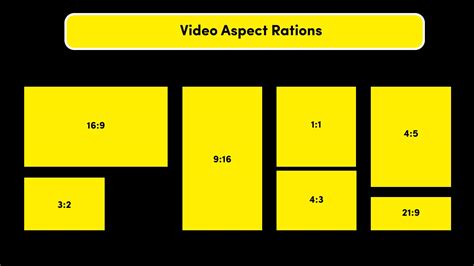
Understanding Common Aspect Ratios
Different platforms have preferred aspect ratios, each offering a distinct viewing experience.
- Widescreen Ratio (16:9): This is the most popular standard size of screen that is usually used in movies, documentaries, and internet videos. It's perfect for audiences that need a broad view with much detail. This is YouTube's most common aspect ratio. It's big-screen, cinematic, and allows the audience to feel like they're in a theater.
- Vertical Ratio (9:16): This offers a vertical screen view to users and is very famous and used on mobile phones. This fits into the natural way of holding a phone. This vertical format dominates on platforms like TikTok and Instagram Stories.
- Square Ratio (1:1): This is often favored by platforms like Instagram for its feed posts, offering a balanced view that works well on both desktop and mobile. Many people think of doing 1:1 (1080x1080) so it's more social media friendly and also doesn't look as tight as a vertical shot.
- Standard Ratio (4:3): This ratio used to be the standard for old TVs. Many early television shows and videos were in this ratio. While less common for new content, it's still relevant for archival footage or specific artistic choices.
- Cinematic Ratio (21:9): This ratio is often used to give a theater-like experience. It's very wide, so one feels the immersion. This aspect ratio is great for epic movies and gaming.
Now, you have an idea of what the different video aspect ratios are used on multiple platforms.
Changing Aspect Ratio in Adobe Premiere Pro
Many people pick Adobe Premiere Pro to edit videos because it has powerful tools and lets you fine-tune aspect ratios. However, some find Premiere Pro hard to use and also get confused about how to change aspect ratio in Premiere Pro. Modifying the aspect ratio with the right resolution is a little challenging for newbies.
Method 1: Creating a New Sequence with Specific Dimensions
This method involves setting the aspect ratio from the outset of your project.
- Step 1: Create a new sequence. Go to File > New > Sequence.
- Step 2: Go to settings. In the Sequence Settings window, you can manually adjust the Frame Size by entering your desired width and height (e.g., 1080 pixels wide by 1920 pixels high for a 9:16 vertical video). You can also choose from presets if available.
Method 2: Editing an Existing Sequence
If you already have a sequence and need to change its aspect ratio, you can edit it.
- Step 2: Edit the sequence. Right-click on the sequence in the Project panel and select "Sequence Settings." From here, you can modify the frame size as described in Method 1.
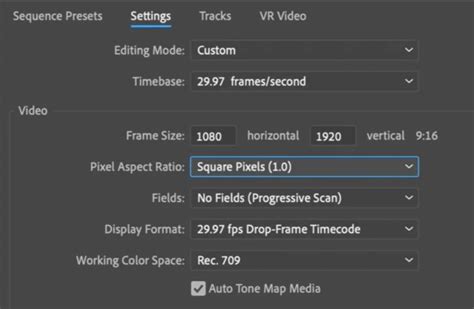
Even though Premiere Pro offers lots of advanced features to users, it looks very challenging for a newbie. On the other hand, Premiere Pro is also an expensive professional video editing program. To change the aspect ratio, Premiere Pro provides a multitude of options, but its complexity can be a barrier for beginners.
Wondershare Filmora: A User-Friendly Alternative
For those who find Premiere Pro daunting, Wondershare Filmora offers an easier and more intuitive way to edit videos and adjust aspect ratios. Let's introduce you to the most user-friendly and trusted video editor for beginners, Wondershare Filmora. It is one of the best alternatives to the complex video editor Premiere Pro. For the beginner or novice who is looking for simple and AI-based advanced editing features, Wondershare Filmora is the perfect choice for them. The best thing about Wondershare Filmora is its accessibility to Windows, Mac, iOS, and Android devices, which offers flexibility to users to edit their videos from anywhere.
Method 1: Utilizing the Auto Reframe Feature (Desktop)
Wondershare Filmora offers advanced AI features like Auto Reframe, which makes it easy to automatically adjust the aspect ratio while maintaining the accurate focus point. Regardless of the aspect ratio, it is helpful to locate and maintain the main action in the video within the frame. Filmora facilitates the process of reformatting a video while preserving its essential components.
- Step 2: Launch Wondershare Filmora on your system. Import your video clip.
- Step 3: Select the Auto Reframe feature. This can usually be found in the editing tools or by right-clicking on the clip.
- Step 4: Choose your desired aspect ratio. Filmora provides presets for common platforms.
- Step 5: You will be taken to a new window upon selecting the Auto Reframe feature. Click "Analyze" or "Run."
- Step 6: The video is now automatically cropped to include autofocus points. Filmora's AI analyzes the footage and intelligently reframes it to keep the main subject in view. You can then preview and make minor manual adjustments if needed. That's how easy it is to use the Auto-Reframe feature in Wondershare Filmora.
Filmora 14 AI Auto Reframe: Resize Videos in Seconds!
Method 2: Setting Aspect Ratio During Project Creation (Desktop)
Users can also easily adjust the screen's aspect ratio while starting any new project.
- Go to File >> New Project >> Choose an aspect ratio.
- Select the respective aspect ratio as per your preference (e.g., 16:9 for YouTube, 9:16 for TikTok).
Method 3: Using Crop and Zoom Features (Desktop)
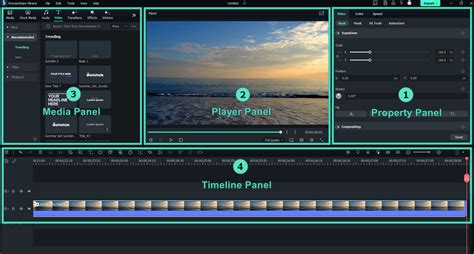
Users can use the crop and zoom features in Filmora to alter the aspect ratio, just like they can in other well-known video editors like Premiere Pro.
- To enable the Crop and Zoom feature in Filmora, simply right-click on the video clip in the timeline.
- Access the Zoom and Crop functions from the Video context menu. Here you get to alter the aspect ratio.
- Choose as per your preference. Make it more appealing with the Zoom feature. Under the crop and zoom feature, switch to the Pan & Zoom feature to manually adjust the framing.
As you can see, Filmora's features are very easy and convenient for newbies. It helps to achieve the right results with accuracy.
Aspect Ratio Adjustments on Mobile Devices
For those who need to change the video aspect ratio on mobile, Filmora offers app versions for iOS and Android.
Filmora Mobile App (iOS and Android)
- Download Filmora on the App Store or Google Play.
- Launch the app and tap on "New Project" to start editing.
- Import your video.
- To crop your video, start by tapping the "Trim" button.
- Then select the "Crop" option.
- Choose the ratio that best fits your needs and adjust the cropping area by moving the marquee.
- To change the project's aspect ratio, you can select "Scale" or "Format" from the toolbar.
Native Mobile Apps
iOS (iMovie):
- Open your project in iMovie.
- Tap on the crop icon in the toolbar at the top of your screen.
- An adjustable frame will appear on the screen. Pinch the screen to resize your video. However, please note that changing the video aspect ratio on iMovie for iOS is really limited. It doesn't offer specific aspect ratio presets like 16:9, 4:3, or 1:1.
Android (Gallery App):
- Launch the default Gallery app on your Android device.
- Open the video you wish to edit.
- Find and tap on the Aspect Ratio button or option.
- You will be presented with several preset ratios like 16:9, 4:3, and 1:1.
- Resize and reposition by pinching the screen with your fingers.
Online Tools for Aspect Ratio Conversion
Online tools can be a convenient solution for changing the aspect ratio of your videos without needing to download software.
- OnlineConverter: This is one such tool that allows you to adjust your video's aspect ratio directly from your web browser.
- Upload your video file.
- Select the Aspect Ratio options from the available settings along with the ratio you desire.
- Start the conversion process and download the re-formatted video.
Choosing the Right Aspect Ratio for Different Platforms
To produce visually stunning content, one must understand which aspect ratio is best for each social media platform. Mastering the right aspect ratio will give your videos a professional look. Each media platform has a best aspect ratio. Matching your video to the right aspect ratio for each social media platform ensures it looks good and engages viewers.
- YouTube: Primarily 16:9 (widescreen) for longer-form content and general viewing.
- Instagram:
- Feed: 1:1 (square) or 4:5 (vertical) are popular.
- Stories/Reels: 9:16 (vertical) is standard.
- TikTok: Exclusively 9:16 (vertical).
- Facebook: Supports various ratios, but 16:9 and 1:1 are common for feed posts, while 9:16 works for Stories.
- Twitter: 16:9 and 1:1 are generally well-received.
Fortunately, Wondershare Filmora supports all aspect ratio sizes, allowing you to achieve more focused results. The right aspect ratio on each platform will make your videos look great and keep viewers engaged.
Conclusion: Balancing Professionalism with Ease of Use
At last, after reading the above points, you have surely understood how to change aspect ratio in Premiere Pro. Surely Premiere Pro is a fantastic and professional tool for video editors. But sometimes the newbies get confused with complex features, and in the end, they get poor results. Beginners and individuals who are going to enhance their video editing skills must prefer user-friendly tools such as Wondershare Filmora.
While it's always a good idea to set your camera's aspect ratio before recording, sometimes you don't realize there is a video dimension issue until after the video is captured. What if the video you've already recorded turns out doesn't fit the platform requirements? Don't worry, though. Nowadays, there are plenty of tools available to help you change the aspect ratio quickly and easily.
Wondershare Filmora is a very powerful video editing software. It is also helpful in adjusting the aspect ratios. Wrong aspect ratios can blur the video footage, stretch it, or distort it, making the video blurred and viewers cannot watch properly. Filmora offers a range of features that make adjusting aspect ratios easy. Filmora ensures your videos are of high quality. Filmora helps you tailor your videos for different platforms. Knowing video aspect ratios will help make your content look exquisite on any platform. Knowing what to use and when will ensure your videos appear clear and engaging. Wondershare Filmora makes adjusting aspect ratios simple and effective. With its easy-to-use tools, you can create professional-looking videos that fit perfectly on any platform.