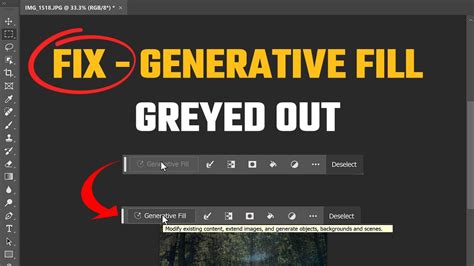
Generative Fill, a groundbreaking feature within Adobe Photoshop, has been met with immense excitement as a direct result of Adobe's pioneering work with its Firefly and Sensei artificial intelligence (AI) technologies. This advanced AI-driven functionality, integrated into recent Photoshop releases, is accessible to all users holding a Creative Cloud subscription. However, a significant number of users have encountered a frustrating obstacle: the Generative Fill feature appearing disabled or greyed out. This article delves into the common causes behind this issue and provides a comprehensive guide to troubleshooting and enabling this powerful tool.
Understanding Generative Fill and its Prerequisites
Generative Fill represents a significant leap forward in image editing, allowing users to generate and insert content into their images based on simple text prompts. This capability is powered by Adobe's sophisticated AI models, which analyze the surrounding image context to create seamless and contextually relevant additions. To harness this power, however, several conditions must be met:
- Supported Photoshop Version: Generative Fill is primarily available in Photoshop (Beta) and Photoshop 2024 and later versions. Early access was granted through the beta program, with wider release in subsequent official versions. Attempting to use it on older versions will result in the feature being unavailable.
- Creative Cloud Subscription: A subscription to Adobe Creative Cloud is a fundamental requirement. This grants access to the latest software updates and cloud-based AI processing.
- Adobe Account Sign-in: Users must be actively signed into their Adobe account within the Creative Cloud desktop application and Photoshop itself. This authentication process is crucial for validating subscription status and enabling cloud-dependent features.
- Internet Connection: Generative Fill relies on cloud-based AI processing through Adobe Firefly. Therefore, a stable and active internet connection is indispensable for the feature to function.
- Image Mode and Bit Depth: The Generative Fill feature is specifically designed to work with images in RGB Color mode and with an 8-bit depth per channel. Files in CMYK, Lab color modes, or those with a 16-bit or 32-bit depth will render the feature inaccessible.
- Active Selection: To initiate Generative Fill, a selection must be active within the image. This is typically achieved using selection tools like the Lasso Tool or Object Selection Tool, defining the area where AI-generated content will be placed.
Diagnosing the "Greyed Out" Phenomenon
When the Generative Fill option is greyed out, it indicates that one or more of these prerequisites are not being met. While the exact cause can vary, common culprits include:
Outdated Software and Version Incompatibility
The most frequent reason for Generative Fill being greyed out is using an older version of Photoshop that does not support this AI functionality. Adobe continuously updates its software, and Generative Fill is a relatively new addition.
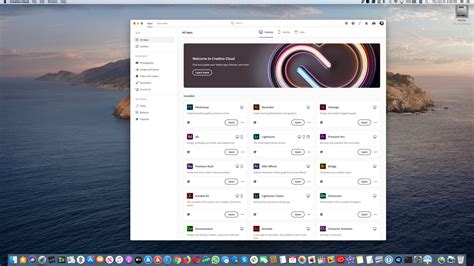
Solution: Ensure you are running the latest version of Photoshop. This can be achieved through the Adobe Creative Cloud desktop application. Navigate to the "Apps" tab, locate Photoshop, and click "Update" if an update is available. For users seeking the earliest access to new features, installing and using Photoshop (Beta) is also a viable option.
Improper Adobe Account Sign-in or Account Type Restrictions
Generative Fill is not universally available across all Adobe account types. Specifically, it is not supported for Adobe Enterprise or School accounts. If you are logged in with such an account, the Generative Fill button will remain inaccessible.
Solution: Verify your Adobe account type. If you are using an enterprise or school-issued account, you will need to sign out and sign in with a personal Adobe ID that is associated with a standard Creative Cloud subscription. This switch ensures that your account is configured for "Personal Use," which is a requirement for accessing Generative Fill.
Incorrect Image Settings (Color Mode or Bit Depth)
The technical specifications of your image file can also prevent Generative Fill from activating. As mentioned, the feature is designed for RGB Color mode and 8-bit images.
Solution: Check and adjust your image settings. Go to Image > Mode in Photoshop. If your image is in CMYK, Lab, or has a different bit depth, convert it to "RGB Color" and "8 Bits/Channel." Be mindful that converting color modes can affect the appearance of your image, so it's advisable to perform this conversion on a duplicate of your file or understand the implications beforehand.
Network Connectivity and Cloud Service Issues
Since Generative Fill relies on Adobe's cloud-based AI, a shaky or non-existent internet connection will render it inoperable. Additionally, temporary issues with Adobe's cloud services can sometimes cause features to become unavailable.
Solution: Confirm your internet connection is stable and active. Try visiting other websites or using other online services to verify connectivity. If your internet is fine, consider logging out of your Adobe Creative Cloud account and then logging back in. Restarting Photoshop after these steps can also resolve temporary glitches.
Regional Availability Limitations
Adobe often rolls out new features in phases, which can sometimes be influenced by regional availability and licensing. While less common, it's possible that Generative Fill has not yet been fully enabled in your specific geographical location.
Solution: While there isn't a direct fix for regional limitations other than waiting for Adobe to expand availability, users can stay informed by checking Adobe's official announcements and forums for updates regarding feature rollout in their region.
The Behance Connection: A Surprising Requirement
One of the more peculiar requirements for enabling Generative Fill, as noted by some users, involves interacting with Adobe's Behance platform. Apparently, users who do not actively use Behance may find Generative Fill disabled until they share certain personal information, specifically their birth month and year, with the social media platform. This requirement has raised privacy concerns for some, especially given Adobe's past data breaches.
Why Behance? Behance serves as a social media platform for creative professionals to showcase their work. Adobe's decision to link Generative Fill access to Behance profiles suggests a strategy to encourage user engagement with its broader ecosystem and potentially gather demographic data.
How to Comply:
- Open your Adobe Creative Cloud desktop app.
- Navigate to the "Apps" tab.
- Scroll down and locate "Behance" on the lower left side.
- Click on Behance. This will likely take you to a screen prompting you to provide your birth month and year.
- Enter the requested information.
- After completing this step, quit Photoshop entirely and then relaunch it.
Upon relaunching, you should find that the Generative Fill feature is now enabled. While this step might feel intrusive, it has proven to be an effective solution for many users experiencing the greyed-out issue.
Photoshop Generative Fill - Your Ultimate Guide To AI
Practical Application: A Real-World Example
Once Generative Fill is enabled, its capabilities can be explored. Consider a scenario where you have a photograph of a truck, but it lacks a driver.
- Open your image in Photoshop.
- Draw a selection around the area you wish to modify, for instance, the front and side windows of the truck.
- Click the Generative Fill button that appears.
- Enter a descriptive prompt, such as "driver inside truck."
- Click "Generate."
Photoshop will then process your request using AI and populate the selected area with a generated image. In this example, the AI might successfully add a driver to the truck. While the results can sometimes be unexpected, as seen with the side mirror in the example, the generated content often exhibits impressive detail, such as realistic shadows on the driver's arm, showcasing the power of the AI.

Exploring Alternatives for Photo Restoration
For users who continue to face persistent issues with Generative Fill or seek alternative solutions, particularly for restoring old or damaged photos, specialized AI tools offer a compelling option. Picwand AI Restoration, for example, is a web-based service designed for effortless photo enhancement.
Key Advantages of Picwand AI Restoration:
- Accessibility: Being entirely online, it requires no software installation and is accessible from any web browser.
- Simplicity: The process is highly intuitive, involving a simple drag-and-drop interface. Users do not need prior editing experience.
- Speed: AI-powered restoration typically takes mere seconds.
- Comprehensive Restoration: It can effectively fix overexposed, hazy, or damaged photographs, recovering fine details, improving color tones, and enhancing sharpness.
How to Use Picwand AI Restoration:
- Navigate to the Picwand AI Restoration website.
- Upload your image by dragging and dropping it or using the upload button.
- The AI will automatically process and restore the photo within seconds. An option to "Colorize" may also be available for black-and-white images.
- Compare the original and restored images side-by-side.
- Download the enhanced photograph.
This user-friendly alternative provides a straightforward way to breathe new life into cherished memories without the technical hurdles that can sometimes accompany advanced software features.
Frequently Asked Questions about Generative Fill Issues
What should I do if Generative Fill is blocked out?Ensure you have an active selection made with a tool like the Lasso or Marquee tool, as Generative Fill only appears when an area is selected. Also, confirm you are using a supported version of Photoshop (Beta or 2024+) and are signed into your Adobe account. If these conditions are met, try restarting Photoshop and checking for any available updates.
Does Generative Fill require an internet connection?Yes, Generative Fill relies on Adobe's cloud-based AI services (Adobe Firefly) for processing. Therefore, an active internet connection is necessary to use the feature.
Can reinstalling Photoshop resolve Generative Fill problems?In some cases, a clean reinstallation of Photoshop can resolve persistent software glitches. However, it's often more effective to first ensure you are on the latest version, logged in correctly, and have the correct image settings. If the issue persists after these steps, reinstalling might be a next resort.
Why does the Generate button disappear when I select an area?This typically indicates that a required condition for Generative Fill is not being met. Double-check your internet connection, ensure you are signed into your Adobe account, and verify that your image is in RGB Color mode and 8-bit depth.
What if I'm signed into Photoshop on too many computers?Adobe typically allows users to be simultaneously signed into Photoshop on a maximum of two computers. If you are signed in on more than two, you will need to manually sign out of one or more of those devices through your Adobe account management portal to enable features like Generative Fill.
Conclusion
The Generative Fill feature in Adobe Photoshop is a powerful testament to the advancements in AI-driven creative tools. While encountering a greyed-out option can be a significant roadblock, understanding the underlying causesâfrom software versions and account configurations to image settings and network connectivityâis key to a swift resolution. By systematically addressing these potential issues and, if necessary, engaging with auxiliary Adobe services like Behance, users can unlock the full potential of Generative Fill. For those seeking simpler or alternative solutions, especially for photo restoration, dedicated AI tools offer accessible and effective pathways to enhance and preserve digital memories. The journey with AI in creative software is continuously evolving, and troubleshooting these features empowers users to stay at the forefront of digital artistry.
tags: #generative #fill #photoshop #greyed #out